
This guide will take you step by step through the process of listing your products on Temu from your Store or Catalog using M2E Multichannel Connect.
💡 If you need to list products with variations on Temu, please refer to this guide.
Step 1. Access your Temu listings #
Start by navigating to the Listings tab within M2E Multichannel Connect. Select your Temu account, then click List on Temu in the top right corner to begin adding new items.

Step 2. Configure product settings #
Before listing, configure the necessary Policies that will control pricing, inventory, and synchronization between your Store or Catalog and Temu.
Policies are reusable templates: once saved, a policy can be assigned to any future Temu listing.

- Selling Policy – Adjusts pricing and quantity settings for Temu listings.
- Synchronization Policy – Defines how product details, inventory, and pricing sync between your store and Temu.
- Description Policy – Defines how your product titles and descriptions will be displayed on Temu.
- Shipping Template – Sets your preferred shipping methods. If you’ve already created templates in Temu Seller Central, they’ll appear automatically in the list. Otherwise, click + Create New to set up a new template in M2E.
💡 For more details on setting up these policies, refer to the M2E documentation.
Once configured, click Next to proceed.
Step 3. Select products to list #
Now, choose the products from your Store or Catalog that you want to list on Temu.
The product grid opens in the Ready to List view, which includes products without a Temu listing yet that meet basic requirements, such as available stock and a valid price.
Use search and filters to find items by title, SKU, store attributes, category, or other parameters. To return to the same selection later, save the filters as a custom view. The Batch tool lets you gather products from different filter results and pages into one list.

✅ For your first Temu listing, select a few products to check your policies, category, and attribute settings. When these products are published without errors, list the rest of your catalog on Temu with the same settings.
Once you've made your selections, click Next.
Step 4. Assign a Temu category #
Temu requires products to be categorized correctly. You need to decide how you want to assign Temu categories to your products.
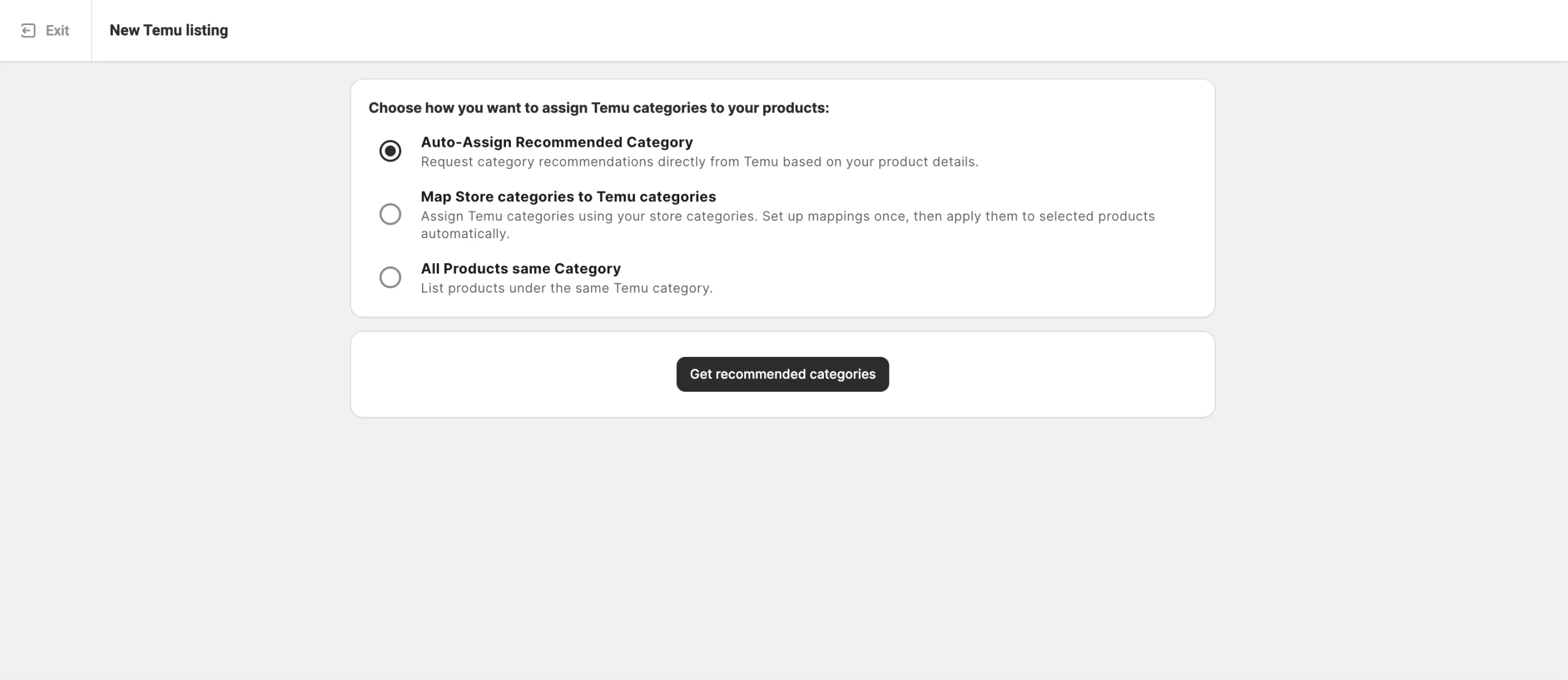
1) Auto-Assign Recommended Category – Ask Temu to suggest a category based on your product details.
Click Get recommended categories to receive the suggestion. When it appears in the purple category box, review it carefully and then:
- Click Confirm to approve the suggested category, or
- Click Change to edit it and select another category manually.

2) Map Store categories to Temu categories – Use your existing store categories to assign Temu categories automatically.
Click Get mapped categories to set up the mappings once and reuse them for future listings. To learn more, refer to the guide.

3) All Products same Category – Manually assign one Temu category to all products in the current batch.

✅ This method works especially well when your selected products share the same Store category. It allows you to assign one Temu category to the entire batch.
Step 5. Define product attributes #
Temu uses category attributes to describe your products and display them in search results and filters.
You need to fill in two types of Temu category attributes:
- Required attributes must have values before the listing can be published on Temu.
- Recommended attributes are optional, but Temu uses them in search filters. Filling them in makes your products easier to find.

To complete this step, choose how you want to assign attribute values:
- Temu’s predefined options – Select values from Temu’s built-in lists.
- Existing Store attributes – Pull data from your connected Store or Catalog (recommended if your items already include these details).
ℹ️ A required attribute without a value blocks the listing. Before you continue, confirm that every product in the batch has data in the source you selected.
Saved attributes for future Temu listings. M2E automates your attribute setup in two ways:
- Category Policy – After your first listing in a Temu category, the attribute values and their sources are stored as a Category Policy. Select it when you list other products in that category, and the attributes will be prefilled.
- Global attribute mapping – If an attribute takes its value from Store or Catalog data, M2E can offer to save it as a global mapping. Once you confirm it, the same data source will be used for that attribute in any other Temu category.
Learn how Category Policies and attribute mappings work.
✅ When your store doesn't have the data a Temu attribute needs, add it as a custom attribute in M2E Catalog. M2E sends the value to Temu, while your e-commerce platform keeps its original product data.
Once you've set the attributes, confirm your selections.
Step 6. Publish products on Temu #
After finalizing all settings, click List Now to submit your products for Temu’s approval.

If you’re not ready to publish immediately, choose Save as Draft. Drafted listings stay in M2E and aren't sent to Temu.
To publish them later, open the Temu Listings page, filter items by the Draft status. Then, select the products and click Manage Items > List from the mass actions menu.
ℹ️ Important notes:
- Products with Draft or Hidden status in your Store won't sync to Temu.
- Listings saved as Draft won't appear on Temu until you publish them.
Step 7. Verify listing data #
The M2E Listing Validator Assistant will review your listings before they’re submitted to Temu. Products that meet Temu’s requirements are sent for approval automatically. If any information is missing or doesn't follow Temu’s rules, the product is held back, and the Validation Summary shows how many products require attention.
Click Review issues to open the Resolution Guide.
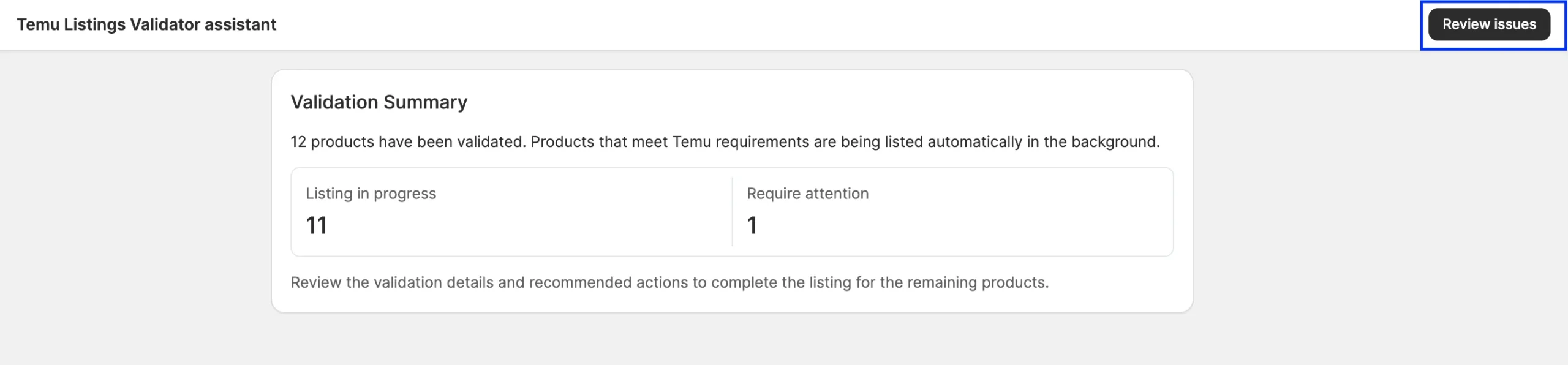
Issues are grouped by the setting they relate to. Next to each issue, click the Fix button and select how to resolve it.

You can resolve all issues immediately and click List Now to publish your products on Temu.

If some issues can't be fixed right away, click Save As Incomplete. M2E keeps the products in the app without sending them to Temu.
Later, filter the Temu Listings page by the Incomplete status, select the products, and click Manage Items > List. The Validator Assistant reopens with the remaining issues, which you can resolve the same way as before.

💡 See the helpful tips on how to resolve common Temu listing errors.
Need help? #
If you run into issues when creating Temu listings, feel free to contact customer support for assistance.


