
M2E Description Policy allows you to manage product descriptions, titles, and condition details for your eBay listings. It enables you to customize product descriptions and titles for different product groups while ensuring compliance with eBay’s requirements.
💡 Check out step-by-step instructions on how to create and access M2E Description Policies.
Below, you can explore the key steps to configure an eBay Description Policy in M2E Multichannel Connect.
Step 1. Define general information #
Start by naming your Description Policy. Assign descriptive titles to differentiate policies based on their purpose or product group.
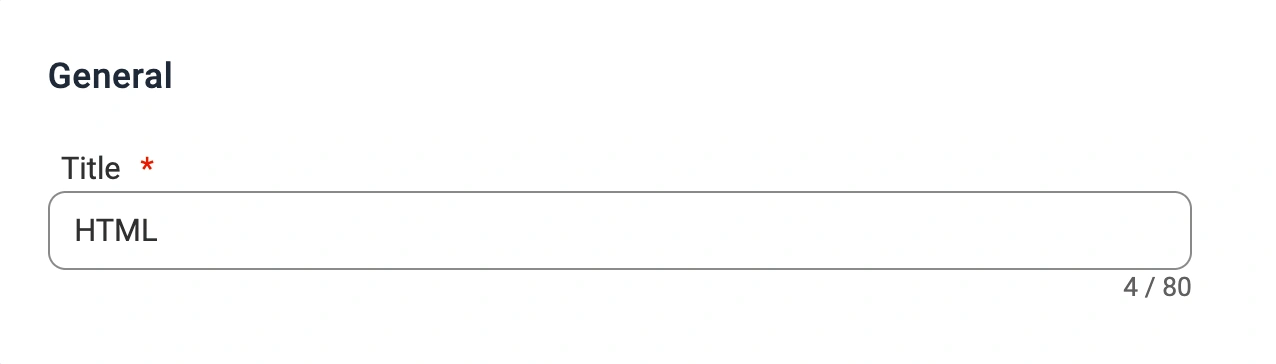
✅ If specific product groups require unique rules, create separate policies with relevant titles for easy identification.
If all your products follow the same title and description rules, create a single policy and name it “Default.”
Step 2. Set product condition #
Specify the item’s condition when selling on eBay.

- Condition Type Source – select either a predefined eBay condition value or a Store/Catalog Attribute.
ℹ️ If using a Store/Catalog Attribute, ensure it is assigned to the product and contains a valid Condition value.
- Seller Notes – if the item is not new, you can provide additional details about its condition, such as defects, missing parts, scratches, or other wear and tear.
Condition information for Trading Cards/Sport Cards #
If you sell Non-Sport Trading Cards, CCG Individual Cards, or Sports Trading Cards on eBay, additional condition information is required for specific categories. You can configure this in the Condition section of the Description Policy.

- Graded Cards – select Graded as the condition. Additional fields will appear to specify:
- The professional grading service
- The assigned grade
- The certification number
- Ungraded Cards – specify the exact condition from the following options:
- Excellent
- Very Good
- Poor
- Lightly Played
- Moderately Played
- Heavily Played
ℹ️ You can select either a predefined eBay condition value or a Store/Catalog Attribute.
If using a Store/Catalog Attribute, ensure it is assigned to the product and contains a valid Condition value.
Step 3. Set product title #
You can choose from three different sources for the product title:

- Default Title – the eBay title will match the product title from your store.
- Custom Attribute – pull the title from a selected attribute in your store.
- Advanced Title – customize the title using a combination of store attributes.
You can also add the Subtitle to your eBay listings by selecting the specific Attribute from your store or set up the Advanced Subtitle:

⚠️ Please be aware that eBay charges an insertion fee for including a subtitle.
Step 4. Set product description #
Choose from different sources for the product description:
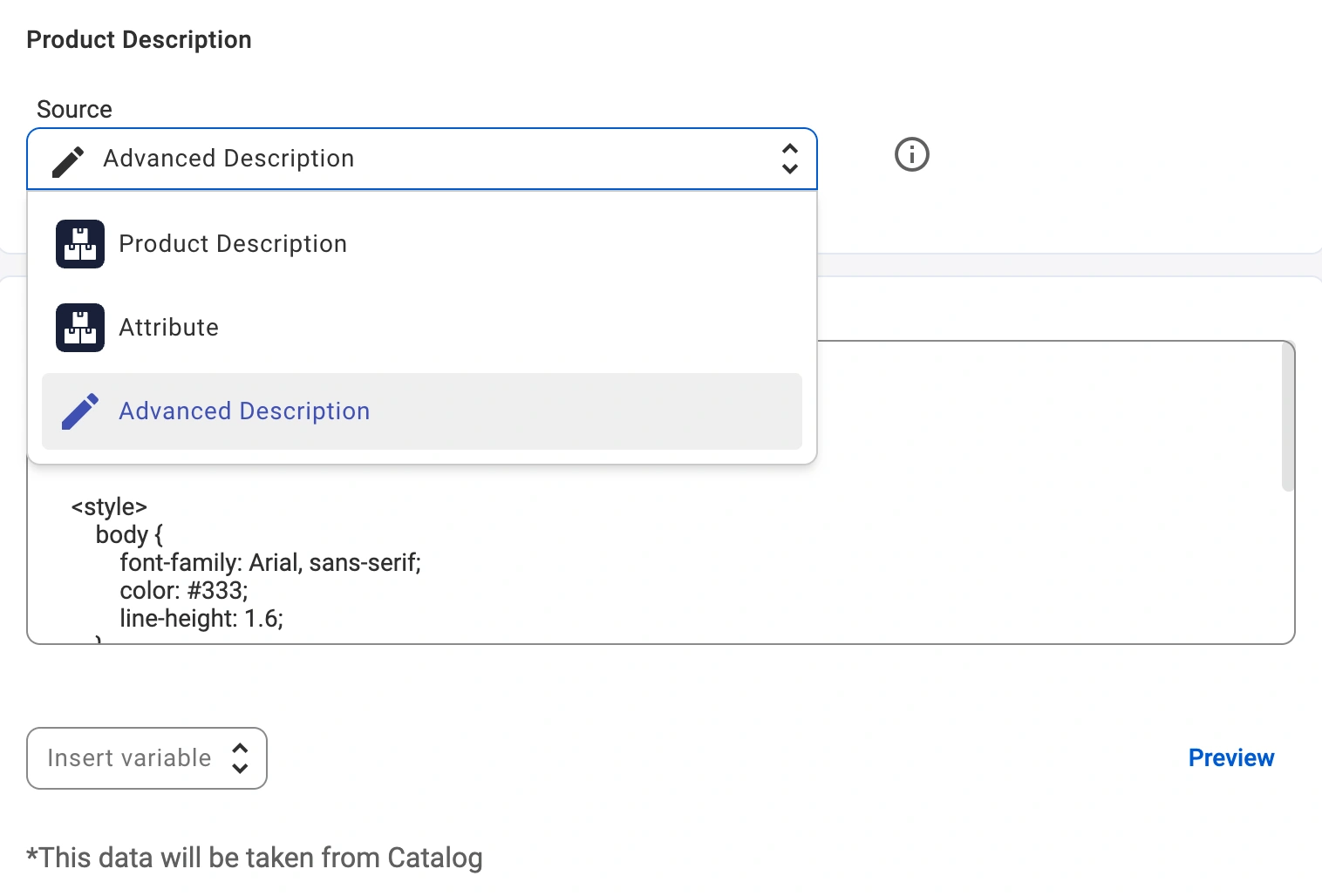
- Default Description – the eBay description will match the product description from your store.
- Custom Attribute – pull the description from a specific attribute assigned to the product in the store or catalog.
- Advanced Description – customize the description by combining Store/Catalog attributes and Twig tags or inserting HTML code.
With an Advanced Description, you can copy and paste your HTML template and insert dynamic product information. To do this, click the Insert variable dropdown in the editor.

💡 For more information on creating advanced descriptions for your eBay listings, please check out this guide.
A menu will appear with Common Attributes such as Title, Description, Price, SKU, Image, Gallery, and more. Select the variable you want, and it will automatically appear in your template in the correct placeholder format.

You can also add Store or Catalog attributes/metafields from the same dropdown to display unique data, such as Brand, Material, or any custom fields you’ve created. This helps you make each eBay listing more informative and personalized.
💡 For more ways to customize your eBay description template with dynamic logic, see the Twig Tags guide.
Once done, click Preview to see how your custom description will appear on eBay.
Step 5. Set colour theme template and preview description #
You can enhance your product descriptions with one of the three colour theme templates: White, Grey, and Dark. Apply a theme in one click to improve the visual appeal of your eBay listings.

Click the Preview button to see how your template will be displayed on eBay before publishing.
Step 6. Optimize your eBay listings #
You can enable additional settings to help your items perform better in eBay search results:

- Send minimum 7 images on list and revise – ensures that your eBay listings contain at least 7 images. If fewer are available in your Store or Catalog, M2E automatically reuses existing images to reach the recommended number.
- Use eBay Catalog Product Details – lets M2E retrieve product information for your listings from the eBay Catalog using the ePID (eBay Product ID). You can specify the ePID through a Store attribute/metafield or an M2E Catalog Attribute.
⚠️ Keep in mind that this option is available only for Simple products. It won’t apply to listings that include variations.
Synchronizing titles and descriptions #
M2E Description Policy is designed to provide greater flexibility in customizing product titles and descriptions for your eBay listings.
ℹ️ If you prefer not to manage and update titles and desciptions from your store to eBay, you can disable synchronization for these fields in the Synchronization Policy settings.
This allows you to maintain static titles and descriptions on eBay while still managing other product details dynamically.


