
If you see the error “Failed to upload image: {url}. Failed to get content” when listing products with M2E Multichannel Connect, it means that M2E couldn’t download one or more product images from your store at the time of listing.
This doesn’t mean there is an issue with the image itself. Most often, the image couldn’t be accessed because it was temporarily blocked or unavailable on your store or CDN.
Common reasons #
This error usually appears when:
- Images are hosted on a CDN that is temporarily unavailable
- Your hosting or CDN blocks automated requests
- A firewall blocks external access to image URLs
- Security rules block unknown User-Agents
- Too many image requests are sent in a short time
How to fix the error #
You need to wait for temporary blocks to clear or allow M2E to access your images. Follow the steps below.
Step 1. Try listing the products again #
In many cases, this error is temporary. Wait 5-15 minutes for CDN or firewall blocks to clear, then resubmit the products to the marketplace.
Step 2. Allow image access for M2E #
If the error persists after waiting, your server is likely blocking M2E from downloading images. You need to adjust your CDN or firewall settings using one of these methods:
Option 1. Whitelist the User-Agent (recommended)
Allow requests with this User-Agent format:
M2E {Datasource} Lib
Where {Datasource} is your e-commerce platform name, for example, M2E Shopify Lib, M2E WooCommerce Lib, etc.
Option 2. Whitelist IP addresses
Contact the M2E support team to get the current list of IP addresses to whitelist in your firewall or CDN settings.
Step 3. Resubmit the products #
Once you’ve allowed image access, try listing the products again:
1) Go to the Listings page in M2E Multichannel Connect and select your marketplace account.
2) Use the product groups to display items with this specific error.
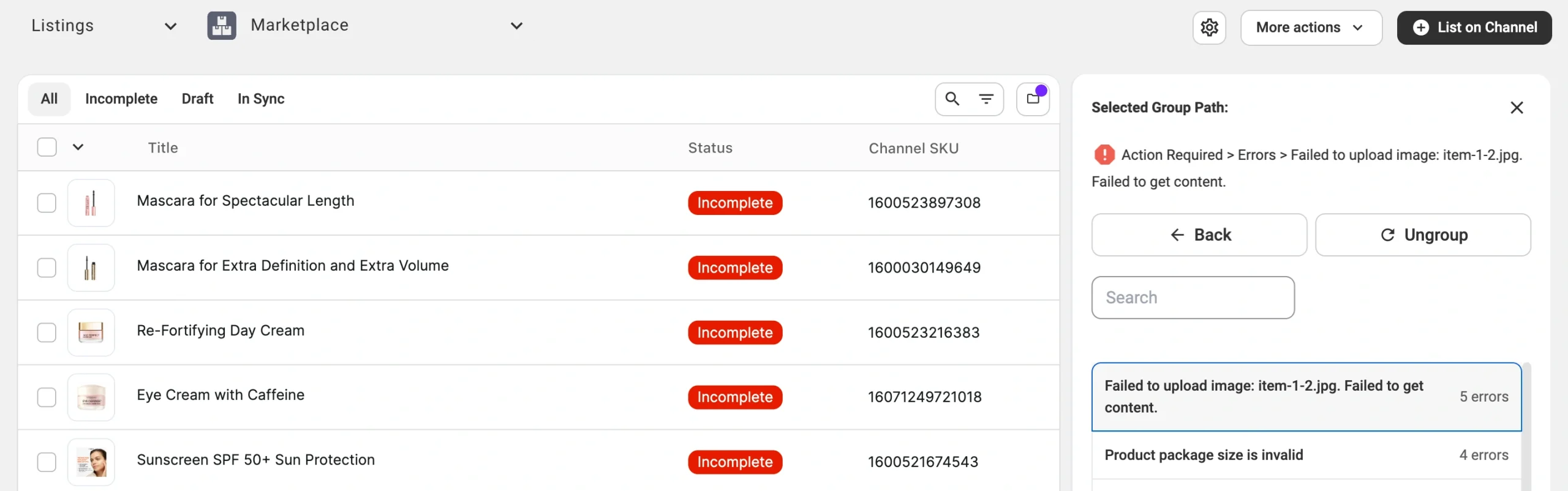
3) Select the affected items.
4) Click Manage Items > List from the actions menu.
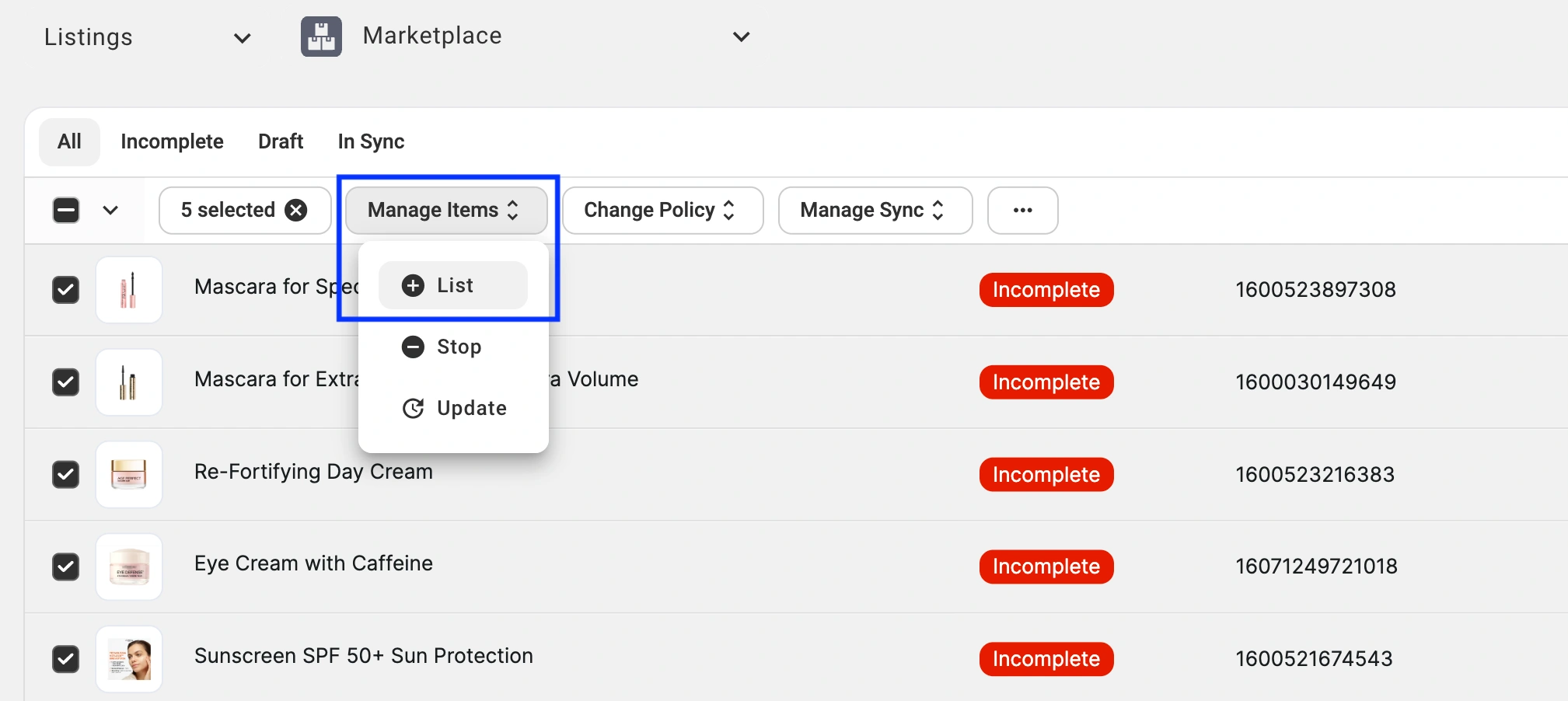
If image access is working correctly, your listings will be created on the marketplace.
✅ If you still run into this issue after completing the steps, please contact our support team for help.


