
Once your TikTok Shop seller account is linked to M2E Multichannel Connect, you can list products from your store on TikTok Shop.
This guide explains how to create new TikTok Shop listings in M2E.
💡 Watch a video tutorial on how to list new items on TikTok Shop.
Step 1. Start a new listing #
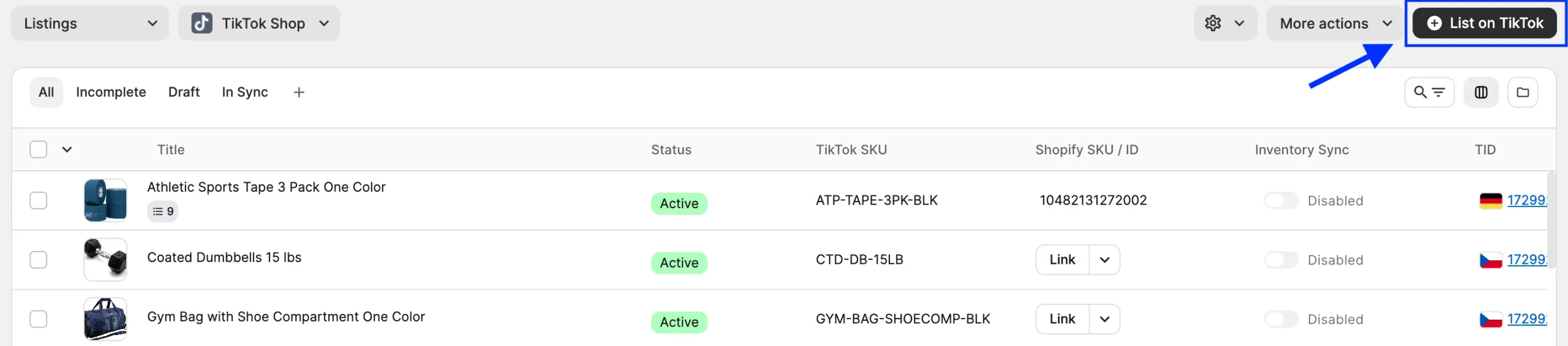
1) Go to the TikTok Shop Listings page.
2) Click List on TikTok in the top-right corner of the grid.
Step 2. Select marketplaces #
In the Marketplace field, select the main TikTok Shop where you want to list your products.
If your main shop is in a European region, you can list the same products in other EU markets. Select them in the Additional Marketplaces To List On field.
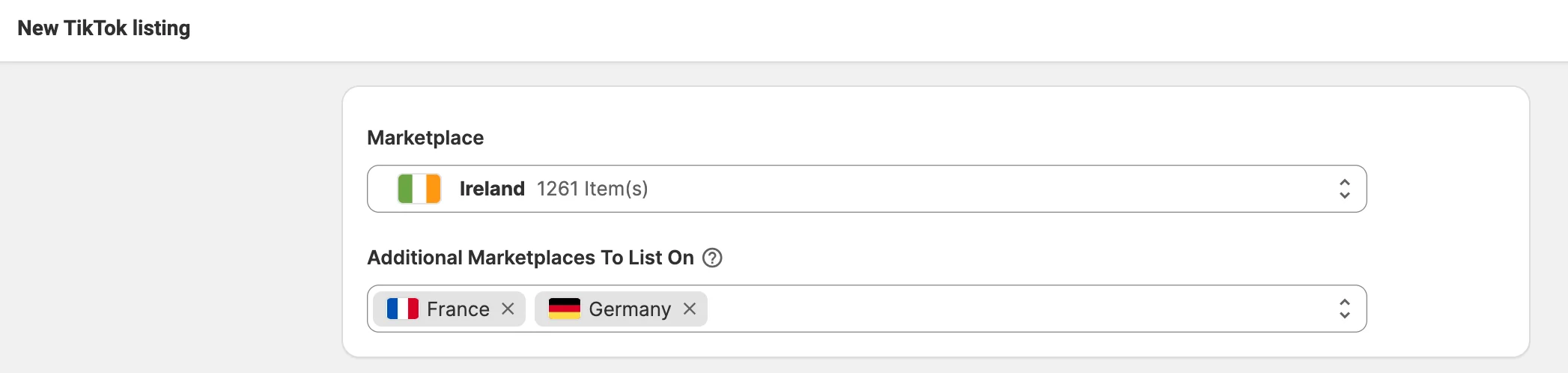
M2E lists your products on the main marketplace first, then replicates the listings to the selected markets. For setup requirements and replication details, see the guide on selling across EU markets with M2E.
ℹ️ Before you can select additional markets for listing, enable Sell Across EU in TikTok Shop Seller Center.
Step 3. Set up listing policies #
Policies are reusable listing templates. They store a group of listing settings, such as pricing rules, synchronization options, and description source. You can assign one policy to many products to list them all with the same settings.

For each policy type, select an existing policy or create a new one:
- Selling Policy – Set the product price, available quantity, and package dimensions for your TikTok Shop listings.
- Synchronization Policy – Control which product updates in your store M2E sends to TikTok Shop. These settings apply only to updates made after the products are listed and don't affect the initial listing.
- Description Policy – Set product titles, descriptions, and images for your TikTok Shop listings.
Once done, click Next.
Step 4. Select products to list #
Select items from your store's catalog to list on TikTok Shop.
Start with the Ready to List view. It shows products that aren't yet listed on TikTok Shop and meet basic listing requirements, such as available stock and a valid price.
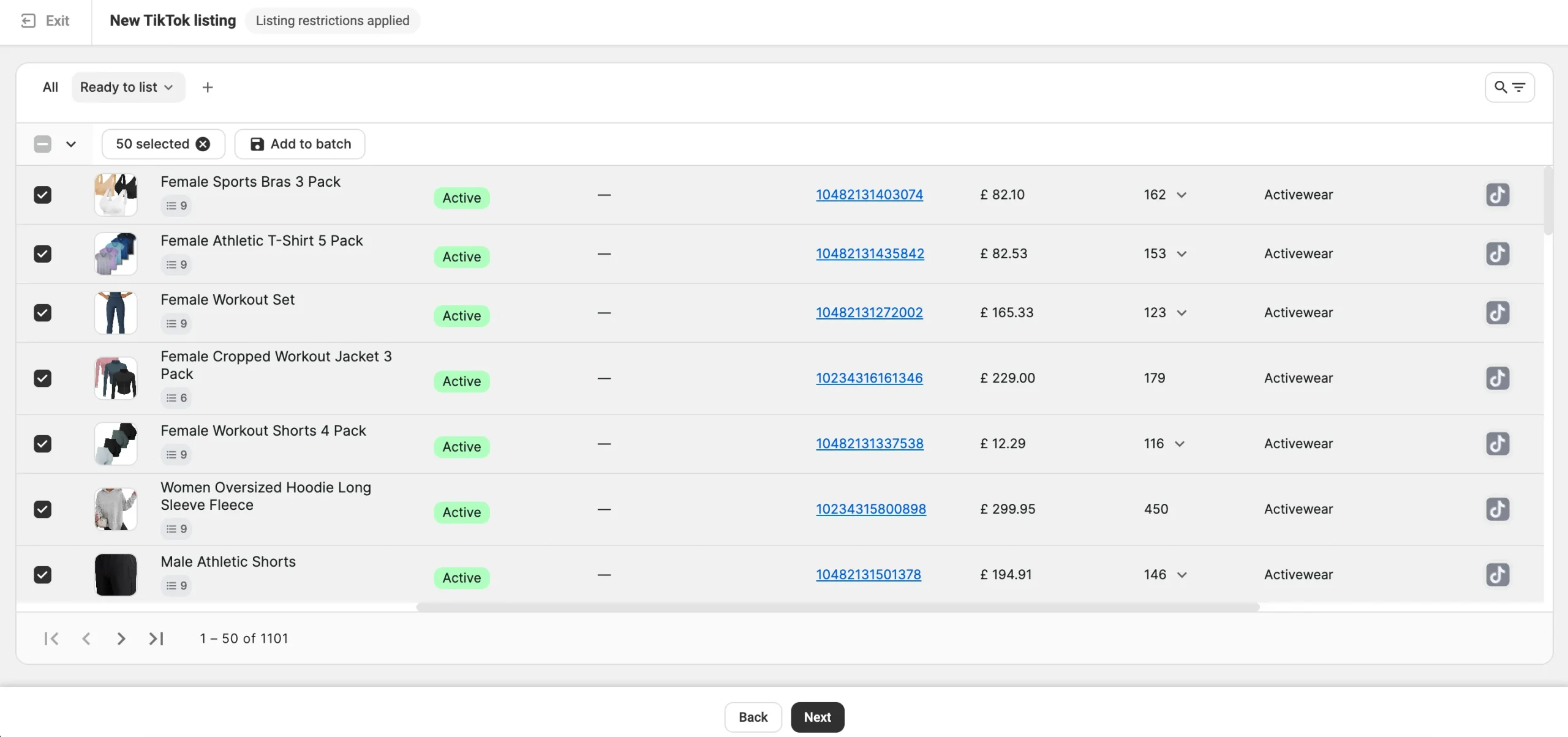
To narrow the selection, use filters to find products by category, variant options, or other parameters. To reuse a combination of filters, save it as a custom view. The view stays available on this page, so you don't need to set up the filters again.
For large catalogs, use the Batch tool to collect products from several searches and pages into one selection.
✅ For the first listing, select a small number of products to check your policy, category, and attribute settings. After these products are published on TikTok Shop without errors, list the remaining products in bulk.
Once you've selected the products, click Next.
ℹ️ Mind that some of the products are restricted from being sold on TikTok Shop or may require additional approval. For more information, please refer to the article.
Step 5. Set the TikTok Shop category #
Every product on TikTok Shop requires a category. Choose one of three methods to assign it:
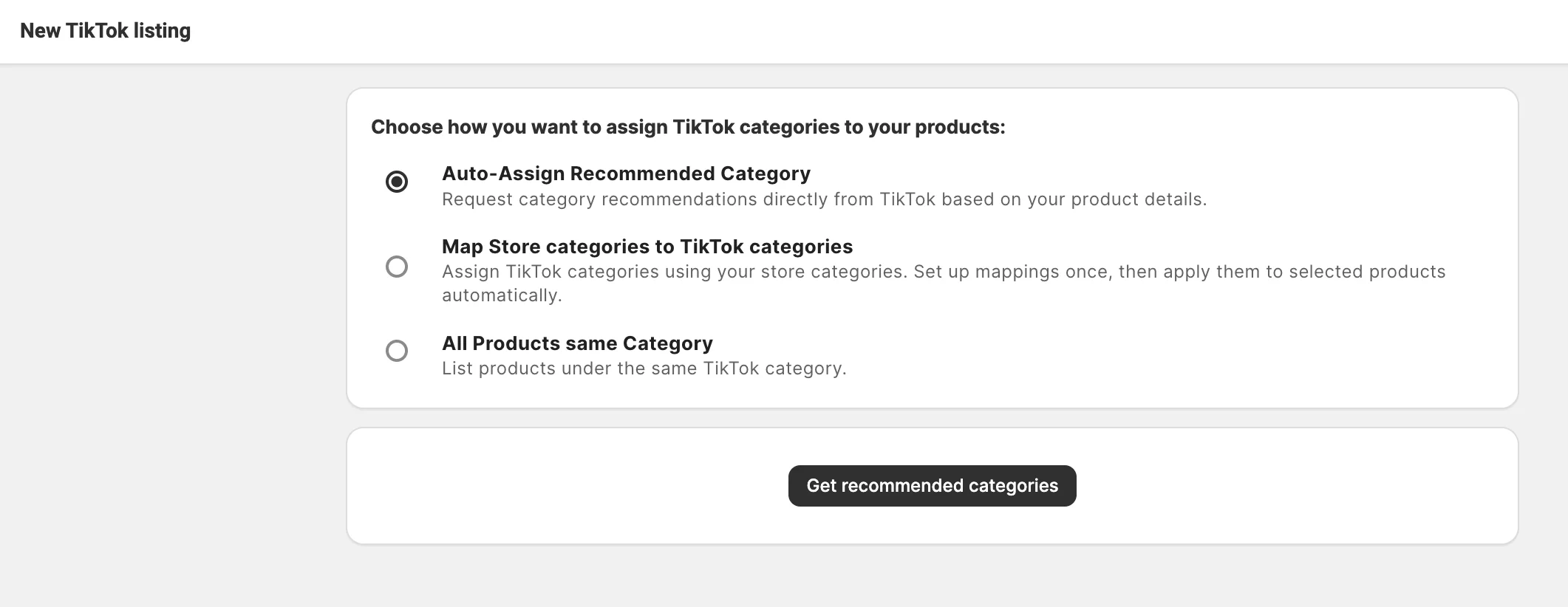
- Auto-Assign Recommended Category – Click Get recommended categories, and TikTok will propose a category based on your product details. Check the suggestion shown in the purple category box, then confirm it or adjust it yourself.
- Map Store categories to TikTok categories – Match your store categories to TikTok categories so assignment happens automatically. Define each mapping once, and it carries over to every listing afterwards. See full mapping instructions in the guide.
- All Products same Category – Select one TikTok Shop category manually for the whole batch. This is the most suitable option when every selected product belongs to the same store category.
ℹ️ Some TikTok Shop categories require approval before you can list products under them. If your selected category needs authorization, you’ll see a relevant message in the app.
Check out our guide to learn how to request permission and sell in restricted TikTok Shop categories.
Step 6. Define category attributes #
TikTok Shop uses category attributes to display products in search results and filters. Each category includes two types of attributes:
- Required attributes – Needed to publish the listing.
- Recommended attributes – Not needed to publish the listing, but they improve product visibility on TikTok Shop.

For each attribute, select the value source:
- Store or Catalog data – Use the value from a store attribute, a metafield, or an M2E Catalog field. Select this source when your product data already contains the required values.
- TikTok Shop options – Select a value from the predefined list. Use this source for attributes that accept only a fixed set of values.
- Custom value – Enter the value manually. Use this source when the value is not available in your product data or in the TikTok Shop options.
ℹ️ Check that the selected source contains a valid value for every product in the batch. If a required attribute has no value, the listing can't be published.
Reuse attribute settings. M2E saves your attribute settings in two ways, so you can avoid entering the same attributes for every listing:
- Category Policy – When you list products in a TikTok Shop category for the first time, M2E saves the attribute values and sources as a Category Policy. When you create new listings in the same category, select the saved Category Policy to prefill the attributes.
- Global attribute mapping – When you select store or Catalog data as an attribute source, M2E may suggest saving the mapping. Click Confirm to save it. M2E then uses the same source whenever this attribute appears in another category.
Category Policies and attribute mappings are saved separately for each TikTok Shop marketplace.
✅ If your store doesn't contain all the required product data, create custom attributes in M2E Catalog. Custom attributes store TikTok Shop values for your products and don't change product data on your e-commerce platform.
A custom attribute is set once per product, while a custom value must be entered in each listing.
Step 7. Make your listings public #
To send the products to TikTok Shop, click List Now. M2E checks the products against TikTok Shop requirements and submits the listings that pass to TikTok Shop for review. After TikTok Shop approves the products, they appear in your shop.
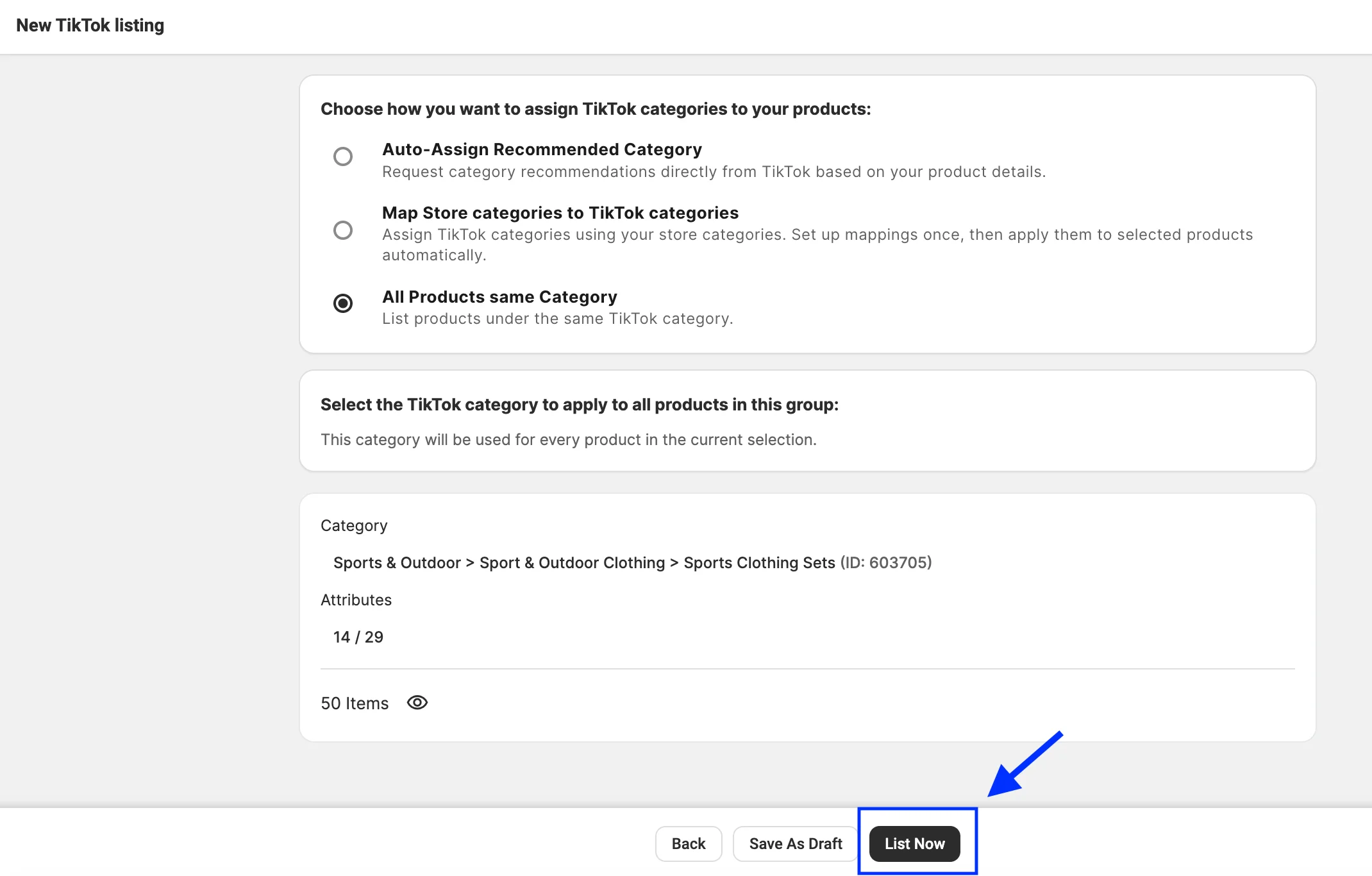
To save the listings without sending them to TikTok Shop, click Save as Draft.
✅ To publish draft listings later:
1) Go to the TikTok Shop Listings page.
2) Filter items by the Draft status.
3) Select the products to publish.
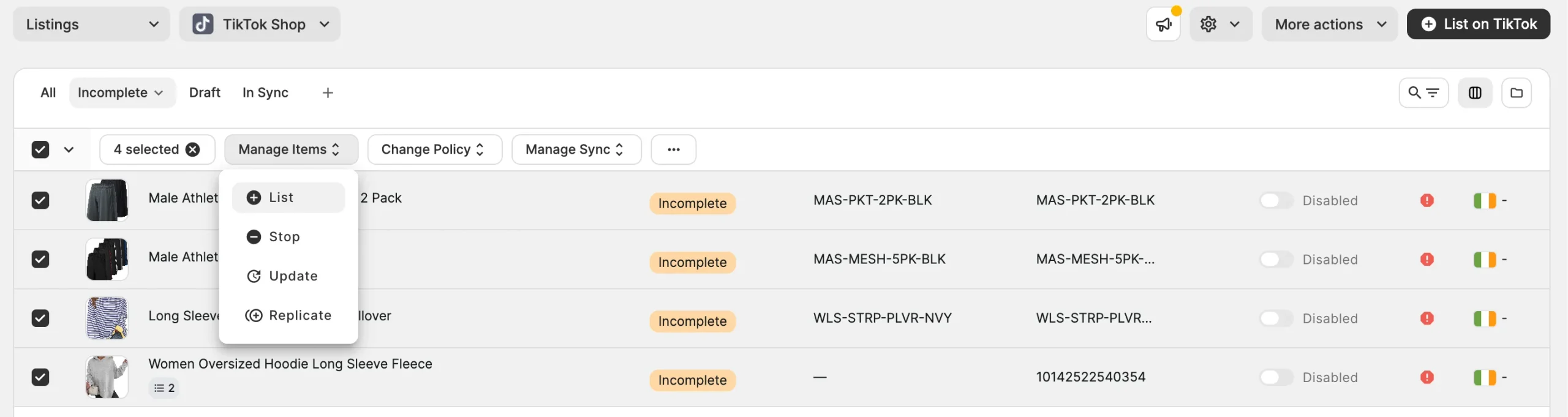
4) In the mass actions menu, click Manage Items > List.
⚠️ The product status in your store also affects TikTok Shop listings:
- If you change a product’s status in your store to Draft or Hidden, the TikTok Shop listing is deactivated but not deleted. To reactivate it, change the product status back to Active in your store.
- If you list a product that has the Draft status in your store, M2E marks the listing as Incomplete and doesn’t send it to TikTok Shop.
Step 8. Verify listing data #
After you click List Now, the TikTok Listings Validator assistant checks the selected products against TikTok Shop requirements. Products that meet the requirements are sent to TikTok Shop for approval automatically in the background.
The Validation Summary shows how many products are being sent to TikTok Shop (Listing in progress) and how many need correction first (Require attention).
To fix the products that require attention:
1) Click Review issues.

2) In the Resolution Guide, review the list of issues. To see the details of the issue, hover over the ⓘ icon next to it.
3) Fix each issue. Click Recommended action to apply the suggested fix, or click the arrow to see all available solutions.

4) After all issues are resolved, click List Now. M2E sends the corrected products to TikTok Shop for approval.
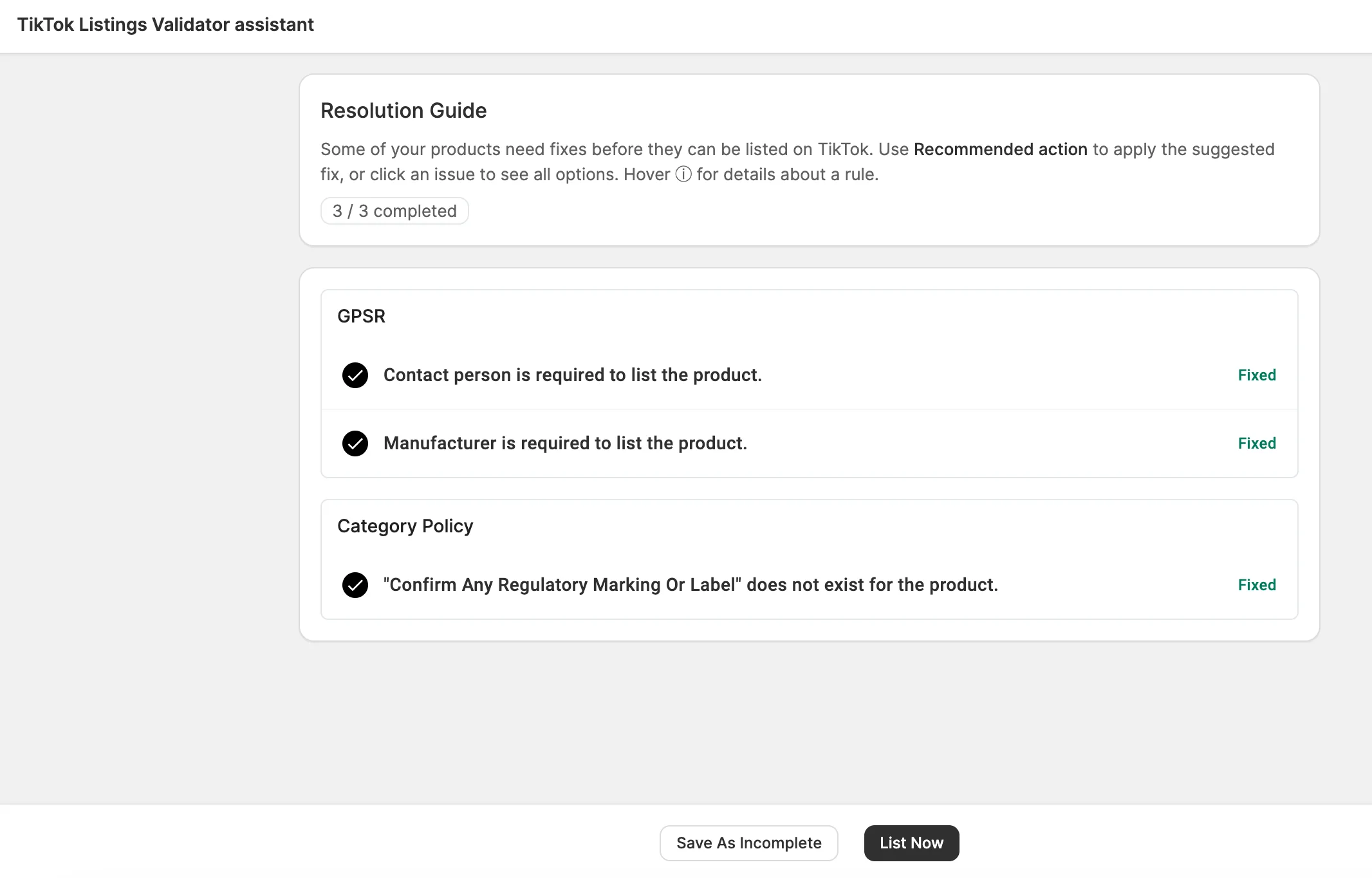
To close the Validator Assistant without fixing all issues, click Save As Incomplete. M2E keeps the products with the Incomplete status and doesn't submit them to TikTok Shop.
To return to Incomplete listings:
1) Go to the TikTok Shop Listings page.
2) Filter items by the Incomplete status.
3) Select the products.
4) In the mass actions menu, click Manage Items > List. The TikTok Listings Validator Assistant opens with the remaining issues.
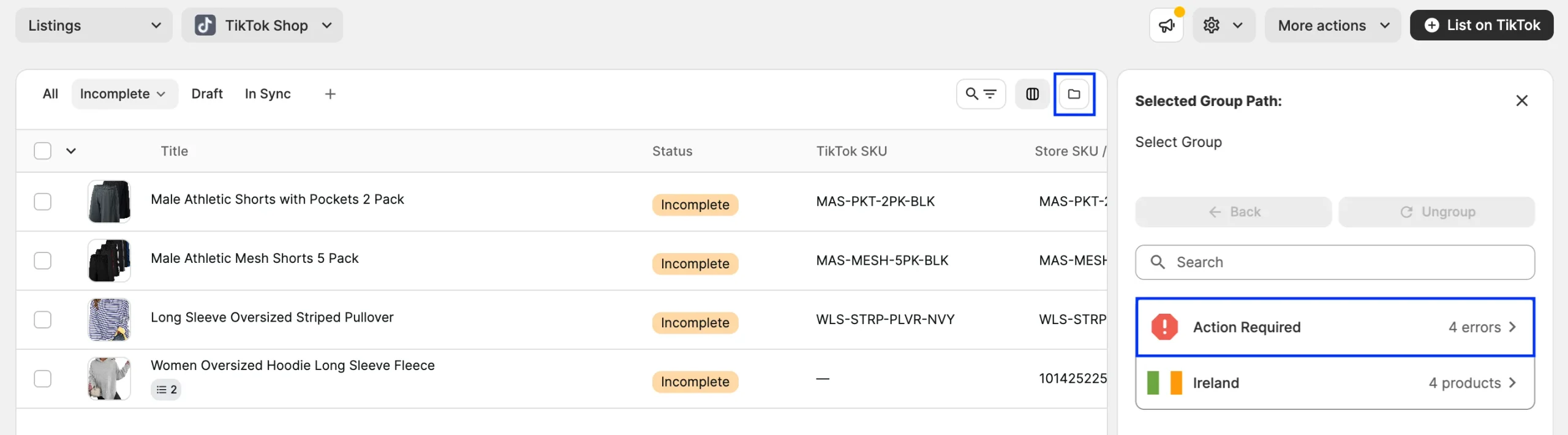
TikTok Shop can still reject products during its review. Listings with errors appear in the Action Required group on the TikTok Shop Listings page, where you can see the error details and suggested fixes.
✅ See the helpful tips on how to resolve common TikTok Shop listing errors.
Need help? #
If you run into issues while creating listings on TikTok Shop, contact the M2E support team.


