
M2E Temu Connect allows you to integrate your Shopware store with Temu, link your product catalog, and sync order details for seamless selling.
Follow these steps to get started:
Step 1. Install the app #
Begin by installing the M2E Multichannel Connect app from the Shopware App Store.
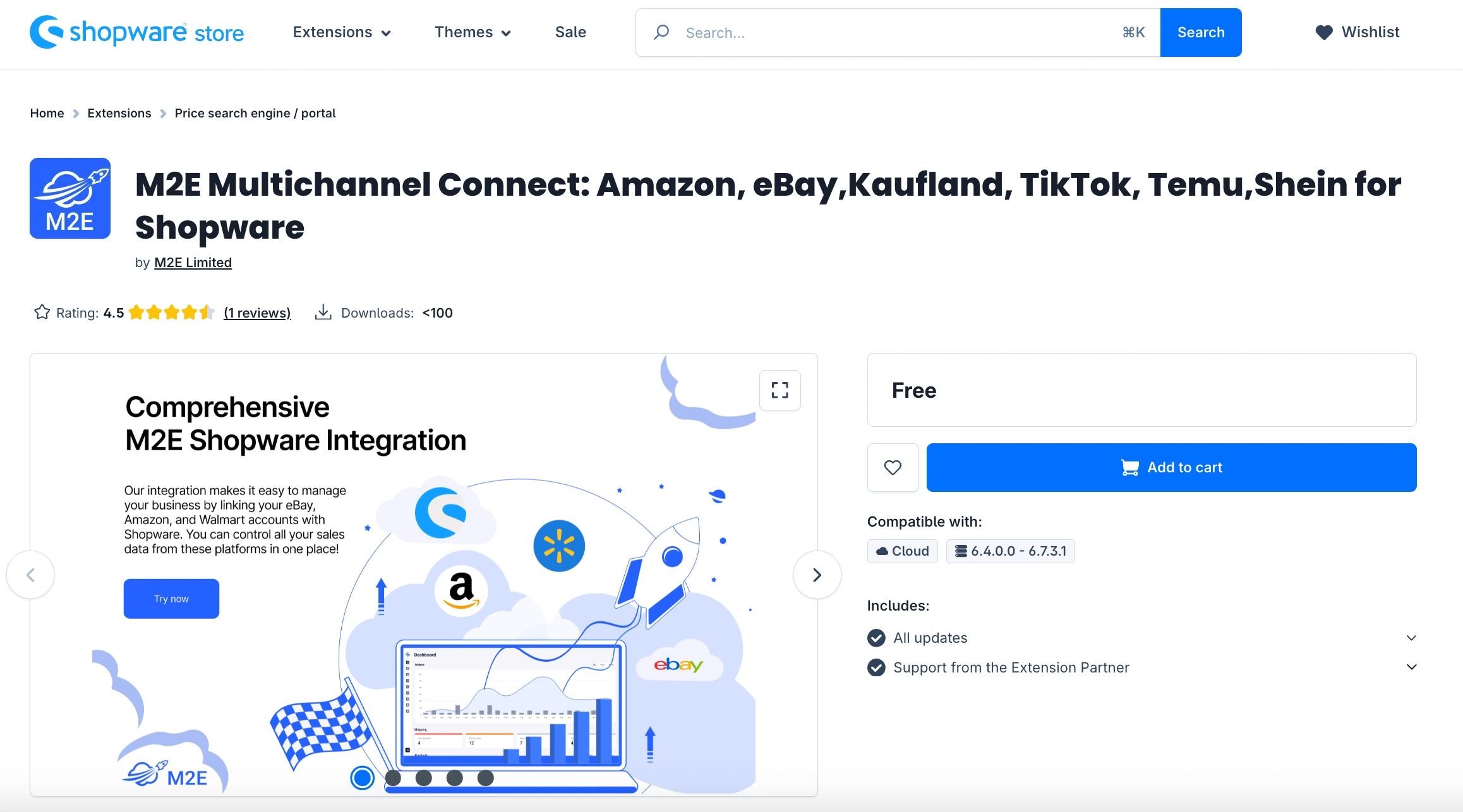
Once the app is installed, you'll be redirected to your Shopware admin panel. Confirm the installation when prompted, and you will be taken to the M2E Temu Connect setup screen.
Step 2. Connect Temu account #
Now you need to link your Temu seller account to the app. For that, go to the Dashboard tab and click Connect Marketplace Account.
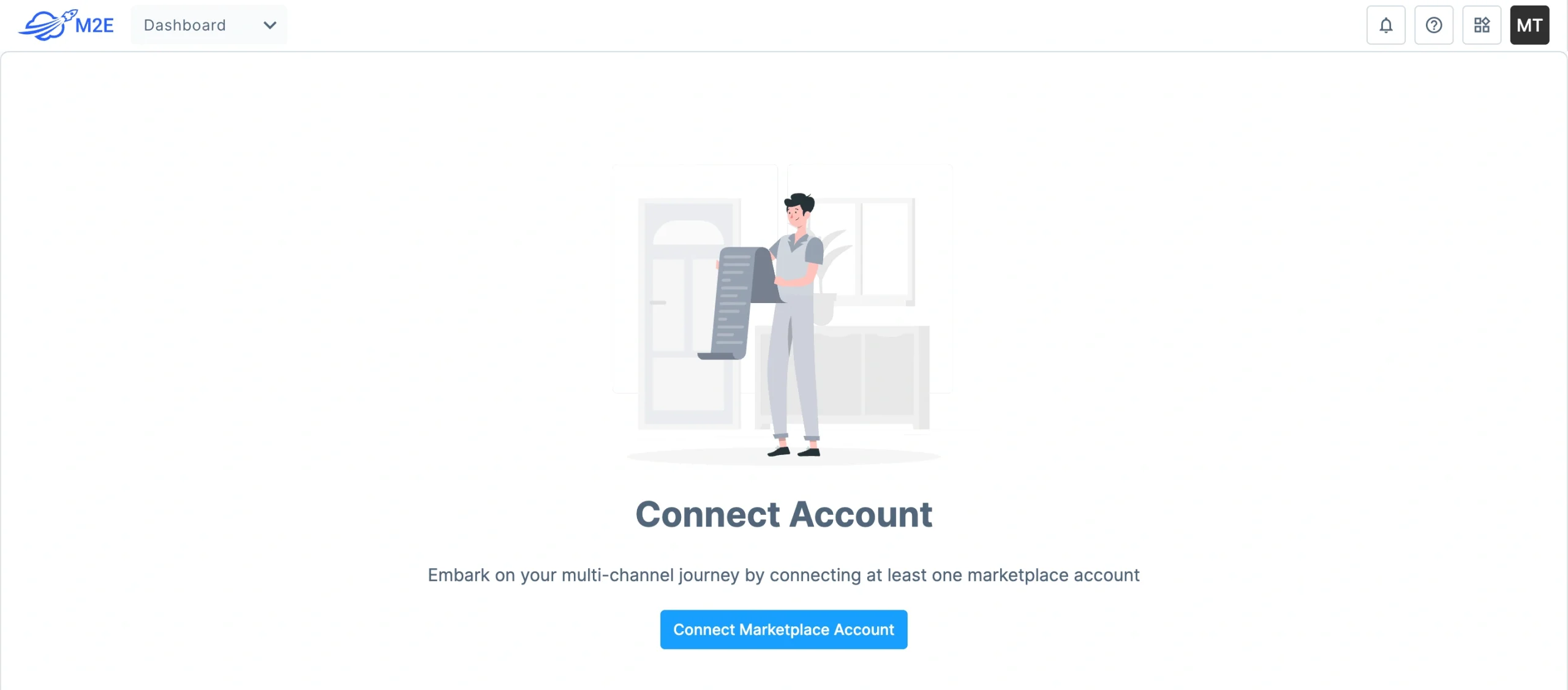
You’ll be redirected to Temu’s login page. Sign in to your Temu seller account and grant access to M2E Temu Connect.
ℹ️ Don’t have a Temu seller account yet? Click here to register and unlock a free trial offer for new sellers.
Step 3. Link products #
In the Dashboard tab, follow the Setup Guide steps listed there.
M2E Temu Connect matches your Shopware products with existing listings on Temu using SKU or Product ID.
If products are matched automatically, they’ll appear as linked. If not, go to the Link Products section in the Setup Guide and click View Not Linked Products.

You’ll be redirected to the Listings tab to manually link products.
ℹ️ Linking products is essential for accurate inventory and order sync.
For detailed instructions on linking products, see here.
Step 4. Define order preferences #
Set up how you want to handle Temu orders in Shopware.
Go to the Manage Orders section in the Setup Guide. Click on Order Settings.
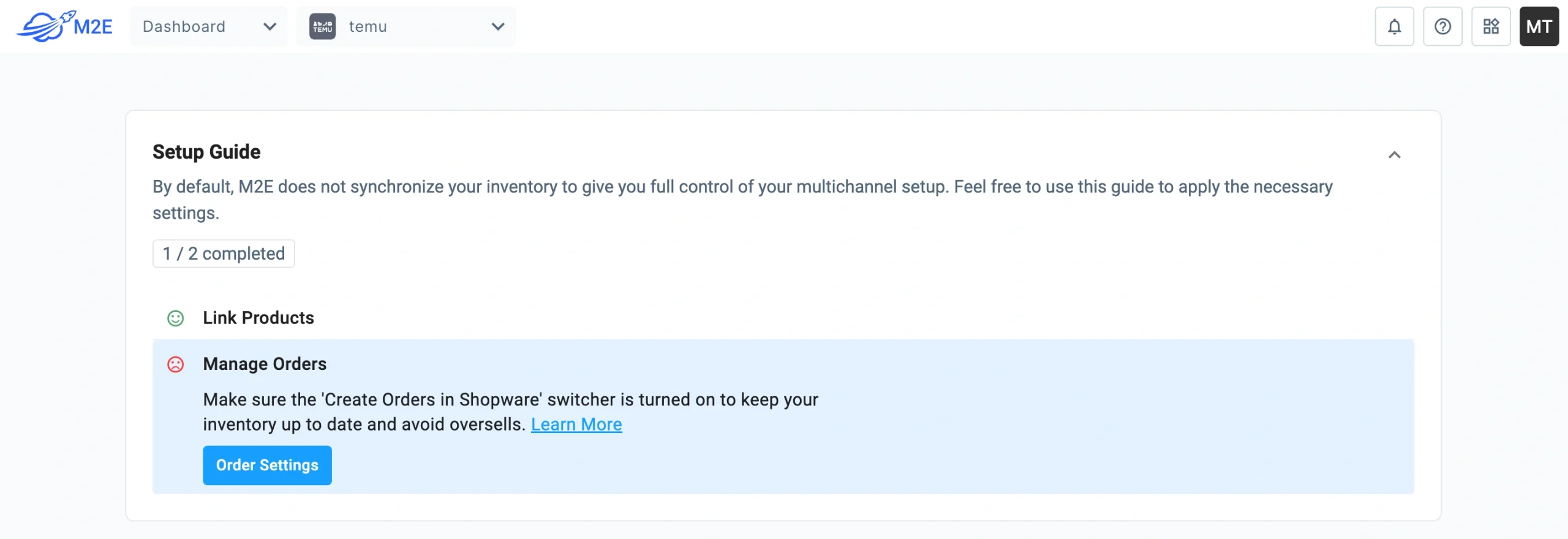
Enable “Create Orders in Shopware” to let the app create orders from Temu in your Shopware system.

ℹ️ If the order creation is disabled, stock levels won’t sync for Temu orders, which may cause overselling.
That’s it! You’re now ready to use M2E Temu Connect for Shopware to manage listings, synchronize inventory, and fulfill orders between your Shopware store and Temu.


