
Already selling on Walmart Marketplace? You don’t need to rebuild your entire catalog in BigCommerce. Use M2E Cloud to move your Walmart inventory into BigCommerce without losing data consistency. All product information will stay structured and continuously updated in both systems.
ℹ️ For long-term scalability, it’s best to create and manage your products in BigCommerce first, then publish them to Walmart through M2E.
However, if your catalog currently lives on Walmart, the steps below explain how to pull it into BigCommerce and connect your inventory for automatic synchronization.
This guide walks you through the full process, from setup to live sync.
Step 1. Install M2E Multichannel Connect #
From your BigCommerce admin, open the App Marketplace and install M2E Multichannel Connect. Then, finalize registration in M2E Accounts to manage your integration and subscription.

✅ Don’t have a Walmart Seller account yet?
Sign up on Walmart Marketplace and enjoy a 30-day free trial to explore how easily you can manage listings and inventory between Walmart and BigCommerce with M2E.
Step 2. Connect your Walmart account #
1) Launch M2E Multichannel Connect from your BigCommerce dashboard.
2) Click Connect Marketplace Account.

3) Select Walmart and log in to your Walmart Seller Center account. Approve the connection with M2E to enable data access.
Once connected, your Walmart catalog will appear in M2E, ready to view and manage.
Step 3. Import Walmart products into BigCommerce #
M2E offers two import options, depending on how you manage your catalog:
- Create new BigCommerce products based on your Walmart listings.
- Upload your Walmart catalog through a CSV import.
✅ Although creating products in BigCommerce and then publishing them to Walmart is the recommended workflow, the methods below serve as a practical workaround for existing Walmart catalogs.
Option 1. Create Walmart items in BigCommerce #
1) Open the Listings page and select your connected Walmart account.
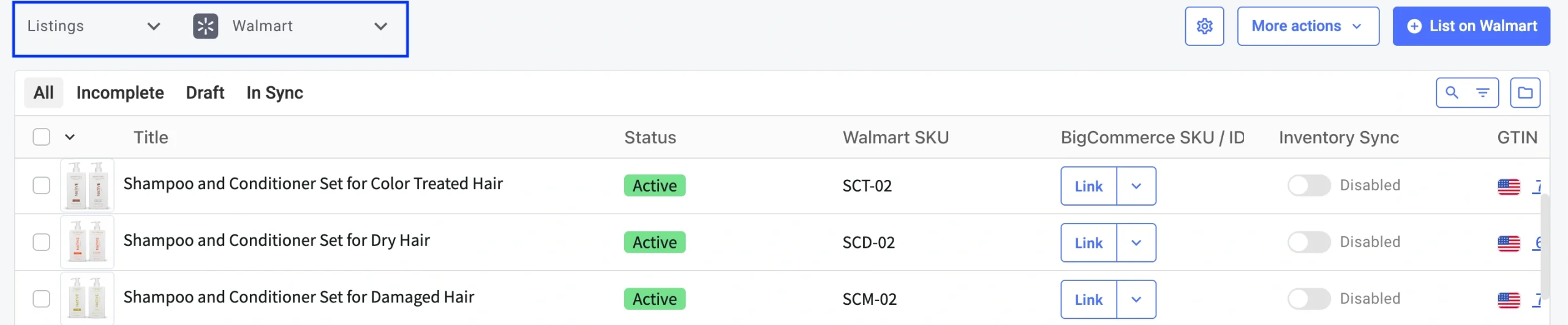
2) Use the search bar or filters to find the Walmart products you want to import.

3) To import a single product:
Click the arrow beside Link, then select Create new BigCommerce product and link.

To import multiple products at once:
- Tick the checkboxes next to the Walmart listings you want to import.
- From the three-dot menu, click Create in Catalog.

The imported Walmart products will then appear in your BigCommerce > Products catalog, ready for management and synchronization.
Option 2. Import Walmart listings via CSV #
1) Go to Listings and choose your Walmart account.
2) Use search or filters to find the desired listings.
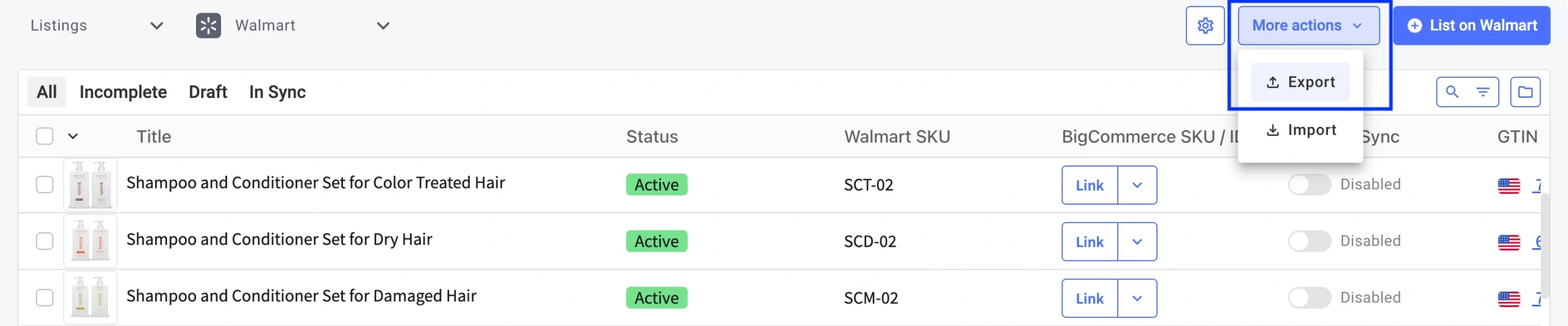
3) Click More actions > Export.
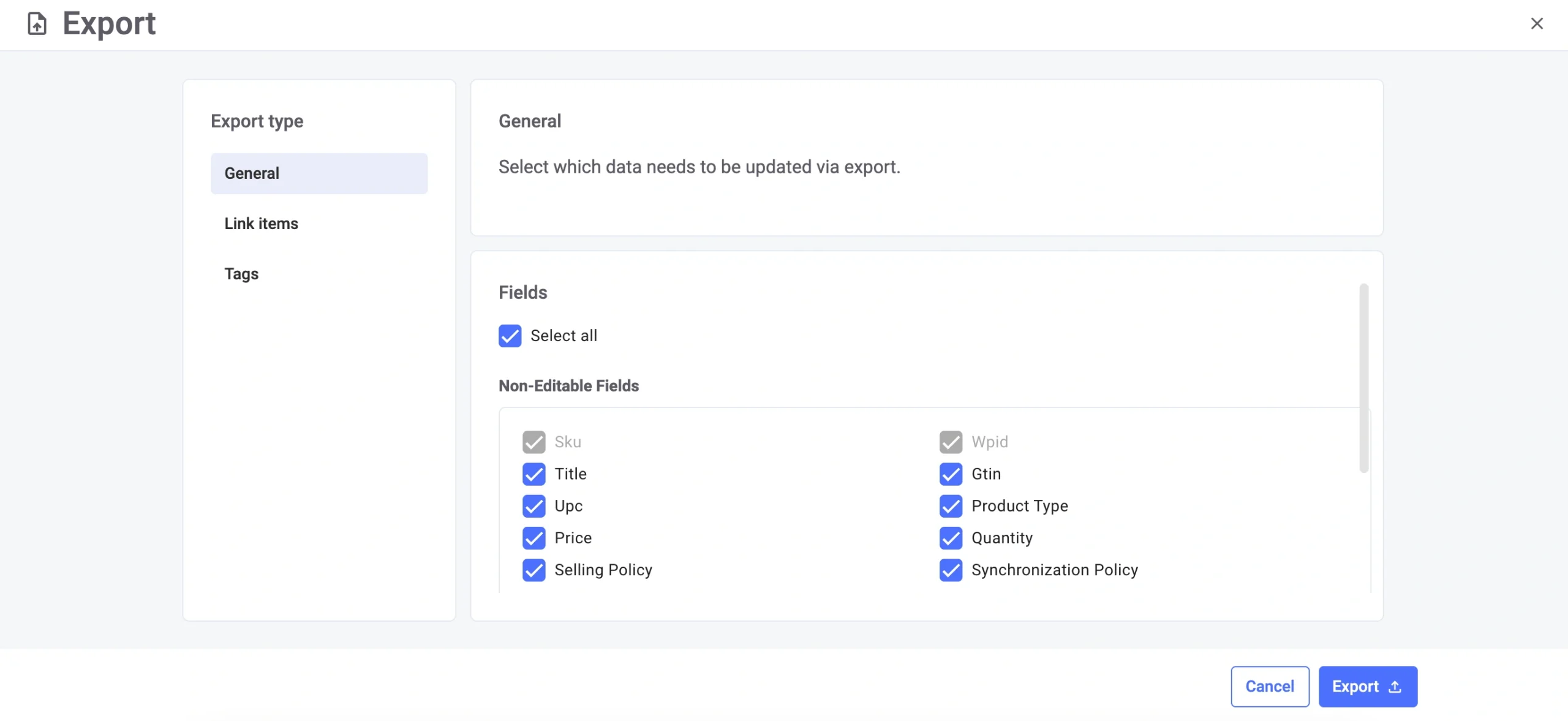
4) In the pop-up window, select the product details to include and click Export. You’ll receive the exported file via email once it’s ready.
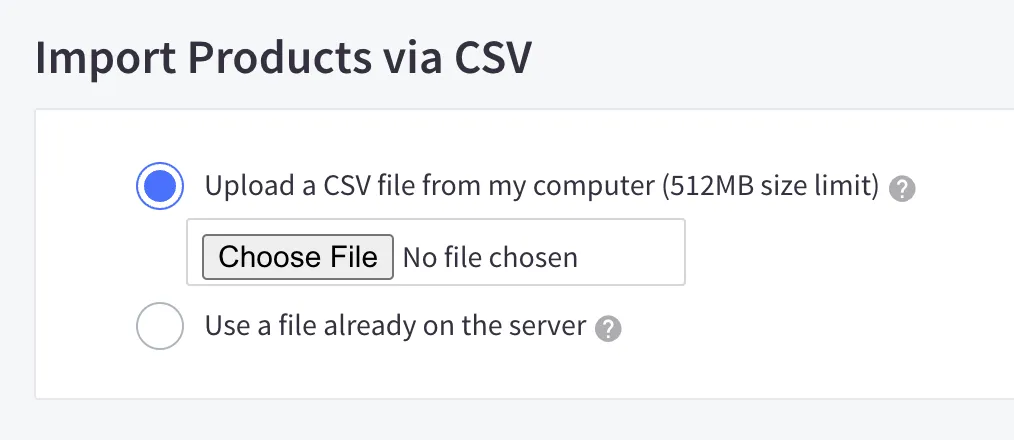
5) In BigCommerce, go to Products > Import.
6) Upload the exported CSV file and map the columns under Link Import Fields to match your product data.
Once the import is complete, you’ll see a summary confirming how many Walmart products were successfully added to your BigCommerce catalog.
Step 4. Link your inventory #
To enable inventory synchronization, your Walmart listings must be linked to their corresponding BigCommerce products.
If SKUs or barcodes match, M2E links the products automatically.
ℹ️ If you’ve created the BigCommerce products using M2E, they’ll link instantly as well. For listings with mismatched identifiers, you’ll need to complete the linking manually or import items via CSV.
Step 5. Turn on inventory synchronization #
Once your Walmart listings are linked to BigCommerce ones, enable inventory sync to ensure consistent stock quantities, prices, and item details across both platforms.
For a single listing: move the Inventory Sync toggle to the “on” position.

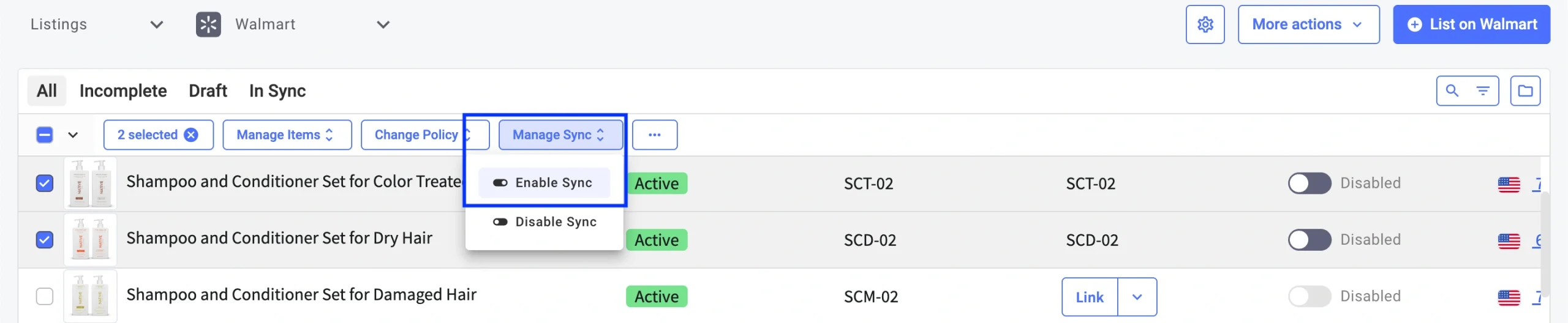
For multiple listings:
- Mark the checkboxes beside the products.
- From the top actions menu, select Manage Sync > Enable Sync.
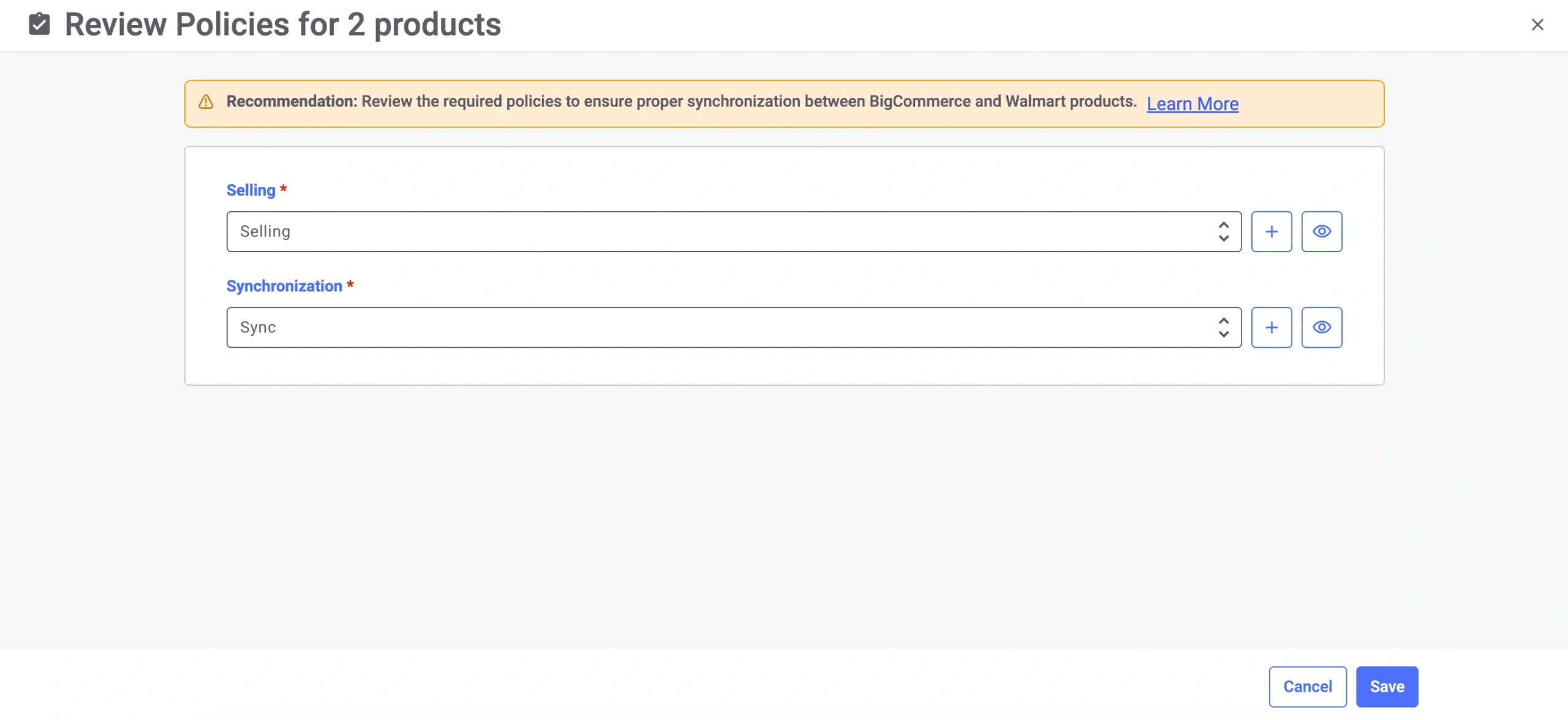
During activation, review your M2E Policies, which define how listings behave and synchronize on Walmart.
💡 Refer to the setup guides for:
Once you see the confirmation message, synchronization is live. M2E will automatically reflect updates between Walmart and BigCommerce based on your preferences.
What’s next #
Now that your Walmart catalog is imported into BigCommerce, you can streamline your daily workflow and scale your business faster. With M2E, you can:
- Manage your Walmart and BigCommerce listings from a single dashboard
- Maintain accurate inventory and prevent overselling
- Sell your BigCommerce catalog on other major marketplaces

✅ Have questions or need help? Visit the M2E Help Center or contact our support team.


