
This guide walks you through the process of listing Simple products from your store on Amazon via M2E Multichannel Connect.
💡 Watch a video tutorial on listing Simple products on Amazon.
Step 1. Provide Product ID information #
Ensure each product you plan to list on Amazon has a correct product identifier (UPC, EAN, ISBN, or GTIN). This information is crucial because Amazon uses it to match your product with its catalog.
If you don’t supply the identifier data or it’s invalid, you’ll see an ‘Incomplete Listing’ error, and your product won’t be listed on Amazon.
Step 2. Start a new Amazon listing #
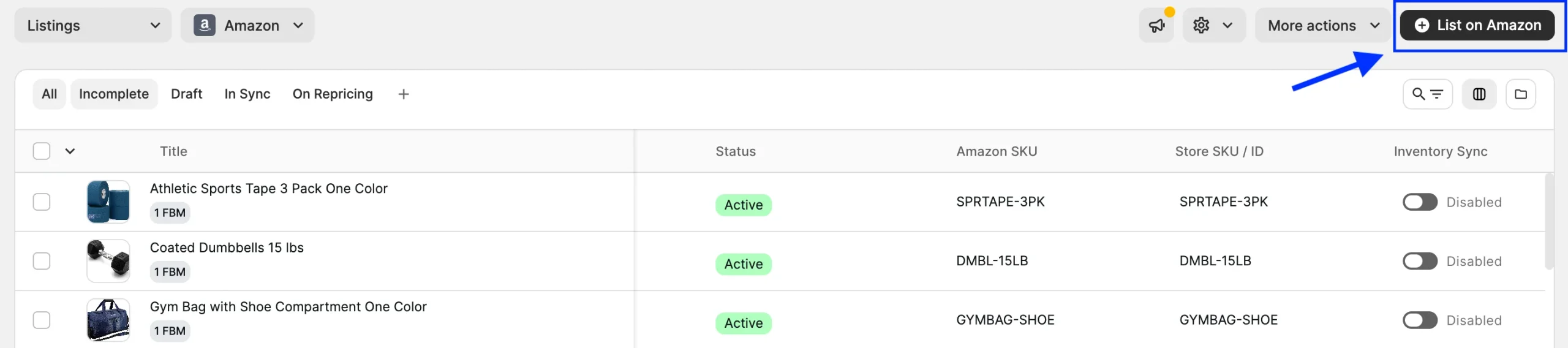
Navigate to the Amazon Listings page. Click the List on Amazon button in the top-right corner.
Step 3. Select a marketplace #
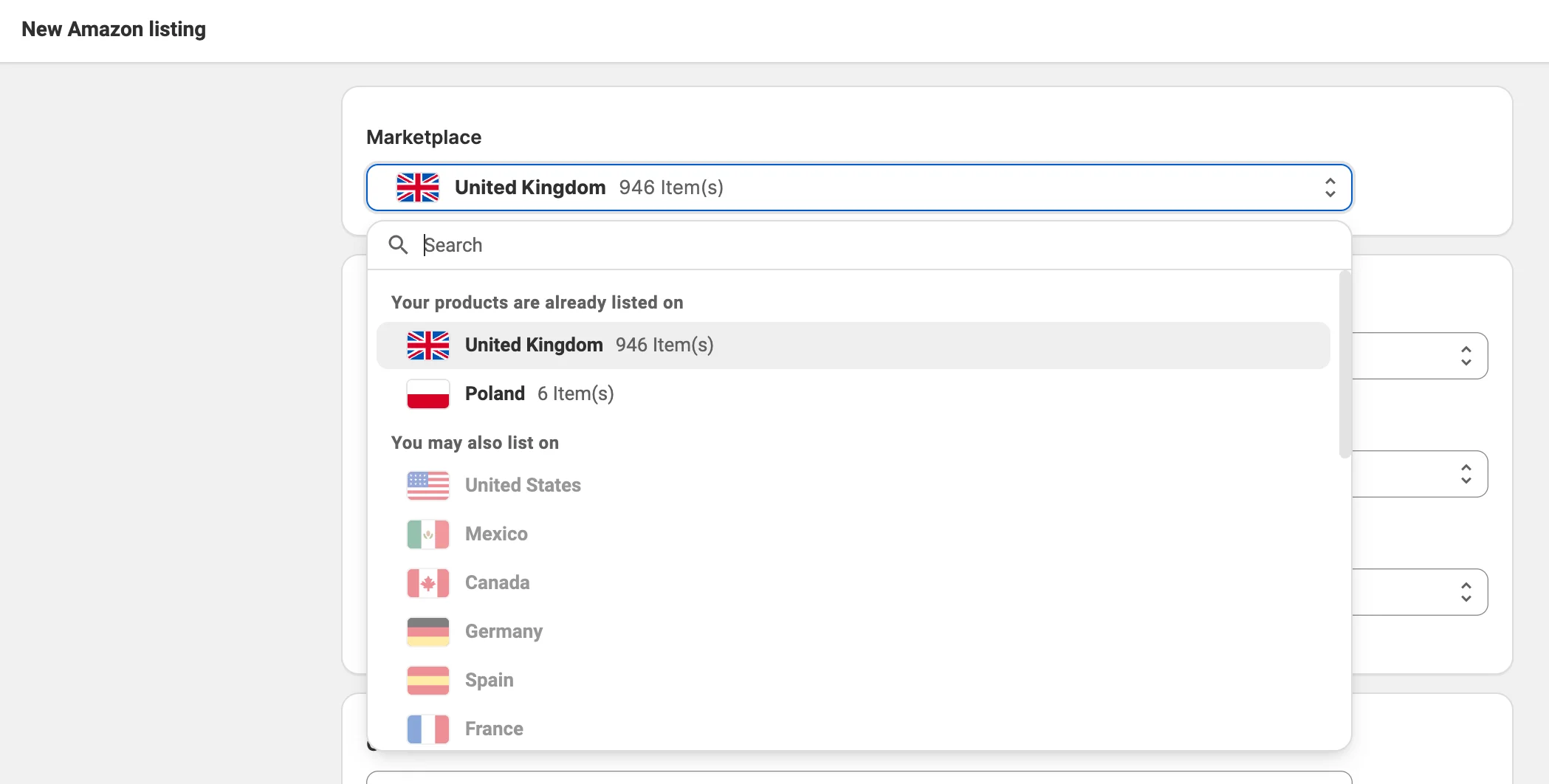
Select an Amazon marketplace where you want to create a listing.
Step 4. Define product settings #
Set relevant Policies for your items, which are settings necessary for listing and selling items on Amazon. Each Policy is a reusable template that you can assign to future Amazon listings.
You can choose from existing default Policies or create new ones.
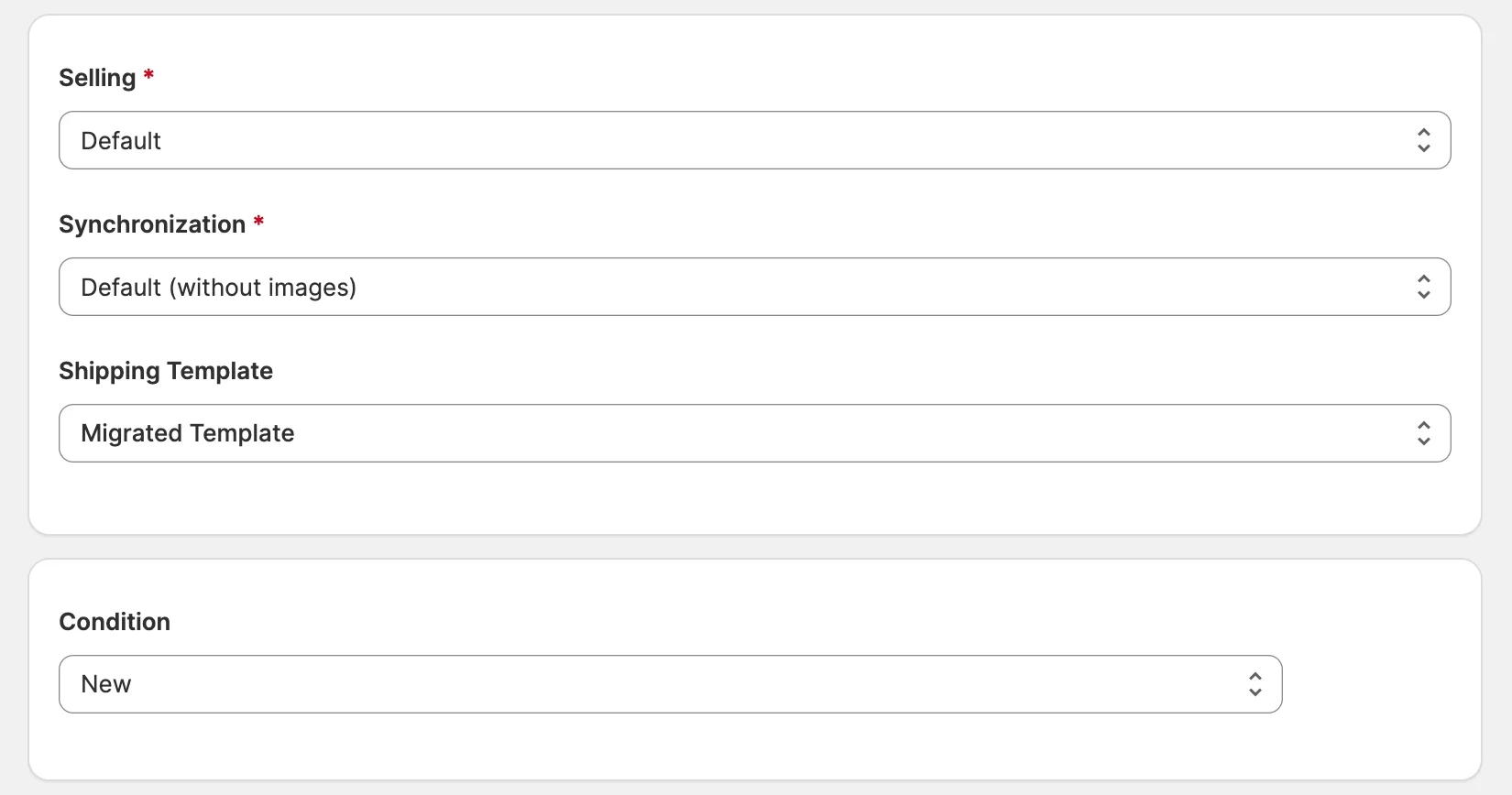
With Selling Policy, you can set the price and quantity settings for your Amazon listings.
Synchronization Policy helps you define which product changes in your store M2E sends to Amazon after the products are listed.
Shipping template contains settings for your preferred shipping methods. If you’ve configured your Shipping template in Amazon Seller Central beforehand, it will appear on the list. You can also create a Shipping template right away by clicking + Create New.
Then, choose one of the standard Amazon conditions for your products.
Step 5. Set the Barcode Source #
Amazon matches your product to its catalog by the product identifier: UPC, EAN, ISBN, or GTIN. In the Barcode Source field, select where M2E should take this identifier from:

- Barcode value – The barcode field of the product in your store.
- Store attribute – A metafield or attribute in your store that contains the identifier.
- Custom value – An identifier that you enter manually.
- GTIN exempt – For brand products without a barcode. Before selecting this option, get an Amazon GTIN Exemption for your brand. M2E will list the products without a product identifier.
Step 6. Choose products to list #
Select the products from your store or catalog you want to offer on Amazon. The product grid opens in the Ready to List view, which includes store products that don't have an Amazon offer yet and meet basic requirements, such as available stock and a valid price.
To find certain products, you can search by title, SKU, etc., or filter by category, price, quantity, or other parameters. To reuse a combination of filters later, you can save it as a custom view.
The Batch tool collects your products from different searches, filters, and pages into one list, so you can list them together.

✅ Start by selecting a few products to check that the Barcode Source returns valid identifiers and that M2E matches the products to the right ASINs. When these offers go live on Amazon without errors, you can list the rest of the catalog with the same settings.
When your product selection is ready, click List Now. M2E starts processing the products for listing on Amazon.
ℹ️ To save the listings without sending them to Amazon, click Save As Draft. Draft listings stay in M2E until you publish them. In a draft, you can also review or change the ASIN before the offer goes live.
⚠️ A product with the Draft status in your store is saved as Incomplete and isn't sent to Amazon.
If you switch a listed product to Draft or Hidden in your store, its Amazon offer is deactivated without being deleted. To reactivate it, set the product back to Active.
Step 7. Validate the listing data and match ASINs #
After you click List Now, the M2E Listing Validator Assistant checks each product against Amazon requirements, including the product identifier from the Barcode Source.
The Validation Summary shows how many products have passed the check and are being sent to Amazon (Listing in progress) and how many need to be fixed before listing (Require attention).
To fix the products that require attention:
1) Click Review issues.

2) The Resolution Guide lists the issues, grouped by the setting they relate to.
3) Resolve each issue. Click Recommended action to apply the suggested fix, or click the arrow next to it to choose another solution.
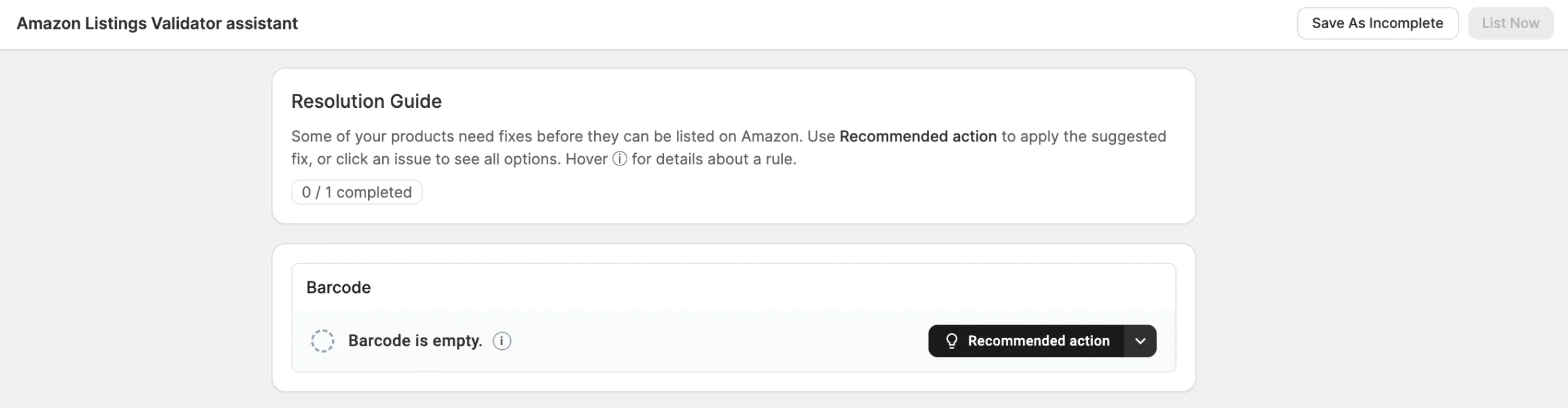
4) After you fix all issues, click List Now.
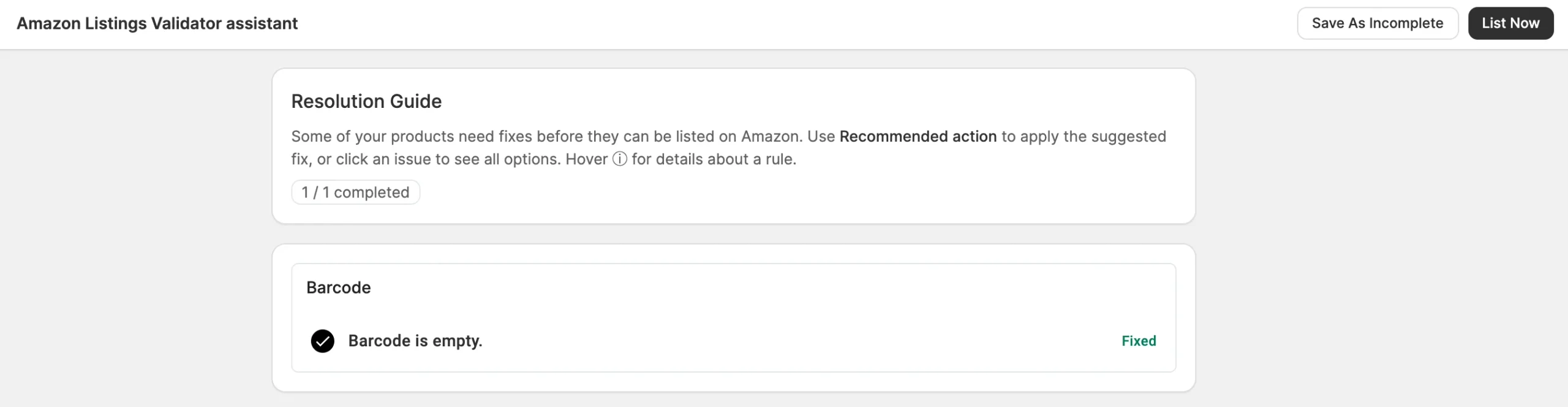
If you can't fix all issues now, click Save As Incomplete. M2E keeps the products with the Incomplete status and doesn't send them to Amazon.
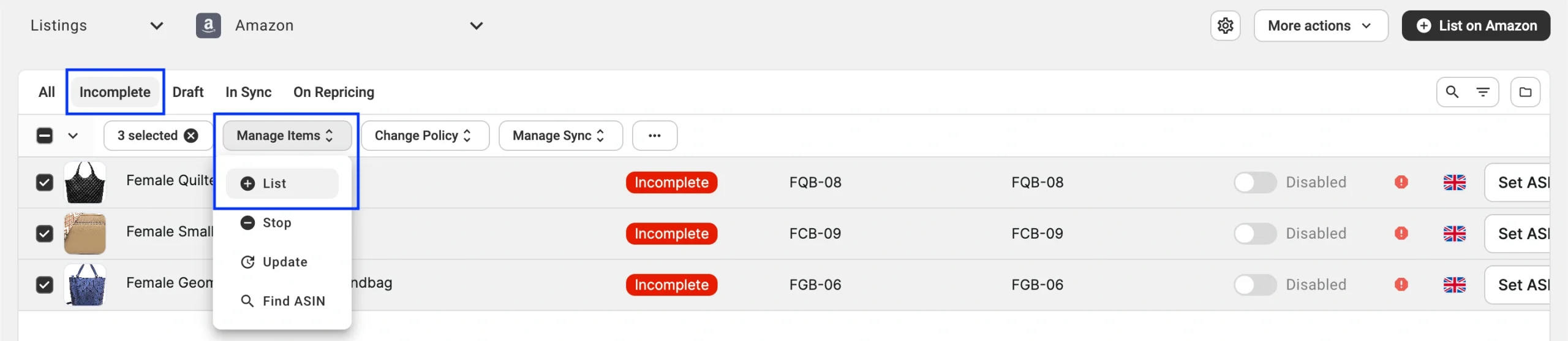
To continue later, filter the Amazon Listings page by Incomplete items, select the products, and click Manage Items > List in the mass actions menu.
How M2E matches products to Amazon ASINs #
For each product that passes validation, M2E searches the Amazon catalog for a product with the same identifier.
- One match found. M2E links your product to the existing ASIN and sends only your offer data to Amazon: price, quantity, and handling time. The title, images, and description come from the Amazon catalog.
- Several matches found. If more than one Amazon product matches the identifier, M2E doesn't choose between them. The product is saved with the Incomplete status, and you select the correct ASIN manually.
- No match found. The product is saved with the Incomplete status. To complete the listing, assign an existing ASIN manually or create a new ASIN.
How long does an Amazon listing take #
When you submit listings through M2E Multichannel Connect, they are sent to the marketplace via the Amazon API, which doesn't process listings in real-time. Instead, Amazon uses a queue system that handles requests in the order they’re received.
Listing times typically range from immediate to several minutes, depending on Amazon’s server load. Delays can happen because of high activity on Amazon’s side or API request limits. If your listing isn’t updated right away, it’s likely waiting in the queue and should process soon.
Need help? #
If you run into issues while creating listings on Amazon, contact the M2E support team.


