
This guide walks you through setting up the M2E Amazon Multi-Channel Fulfillment (MCF) app for Shopify. Once configured, the app allows you to use your Fulfillment by Amazon (FBA) inventory to automatically fulfill orders placed through Shopify and connected marketplaces such as eBay, TikTok Shop, Temu, and more.
Step 1. Install the app #
To get started, install the M2E Multi-Channel Fulfillment by Amazon app from the Shopify App Store.

Once you click Install, you will be redirected to your Shopify admin panel to confirm app permissions.
After approving access, the app will complete the installation and direct you to the main configuration screen.
Step 2. Link your Amazon seller account #
Connect your Amazon Seller Central account to give the app access to your FBA inventory data.
1) Navigate to the Dashboard tab in the M2E Amazon MCF app.
2) Click Connect Marketplace Account. The app will redirect you to Amazon's login page.
3) Log in to Amazon Seller Central and grant M2E permission to access your seller data.
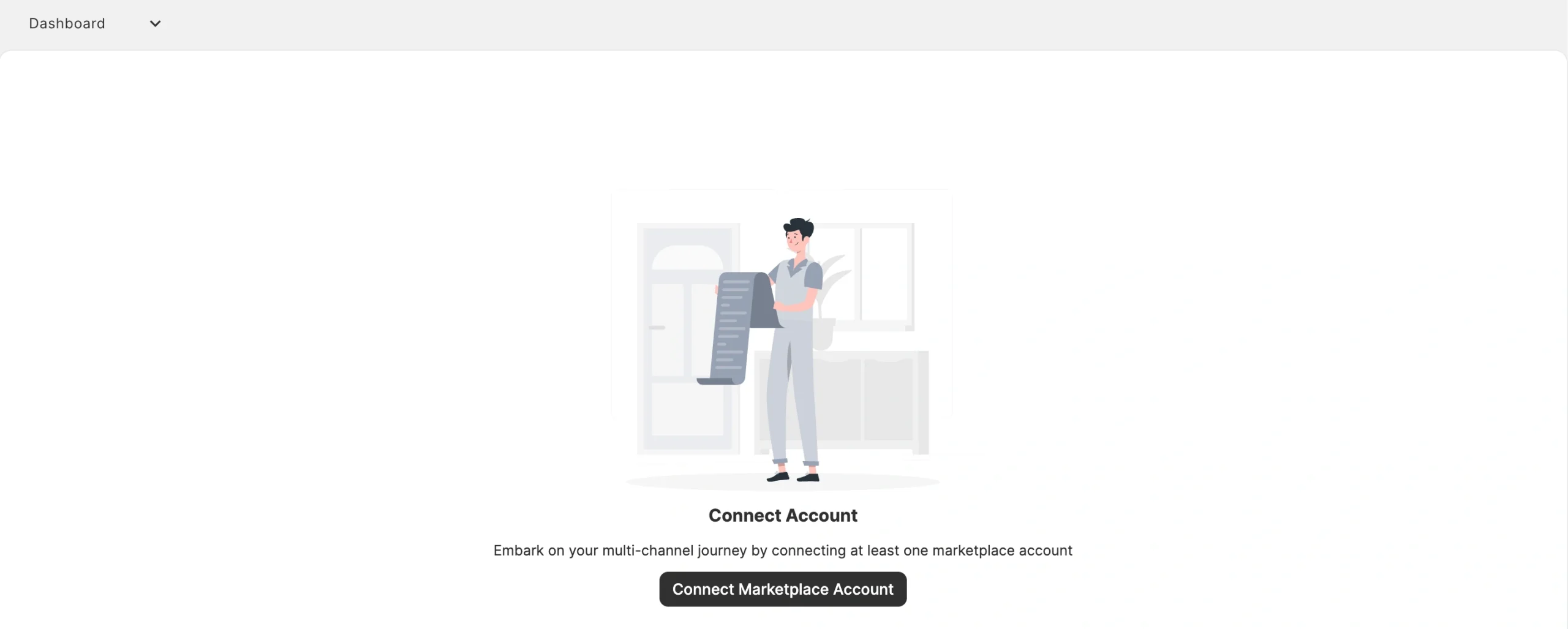
Once authorized, your Amazon account will appear as connected in the app.
Step 3. Link products between Shopify and Amazon #
The app will attempt to automatically match your Shopify products with Amazon FBA inventory using SKU or Product ID.
If matches are found, products will be linked automatically and begin syncing.
If some items aren't matched, you need to link them manually:
1) Go to the Setup Guide in the Dashboard tab.
2) Click View Not Linked Products under the Link Products section.
3) You will be redirected to the Listings tab, where you can complete the linking process.

⚠️ Only linked products can be fulfilled by Amazon. Unlinked items won’t be included in MCF orders.
Step 4. Synchronize inventory #
Configure inventory synchronization to keep stock levels aligned between Amazon FBA and Shopify.
1) In the Setup Guide, click Inventory Settings under the Synchronize Inventory section.

2) Find the Adjust Shopify Inventory for MCF section on the Settings page.
There, you can enable the option to Sync quantity from Amazon Fulfillment to Shopify. It keeps your Shopify store inventory automatically updated when stock levels change in Amazon FBA.

💡 For a detailed walkthrough of inventory synchronization settings, see our guide on Amazon MCF Shopify stock sync.
Step 5. Set up order processing #
Configure how M2E automatically sends Shopify orders to Amazon MCF for fulfillment. Navigate to the Manage Orders section in the Setup Guide and click Order Settings.

Order management settings #

| Setting | Description |
|---|---|
| Create Amazon MCF orders from Shopify orders only for linked items | Automatically creates fulfillment requests in Amazon for new Shopify orders when items are linked. |
| Create Amazon MCF orders from Shopify orders only for items with MCF Fulfillment enabled | When enabled, only products you have specifically marked for MCF fulfillment will trigger Amazon order creation. To mark products, go to the Listings tab, select the ones you want fulfilled through Amazon, and choose Enable MCF Fulfillment from the mass actions menu. |
| Create Amazon orders for mixed Shopify orders | When a Shopify order includes both FBA and non-FBA products, this option lets the app create MCF orders for the FBA items. |
⚠️ M2E sends the order to Amazon MCF only when all conditions are met (product exists in FBA, stock is available, order is paid, etc.). See the Conditions for Automated Order Fulfillment section for the full list.
Delivery options #
Set up how your MCF orders are shipped.

| Setting | Description |
|---|---|
| Block Box Order Fulfillment | Ships MCF orders in unbranded packaging (no Amazon logos) to maintain your brand identity. |
| Block Amazon Logistics | Excludes Amazon Logistics as the carrier for your MCF orders if you prefer to use alternative shipping services. |
| Fulfillment Mode | Choose how Amazon handles multi-item MCF orders: - All or Nothing – Amazon ships the order only if all items are in stock. The order will be cancelled if at least one item is unavailable. - Wait Until Complete – Amazon waits until all items are available before shipping. - Ship What’s Ready – Amazon ships available items first and sends the rest later. |
Step 6. Map shipping methods #
Map Shopify shipping methods to their Amazon MCF equivalents. Correct mapping ensures Amazon uses the right shipping service and provides accurate tracking to customers. When it comes to delivery, shipping mapping helps maintain consistent timelines and reduce support issues related to customer expectations.
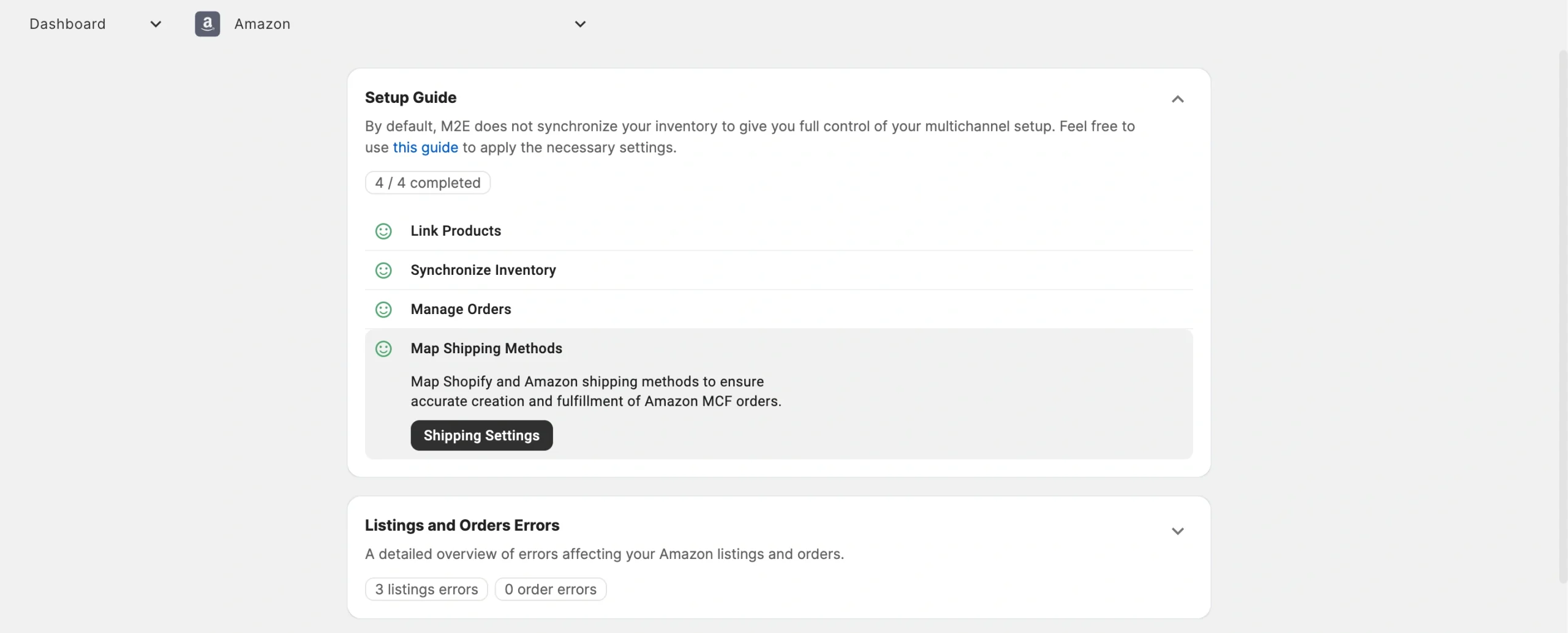
1) Click the Shipping Settings button in the Setup Guide.
2) For each Shopify shipping option, select a corresponding Amazon MCF method (e.g., Standard, Expedited, Priority).
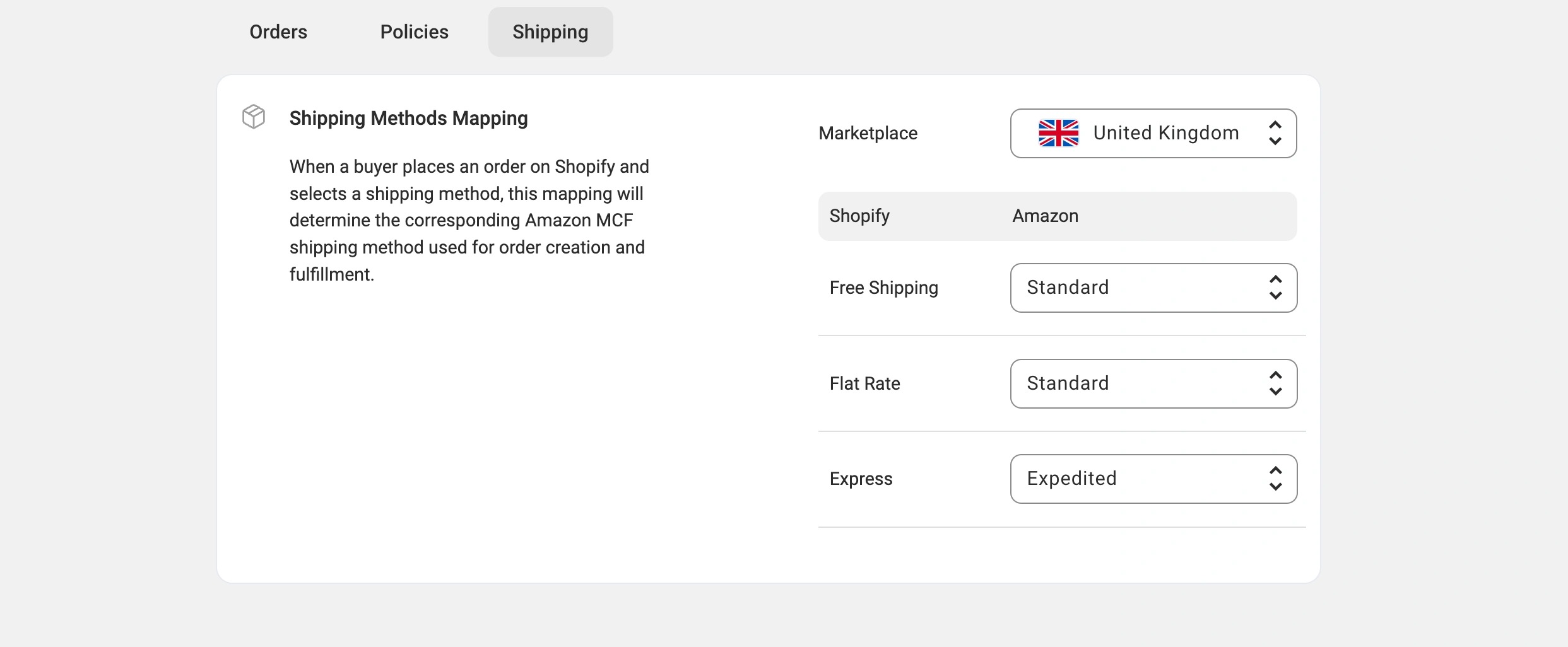
3) Save the changes.
ℹ️ If no shipping methods appear, add them in your Shopify store settings or click Retrieve Account Details in M2E Account settings to pull them in.
Optimize your fulfillment setup #
Once the initial configuration is complete, follow the best practices below to keep your fulfillment process running without interruption.
Conditions for automated order fulfillment #
The M2E Amazon MCF app sends a fulfillment request to Amazon only when all of the following conditions are met:
- All items in the order exist on Amazon as FBA inventory.
- Shopify products are linked to their corresponding Amazon FBA listings.
- All ordered items have available stock.
- The Shopify order is marked as Paid.
- The customer's shipping destination matches the fulfillment country of the Amazon items.
- The order was placed after MCF order creation was enabled in your M2E app settings.
- The Shopify order status is Processing (not already Fulfilled).
Order tracking and status updates #
Once Amazon processes an order, M2E automatically updates the corresponding Shopify order with tracking information and status changes. Here is how the process works:
- Tracking sync. When Amazon ships the order, tracking details are added to the Shopify order record.
- Status updates. Shopify order statuses are updated to reflect fulfillment progress on Amazon's side.
- Split shipments. If Amazon ships items separately (for example, from different fulfillment centers), each shipment appears as its own tracking entry in Shopify.
Automatic tracking updates keep your customers informed and reduce support requests related to order status.
Multi-platform order fulfillment #
Although this guide focuses on Shopify, the M2E Amazon MCF app also supports order fulfillment from marketplaces such as eBay, TikTok Shop, Kaufland, Temu, and more.
The process is consistent across all supported platforms:
- A customer places an order on a connected sales channel (e.g., Shopify, eBay, TikTok Shop).
- If the items meet the requirements for MCF fulfillment, the app creates an MCF order.
- Amazon ships the order, and M2E automatically sends tracking details to the original sales channel.
Using M2E Amazon MCF, you can fulfill orders from multiple sales channels with a single FBA inventory.
✅ If you have questions about the setup of M2E Amazon MCF for Shopify, please contact our support team.


