
Using M2E Catalog custom attributes is a smart way to handle Quantity Per Pack across your TikTok Shop listings, especially if you’re working with variations. These attributes help you stay organized and consistent, without affecting your storefront.
Let’s walk through the process of creating and assigning the custom Quantity Per Pack attribute to your products.
Why use custom attributes #
M2E Catalog custom attributes are:
- Stored only inside your M2E Catalog
- Completely separate from your online store
- Reusable across Simple and Variational listings
- Ideal for assigning different values to each variation
💡 If you're not yet familiar with how base unit pricing on TikTok Shop works or when it's required, check out this guide first.
How to create and assign “Quantity Per Pack” custom attribute #
Step 1. Create the custom attribute #
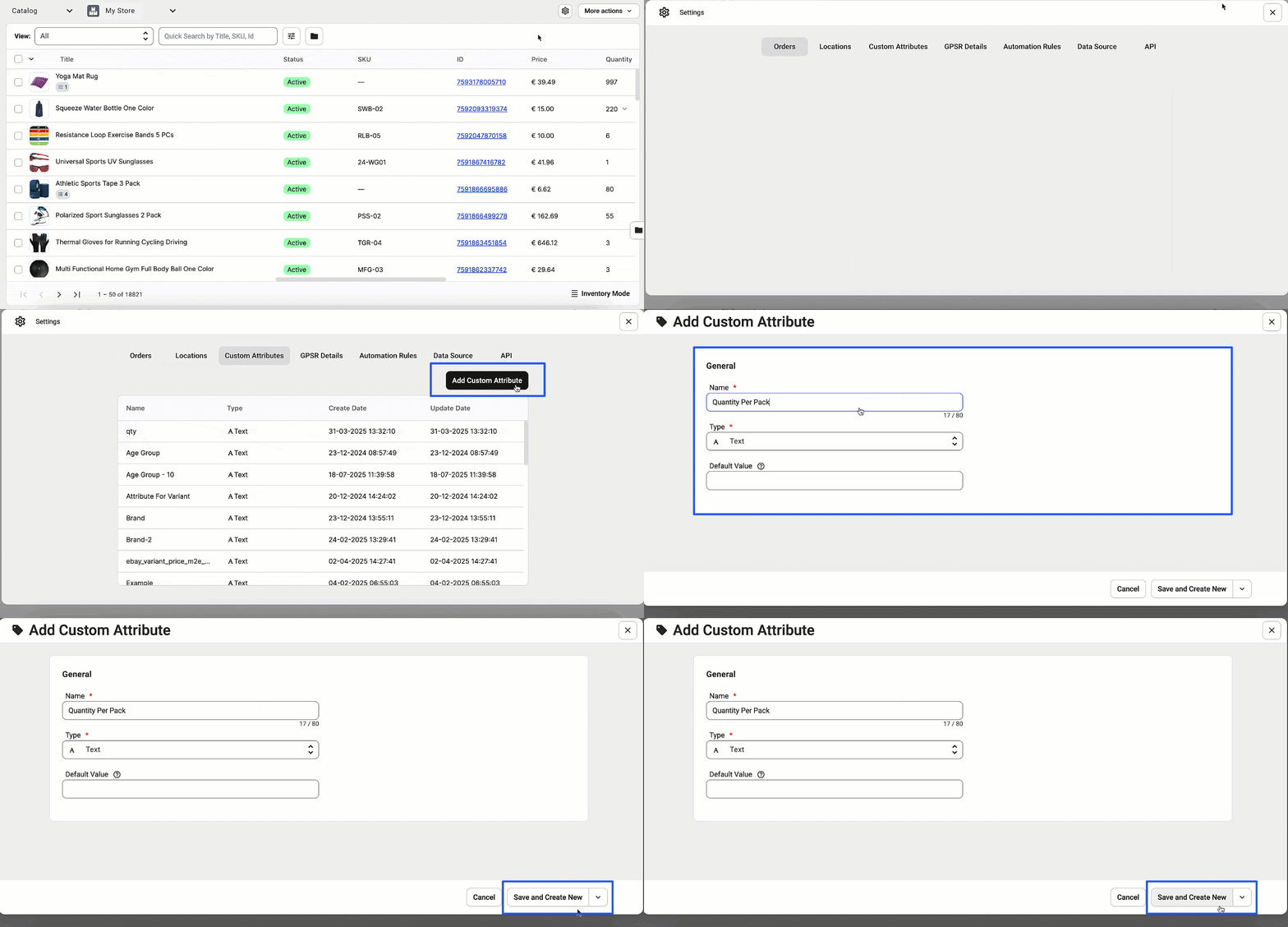
- Open the Catalog tab.
- Click the Settings (gear) icon in the top-right corner.
- Select Add Custom Attribute.
- Name it Quantity Per Pack (leave the default value empty).
- Click Save and Create New.
Step 2. Export products to assign values #
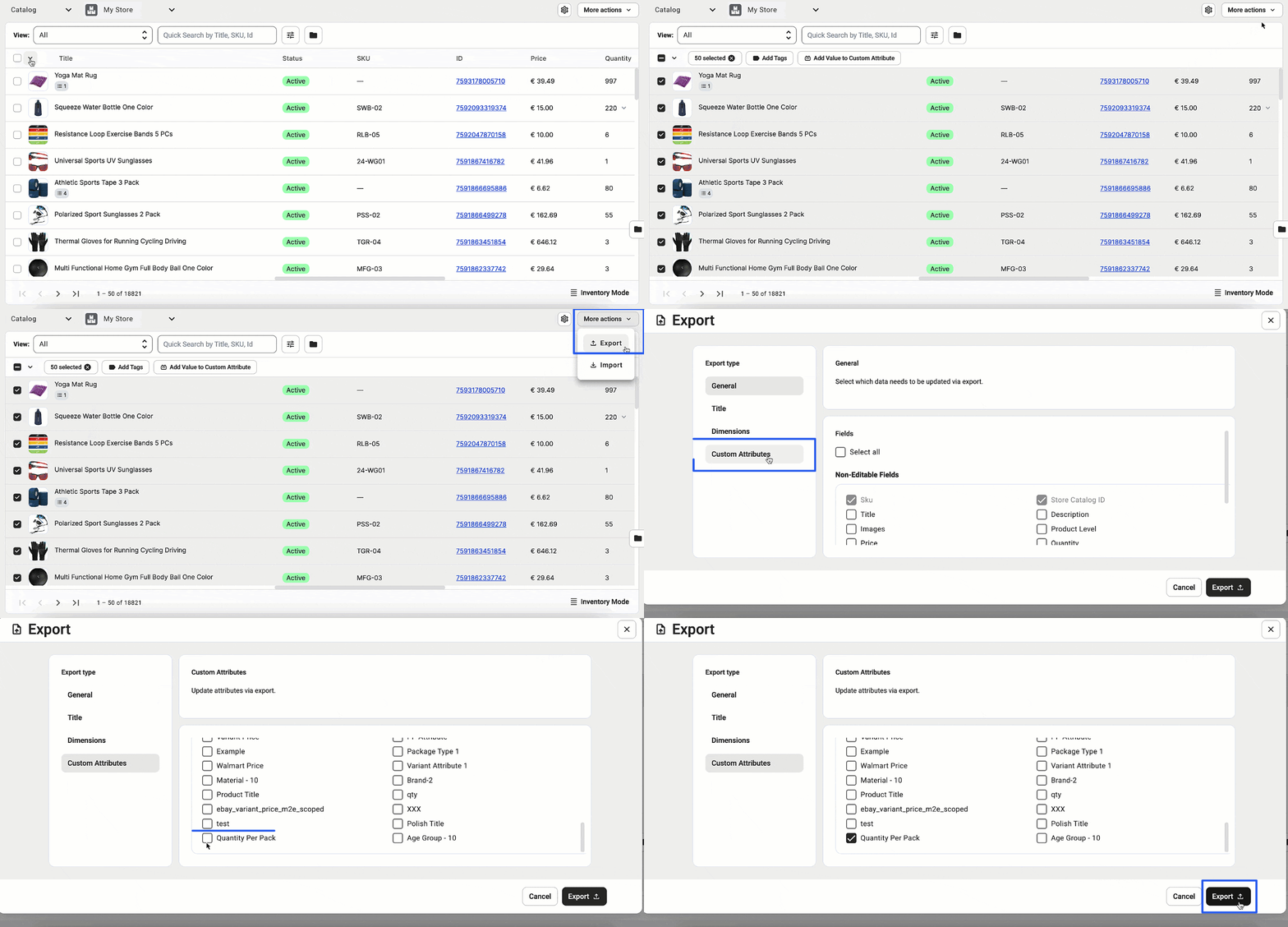
- In the Catalog tab, find the products you plan to list.
- Select the items.
- Click More Actions > Export.
- Choose Custom Attributes Export as the file type.
- Select Quantity Per Pack as the attribute to export.
Step 3. Fill in the attribute values #
In the exported CSV file, enter values under the ‘Quantity Per Pack’ column:
- For Simple products, assign the value directly.

- For Variational products, assign the value for each variation only (not the parent product).

Step 4. Import updated attribute values #
- Go back to the Catalog tab.
- Click More Actions > Import.
- Upload your updated CSV file.

Step 5. Assign attributes and list your products #
- Open a product card in the Catalog tab.
- Go to the Attributes section.
- Make sure to set the following attributes:
- Quantity Per Pack
- Unit Type
- Base Unit Count

Once these three values are assigned, you’re ready to list the product on TikTok Shop.
If the attributes are filled in correctly, TikTok Shop will automatically calculate and show the base unit price on your product page.
ℹ️ If you run into any issues or need a hand with setup, feel free to reach out to the M2E support team. We’re here to help.


