
M2E Multichannel Connect lets you list products with variations from your Store or Catalog on Temu. Follow the steps below to create and publish your variational listings.
✅ Before you begin, make sure that:
- The M2E Multichannel Connect app is installed in your system.
- Your Temu seller account and store account are connected in the app.
Step 1. Access Temu items #
Open the Listings page in your M2E Multichannel Connect app. Then, choose the Temu account where you want to publish your products.
Click List on Temu in the top-right corner to start setting up your listings.

Step 2. Define item policies #
Next, configure M2E Policies that determine how your products will be listed and synchronized with Temu. These settings ensure that your listings meet Temu’s requirements and behave as expected during synchronization.

You need to set up the following policies:
- Selling Policy – Controls pricing and quantity settings for your Temu listings.
- Synchronization Policy – Defines how inventory, product details, and price updates sync between your store and Temu.
- Description Policy – Specifies how product titles and descriptions appear on Temu.
- Shipping Template – Determines your preferred delivery methods.
✅ If you have created shipping templates in Temu Seller Central, they will appear in the list automatically. If not, click Create New to add a template.
Once all M2E Policies are configured, click Next to continue.
Step 3. Select variational products to list #
Choose products with variations from your Store or Catalog that you want to list on Temu. It’s best to work in batches, for example, by product category or type, so you can apply consistent settings like pricing, quantity, and attributes.
Use the Quick Search bar to find items by title, SKU, or Product ID. You can also filter products by:
- Category or Store/M2E Catalog attribute
- Presence of variants
- Variant options

The product grid displays Parent products by default. Click View/Manage item variants to check detailed information about each variation.

⚠️ Each product variation must have a unique SKU in your Store/Catalog. Variations with duplicate SKUs cannot be listed on Temu.
After selecting your products, click Next.
Step 4. Assign a Temu category #
Decide how you want to assign Temu categories to your variational products.
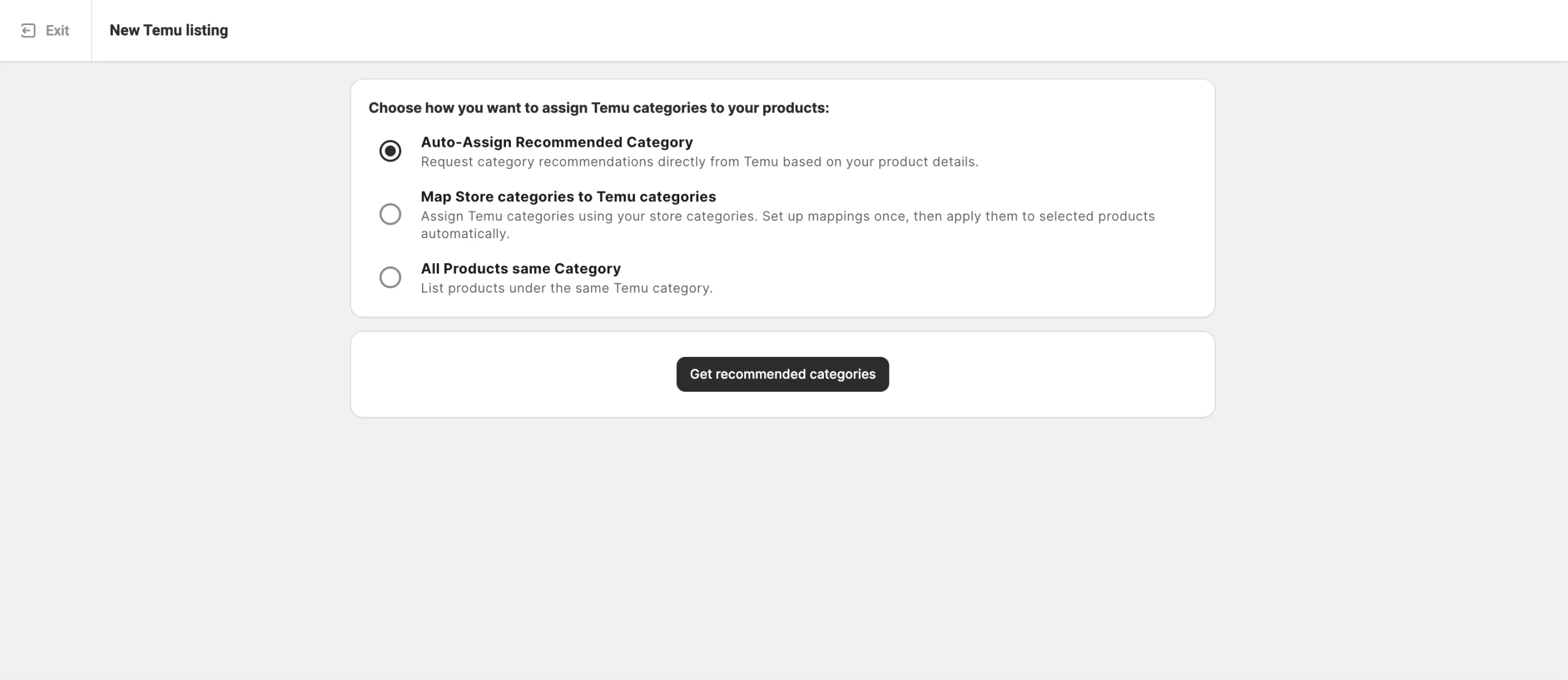
1) Auto-Assign Recommended Category – Request category recommendation from Temu based on your product details. Click Get recommended categories to receive a suggested category.
Once the suggestion appears, you’ll see it in a purple category box. Review the suggested category and do one of the following:
- Click Confirm to accept the recommended category.
- Click Change if you want to edit the category and choose another one manually.

2) Map Store categories to Temu categories – Use your existing store categories to automatically assign Temu categories.
Click Get mapped categories to configure the mappings once and apply them to new listings. Check out the guide for more information.

3) All Products same Category – Manually select a Temu category to apply to all products in the current batch.

This option is especially convenient if you’ve selected products based on their Store category in the previous step. It allows you to assign one matching Temu category to the entire group at once.
Step 5. Define product attributes #
After saving the category, configure the category attributes to make your products easier for buyers to find and to meet Temu’s listing requirements.
There are three types of attributes you may need to provide:
- Required attributes – Must be completed to comply with Temu’s standards.
- Recommended attributes – Optional, but filling them in can improve product visibility.
- Safety and Compliance attributes – Help your listings meet relevant safety and regulatory rules.

You can assign attributes using:
- Temu’s predefined attribute options – Select values from the list provided by Temu.
- Existing Store attributes – Use product data available in your Store or Catalog (recommended if your items already contain this information).
- Custom attributes created in M2E Catalog – Add new attributes in M2E if they are missing in your Store data.
When you finish, click Confirm to proceed to the next step.
Step 6. Publish products on Temu #
Review your setup and click List Now to send the products for Temu’s approval.

If you want to save your progress and return later, select Save as Draft instead. Draft listings won’t appear on Temu until you publish them manually.
ℹ️ Keep in mind that the Parent product or its individual variations with Draft or Hidden status in your store won’t sync to Temu.
Step 7. Validate your listings #
Before submission, the M2E Listing Validator Assistant reviews your data to confirm it aligns with Temu’s listing requirements. If any details are missing or don’t match Temu’s rules, the Assistant will display a list of issues and explain what needs to be fixed.
You can correct all issues right away and click List Now to send your products to Temu, or save the listings as Incomplete to return to them later.

When you’re ready to finish validation, open the Temu Listings page. Then, filter items by Incomplete status and make the required updates. Click Manage Items > List from the actions menu to resubmit them for review and publication.

Mapping of variation attributes #
If your product variations aren’t automatically linked to Temu’s attribute options, the M2E Listing Validator Assistant will highlight the issue. This can happen if a required variation attribute is missing or if the values you use don’t match Temu’s accepted list for that category.
In such cases, you’ll see the message “Missing required variant option” or ”Number of variant options exceeds limits”. Click Next Steps > Mapping Variations to open the Variation Attribute Mapping window and resolve it.

⚠️ Temu requires every variational product to include at least one valid variation attribute, such as Color, Size, or Material. Each category has its own predefined set of allowed attributes and accepted values.
You’ll be prompted to match your Store’s variation options with Temu’s supported attributes:
- Select the variant option from your Store/Catalog that corresponds to the correct Temu variation (for example, your Store may use Colour while Temu uses Color).
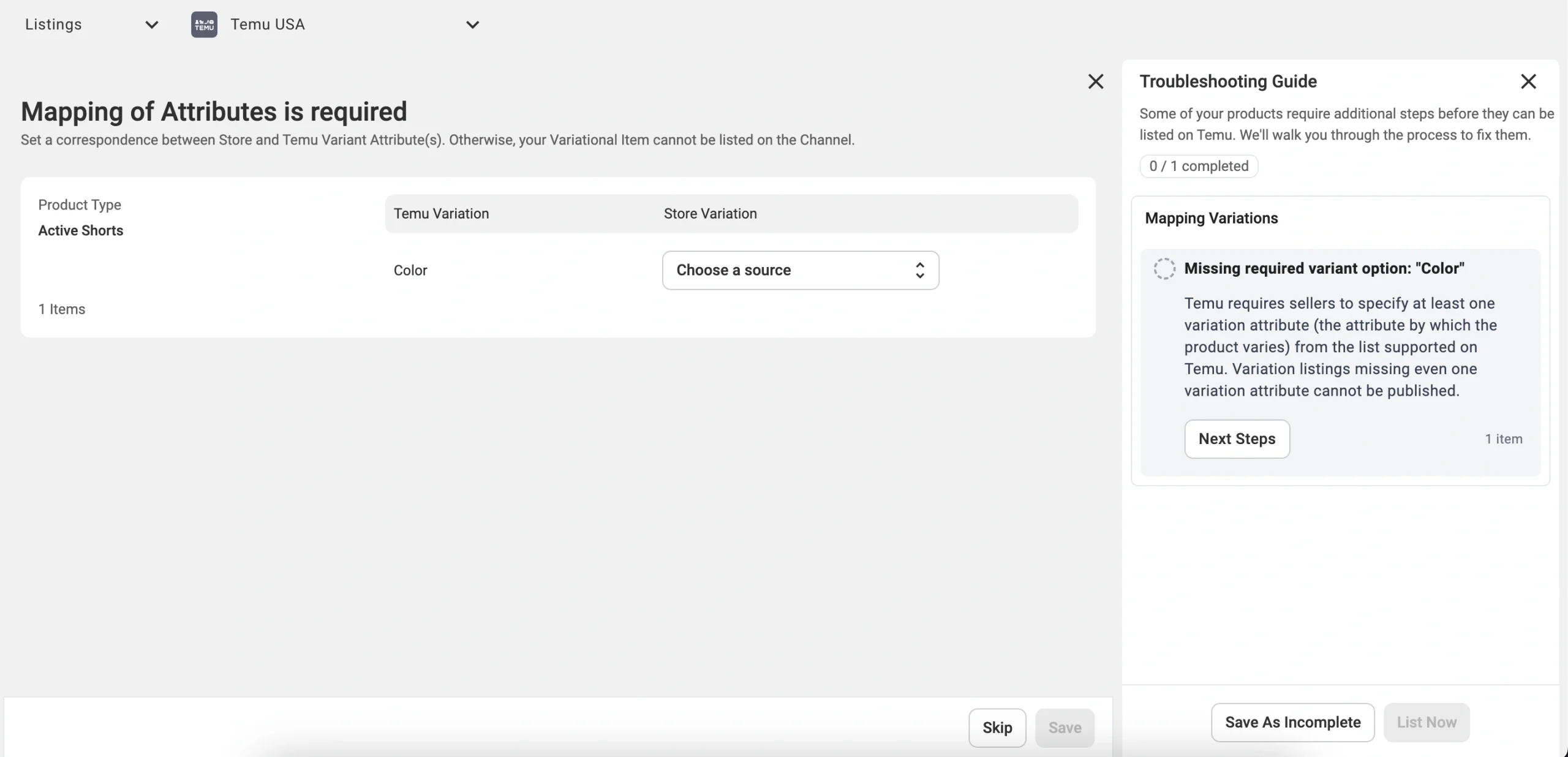
- Or manually choose the appropriate value from the list provided by Temu for that variation option (for example, White, Red, Black, etc.).

Example:
In the Sheet & Pillowcase Sets category, Temu supports two variation options – Color and Fitted Sheet Size.
If your color values (for example, Beige or Charcoal) match Temu’s list, no changes are needed. However, if your size options include extra wording like Single 91×193 or Double 137×193, you’ll need to adjust them to Temu’s accepted format, such as 150×200cm or 180×210cm.
Once your variation attributes are mapped correctly and all remaining issues are resolved, M2E will submit your listings to Temu for review and publication.
✅ If you run into difficulties while listing variation products, reach out to the M2E support team.


