
This guide covers setting up the M2E Amazon Multi-Channel Fulfillment (MCF) app for BigCommerce. Once configured, you can use your Fulfillment by Amazon (FBA) inventory to automatically fulfill BigCommerce orders, as well as orders from marketplaces like eBay, TikTok Shop, Temu, and others.
Step 1. Install the app #
Begin by installing the M2E Multi-Channel Fulfillment by Amazon app from the BigCommerce app store.
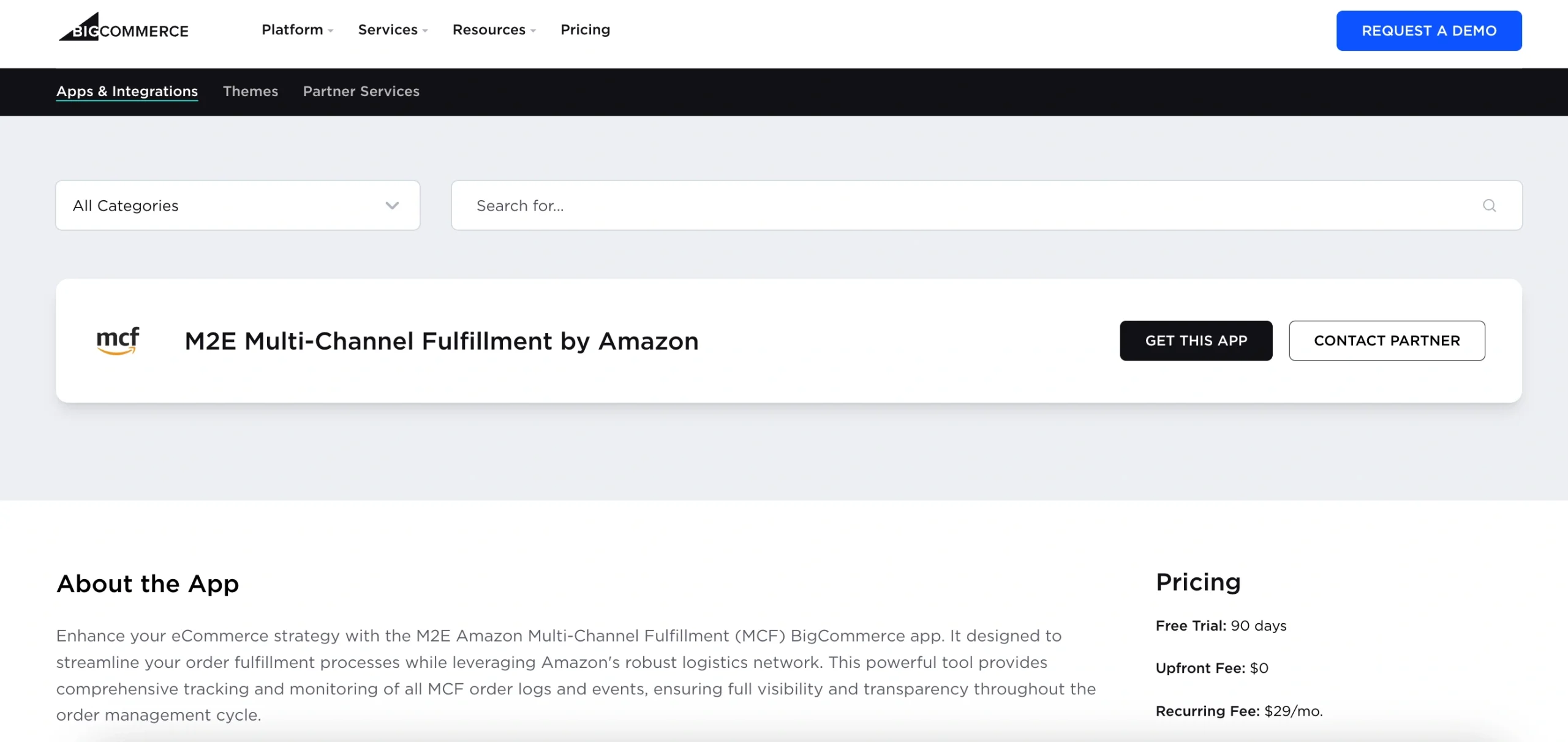
You will be redirected to your BigCommerce admin panel. Confirm that you want to Install the app by clicking on the button.
Once the app is installed, you will be taken directly to the M2E Amazon MCF setup.
Step 2. Connect your Amazon seller account #
Link your Amazon Seller Central account so the app can access your FBA inventory data.
1) Open the Dashboard in the M2E Amazon MCF app.
2) Click Connect Marketplace Account. The app will redirect you to Amazon's login page.
3) Log in and grant M2E permission to access your account.

Once linked, your Amazon account will be ready to sync with your BigCommerce store.
Step 3. Link products between BigCommerce and Amazon #
After connecting your account, the app will automatically match BigCommerce products with Amazon FBA inventory using SKU or Product ID.
If matches are found, products will sync automatically.
If some items aren't matched, you need to link them manually:
1) Go to the Setup Guide in the Dashboard tab.
2) Click View Not Linked Products under the Link Products section.
3) You will be redirected to the Listings tab to finalize linking.
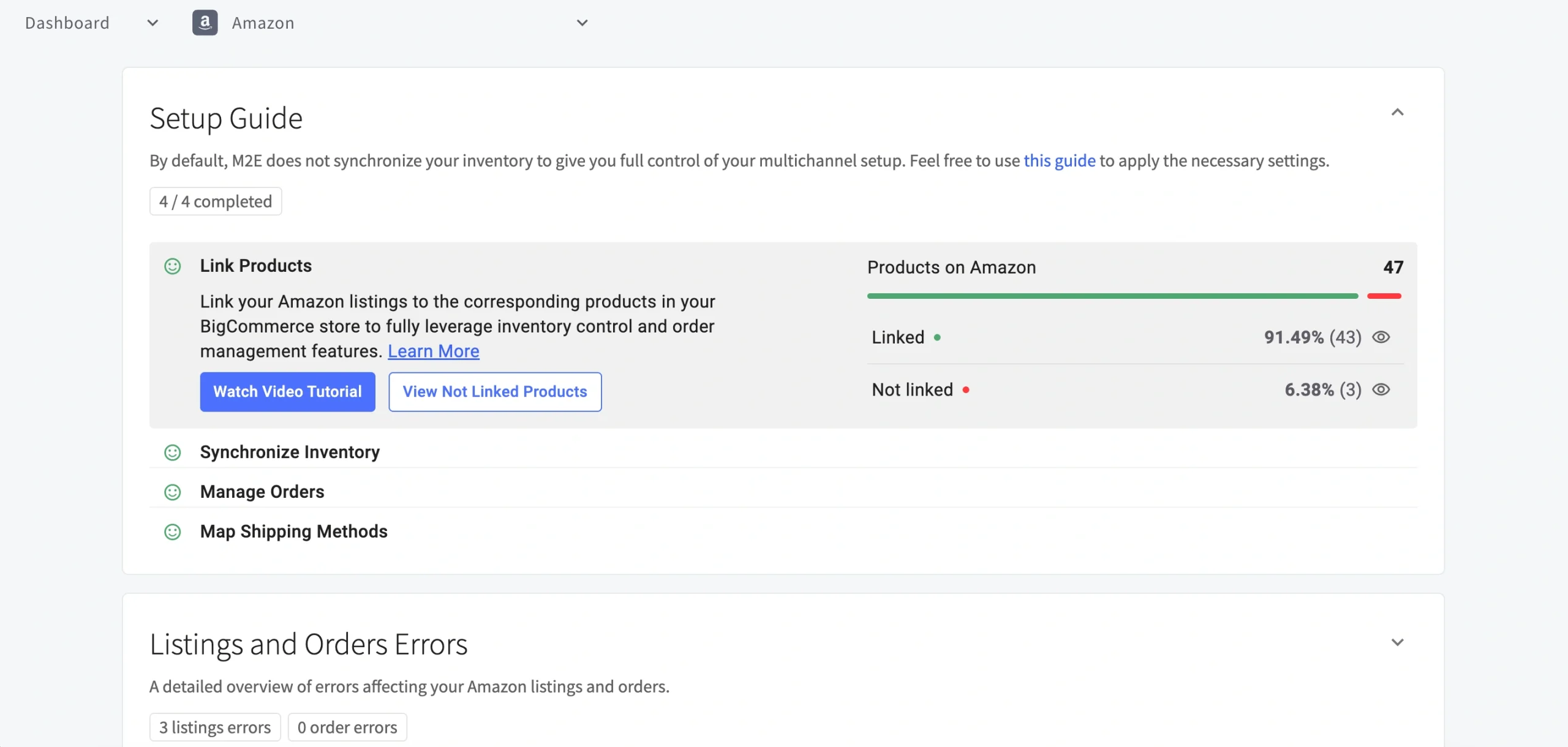
⚠️ If your products aren't linked, the app won't be able to properly synchronize your MCF orders.
Step 4. Set up inventory sync #
Keep your BigCommerce stock levels in sync with Amazon FBA by configuring inventory settings.
1) In the Setup Guide, click Inventory Settings under the Synchronize Inventory section.

2) Find the Adjust BigCommerce Inventory for MCF section on the Settings page.
There, you can switch on quantity synchronization and decide how stock should be updated: either by overriding existing quantities with FBA values or by adding FBA quantities on top of current BigCommerce stock.

💡 For more information on how to enable and adjust inventory sync, follow our guide on Amazon MCF BigCommerce stock synchronization.
Step 5. Set up order processing #
Configure how M2E handles BigCommerce orders through Amazon MCF. Under the Manage Orders section, click Order Settings.
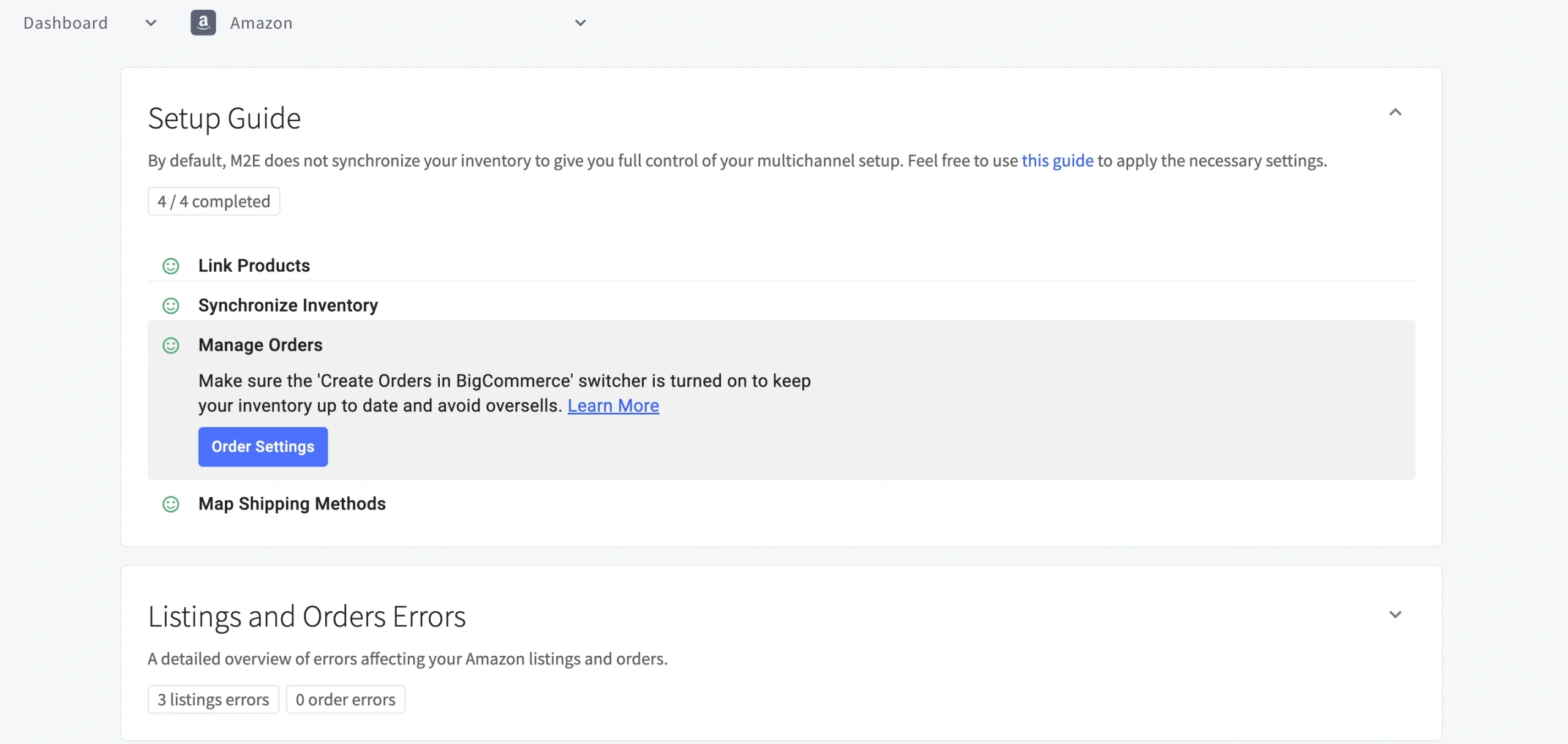
Order management #

| Setting | Description |
|---|---|
| Create Amazon MCF orders from BigCommerce orders only for linked items | Automatically submits fulfillment requests to Amazon when new BigCommerce orders come in, provided the items are linked to FBA inventory. |
| Create Amazon MCF orders from BigCommerce orders only for items with MCF Fulfillment enabled | Restricts Amazon order creation to products you have manually flagged for MCF. To flag products, open the Listings tab, select the relevant items, and apply Enable MCF Fulfillment from the mass actions menu. |
⚠️ The app will only forward an order to Amazon MCF if all required conditions are satisfied, such as the item being available in FBA, sufficient stock, and a confirmed payment. Refer to the Requirements for Automated Fulfillment section for the complete list.
Delivery options #
Control how your MCF orders are packaged and shipped.

| Setting | Description |
|---|---|
| Block Box Order Fulfillment | Ensures MCF orders are shipped in plain, unbranded boxes without Amazon logos. Useful to preserve your store's brand identity. |
| Block Amazon Logistics | Removes Amazon Logistics from the list of available carriers, so you can rely on alternative shipping providers. |
| Fulfillment Mode | Determine how Amazon processes MCF orders that contain multiple items: - All or Nothing – The order ships only when every item is in stock. If any item is out of stock, the entire order is cancelled. - Wait Until Complete – Amazon holds the order until all items become available before shipping. - Ship What’s Ready – Available items ship immediately; the rest are sent later once restocked. |
Optimize your fulfillment setup #
Once your M2E Amazon MCF app is configured, use the recommendations below to avoid common issues and maintain reliable fulfillment.
Requirements for automated fulfillment #
The M2E Amazon MCF app creates an Amazon fulfillment order only when all of the following conditions are met:
- All items in the order exist on Amazon as FBA inventory.
- BigCommerce products are linked to their corresponding Amazon FBA listings.
- All ordered items have available stock.
- The BigCommerce order has been paid.
- The customer's shipping address aligns with the fulfillment country of the Amazon items.
- The order was placed after MCF order creation was enabled in your M2E app settings.
- The BigCommerce order status is Processing (not already Fulfilled).
Tracking and fulfillment updates #
Once Amazon processes an order, M2E automatically keeps your BigCommerce store up to date:
- Order status sync. The app continuously updates BigCommerce with Amazon's fulfillment progress.
- Tracking information. Once Amazon ships an order, tracking details automatically sync to BigCommerce.
- Partial shipments. If an order is shipped in multiple batches, each tracking number is updated accordingly.
Expand fulfillment beyond BigCommerce #
M2E Multi-Channel Fulfillment by Amazon isn't limited to BigCommerce. It also supports automated order fulfillment for marketplaces like eBay, TikTok Shop, Kaufland, Temu, and more.
Here's how the workflow looks across platforms:
- A customer places an order on any connected sales channel (e.g., BigCommerce, eBay, TikTok Shop).
- If the ordered products satisfy all MCF fulfillment conditions, the app automatically submits an MCF order to Amazon.
- Amazon processes and ships the order, and tracking details sync back to BigCommerce or the original marketplace.
M2E Amazon MCF allows you to manage fulfillment across multiple sales channels from a single FBA inventory.
✅ If you need help setting up M2E Amazon MCF for BigCommerce, feel free to reach out to our support team.


