
When creating new listings in M2E Multichannel Connect, Step 2 is where you choose which products to list from your store or catalog. You can select products directly using search and filters, or use the Batch tool to collect products from multiple searches and pages. This guide covers both options in detail.
Select products from the current page #
If you have already found your target products, either through a search or an active filter, you can select them using one of these methods:
- Click the checkboxes next to individual products to select them one by one.
- Click Select visible to select all products shown on the current page (up to 50 products).
- Click Select all to select all products matching your current search or filter.
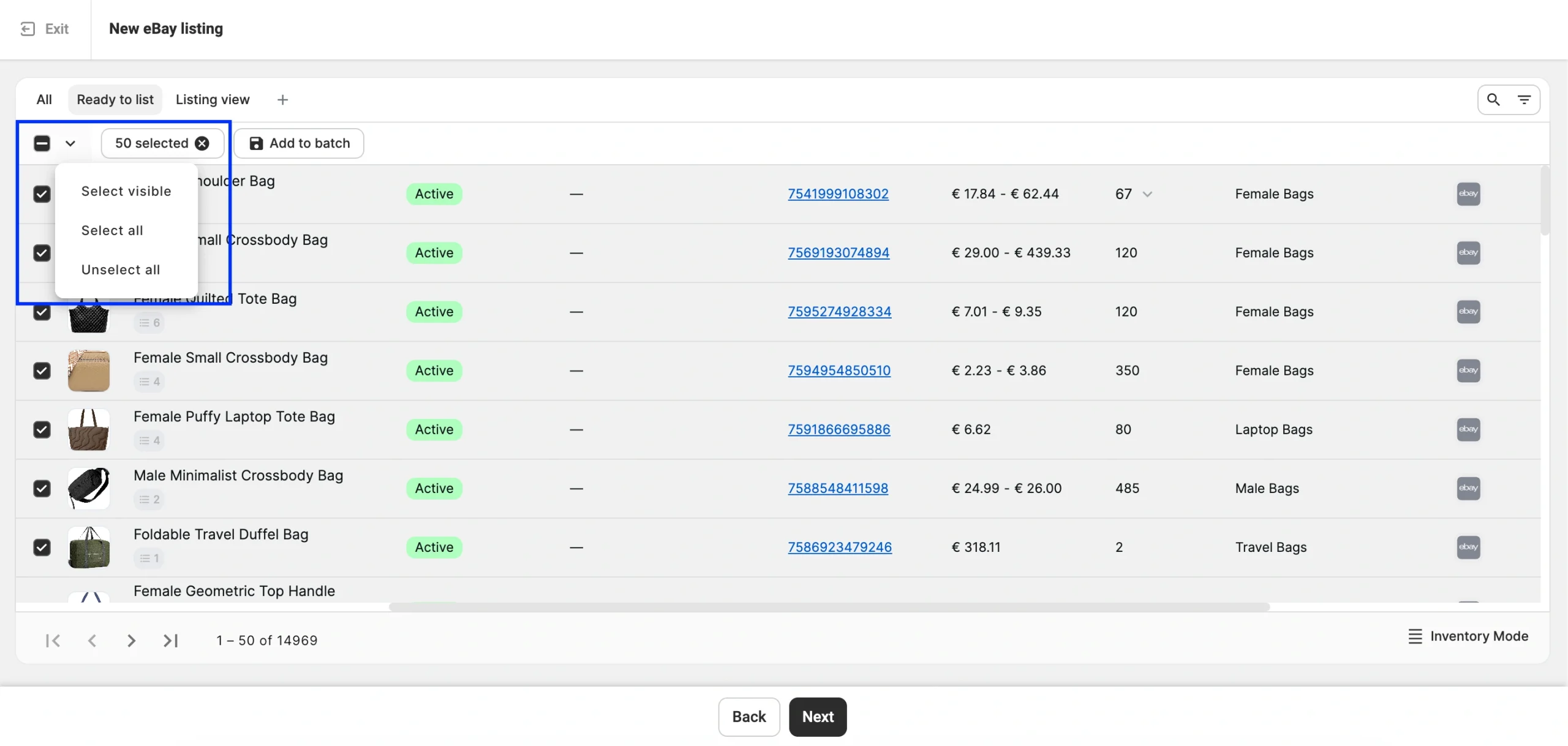
ℹ️ Select all includes every product in your filtered results, not just what is visible on the current page. Double-check your filters before using it.
Build a Batch of products #
Use the Batch tool when your products are spread across multiple searches or filter combinations. Instead of listing each product group separately, you first collect all relevant products, then configure category settings once for the full selection.
To add products to a batch:
1) Search or filter the product grid to find your first group of products.
2) Select the products you need on the current page (individual products or click Select visible).
3) Click Add to batch.
4) Adjust your search or filter to find the next group, then repeat steps 2-3.
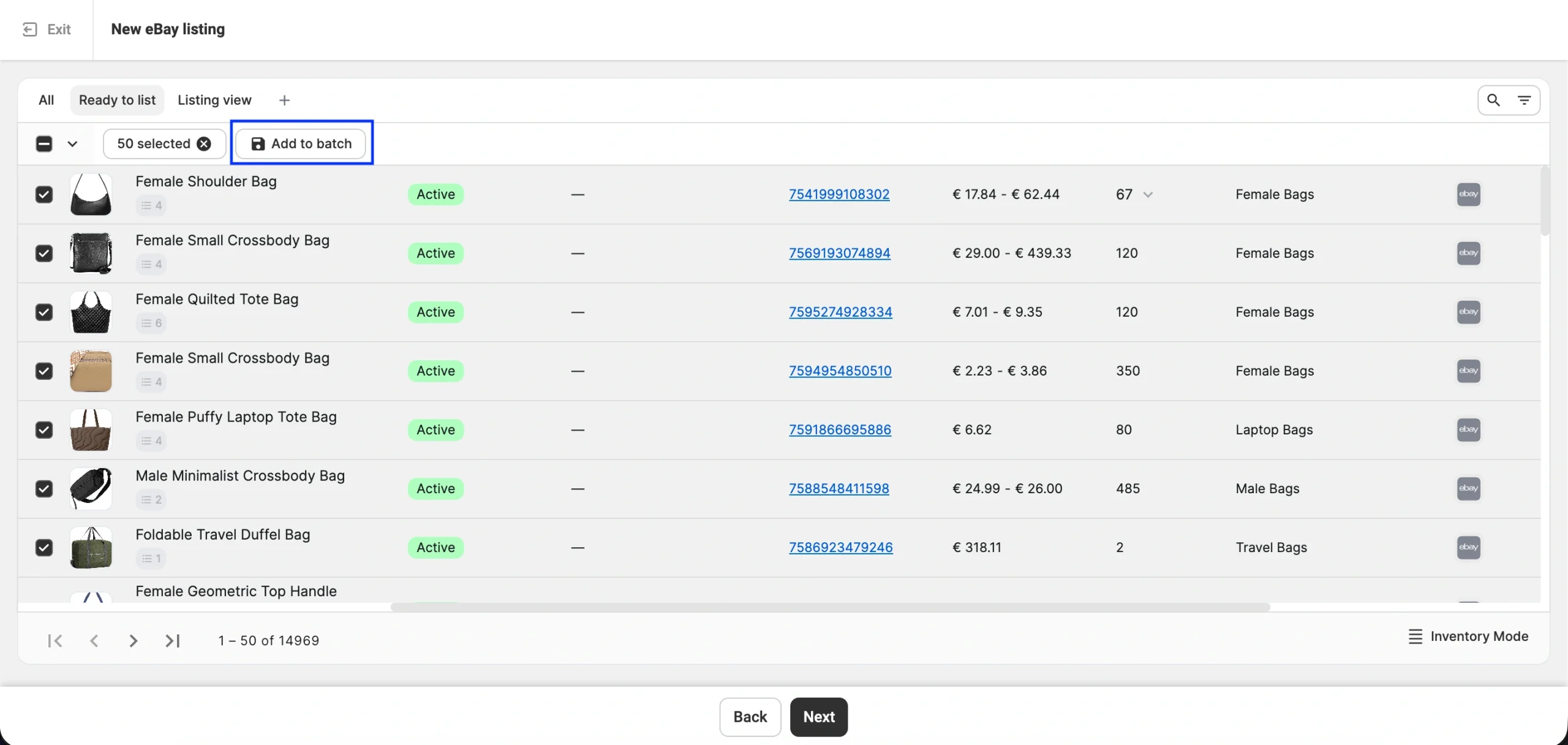
ℹ️ If the same product is added from multiple searches, it will appear in your Batch only once.
Batch controls in the toolbar:

| Control | What it does |
|---|---|
| Selected: {count} | Shows how many products are selected on the current page |
| Add to batch | Adds the current selection to your Batch |
| Batch: {count} products | Shows the total number of products in your Batch |
| ✕ next to batch count | Clears the entire Batch |
Important limitations #
- Batch works page by page
You can only add products that are currently loaded on screen. If you navigate to a new page without selecting first, those products won't be included in the Batch.
- Select all disables Add to batch
If your search result has more than 50 products and you use Select all, the Add to batch button becomes unavailable.
- Select all clears an existing Batch
If you have already built a Batch and then use Select all across multiple pages, your Batch is reset.
Finish building your Batch before using Select all, or avoid mixing the two approaches in the same session.
Continue to the next step #
When your product selection is ready, click Next at the bottom of the page.
If you have selected products directly, the listing process continues with those products.
If you have built a Batch, the listing process continues with all the products you collected, so you can configure category settings in bulk.
Need help? #
Have questions about using the Batch tool in M2E Multichannel Connect? Contact our support team.


