
M2E Multichannel Connect lets you list PrestaShop products on TikTok Shop, synchronize inventory and pricing in real time, and import TikTok Shop orders into PrestaShop for unified fulfillment.
This guide walks you through connecting your PrestaShop store to TikTok Shop using the M2E Multichannel Connect module.
Before you begin #
Make sure to meet the following requirements before getting started:
- Your PrestaShop version is 1.7.0 or higher.
- You have admin access to your PrestaShop back office.
- You have an active TikTok Shop seller account. If you don't have one yet, you can register here and get a 30-day free trial of M2E along with onboarding support.
Step 1. Download and install the M2E module #
1) Download the latest version of the M2E Multichannel Connect module from the official GitHub repository. Save the ZIP file to your local device.
2) In your PrestaShop admin panel, go to Modules > Module Manager.
3) Click Upload a module, then select the ZIP file you downloaded.
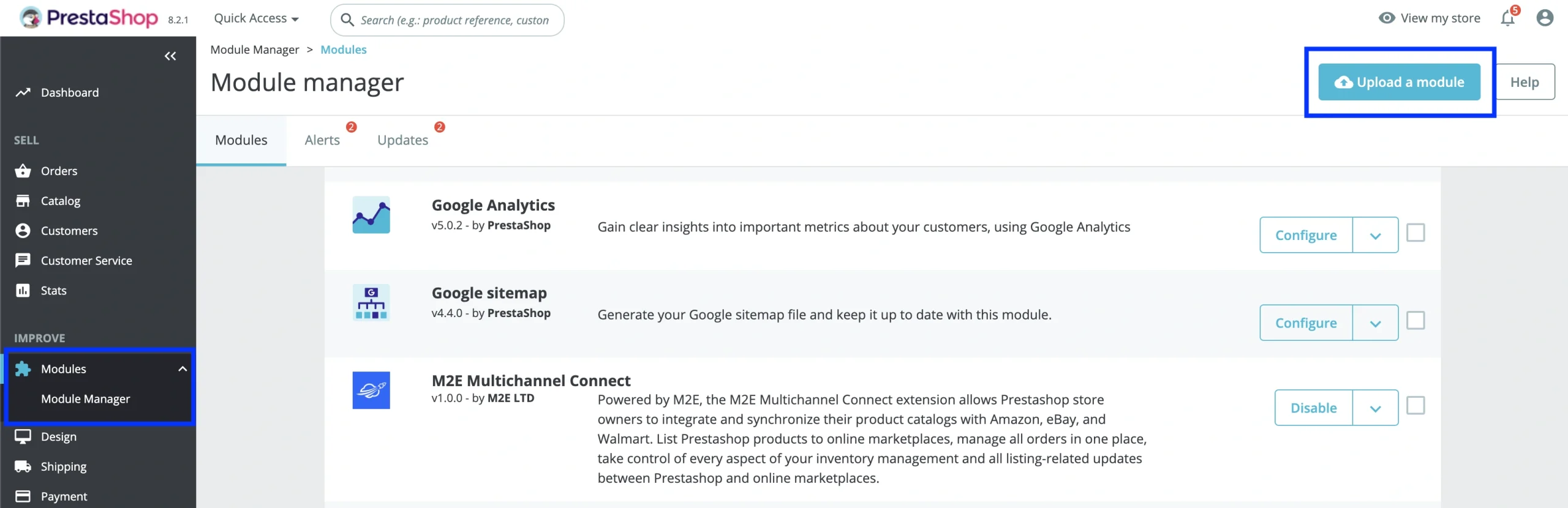
4) Click Install Now, then Activate Plugin.
ℹ️ Having trouble with module installation? See the troubleshooting guide for common fixes.
After activation, M2E Multichannel Connect will appear in the left-hand navigation menu. Click it to open the module.
Step 2. Connect your TikTok Shop seller account #
1) In the M2E module, click Connect Marketplace Account.

2) Select TikTok Shop from the list of available marketplaces.
3) Choose the region where your TikTok Shop seller account is registered. Then, click Connect to proceed.

4) You will be redirected to the TikTok Shop Seller Center to authorize the connection. Log in with your TikTok seller credentials and grant M2E permission to access your account data.
ℹ️ Don't have a TikTok Shop seller account yet? Sign up here to unlock a 30-day free trial of M2E and get personalized onboarding.
Once authorized, you will be brought back to the module. Your TikTok Shop account is now linked.
Step 3. Complete the Setup Guide #
The Setup Guide launches automatically after you connect your account. It guides you through the key configuration steps to integrate your PrestaShop sales with TikTok Shop:

- Link existing products – If you have active TikTok Shop listings, match them with your PrestaShop catalog to avoid creating duplicates.
- Enable inventory sync – Turn on automatic synchronization for linked products so stock levels, pricing, and other product changes in PrestaShop are pushed to TikTok Shop in real-time.
- Activate order import – Allow TikTok Shop orders to flow into PrestaShop for unified order management, fulfillment, and tracking updates.
- Start listing – Publish the PrestaShop products that you don’t yet sell on TikTok Shop.
Once you have completed these steps, your integration is live. From now on, you can manage TikTok Shop listings, inventory, and orders from PrestaShop through M2E Multichannel Connect.


