
Temu promotions help sellers attract buyers and boost sales by offering competitive pricing on their products. M2E Multichannel Connect makes it easy to manage this promotional activity from your e-commerce platform.
You can sync and view your active Temu promotions, enroll products in bulk, and control pricing and quantity through flexible Promotion Policies. This guide walks you through the full process.
Types of Temu promotion activities #
Temu offers four types of promotions you can use:
- Clearance deals – Set low prices to quickly sell slow-moving products with high inventory levels.
- Lightning deals – Boost sales and brand awareness by featuring your products on Temu's homepage in the "Featured Deals" section.
- Official big sale – Apply long-term discounts to maintain competitive pricing over extended periods.
- Advanced big sale – Ideal for seasonal sales periods and holiday-themed promotional events.
💡 For more details on each promotion type, check out Temu documentation.
View items with active Temu promotions #
If you have already created promotions and applied them to your listings on Temu, follow these steps to view them in M2E Multichannel Connect:
1) Navigate to Settings > Sales Channels.
2) Find your connected Temu account and click the three-dot menu. Then, select Refresh promotions to sync your current promotions.
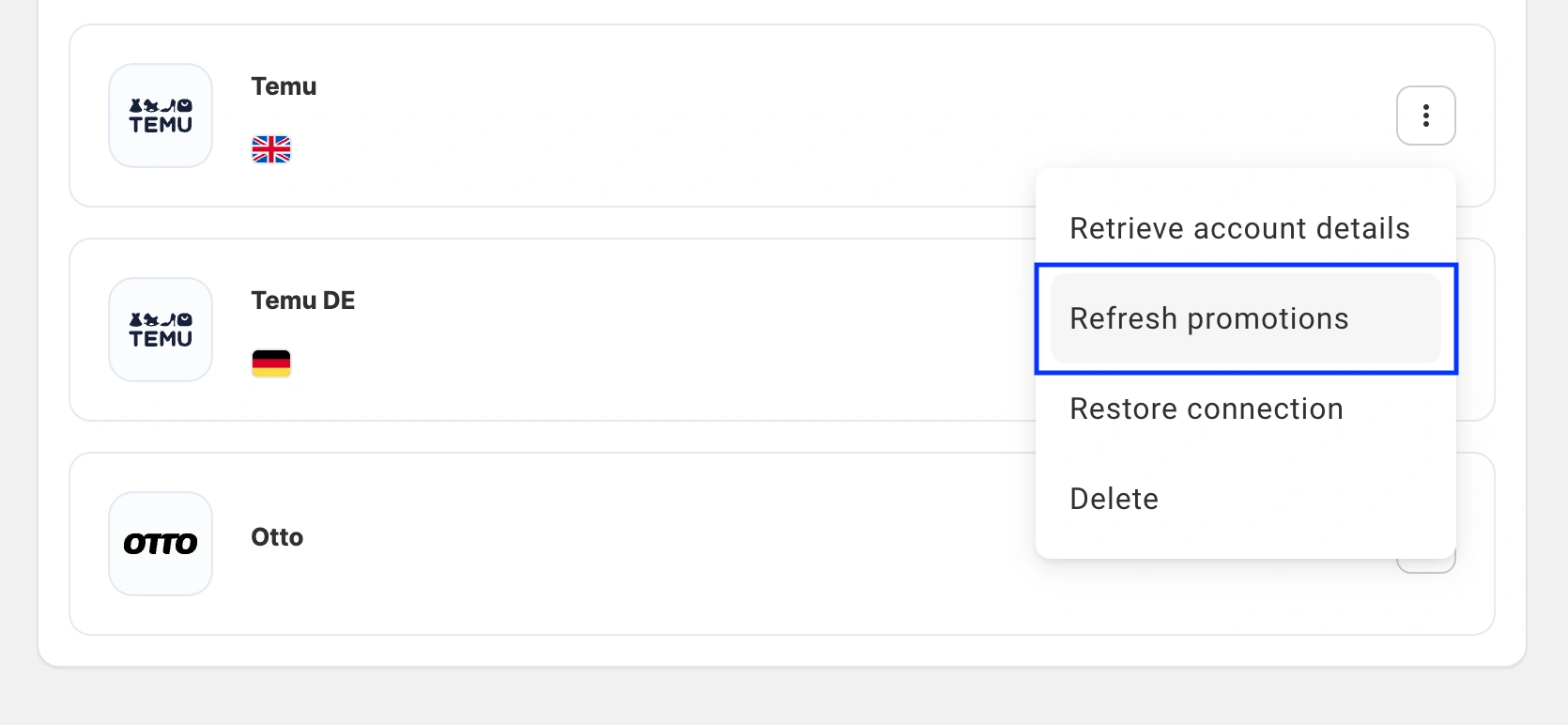
ℹ️ If you have multiple Temu accounts linked, repeat this step for each account.
3) Navigate to the Listings page and select your Temu account.
4) Click on the filters icon in the top-right corner and click Add Filter+. Use the following filters to find Temu listings with specific promotions:

- Promotion applied – filter products by whether they have an active promotion.
- Promotion type – filter by type: Clearance Deals, Lightning Deals, Official Big Sale, or Advanced Big Sale.
- Promotion name – search for products assigned to a specific promotion by name.
You can also view promotion details on the product card. Click on a product from the Listings page and switch to the Discounts tab to see which promotions are currently applied:

Add Temu promotions to products #
Follow these steps to apply promotions to your Temu products in bulk using M2E Multichannel Connect.
ℹ️ Before you begin, make sure you have set up your promotions in Temu Seller Center under the Promotions tab.
Step 1. Select products #
1) Navigate to the Listings page and select your Temu account.
2) Select the products you want to add to a promotion. Use filters such as Promotion applied: No to narrow your search. The selected products must be active on Temu, linked, and have inventory sync enabled.
3) Click the three-dot menu at the top of the list, and select Add Discount.

Step 2. Choose a promotion #
You will see a list of available Temu promotions (with Not started or Ongoing status) that you have created in the Temu Seller Center. Select the promotion you need and click Next.

Step 3. Set up a Promotion Policy #
Create a Promotion Policy. It defines the price and quantity conditions under which your products will participate in the promotion.
The policy is assigned to the promotion itself, not to individual products. Click Create New Policy to get started.

Title
Enter a name for your Promotion Policy so you can identify it later.
Quantity
By default, the promotion uses the quantity value from your Temu listings.
If your store runs on Shopify, you can choose which inventory location(s) M2E should pull quantities from:
- All online locations (default) – Combines inventory from all Shopify locations enabled for online sales and displays the total on Temu.
- Custom location(s) – Select one or more active Shopify online locations. If you choose multiple locations, their quantities are combined.
To reduce the quantity displayed on Temu, click Add Quantity Modification. You can apply a percentage decrease to the source quantity.
For example, if your Temu quantity is 200 and you apply a 50% decrease, only 100 units will be available for the promotion.
Price
By default, the promotion uses the price value from your Temu listings.
To adjust the promotion price, click Add Price Modification. You can choose from four modification types:
- Absolute Value Increase/Decrease – Add or subtract a fixed amount. For example, a $5 decrease on a $100 base price results in a $95 promotion price.
- Percentage Increase/Decrease – Adjust by a percentage. For example, a 10% decrease on a $100 base price results in a $90 promotion price.
Step 4. Submit the promotion #
Once you've configured the Promotion Policy, click Submit. Products that pass Temu's validation will be enrolled in the promotion.

If some of the products don't pass Temu's validation, you will see a warning on those items with details on what needs to be fixed.
ℹ️ You can assign a product to multiple promotions at the same time. However, Temu will apply only one promotion with the highest discount percentage.
Need help? #
If you have questions about assigning Temu promotions in M2E Multichannel Connect, contact our support team for assistance.


