
This guide explains how to connect Tesco to M2E Cloud and manage the integration step by step.
It focuses on what you need to do inside M2E Cloud and what to expect from Tesco as a Mirakl-based marketplace.
M2E Cloud gives you the tools to manage listings, automate workflows, and keep your catalog and order data synchronized across channels.
ℹ️ The setup logic described here is similar for most Mirakl marketplaces supported by M2E Cloud.
What happens outside M2E Cloud #
Tesco Marketplace is part of Tesco’s retail ecosystem in the United Kingdom.
It focuses on fast-moving consumer goods and everyday products, including home items, health products, and seasonal categories.
The marketplace is built on Mirakl. This defines how products, offers, and orders are managed.
Tesco requires structured and accurate product content. Listings are validated carefully, and low-quality data may be rejected.

Who Tesco is a good fit for #
Tesco is designed for retail-oriented product ranges.
It is a good fit if you sell:
- Health and beauty items
- Home and lifestyle products
- Pet-related goods
- Seasonal and garden items
- Standard consumer products
Less suitable products:
- Bulky goods that require complex delivery
- Customized or non-standard items
Requesting a Tesco seller account #
Selling on Tesco starts with an application.
Submit your request through the email to start the onboarding process on Tesco marketplace.
Tesco reviews all applications and controls account approval.
You must meet the following requirements:
- Registered business in the UK
- Valid UK VAT number
- Ability to deliver within the UK
During onboarding, Tesco may review:
- Your product catalog
- Pricing structure
- Fulfillment process
- Operational readiness
After approval, you will receive Mirakl credentials for integration.
Fees and commercial model #
Tesco’s commercial structure is based on commission.
- Setup fee: none
- Monthly fee: none
- Commission: depends on product category
- Payment schedule: twice per month, on the 1st and 15th
Tesco has low fixed costs, but strict requirements for product quality and compliance.
What happens inside M2E Cloud #
M2E Cloud lets you control Tesco Marketplace from a single interface.
With the integration, you can:
- Export products and offers from your store
- Manage pricing, including Clubcard promotions
- Sync orders, shipments, and stock automatically
- Use policies to define listing rules and behavior
The platform is designed for reliable, large-scale operations and supports advanced customization.
Requirements before you start #
ℹ️ Make sure your store runs on a supported platform such as Shopify, BigCommerce, PrestaShop, etc. All M2E apps are available in the official app listings. For example, a Shopify Hygi.de integration by M2E requires installing the Shopify app first.
Before setting up Tesco in M2E Cloud, make sure you meet the following requirements:
- Approved Tesco seller account
- Mirakl API credentials
- UK VAT registration
- Prices available in GBP
- Valid EAN or GTIN for each product
- High-quality product content
Product data must follow Tesco rules. Titles, descriptions, and images must be validated and meet marketplace standards.
💡 If your base prices are in a different currency, enable currency conversion in M2E Cloud.
Connecting Tesco to M2E Cloud #
Tesco is a Mirakl-based marketplace. You can connect it to M2E Cloud using an API key from your Mirakl Seller Admin.
Before connecting, make sure your Tesco seller account is approved, and your Mirakl access is active.
Connection steps:
- In M2E Cloud, go to Connect Mirakl Account.
- In the Select marketplace section, choose Tesco (use the Search marketplaces field to find it quickly).
- Open your Mirakl Seller Admin and generate or copy the API key for your Tesco account.
- Back in M2E Cloud, paste the key into the API key field.
- Enter your Shop ID if your Mirakl account includes multiple shops.
- Click Connect.
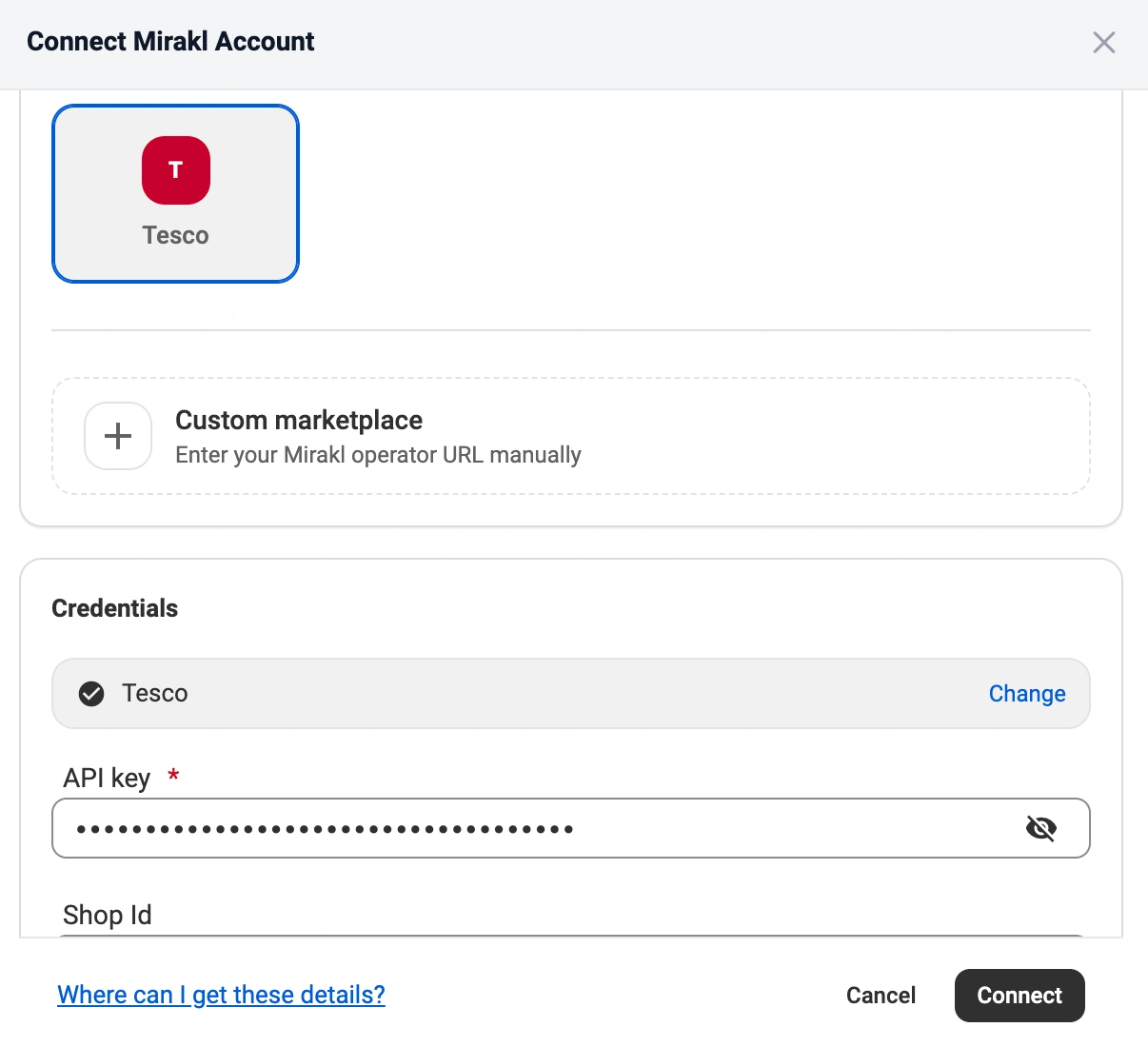
After that, M2E Cloud verifies the account and starts the connection. When the setup is complete, the platform can sync listings, offers, orders, and shipments.
✅ You can find detailed instructions in the M2E Cloud guide for Mirakl marketplace connections.
Common connection issues
If the setup does not work, check the following:
- The API key is not valid
- The API key was changed and not updated in M2E Cloud
- Mirakl access permissions are missing
- The Tesco account is not fully active
- The Shop ID does not match the connected account
ℹ️ If you update the API key in Mirakl later, make sure to update it in M2E Cloud too. Otherwise, the connection will stop working.
Once connected: What happens next? #
1. List new products on Tesco #
Select the products you want to publish and send them to Tesco.
For new products, Tesco usually requires full product content together with offer data. When the export is complete, M2E Cloud can keep the listing updated using your store values.
2. Link existing marketplace listings with store products #
If your products are already listed on Tesco and use the same SKU as in your store, M2E Cloud can automatically link them.
You can also link existing Tesco listings manually.
This step is required for synchronization. It defines which store product controls each marketplace listing.
This affects:
- Which Tesco listings are synchronized
- Which stock and price values are sent to Tesco
3. Map categories and required attributes #
Assign each product to a Tesco category and map all required attributes.
This step is required before product data can be exported.
This includes:
- the Tesco category for each product
- required and category-specific attributes
Tesco validates product data strictly. Titles, descriptions, and other fields must be clear, structured, and compliant with marketplace rules.
Check the M2E Cloud Synchronization Policy to find out more details.
4. Configure pricing and promotions #
Pricing is controlled through M2E Cloud selling policies.
At this stage, you define the key rules for your listings. This includes standard prices, stock values, and promotion settings.
This may include:
- base price source
- quantity available on Tesco
- discount rules
- currency conversion, if needed
M2E Cloud supports flexible policy setup, which is useful when managing multiple product groups or a large catalog.
5. Configure order settings and status mapping #
Define how Tesco orders are imported and processed in M2E Cloud and your store.
This step controls:
- When Tesco orders are imported
- How marketplace statuses map to store statuses
- How shipment confirmation and tracking are sent back to Tesco
Consistent status mapping helps prevent order flow issues between systems.
6. Set up shipping, delivery, and invoice rules #
Shipping policies control how order fulfillment is handled.
In this step, you configure:
- shipment updates
- tracking data
- carrier mapping
- invoice settings
Depending on the setup, invoices can be generated automatically or uploaded by the merchant.
7. Monitor listings and resolve issues #
After the setup is complete, use the Listings page to track listing health.
You can:
- Review export results
- Check validation feedback
- Find pricing, content, or mapping errors
- Correct issues directly in M2E Cloud
💡 M2E Cloud gives you the tools to manage large marketplace catalogs with more control and less manual work. Check all the features here.
What happens in the marketplace back-end? #
Tesco marketplace features #
Tesco is a Mirakl-based marketplace with a defined set of supported features.
Supported
- Product content and offers
- Orders
- Shipments
- Returns (merchant and marketplace)
- Carrier mapping
- Promotions, including Clubcard pricing
Not supported
- Marketplace fulfillment services
- Automated repricing tools
- HTML formatting in product content
- Last-mile delivery labels
Product and offer requirements #
Tesco applies strict validation rules to product content. All fields must meet marketplace requirements.
Title rules
- 60–70 characters
- Clear and structured format
- No promotional or marketing language
Description rules
- Plain text only
- No links or external references
- No subjective or exaggerated claims
Image requirements
- Minimum resolution: 2400 × 2400 px
- White background
- No logos or watermarks
Required attributes
- Brand
- GTIN (EAN)
- VAT rate
- Product dimensions and weight
- Variant attributes where applicable
Offer, pricing, and promotion rules #
Pricing must follow Tesco and Mirakl requirements.
Base pricing
- All prices must be in GBP
Discounts
- Discount price must be lower than the base price
- All discount conditions must be valid
Tesco-specific rules
- Clubcard pricing requires start and end dates
- Incomplete data will prevent the promotion from working
- Omnibus pricing must reflect the lowest price in the last 30 days
💡 Listing behavior across marketplaces can be controlled using M2E Cloud policies.
Shipping, tax, and Mirakl-specific attributes #
Certain attributes affect how products are shipped, taxed, and displayed.
Common attributes
- Lead time to shipment
- Product tax code
- Minimum quantity alert
Logistic class
Defines how products are delivered.
| Code | Description |
| S | Small parcel |
| M | Medium parcel |
| L | Large parcel |
| SPLS | Small with special delivery needs |
| SPLM | Medium with special delivery needs |
| SPLL | Large with special delivery needs |
FAQ #
Why was my product rejected at Tesco? #
Most rejections are due to issues with product data quality.
Typical reasons:
- Missing EAN / GTIN
- Incorrect category mapping
- Missing required attributes
- Invalid or incomplete content
- Image issues
- Pricing errors
Review your data and fix any issues before re-exporting.
What are Tesco's image requirements? #
Tesco requires high-quality product images.
Main requirements:
- Resolution: 2400 × 2400 px
- Format: JPG
- White background
- Product clearly visible and centered
- No text, logos, or watermarks
Images must match the product data. Incorrect images will block listing approval.
Where can I check Tesco validation errors? #
You can check errors in two places:
- M2E Cloud Listings page for export and sync issues
- Mirakl back-end reports for marketplace validation
In Mirakl:
- Go to Catalog → Product imports
- Open the latest report
- Download the error file
✅ Contact our support team if you need help with Tesco integration.


