
Each product in the Kaufland marketplace is linked to a unique Product ID (PID). Kaufland uses it to identify items and maintain a consistent catalog.
This guide outlines how PIDs work and how they are handled in M2E Multichannel Connect. You will learn how the app assigns your products to existing PIDs and how to create new PIDs when your product is not yet in Kaufland’s catalog.
What is a Kaufland PID #
A Kaufland PID is a unique identification code assigned to every product in the Kaufland catalog. It functions similarly to an ASIN on Amazon:
- A PID defines the product’s identity inside the marketplace.
- All sellers offering the same item must use the same PID.
- A PID is automatically generated by Kaufland when a new product is created in the catalog.
Kaufland uses official product identifiers, such as EANs, to match offers to the correct PID.
How the Kaufland catalog works #
When you list an item on Kaufland, the marketplace checks whether the product already exists in its catalog.
- If the product exists (Existing PID)
Your offer is linked to the existing PID based on the EAN. Kaufland uses the product information already stored in the catalog, while you provide only your offer details, such as price, quantity, and handling time. Product attributes like title, description, and images cannot be changed for the existing PID.
- If the product does not exist (New PID)
You need to create a new PID by providing full product data, including the title, description, images, category, EAN, and required attributes. Kaufland reviews this information and, if approved, creates a new product detail page that becomes part of the marketplace catalog.
Assigning PIDs in M2E Multichannel Connect #
When you list products on Kaufland using M2E, each item must be linked to a valid PID. The app can either assign an existing PID automatically or help you create a new one when the product is not yet part of Kaufland’s catalog.
Automatic PID matching #
M2E attempts to match your product to an existing Kaufland PID during listing creation. The match is based on your Barcode Source, which defines where the app should take the EAN from. This can be:
- The product’s barcode field in your Store or Catalog
- Custom attribute/metafield that stores the EAN
- Manually entered identifier
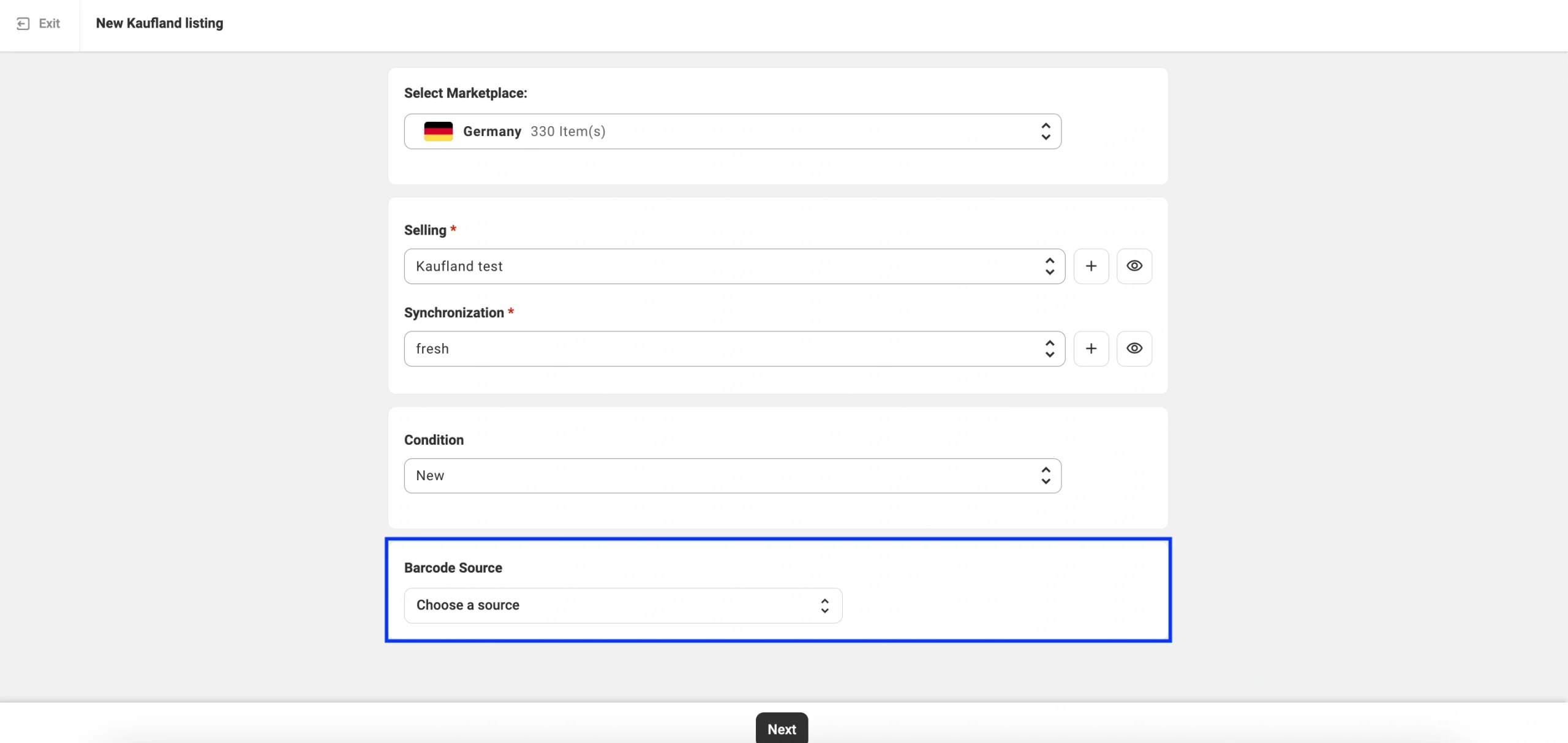
✅ You can specify the Barcode Source at the first step of creating a new listing.
If the EAN is valid and Kaufland recognizes it, the product is automatically assigned to the correct PID and submitted with your offer details.
If the EAN is missing, invalid, or doesn’t match anything in the Kaufland catalog, the product appears as Incomplete in your M2E Listings. These items require manual review.
Manual PID assignment #
If automatic matching doesn’t succeed or you want to select the correct product manually, you can assign a PID yourself.
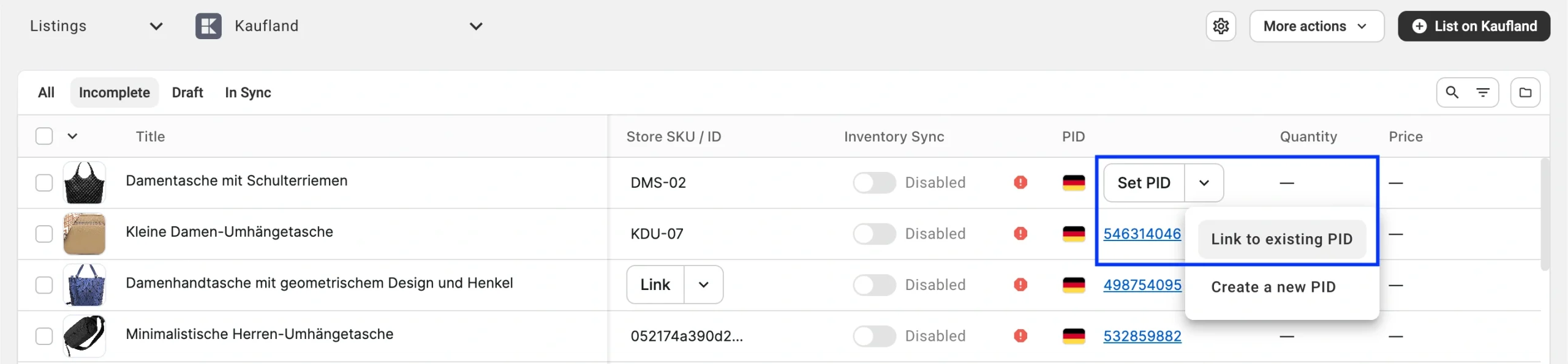
1) Open the Listings page and select your Kaufland account.
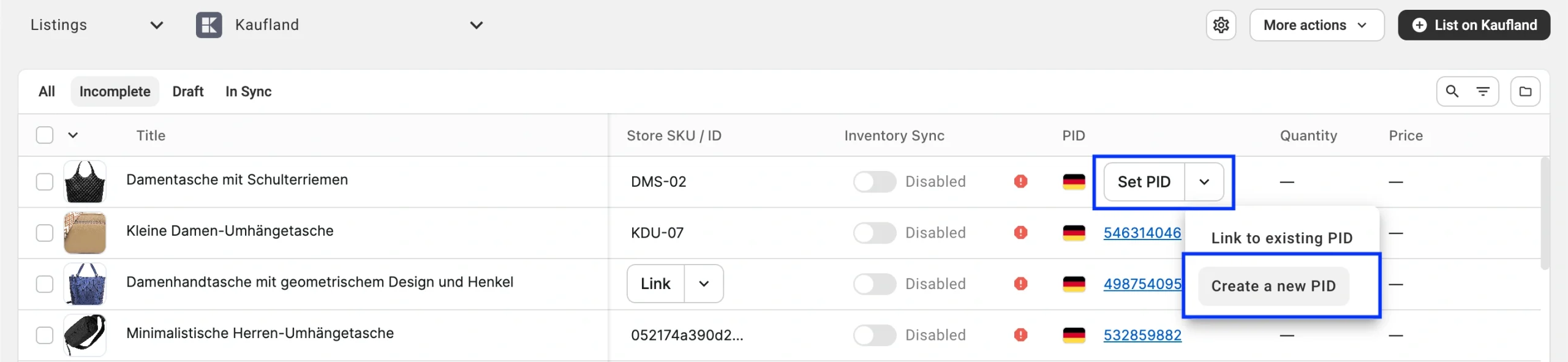
2) Filter products by the Incomplete status.

3) Click Set PID > Link to existing PID.
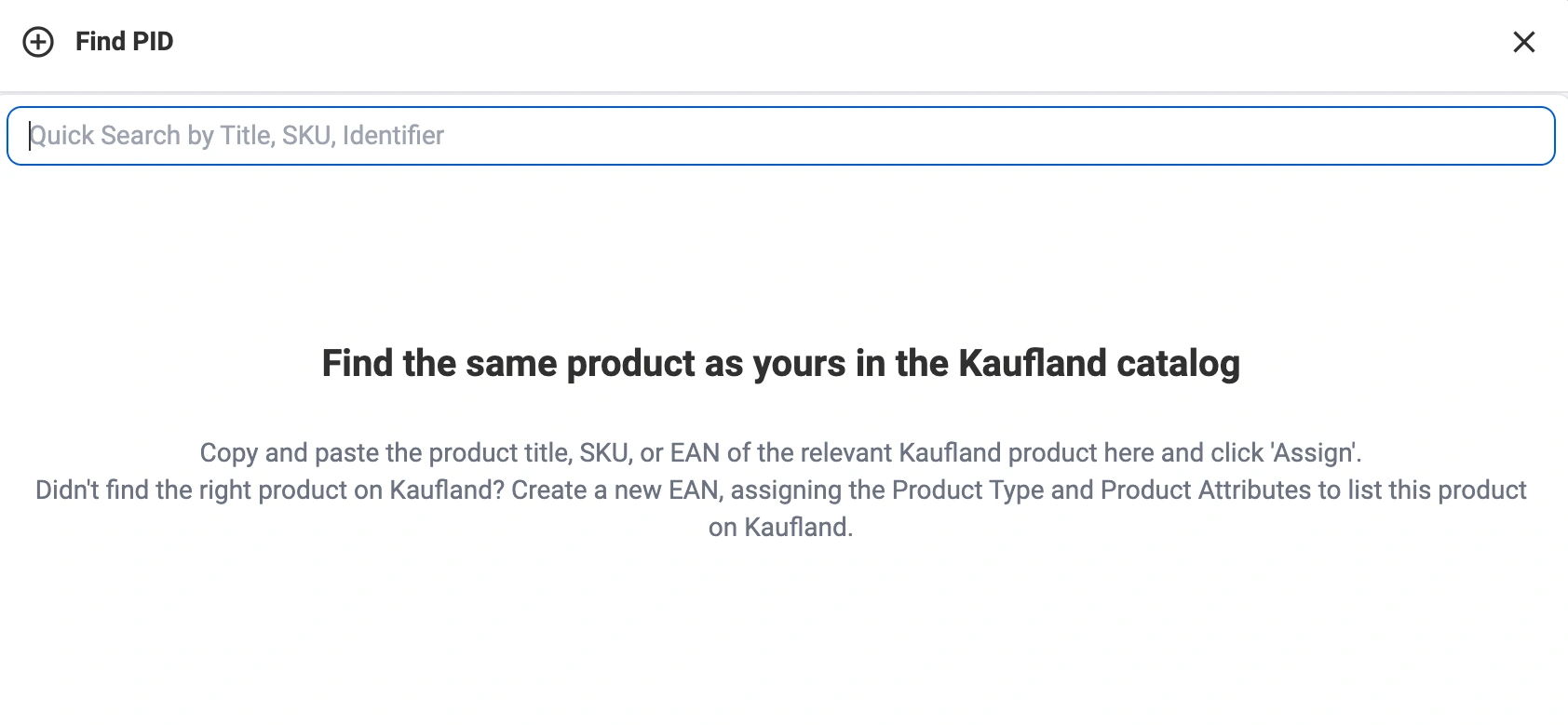
4) Use Quick Search to look up the correct product in Kaufland’s catalog by title, SKU, ID, or EAN.
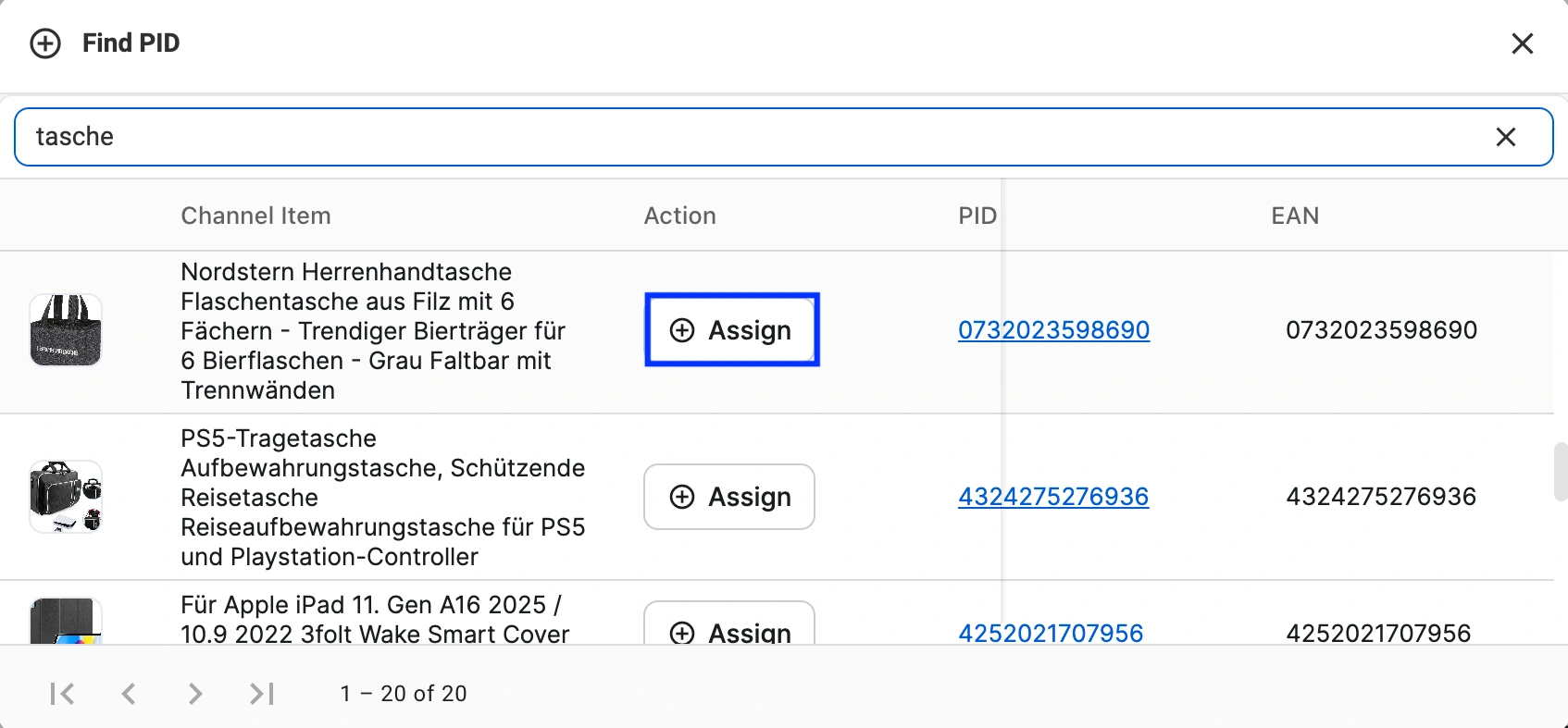
5) Click the button to assign the needed PID to your item.
After assigning the PID, M2E resubmits the offer to Kaufland using the catalog data associated with that product. Your listing contributes only offer-level information, such as price, quantity, and handling time.
Creating a new PID #
If your product cannot be matched to any existing Kaufland product, you can create a new PID in M2E.
1) Filter products by Incomplete on the Listings page.
2) Locate the product and click Set PID > Create a new PID.
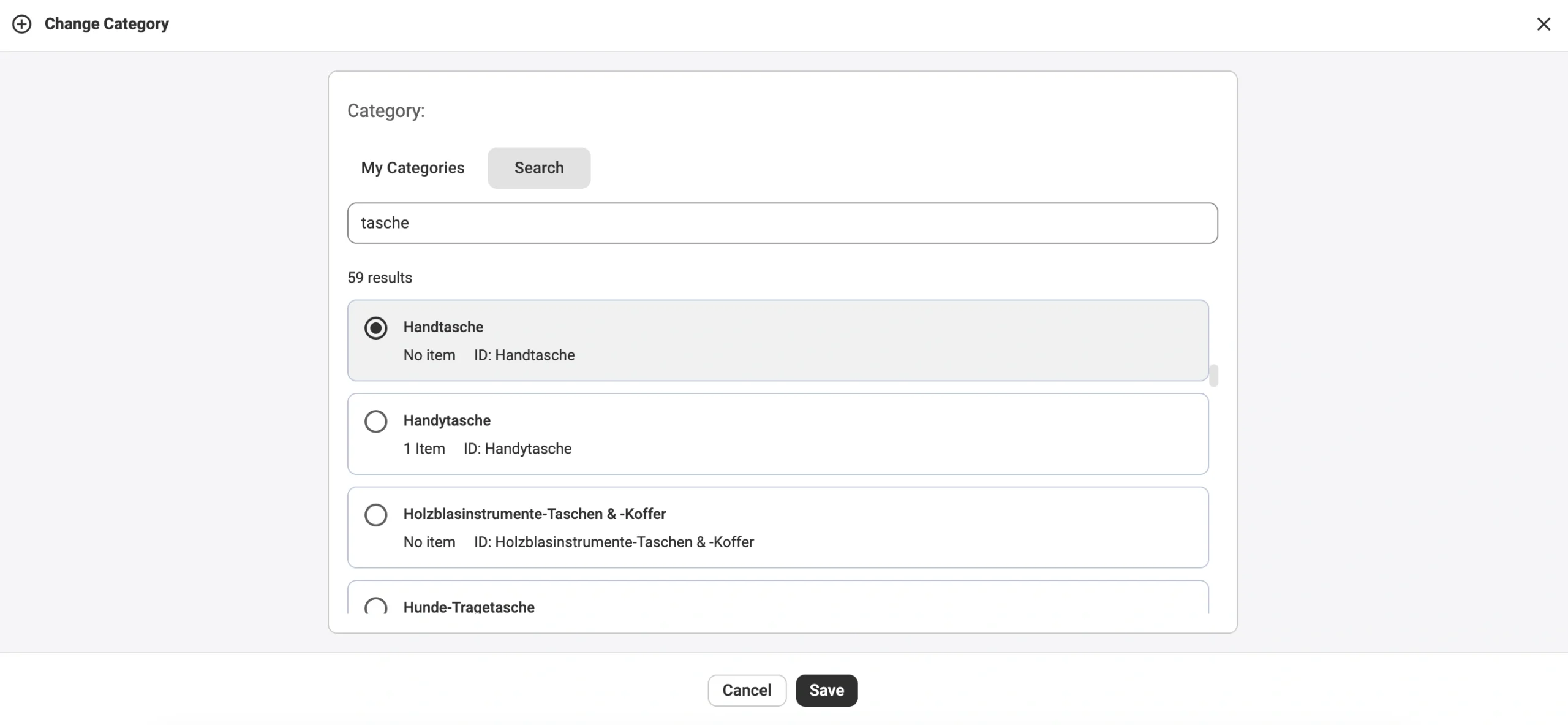
3) Choose the most suitable Kaufland product category. You can set a previously used category or switch to the Search tab to find it manually by Category Name or ID.
4) Complete all required and recommended category attributes. You can use one of the following sources for attribute values:
- Kaufland’s predefined options – Select values from Kaufland’s built-in lists.
- Existing Store attributes – Pull data from your connected Store or Catalog (recommended if your products already include this information).
- Custom attributes in M2E Catalog – Create additional attributes in M2E if your Store doesn’t provide some of the required data.
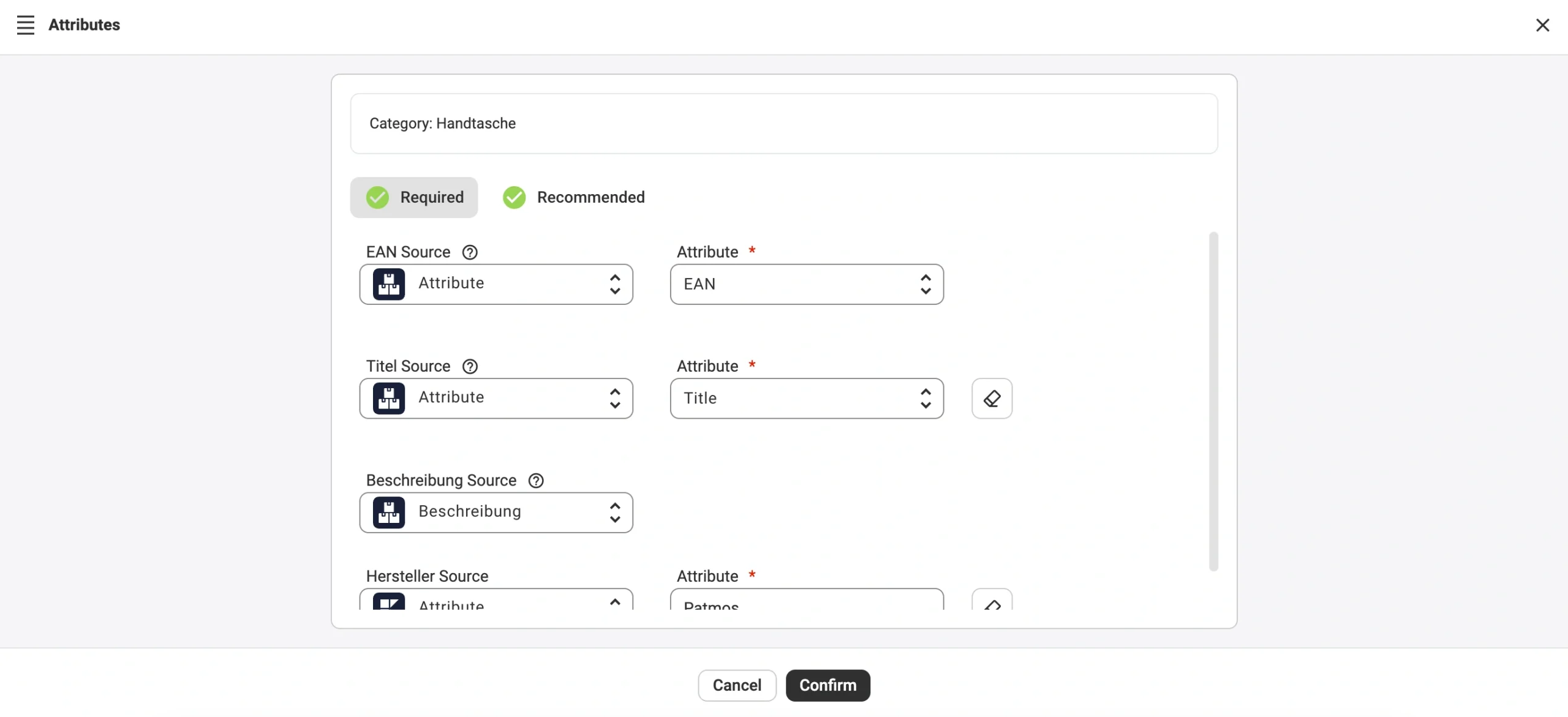
Once done, click Confirm to submit the product for review.
ℹ️ M2E uses the product data (titles, descriptions, etc.) based on the sources you configure in your Listing settings to create a new item in the Kaufland catalog.
Make sure the selected sources provide complete and high-quality content that meets Kaufland’s formatting and content requirements. You can review the full guidelines in their official documentation.
Once the information is submitted, Kaufland reviews the product to verify it meets catalog criteria. If approved, a new PID is created, and your item becomes the primary catalog listing for that product. Other sellers will be able to link their offers to the same PID.
✅ If you need further guidance on managing Kaufland PIDs in M2E Multichannel Connect, please reach out to our support team.


