
The Amazon Listing Validator Assistant in M2E Multichannel Connect helps you check whether your products meet Amazon’s listing requirements before they are submitted. It highlights missing or incorrect details and explains how to resolve each issue so your items can be listed without delays.
This guide shows where to find the Assistant, how it works, and how to use it to prepare your catalog to be listed on Amazon.
When the Listing Validator Assistant appears #
You will come across the Assistant at the final step of listing products on Amazon. After you select the items you want to publish and click List Now, M2E runs a validation check.
During this check, the Assistant attempts to:
- Confirms that required fields, such as product identifiers, price, and quantity, are filled in and correctly formatted.
- Match your product barcodes with existing Amazon catalog items.
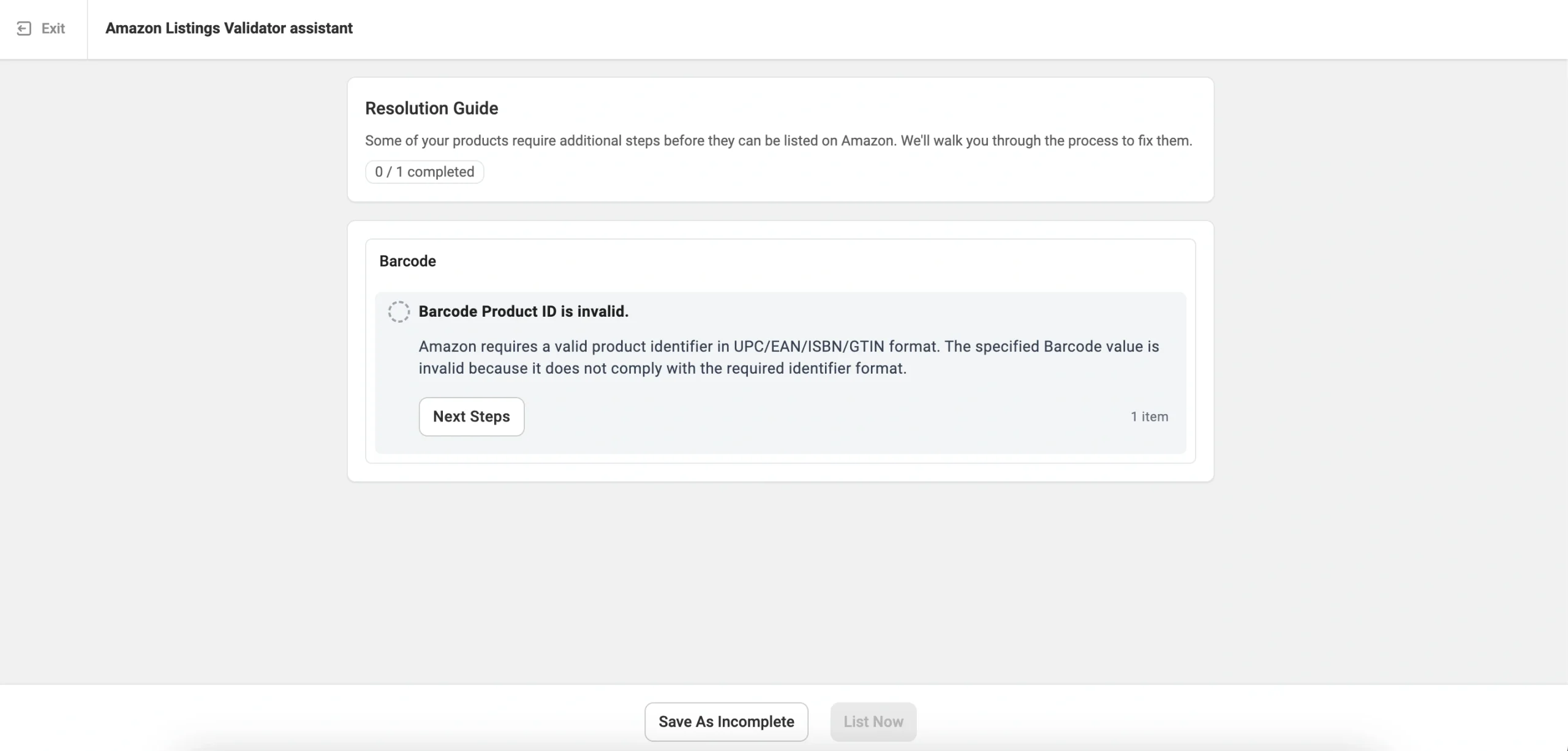
If one or more products fail the validation, the Assistant opens and shows a summary of the issues.
✅ If all required information is present, the Assistant doesn’t appear. Those items continue through the listing process in the background, and you can follow their progress on the Listings page.
Check the validation results #
Inside the Assistant, you’ll see issues grouped by type. Each group includes a brief description of the problem, the number of affected items, and an explanation of why Amazon requires this information.
For example, if your product’s barcode doesn’t match Amazon’s accepted identifier formats, you will see the error: “Barcode ‘xxx’ is invalid.” It means that your product is missing a valid UPC, EAN, ISBN, or GTIN and cannot be listed until you provide a correct identifier.
Apply recommended solutions #
Next to each issue, you will see a Next Steps button. When you click it, the Assistant shows a detailed description of the problem and instructions for fixing it.

Depending on the issue, the Assistant will:
- Guide you through the necessary updates in M2E Multichannel Connect, or
- Ask you to update the product data in your Store or M2E Catalog.

Using the barcode example, the Assistant may offer options such as choosing a different barcode source or applying a GTIN exemption (if applicable for your category).
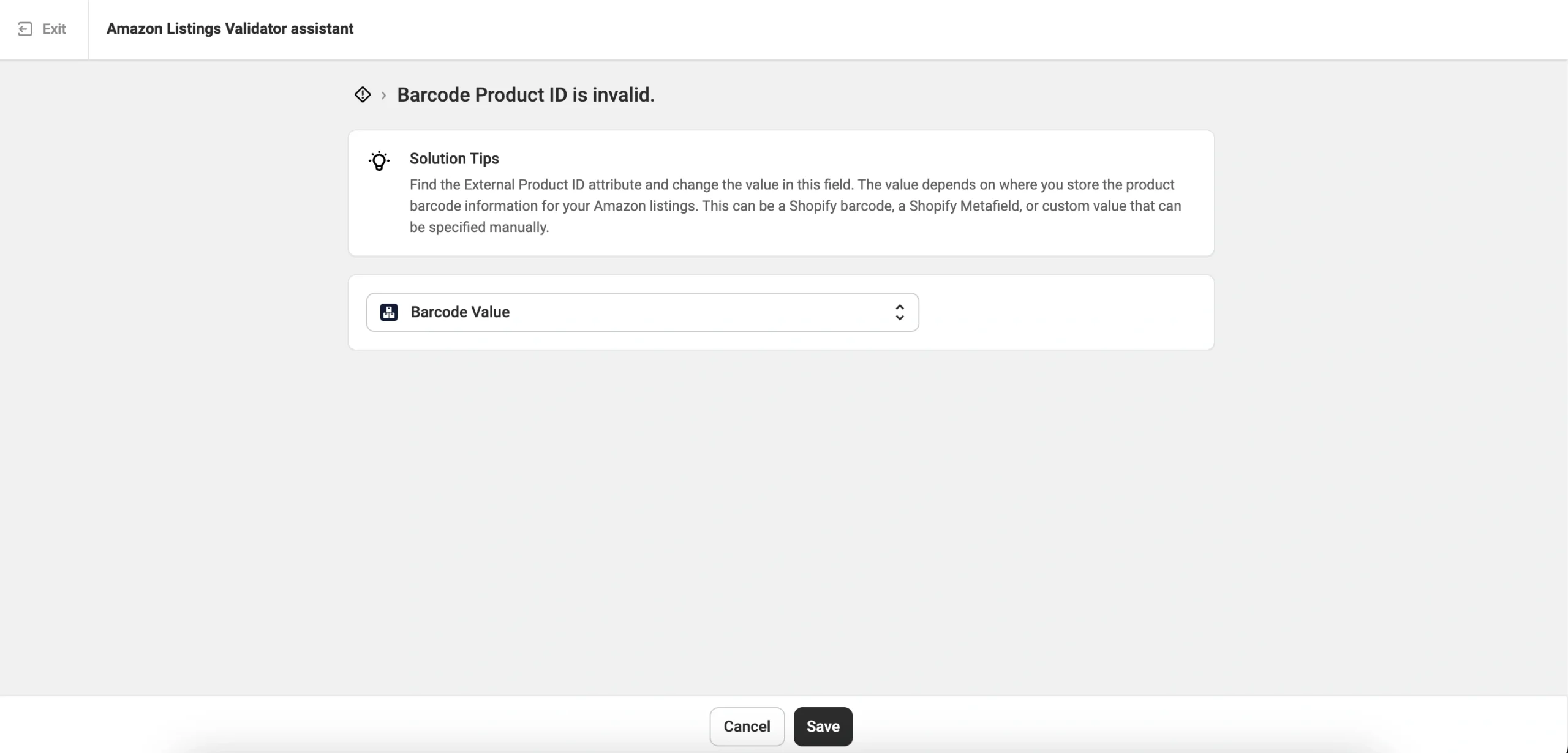
Choose the most appropriate solution, apply the required changes, and save your updates.
You may come across other issues and recommendations, such as:
- Update product price or quantity if the value is missing or incorrect.
- Set a Product Type if no one is selling your product on Amazon under the provided barcode.
- Correct Product Type attributes with missing or invalid values.
- Provide or update product titles and descriptions to create new ASINs.
ℹ️ If you aren’t ready to fix a specific issue, you can select Save as Incomplete as the solution and move on.
Note that skipping an issue doesn’t ensure that the product will be listed successfully. Amazon may reject listings with unresolved errors.
Revalidate and list products #
Once you fix all issues, the Assistant will prompt you to submit products to Amazon. Click List Now to let the Assistant run another validation check.
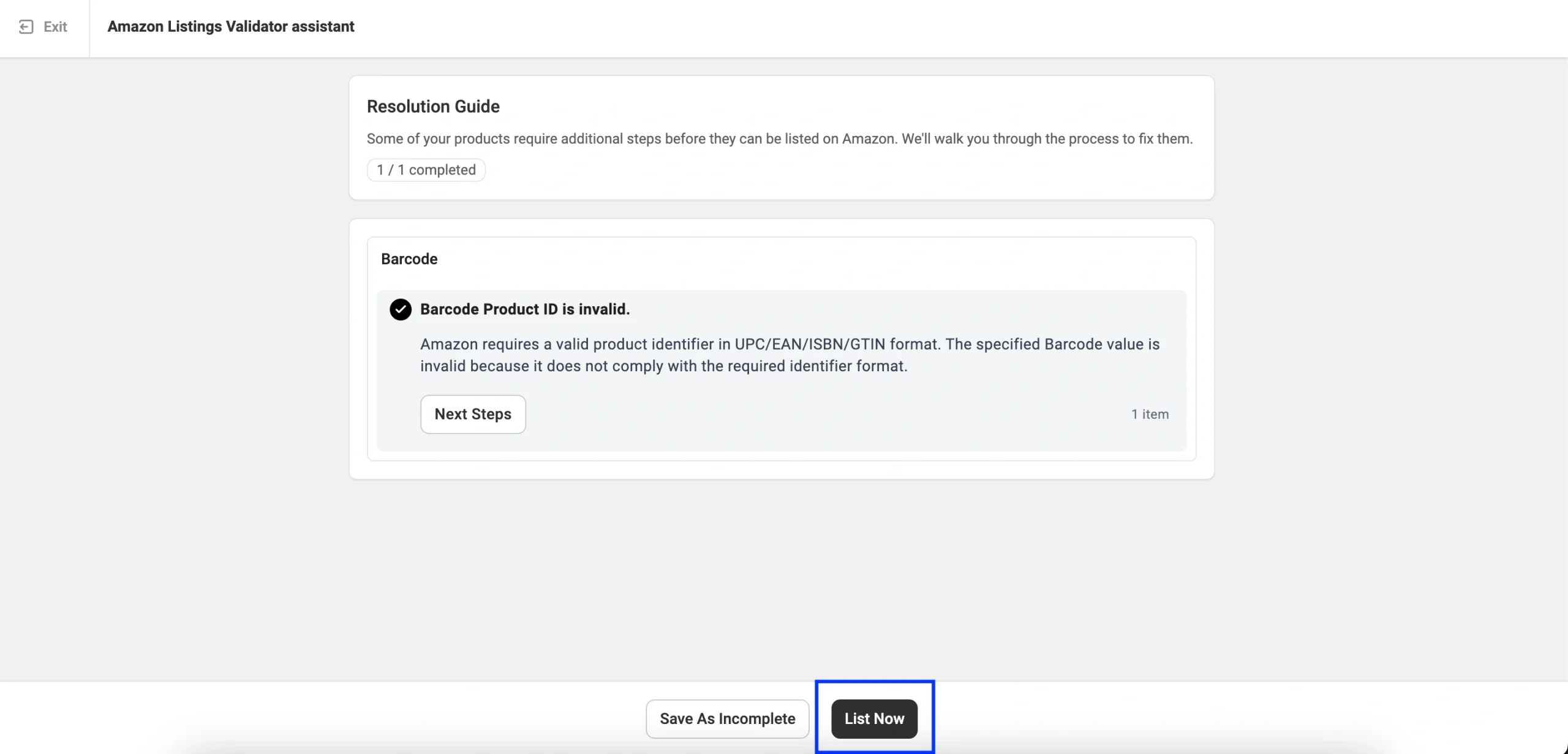
Products that pass validation are sent to Amazon for review. If all items are valid, the Assistant closes and takes you back to the Listings page.
Items that still need adjustments remain inside the Assistant until you resolve their issues.
Save unresolved items #
If you cannot address all issues right away, you can save your progress by clicking Save as Incomplete. The Assistant closes, and unresolved items appear on the Listings page with the Incomplete status.
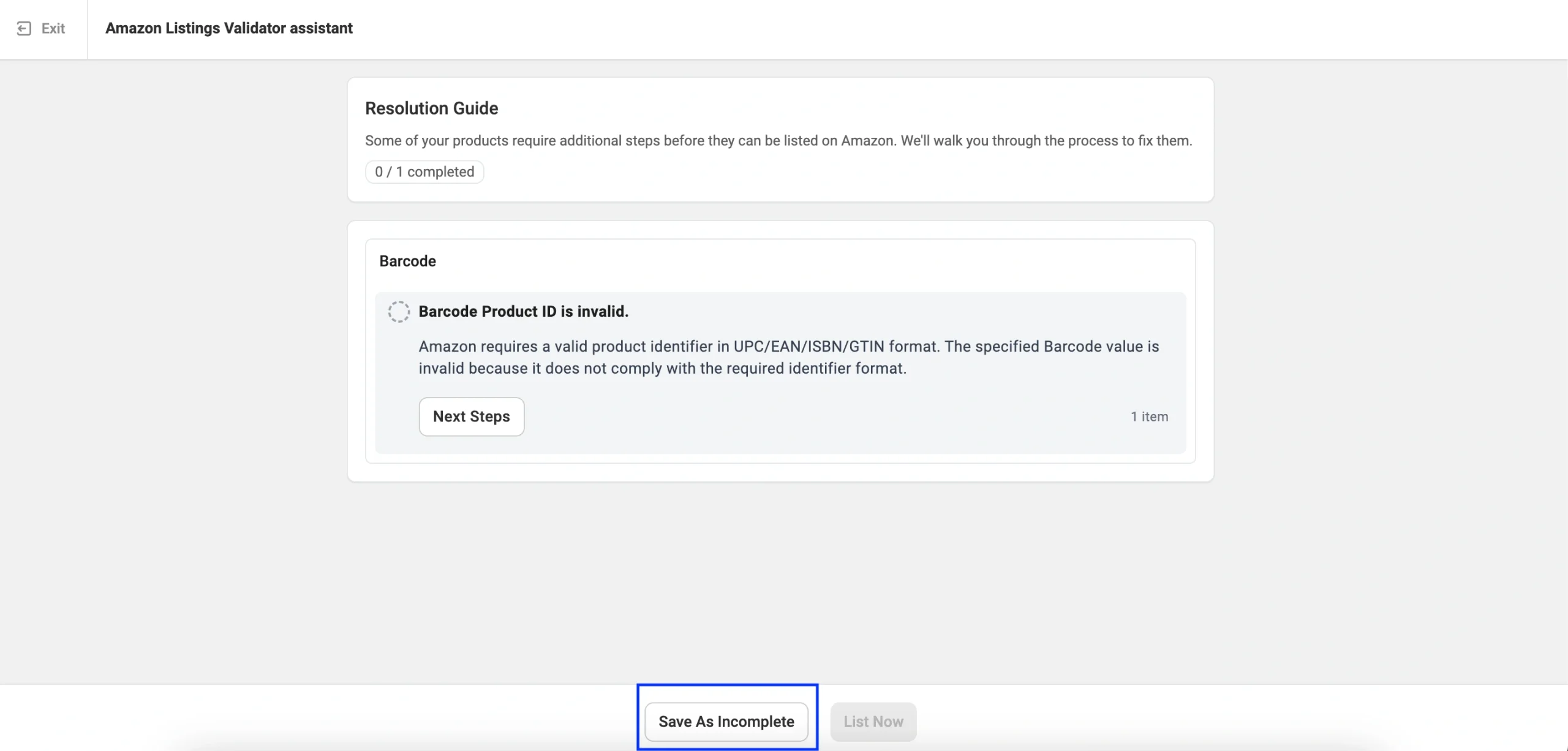
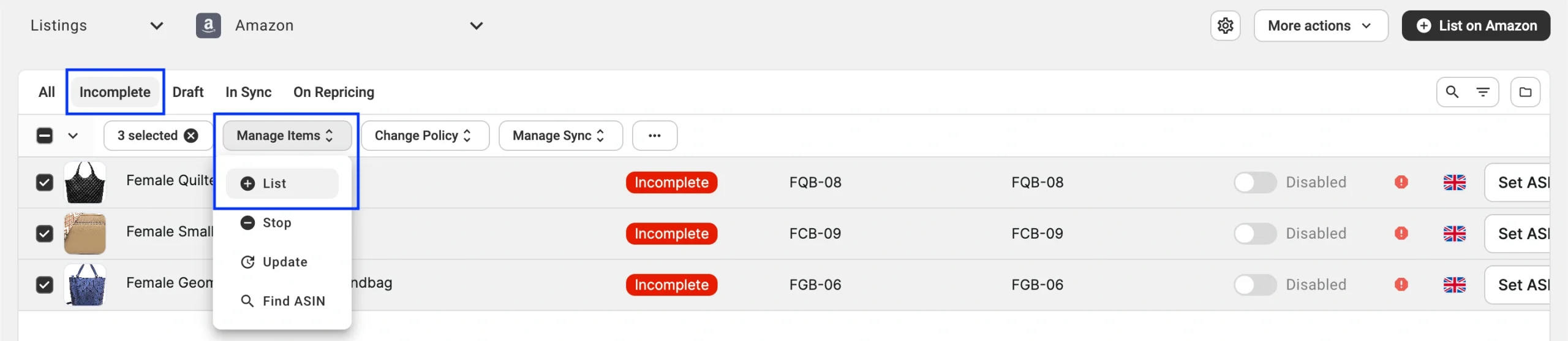
To reopen the Assistant and work through the remaining issues, filter your Amazon listings by the Incomplete status. Then, select the relevant products, and choose Manage Items > List from the top actions menu.
✅ If you need help with the Listing Validator Assistant or understanding the validation results, contact the M2E support team.


