
When you store inventory across multiple Amazon warehouses, Amazon needs to know how many units are available at each location to calculate accurate delivery dates. If Amazon only receives one combined stock number, delivery promises may not reflect reality. It can lead to missed deadlines, SLA violations, and potential account health risks.
Amazon's Multi-Location Inventory (MLI) feature solves this issue by allowing sellers to share inventory per warehouse. M2E Multichannel Connect supports MLI and can send inventory quantities for each warehouse from Shopify to Amazon.
This guide explains how MLI works and how to configure it in M2E.
What is Multi-Location Inventory #
Amazon Multi-Location Inventory is a feature for Fulfilled by Merchant (FBM) sellers that allows you to send stock quantities per warehouse (supply source) instead of one combined inventory number.
For example, you sell the same SKU from two warehouses – 50 units in New York and 40 units in Los Angeles. Without MLI, Amazon would see 90 units in total and wouldn’t know where those units are actually located.
With MLI enabled, Amazon sees the exact quantity available at each location. When a customer places an order, Amazon calculates the delivery promise based on the closest warehouse that has stock, rather than treating all inventory as one pooled number.
ℹ️ MLI is currently available only on the Amazon US marketplace.
Why Multi-Location Inventory Matters #
If you manage inventory across different locations, MLI can significantly improve performance, including:
- More accurate delivery promises. Amazon shows delivery dates based on the nearest warehouse with stock.
- Better conversion rates. Faster delivery estimates often improve Buy Box performance and buyer confidence.
- Reduced SLA risks. Accurate ship-from data helps prevent late shipments and performance violations.
- Lower shipping costs. Orders can be fulfilled from the closest warehouse, reducing transit time and carrier expenses.
- Simplified configuration. You can manage multiple locations under a single shipping template instead of creating complex rules for each warehouse.
💡 For more information on the benefits, visit the Amazon MLI documentation.
How Multi-Location Inventory works with M2E #
If you have multiple supply sources configured in Amazon, M2E can sync inventory to all of them, not just your default location.
You map each Shopify warehouse to its corresponding Amazon supply source. Then, M2E syncs stock levels from each Shopify Location to the matching Amazon location.
This way, Amazon receives inventory for each warehouse separately and uses this data to show accurate delivery dates based on the nearest in-stock location.
How to set up Multi-Location Inventory in M2E #
ℹ️ Before you begin, make sure that you have:
- Configured ship-from locations (supply sources) in Amazon Seller Central.
- Set up inventory locations in your Shopify store admin.
Step 1. Create a Selling Policy with MLI enabled #
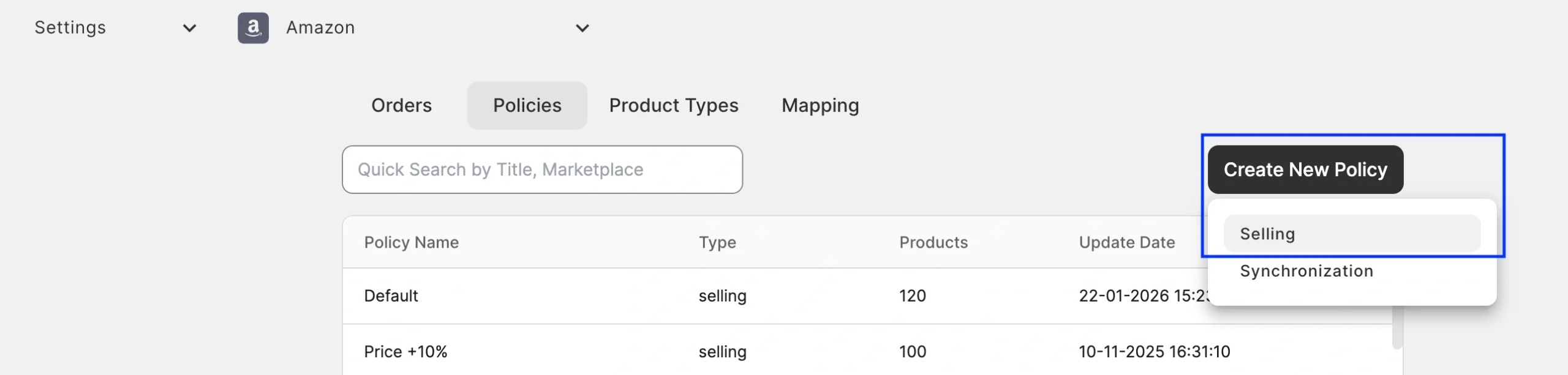
1) Under Settings > Policies, create a new Selling Policy for your Amazon listings.
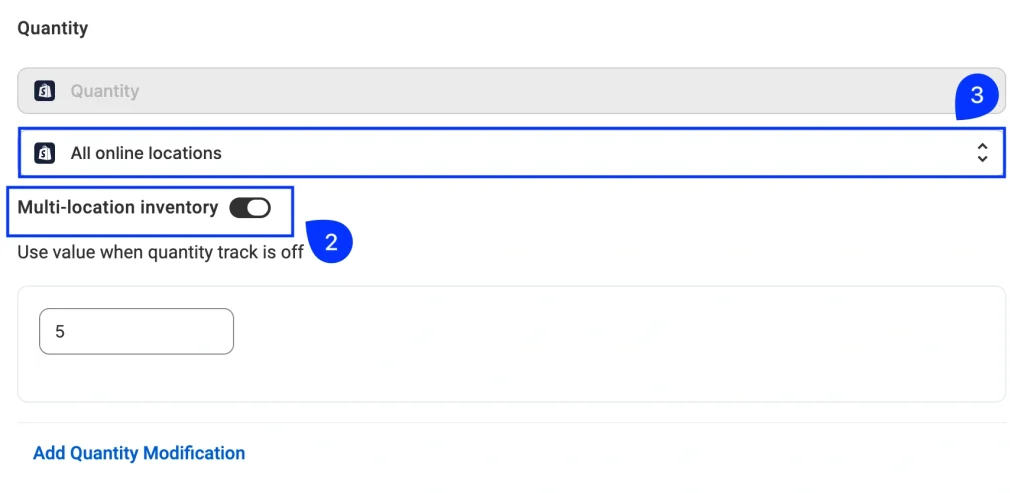
2) Navigate to the Quantity settings and enable the Multi-location inventory toggle.
3) Select the Shopify locations you want to sync to Amazon.
Step 2. Map Shopify locations to Amazon supply sources #
Go to Settings > Mapping > Locations. Map each Amazon ship-from location to its corresponding Shopify warehouse. Make sure to map all locations you selected in step 1.

ℹ️ If you manage multiple Amazon accounts, you will need to set up location mapping for each one separately.
Step 3. Assign the Selling Policy #
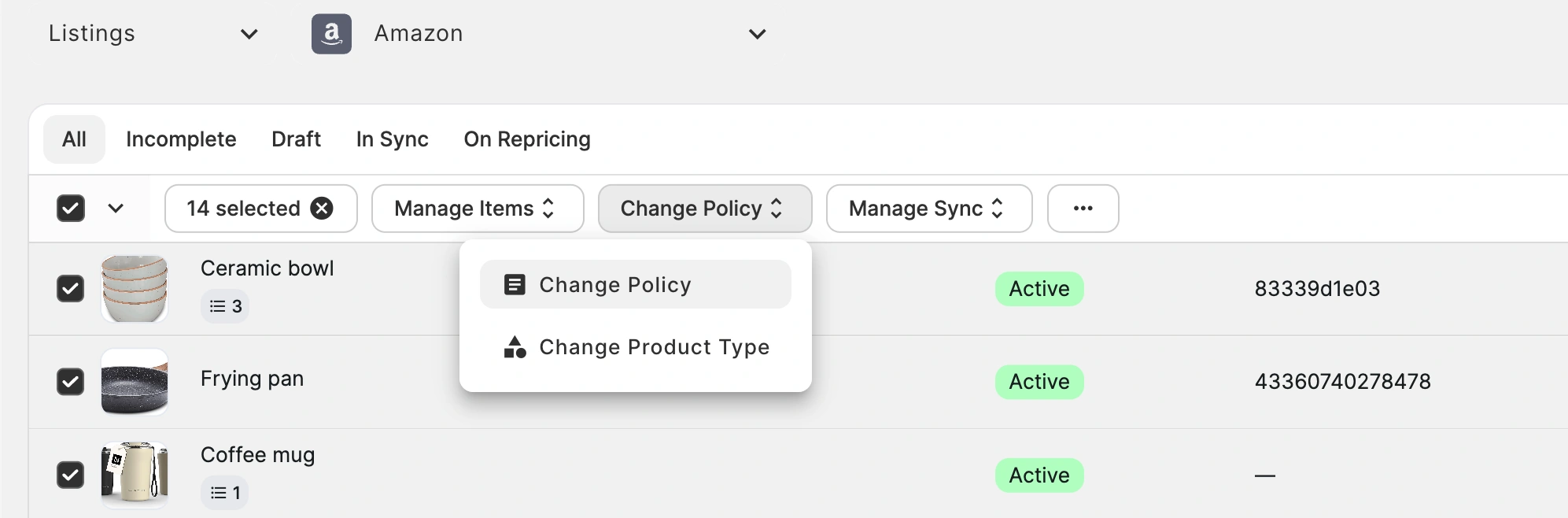
Assign the Selling Policy to your Amazon products. The easiest way is to do this in bulk: navigate to the Listings tab, select the products you want to update, and apply the Change Policy action.
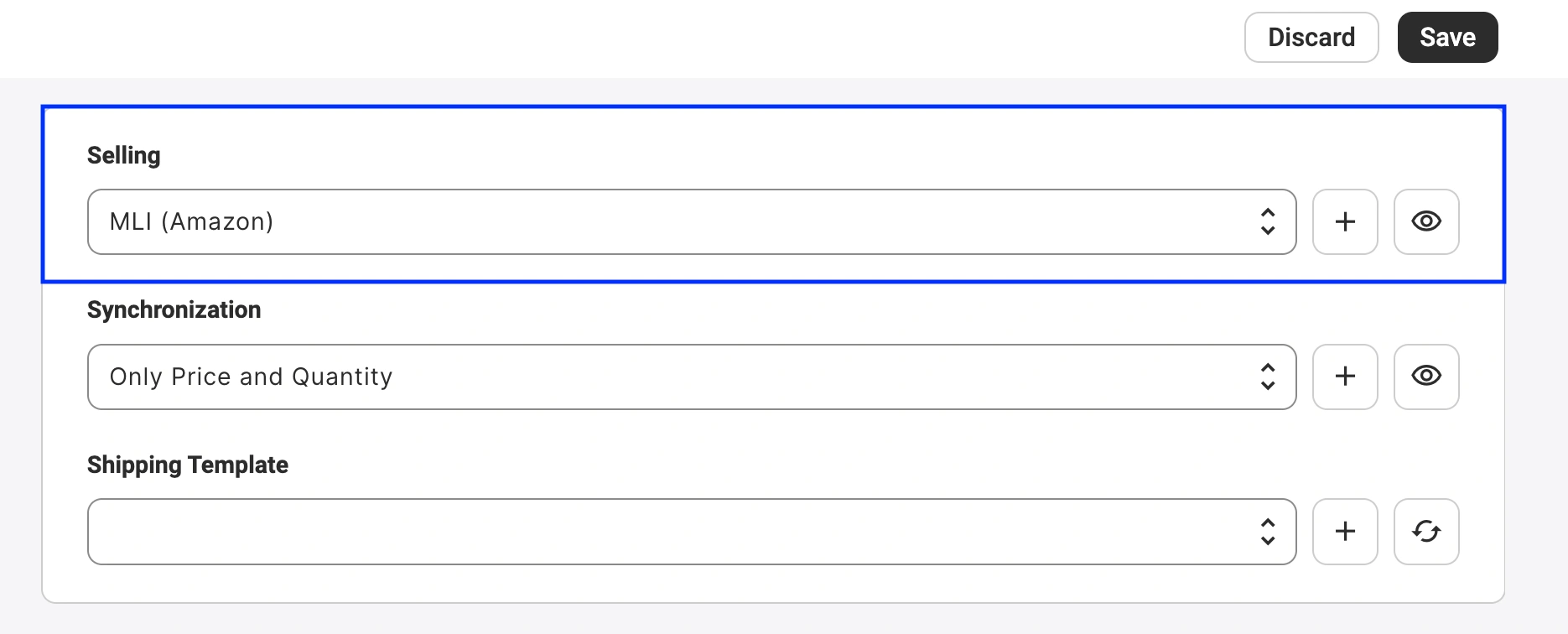
Select your new Policy and save the changes. M2E will now sync inventory from each selected Shopify Location to Amazon.
Need help? #
For additional questions on configuring Multi-Location Inventory in M2E, please contact our support team.


