
This guide explains how to connect, configure, and manage the AUTODOC marketplace in M2E Cloud.
It focuses on what you need to set up inside M2E Cloud and how AUTODOC behaves as a Mirakl-based marketplace.
ℹ️ Most rules described below also apply to other Mirakl marketplaces supported by M2E Cloud.
What happens outside M2E #
AUTODOC is a Europe-based marketplace focused on automotive parts, accessories, and related products. Founded in Berlin, it serves customers across multiple EU countries and the United Kingdom.
The marketplace is built on the Mirakl platform. This means AUTODOC follows Mirakl standards for product content, offers, pricing, orders, and validation logic.
AUTODOC operates multiple country storefronts. These storefronts can be grouped by currency, but each currency requires a separate marketplace connection.

Who AUTODOC is a good fit for #
AUTODOC is a strong fit for merchants selling:
- Automotive spare parts and accessories
- Car electronics and tools
- Workshop and garage equipment
- Related home, pet, and lifestyle products
ℹ️ It is especially suitable for sellers with structured automotive data, GTINs, and compatibility information.
Requesting an AUTODOC seller account #
Before you can connect AUTODOC to M2E Cloud, you must apply directly to AUTODOC and receive approval as a marketplace seller.
To request an account:
- Go to the AUTODOC website and click Join our marketplace.
- Submit your business details and required documentation.
- Wait for the AUTODOC marketplace team to review your application.
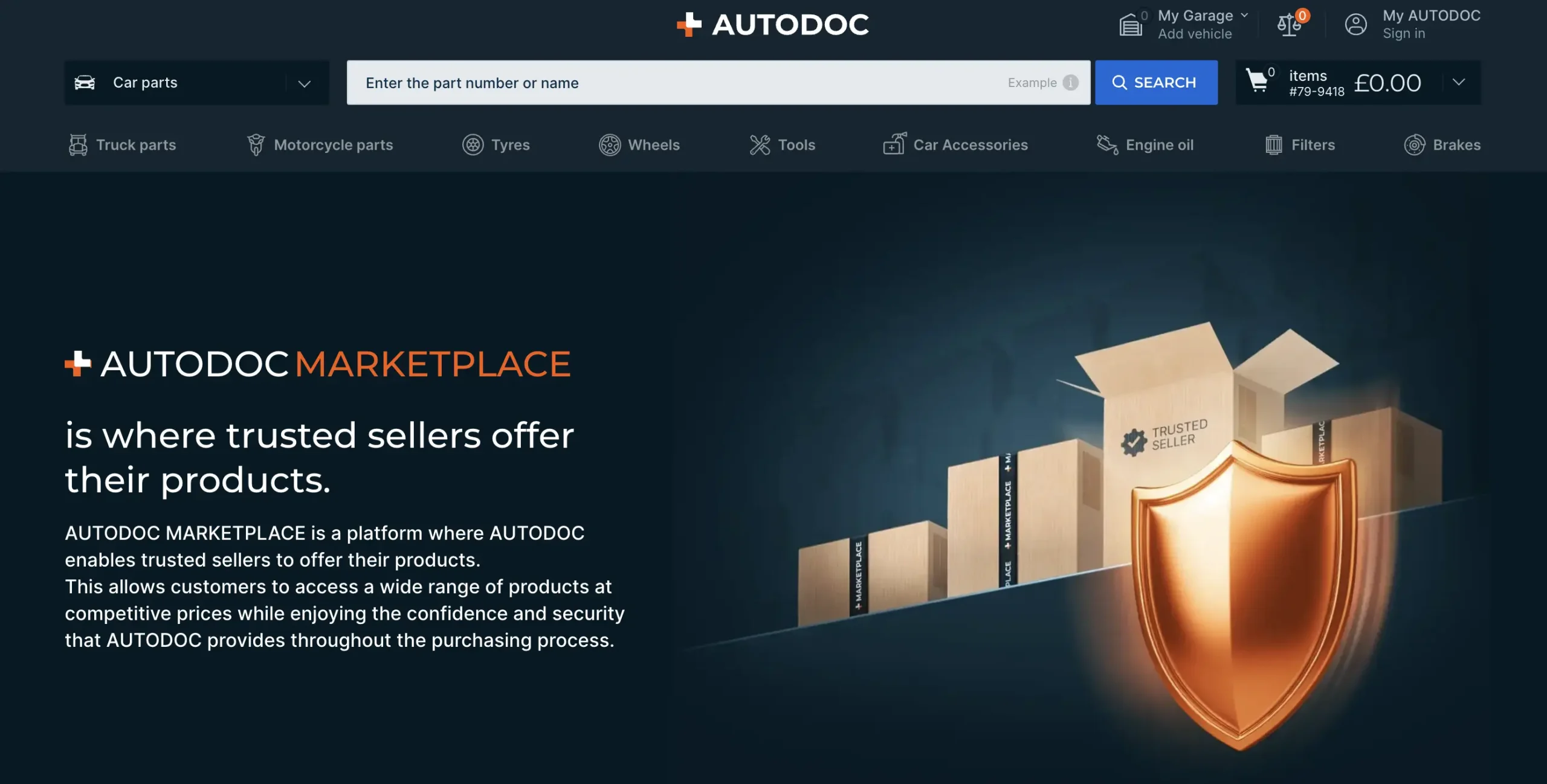
AUTODOC performs compliance and VAT checks during the onboarding process. Approval is required before any technical integration can begin.
To be eligible, you must meet one of the following conditions:
- Be registered as a merchant in an EU country and comply with EU VAT regulations.
- Have an EU-based warehouse that complies with EU VAT rules.
- Hold valid VAT IDs in both your country of establishment and delivery countries.
- Or participate in the VAT One-Stop Shop (VAT OSS) scheme in your country of registration.
ℹ️ AUTODOC defines category access and selling permissions. Some product types may have additional compliance requirements.
Costs and payments to consider #
AUTODOC uses a simple pricing model.
- Setup fee: none
- Monthly fee: EUR 30.00 (excluding VAT)
- Commission: varies by product category
- Payment schedule: three times per month (1st, 11th, and 21st)
What happens inside M2E Cloud #
After you connect AUTODOC to M2E Cloud, all marketplace operations are managed from a single place. You manage product content, offers, pricing, orders, and shipments without switching between systems.
The Mirakl integration in M2E Cloud allows you to control how your store data is sent to AUTODOC and how marketplace feedback is processed.
Using M2E Cloud, you can:
- Connect AUTODOC via Mirakl API credentials
- Decide which products are exported to the marketplace
- Map categories, content attributes, and offer data
- Define pricing logic, discounts, and currency behavior
- Keep stock levels, orders, and shipments in sync
This section explains how to prepare your account, connect AUTODOC, and configure the rules that control data flow between your store and the marketplace.
Requirements before you start #
Before setting up AUTODOC in M2E Cloud, make sure all prerequisites are met. Missing any of these may prevent product exports or block order processing.
ℹ️ Make sure your store runs on a supported platform such as Shopify, BigCommerce, PrestaShop, etc. All M2E apps are available in the official app listings. For example, a Shopify Hygi.de integration by M2E requires installing the Shopify app first.
You need:
- An approved AUTODOC seller account
- Access to the AUTODOC Mirakl Seller Admin
- Valid Mirakl API credentials
- Products with valid GTINs or article numbers
- Prices available in EUR
- EU VAT compliance (or VAT OSS participation)
💡 If you sell in multiple currencies, each currency requires a separate AUTODOC connection in M2E Cloud.
Connecting AUTODOC to M2E Cloud #
To establish the connection, you must have access to the Mirakl Seller Admin and a valid API key.
Connection steps
- In M2E Cloud, open Connect Mirakl Account.
- In the Select marketplace section, choose AUTODOC (use the Search marketplaces field to find it quickly).
- Log in to the AUTODOC Mirakl Seller Admin and generate or copy your API key.
- Back in M2E Cloud, paste the key into the API key field.
- Enter your Shop ID if your Mirakl account contains multiple shops.
- Click Connect.
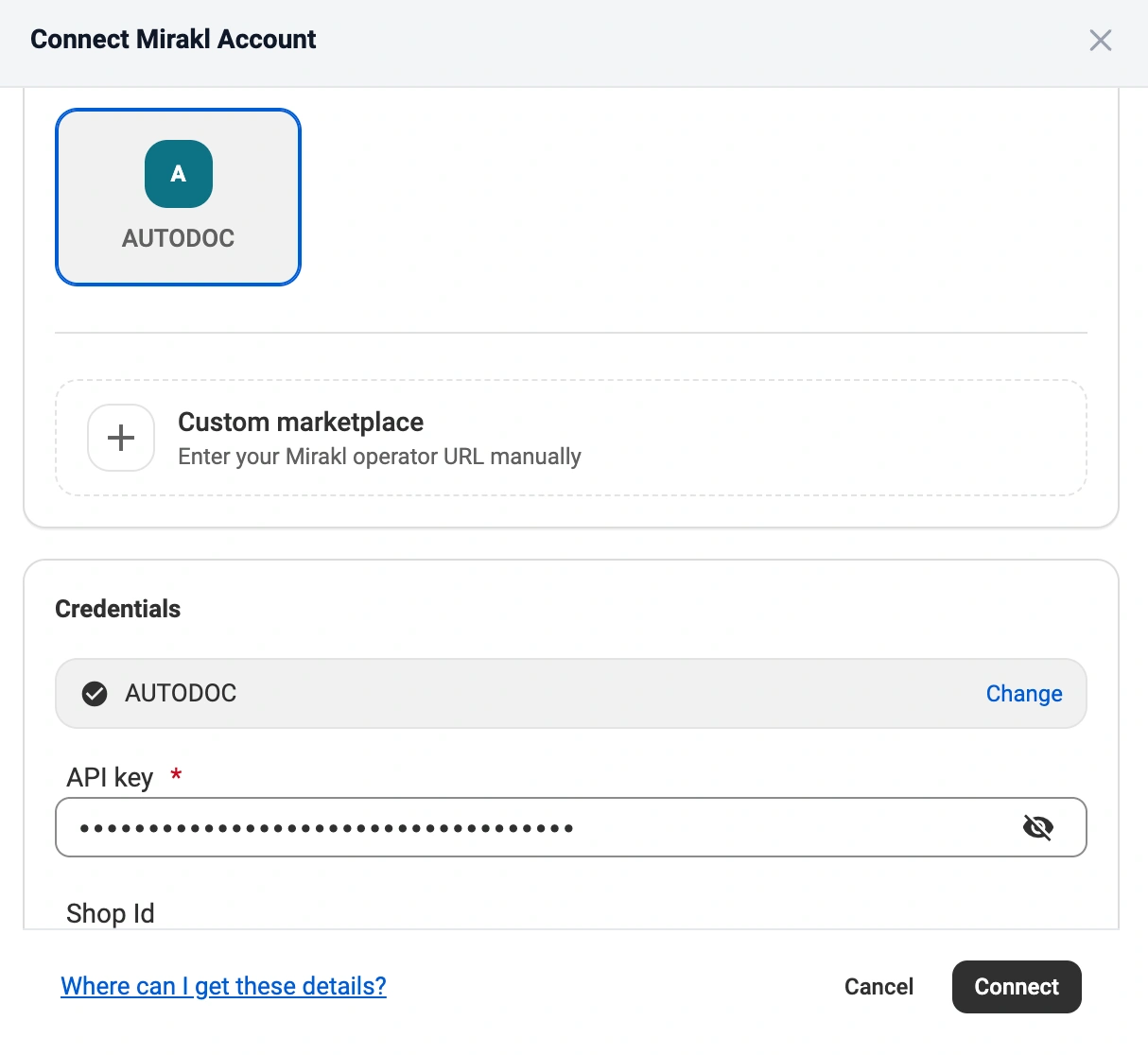
Once submitted, M2E Cloud validates the credentials and creates the connection. After validation, product data, offers, orders, and shipments can be synced automatically.
✅ A detailed walkthrough is available in the M2E Cloud guide for connecting Mirakl marketplaces.
Common connection issues #
If the connection fails, review the following:
- The API key is invalid or was regenerated
- Required API permissions are missing
- The AUTODOC seller account isn’t fully approved
ℹ️ If you regenerate your API key in Mirakl later, you must update it in M2E Cloud. Otherwise, synchronization stops.
Once connected: What happens next? #
After the marketplace is connected, you configure how AUTODOC listings and orders are handled inside M2E Cloud.
1. Publish new products on AUTODOC #
Select the products you want to sell and export them to AUTODOC as new marketplace listings.
After export:
- Products appear on AUTODOC as active offers
- M2E Cloud controls price and quantity updates
- Stock changes in your store are reflected on the marketplace
✅ Control what data is synchronized with the M2E Cloud Policies.
2. Link existing AUTODOC listings to store products #
If products already exist on AUTODOC, they must be linked to your store items to enable synchronization.
Automatic linking happens when SKUs match. If they do not, you can link listings manually using a CSV file.
Linking defines:
- Which AUTODOC listings are managed by M2E Cloud
- Which store product controls price and inventory
- Which listings receive updates
3. Map categories and required attributes #
Every product must be assigned to an AUTODOC category and mapped with all required attributes before export.
This step includes:
- Selecting the correct AUTODOC category
- Mapping mandatory content attributes
- Mapping automotive compatibility data, if applicable
Category is mandatory. The marketplace can reject products without a correct category.
ℹ️ For details on how data flows between systems, see the Synchronization Policy guide.
4. Configure pricing and currency rules #
Pricing behavior is defined through M2E Cloud selling policies.
At this stage, you configure:
- Base price sources
- Available quantity for AUTODOC
- Discount and promotion logic
- Currency conversion rules
You can create multiple selling policies to support different product groups, pricing strategies, or markets.
5. Configure order settings and status mapping #
After that, choose how AUTODOC orders are imported and processed.
This configuration controls:
- When orders are imported into your store
- How AUTODOC order statuses map to store statuses
- How shipment confirmations and tracking are sent back
Correct status mapping prevents order conflicts and maintains consistent fulfillment data.
6. Set up shipping and delivery rules #
Shipping behavior is controlled through shipping policies in M2E Cloud.
Here you define:
- Available carriers and shipping methods
- Shipment confirmation logic
- Tracking number synchronization
7. Monitor listings and resolve issues #
After setup, you can monitor listing activity directly in M2E Cloud.
Using the Listings page, you can:
- Track export and validation results
- Identify missing mappings or pricing issues
- Fix errors without disconnecting the marketplace
💡 Learn more about listing and order management in the M2E docs.
What happens in the marketplace back-end? #
AUTODOC marketplace features #
AUTODOC is built on the Mirakl platform and follows standard Mirakl workflows for product creation, offer management, and order processing.
Supported features include:
- Product content and offer management
- Order import and shipment export
- Merchant-initiated cancellations and returns
- Carrier mapping for tracking synchronization
- HTML-formatted product descriptions
- Bundles and sales channels (by currency)
Not supported features include:
- Automatic product relationships
- Refurbished products
- Marketplace-initiated cancellations or returns
- Repricing and marketplace fulfillment services
- Multiple stock locations
- Product variations such as size or color
Sales channels are supported only for countries that share the same currency. For example, EU countries using EUR can share one connection, while the UK requires a separate setup using GBP.
Marketplace requirements #
AUTODOC enforces strict content, pricing, and compliance requirements to ensure catalog quality.
Key requirements include:
- Products must have valid GTINs (EANs)
- Prices must be submitted in the marketplace currency
- Required content attributes must be mapped before export
- Product images must meet AUTODOC technical and visual standards
- VAT and eco-contribution data must be provided where applicable
Failure to meet these requirements may result in validation errors or rejected listings.
Pricing rules on AUTODOC #
AUTODOC requires prices to be submitted in EUR. If your store operates in a different currency, you must configure currency conversion in M2E Cloud.
Pricing behavior depends on the pricing version used:
Pricing v1
- Discounts are configured using Discount price, start date, and end date.
- The discounted price must be lower than the base price.
- Permanent discounts require an end date far in the future.
- Bulk discounts require a quantity threshold greater than 1.
Pricing v2
- Discounts use the Strike price as the regular price and Price as the discounted value.
- Price and Strike price must not be equal.
- Discounts are active only within the defined date range.
- Bulk discounts follow the same quantity threshold logic as pricing v1.
M2E Cloud validates pricing before export and applies the higher of the base or minimum price when required.
FAQ #
What image requirements does AUTODOC enforce? #
AUTODOC applies strict image validation rules. The main product image must:
- Use GIF, JPEG, JPG, PNG, or WEBP format
- Not exceed 500 KB in file size
- Have a white background with natural shadows
- Show the product filling at least 85% of the frame
- Contain no borders, text, watermarks, or graphics
- Not display human models
- Not include country-of-origin information
Animated GIFs aren’t supported. If an animated GIF is uploaded, AUTODOC keeps only the first frame.
Additional images follow the same requirements as the main image.
Is vehicle compatibility data required for automotive products? #
Vehicle compatibility data is optional but strongly recommended for automotive parts and accessories.
You can provide compatibility using:
- TecDoc K-type identifiers
- Vehicle name selections
- Universal compatibility flags (cars, motorbikes, trucks)
Providing compatibility data improves catalog quality, filtering, and product discoverability on AUTODOC.
Can I use one AUTODOC connection for multiple countries? #
Yes, but only if all countries use the same currency.
AUTODOC supports sales channels grouped by currency. For example:
- EUR countries can share one connection
- The UK (GBP) requires a separate connection
If you sell in multiple currencies, M2E Cloud lets you list products across regions without creating a new workflow.
✅ Contact our support team if you need help with AUTODOC setup or troubleshooting.


