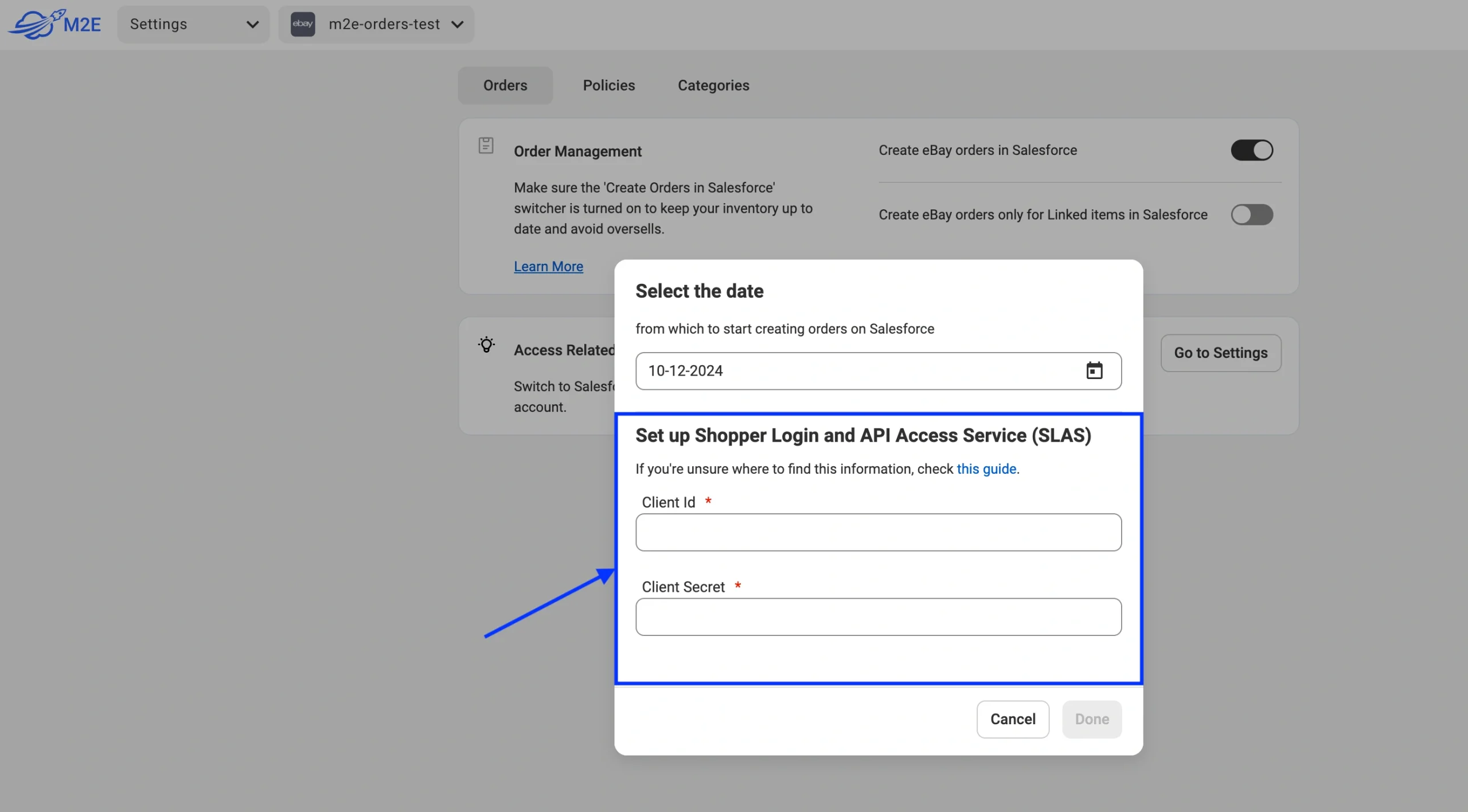
This guide explains how to get your Salesforce B2C Client ID & Client Secret in order to allow M2E Multichannel Connect to manage orders, as well as synchronize order data between Salesforce and your sales channels (eBay, Amazon, etc.).
Step 1. Verify SLAS Administrator Role and Required Scopes #
Firstly, ensure that your user account has the necessary SLAS Organization Administrator role and access to the correct B2C Commerce instance. For that, follow these instructions:
1) Log in to your Salesforce Account Manager.
2) Click User from the left navigation panel. Select the user’s ID.
3) Navigate to the Roles section. Find the SLAS Shopper Admin API category with the SLAS Organization Administrator role beneath it.

4) Ensure the role is applied to the correct B2C Commerce instance:
- Click the filter button next to the role.
- Check that the box next to the required instance is selected.

Step 2. Create a SLAS Client #
To create a SLAS Client, follow these steps:
Access the SLAS Admin UI #
1) Open the SLAS Admin UI by replacing {{short-code}} in the URL below with the Short Code used by your B2C Commerce instances:
https://{{short-code}}.api.commercecloud.salesforce.com/shopper/auth-admin/v1/ui/ℹ️ You can find the Short Code by following the instructions in this guide.
2) Log in to the SLAS Admin UI using your Account Manager credentials.

Configure the SLAS Client #
Repeat the following steps for each B2C Commerce instance requiring access to Shopper APIs:
1) From the top navigation, click Clients.
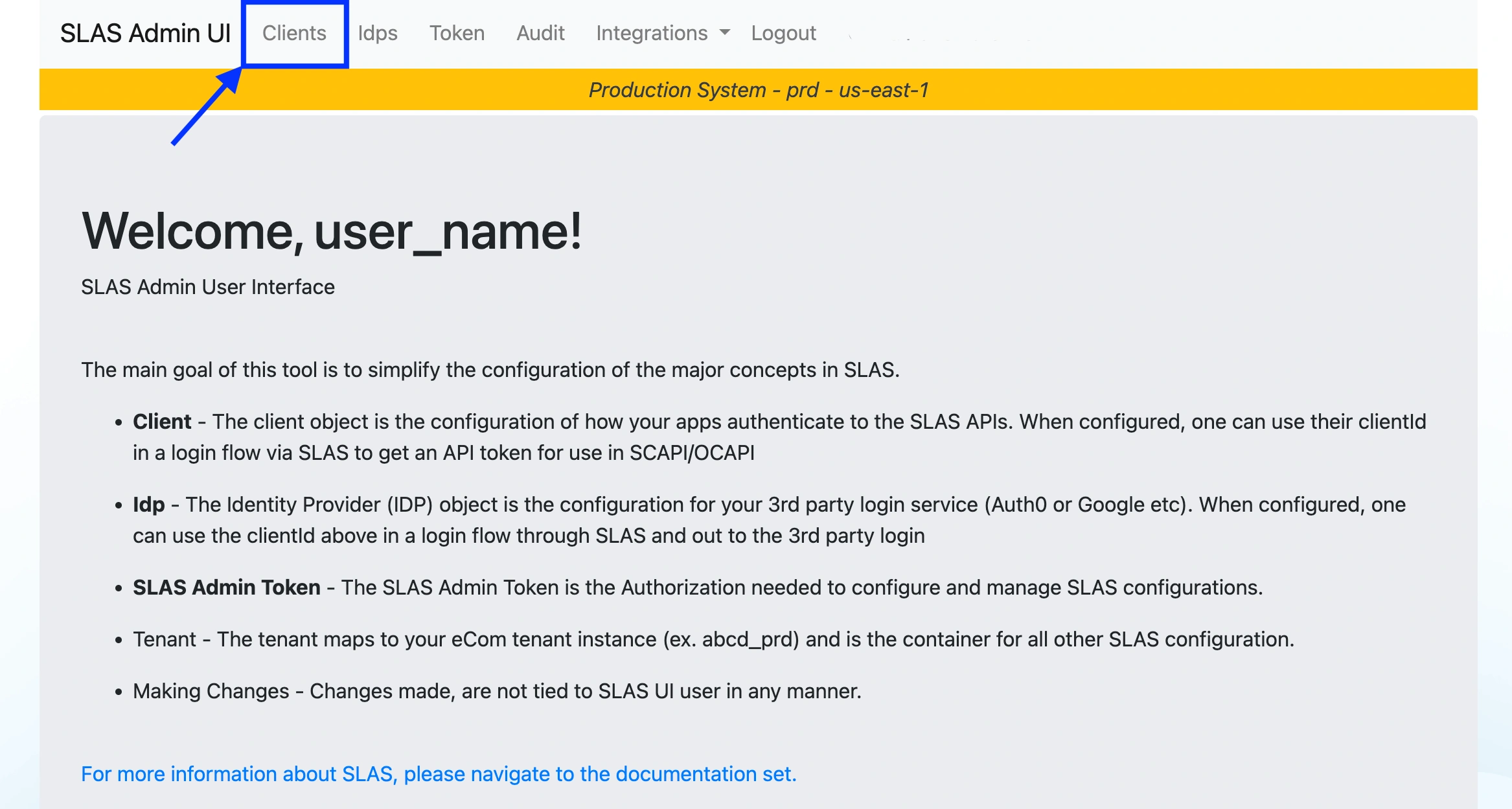
2) Click Add Client.

3) Choose a tenant by clicking Choose Tenant... and selecting a B2C Commerce instance.
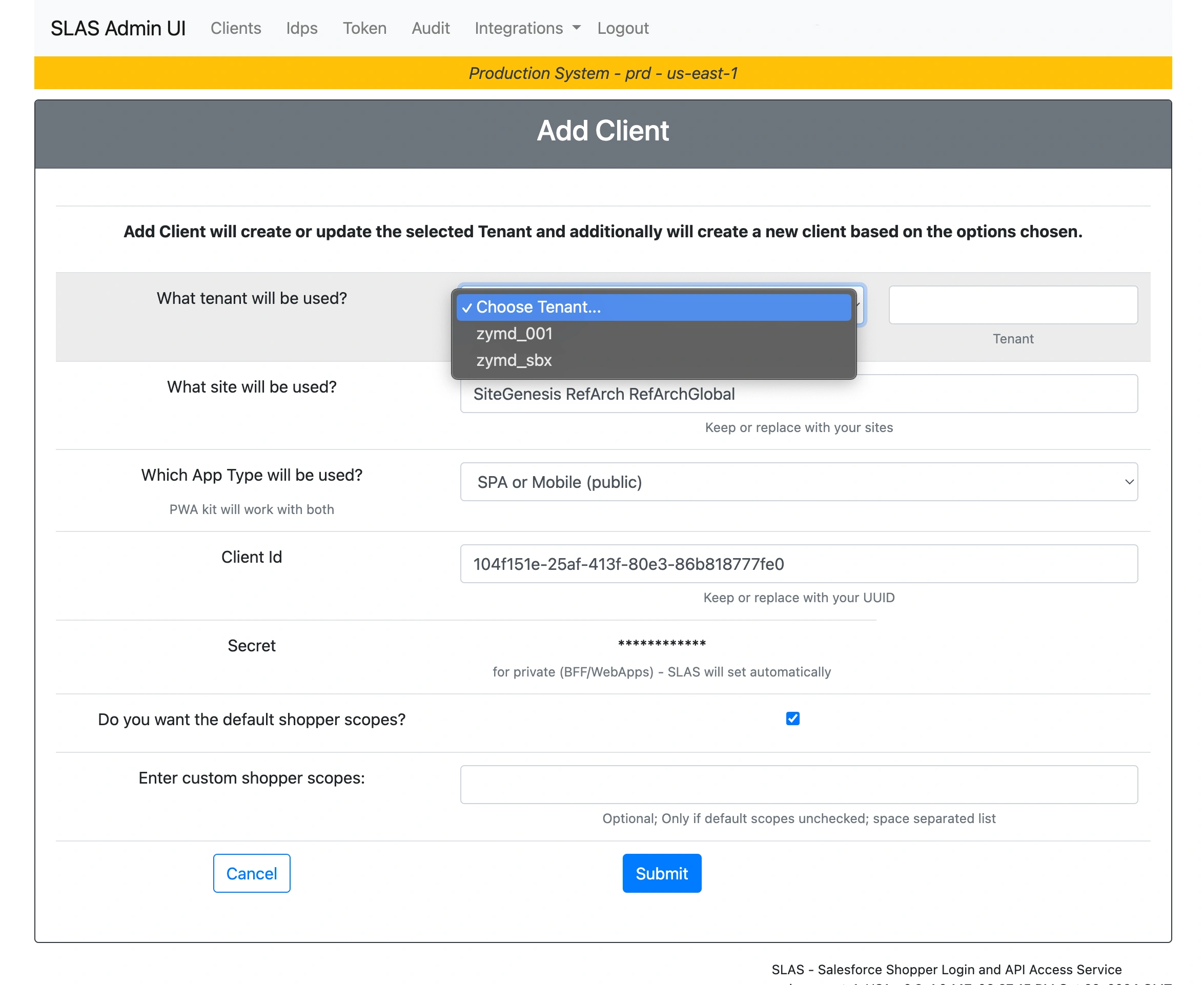
4) In the What site will be used? field, enter the site ID you've selected when connecting the Salesforce account in M2E.

5) In the Which App Type will be used? field, select the BFF or Web App type.

6) In the Enter custom shopper scopes field, provide the required scopes:
sfcc.ts_ext_on_behalf_of
sfcc.orders.rw
sfcc.products.rw
sfcc.shopper-products
sfcc.shopper-productlists
sfcc.shopper-product-search
7) Click Submit.
Access Client Secret #
If you've selected BFF or Web App, a Client Secret is generated automatically and displayed at the top of the results page.
Make sure to copy the Client ID and Client Secret from there.
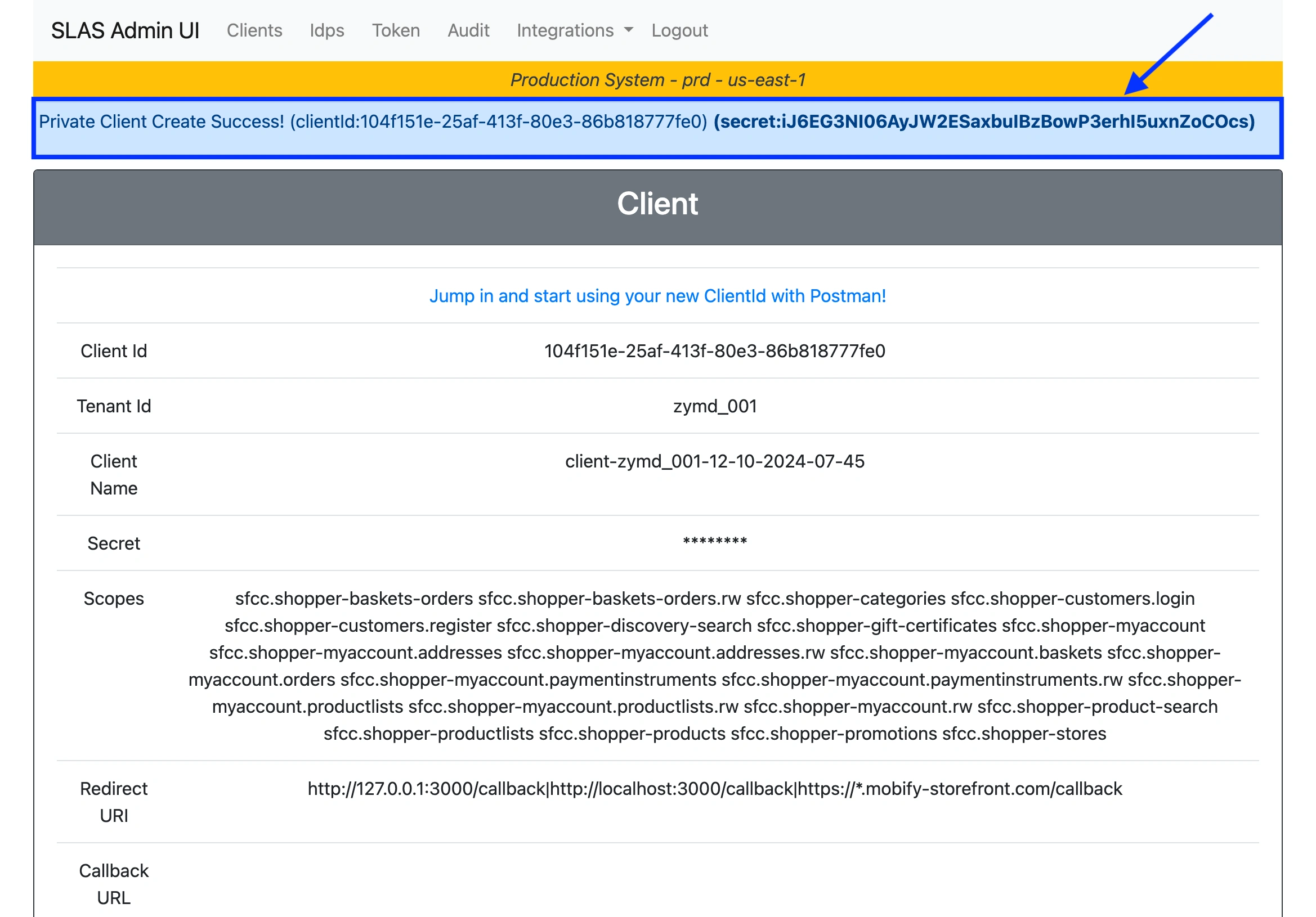
⚠️ The Client Secret is displayed only once for security reasons. Copy and save it in a secure location.
Step 3. Input Client ID and Client Secret #
Once you have the Client ID and Client Secret, enter them in the appropriate fields within the M2E Multichannel Connect app to enable order management.