
Linking your store's inventory to marketplace listings ensures seamless management and synchronization of products and orders across your platforms. This guide will help you link your Channel listings to your store products in M2E Multichannel Connect.
💡 Watch a video tutorial on how to link your Channel items.
What is linking #
Linking is the process of connecting your marketplace listings directly to your store's inventory. Here are the main reasons why linking is necessary:
- Prepares your products for synchronization
- Helps avoid overselling and maintain accurate product stock everywhere you sell
- Ensuring that products ordered on the marketplace are always linked to the correct items in your store
- Prevents duplicate listings when you’re listing products from your store on Channels
Linking works the same across all marketplaces.
Automatic linking #
M2E Multichannel Connect matches items from your connected Channel and Store/Catalog by SKU or Product ID and links them automatically.
If no match is found, you can link the items manually, one at a time or in bulk.
Manual linking (for small inventory) #
If your inventory is small, you can easily link items one at a time.
For products already in your store and marketplace:
1) Navigate to the Listings tab and select your Channel account.
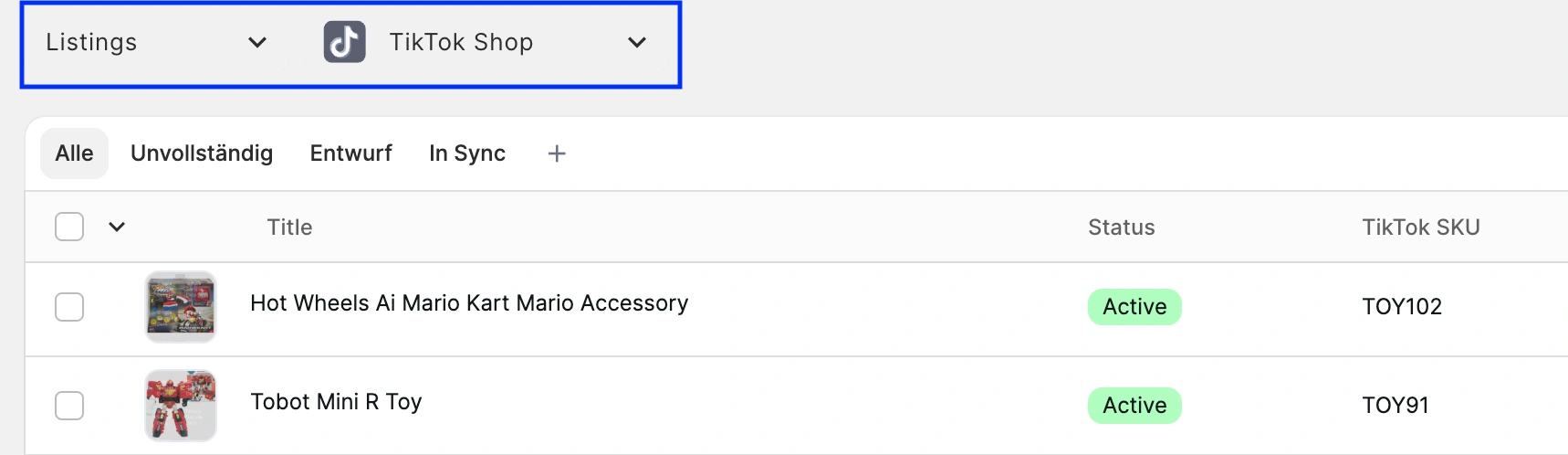
2) Use the filters to find products that are not linked.

3) Click the Link button and search for the matching product by title, SKU, or identifier.

4) Once you have found the product, click the Link button next to it.

That’s it; your item is linked.
If there is no matching product in your store for your Channel listing:
Click the Link button, then select Create new Store product and link in the pop-up. A new item will be automatically created in your store and linked to your marketplace listing.

Sometimes, you may need to link a variational Channel product to multiple Parent products in your store. This is especially useful if you sell, for example, a T-shirt with 10 variations (a white one in 5 sizes and a black one in 5 sizes), which appears as one item on the Channel but two separate products in the store.
As a workaround, link your first Parent product with all necessary variations. Then, use the Relink option to link the second Parent product and its variations. Repeat this process until you’ve linked everything correctly, and finally, relink the product that will serve as the main Parent one.

Linking in bulk (for large inventory) #
If you have a larger inventory, bulk linking is more efficient.
💡 Watch a video tutorial on how to link your Channel items via CSV export/import.
1) Go to the Listings tab and select your Channel account.
2) Click on More Actions in the top right corner and choose Export.

3) In the pop-up, switch to the Link items tab. Ensure all relevant fields are selected and click Export.

4) Adjust the Store Catalog SKU or Store Catalog Item ID in the exported CSV file as needed.
5) Import the edited file back into the app.

ℹ️ Use filters and the Organize by Group option on the right side of the page to export and link your products by marketplace, category, or product type.
Once your items are linked, it’s time to enable their synchronization to ensure automatic product data updates on Channels.


