
With M2E Multichannel Connect, you can manage the entire Temu shipping process from your e-commerce platform. The app lets you configure shipping details for your listings, fulfill Temu orders in your store, and keep tracking information synchronized with Temu.
This guide explains how to set up shipping for your Temu listings and how order shipping works once customers start placing orders.
Shipping configurations for Temu products #
When listing products from your store on Temu via M2E, you must provide accurate shipping information. With these shipping settings, Temu will receive all the necessary details for order delivery and shipping cost calculation:
Shipping templates #
Temu requires every listing to have an assigned shipping template. Shipping templates are created and managed in Temu Seller Center.
To create a shipping template in Temu Seller Center, go to My account > Shipping settings > Shipping templates.
Once your templates are set up in Temu, M2E will automatically retrieve them. At the first step of creating a new Temu listing, you need to select the appropriate template from the list.

If you don’t have any templates yet, click Create New (the plus icon) in M2E. You’ll be redirected to Temu Seller Center, where you can set up a new shipping template. Then, return to M2E and click Refresh (the double-arrow icon) to load your newly added templates.
Package dimensions #
Temu requires accurate package dimensions for each product to correctly calculate shipping fees. You can provide this information in the Package Dimensions section of your Temu Selling Policy.

There are three options for providing package dimensions:
- Default attribute/metafield from your Store – Use existing dimensions data available for your products.
- Custom attribute from your Store/M2E Catalog – Select a custom attribute that contains package dimensions specific to each product.
- Custom value – Enter the package dimensions manually. This option is best suited for products of the same type and size, where all items share identical measurements.
Handling time #
Temu also requires sellers to specify a handling time – the number of days between receiving an order and handing it over to the carrier. This value helps Temu calculate estimated delivery dates for buyers.
You have two options to set handling time in the Temu Selling Policy:
- Use the predefined value from Temu.
- Select a Store attribute/metafield that contains handling time information for your products.

Make sure the handling time accurately reflects your processing capacity to avoid late shipments or order cancellations.
Order shipping workflow #
Once a customer places an order on Temu, M2E detects it and automatically imports it into your store admin. From there, you can process and fulfill the Temu order like any other store order.
M2E supports multiple fulfillment options to give you flexibility in how you ship Temu orders.
You can handle shipping yourself (standard fulfillment), use Temu Buy Shipping to let Temu arrange delivery, or fulfill orders through Amazon Multi-Channel Fulfillment (MCF). In all cases, M2E synchronizes order tracking data between Temu and your store.
Standard fulfillment #
If you ship Temu orders yourself, you can manage fulfillment from your store. Once you add the tracking number and carrier name to the order, M2E automatically collects this information and sends it to Temu.
ℹ️ Note for WooCommerce sellers:
To sync order tracking details with Temu, make sure you have the Shipment Tracking for WooCommerce plugin installed and active. M2E uses this plugin to detect and transfer tracking information between WooCommerce and Temu.
Shipping carrier mapping #
Temu uses a predefined list of carrier names. For your orders to be marked as Shipped on Temu, the carrier name provided in your store order must match the one from Temu’s list.
M2E automatically maps shipping carrier names between your store and Temu. You don’t need to rename carriers in your store, as M2E ensures the correct match when sending tracking details.
However, the carrier must be enabled for your Temu account. To check this:
- Go to Temu Seller Center > My account > Shipping settings.
- Make sure the carrier is listed and active.
- If it’s missing, contact Temu support to request activation or select another approved carrier.
Once the carrier name in the store order matches Temu’s predefined list, the order will be marked as Shipped on Temu.
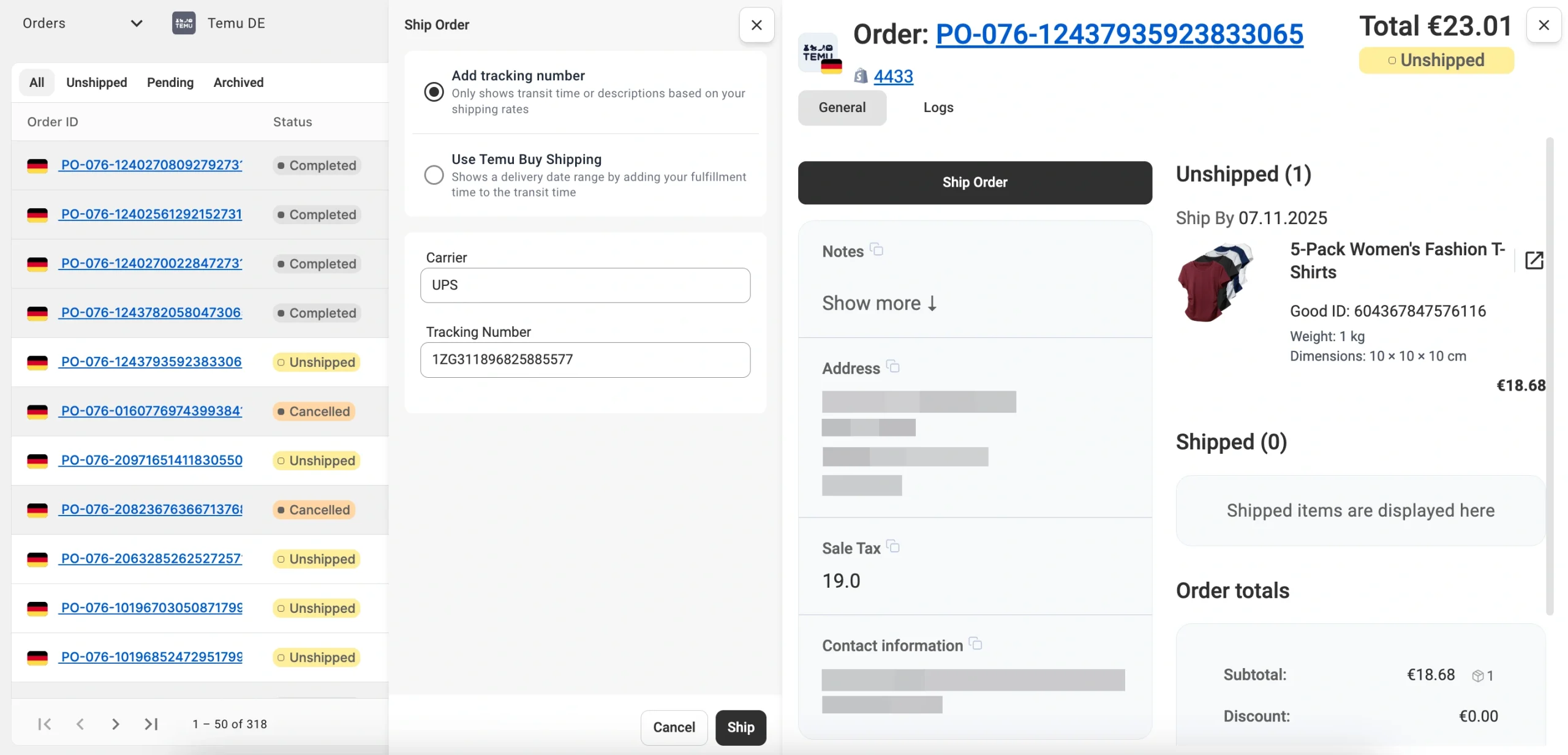
✅ You can also fulfill Temu orders in M2E Multichannel Connect. On the Orders page, open the order card and click Ship Order. Enter the carrier name and tracking number to confirm shipment. The shipping and tracking information will be synced between Temu and your store.
Temu Buy Shipping #
M2E supports the Temu Buy Shipping service, an alternative to standard fulfillment.
With this option, Temu takes care of shipping and carrier arrangements. The seller only has to purchase and print the shipping label, then drop off the package at the post office.
You can manage label purchases and tracking from your store’s admin panel in M2E, without switching to Temu Seller Center.

💡 Check out step-by-step instructions on using Temu Buy Shipping in M2E.
Shipping via Amazon MCF #
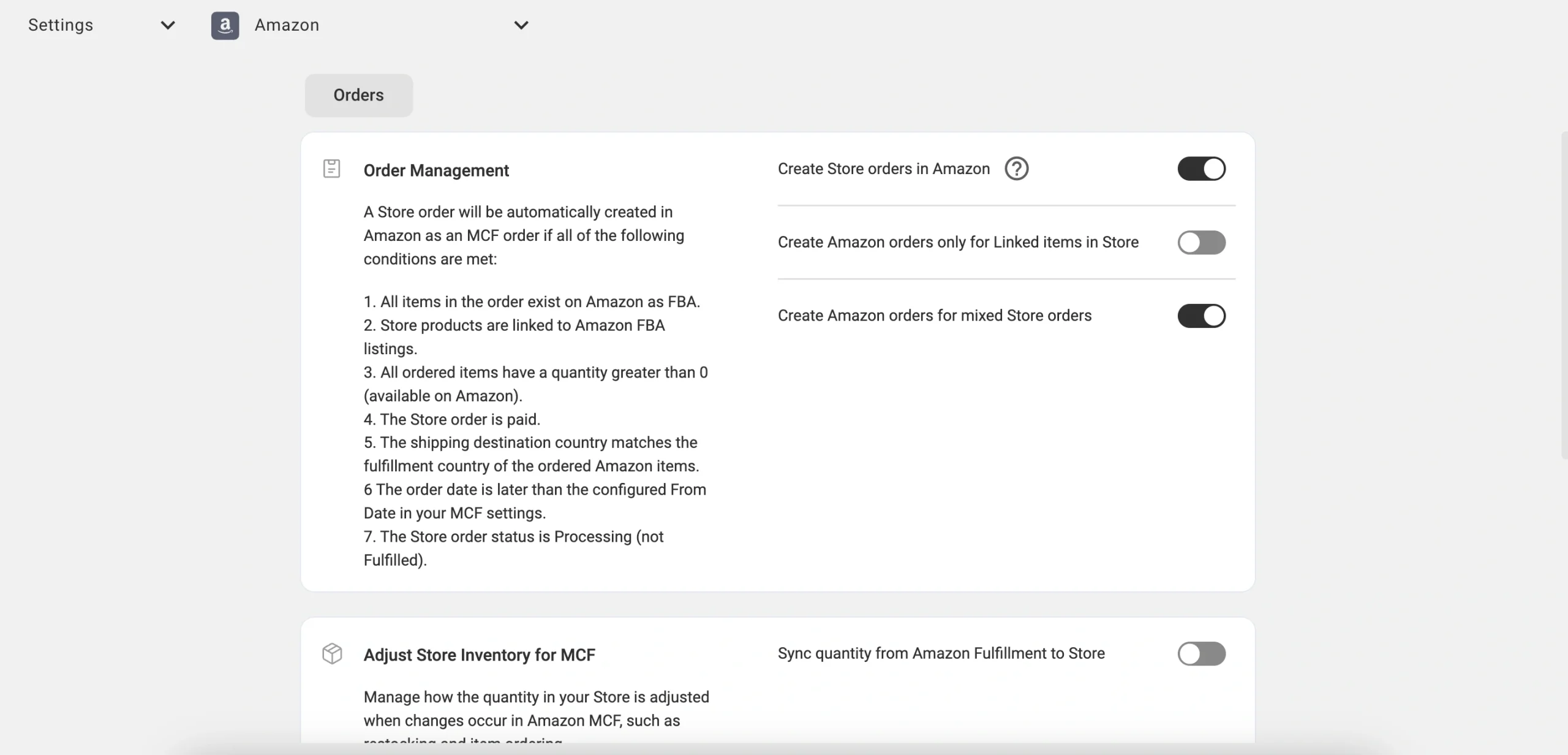
You can fulfill Temu orders using M2E Amazon Multi-Channel Fulfillment (MCF). This service allows Amazon to store, pack, and ship your products on your behalf. Meanwhile, M2E will keep order and tracking data synchronized between Temu and your store.
ℹ️ If a Temu order needs to be refunded (whether before delivery, after a return, or partially), M2E will automatically sync this information with your store. For more details, check out this article.
✅ If you have questions regarding the Temu shipping process in M2E, please contact our support team.


