
The eBay error "Required item specific is missing" occurs when one or more mandatory item specifics are not provided in your listing. eBay requires certain attributes, such as Brand, Size, Color, Type, Model, etc., depending on the product category.
This guide will help you understand why this error occurs and how to resolve it efficiently.
Why am I seeing this error? #
The most common reasons for this error include:
- The required item specific is left empty in your listing.
- You have selected a Store/Catalog attribute as the source for the specific, but this attribute is not assigned to the product in your store or catalog.
How to fix the error #
Step 1. Identify the missing specifics #
- In the Listings tab, click on the product title to open the product card.
- Switch to the Logs section to see a list of all errors returned from eBay.
- Check which specifics are missing from the listing.

Step 2. Assign the missing specifics #
- Switch to the Category section in the product card and click Specifics.
- Find the missing specifics and select a valid value.
- Save your changes by clicking Confirm.
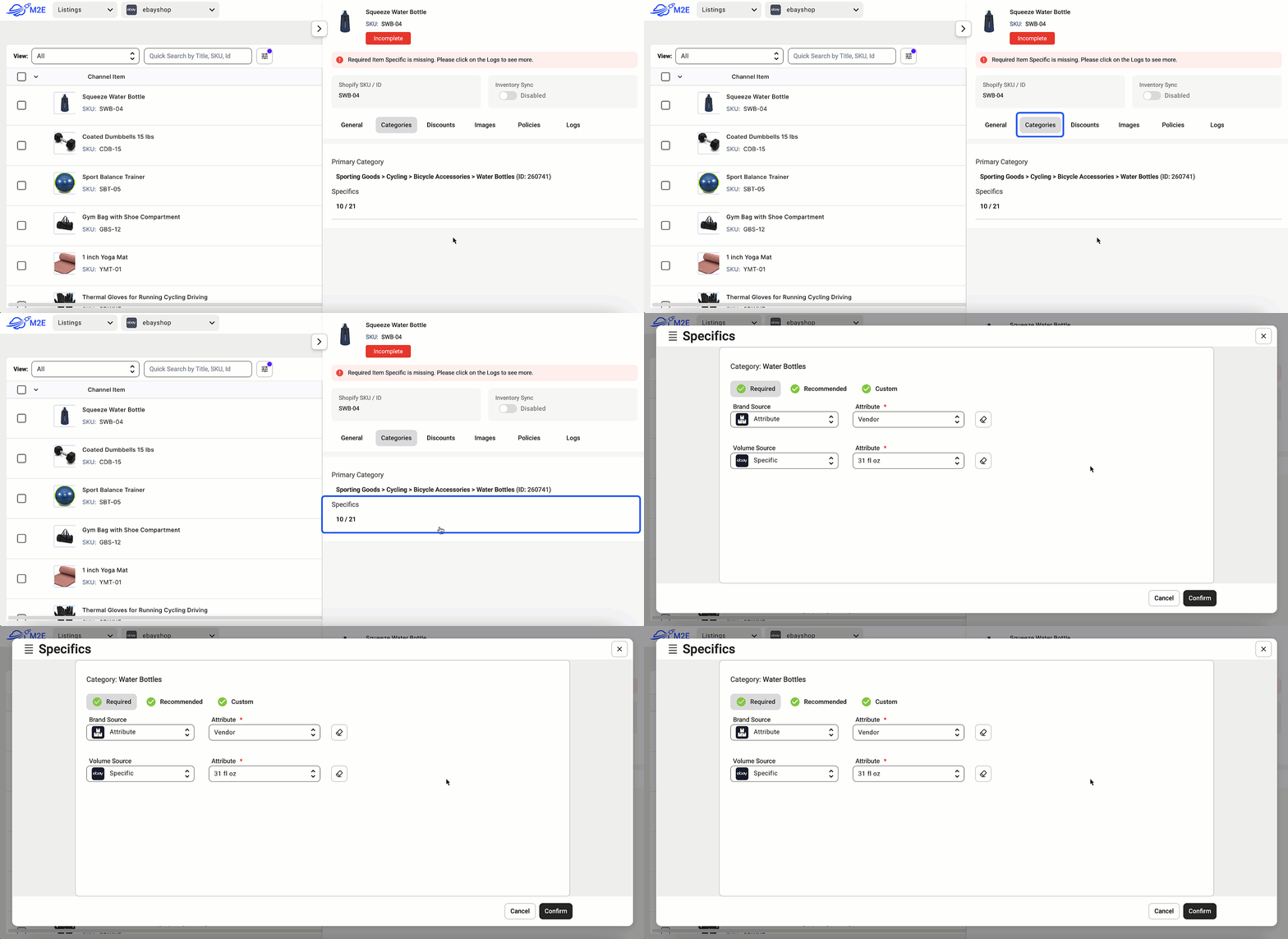
When assigning specifics, you have the following options:
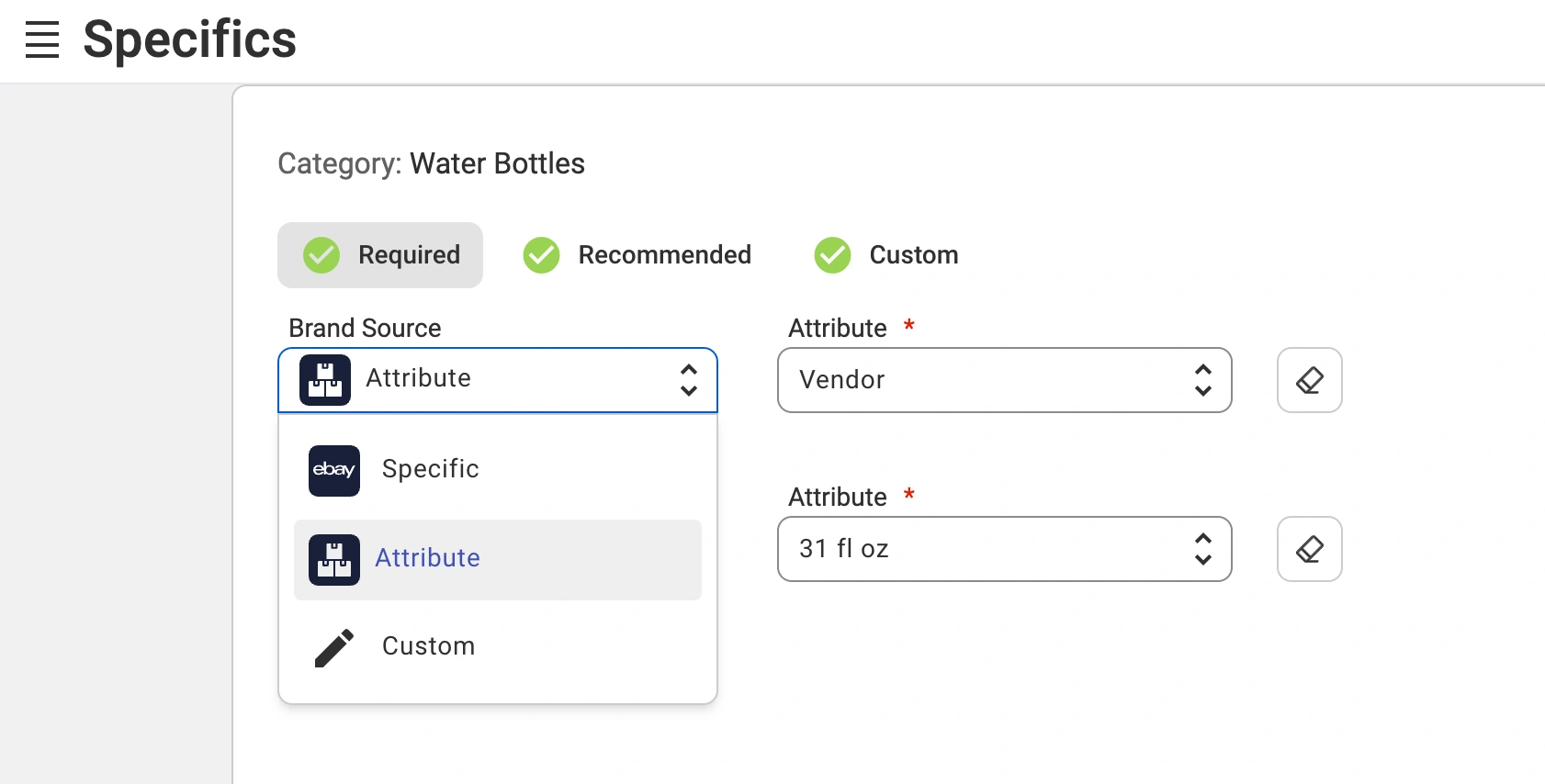
- eBay Specifics – displays a dropdown of values directly imported from eBay. Select the most relevant option and save.
- Store Attributes – displays attributes from your store (e.g., Shopify metafields, BigCommerce attributes, etc.). If you use this option, ensure the attribute is assigned to the product in the store and contains valid values.
- Custom Specifics – manually enter values for item specifics that are relevant to your products. This is useful when the required values are not available in eBay’s predefined options or your store’s attributes.
ℹ️ If you receive the error even after selecting a store attribute, it means the attribute is not assigned to the product in your Store or Catalog. You can either:
- Switch to eBay specifics and select a value from the dropdown.
- Assign the required attribute to the product in your Store or Catalog.
Step 3. Verify assigned attributes #
To quickly check which attributes are assigned to your product in your store:
- In the Listings tab, click the eye icon to preview the Catalog item.
- Switch to the Attributes section to review the assigned attributes.

Step 4. Resubmit the Listing #
After making the necessary adjustments:
- In the Listings tab, select the incomplete products.
- Click Manage Items > List from the mass actions menu to resubmit them to eBay.

How to Change Specifics for Items in Bulk #
If you have multiple products in the same eBay category with missing specifics, you can update them all at once:
- Click on the Gear icon in the upper-left corner of the Listings tab.
- Switch to the Categories section and select the affected category.
- Adjust the missing specifics for all products in that category.

This method ensures faster updates and minimizes manual work.
By following these steps, you can quickly resolve the "Required item specific is missing" error and ensure your listings comply with eBay's requirements.
For further assistance, feel free to reach out to our support team.


