
TikTok Shop promotions allow sellers to offer discounts and deals to increase product visibility and sales. M2E Multichannel Connect lets you manage TikTok Shop promotions directly from your e-commerce platform. You can sync active promotions, assign promotions to products in bulk, and configure flexible pricing and quantity rules.
This guide covers how to promote products on TikTok Shop using M2E Multichannel Connect.
Types of TikTok Shop promotion activities #
TikTok Shop provides several promotion formats to choose from:
- Fixed Price – Set a specific discounted price for your products.
- Direct Discount – Apply a percentage-off deal to your products.
- Flash Sale – Create a time-limited offer to drive urgency and quick purchases.
- Shipping Discount – Lower shipping fees to encourage orders.
- Buy More, Save More – Give shoppers deeper discounts for purchasing larger quantities.
M2E Multichannel Connect currently supports Fixed Price, Direct Discount, and Flash Sale promotions.
View products with active TikTok Shop promotions #
If your TikTok Shop listings already have promotions applied, you can view and track them in M2E Multichannel Connect:
1) Navigate to Settings > Sales Channels.
2) Find your TikTok Shop account, open the three-dot menu, and choose Refresh promotions to pull in your latest promotion data. If you have several TikTok Shop accounts connected, do this for each one separately.

3) Go to the Listings page and select your TikTok Shop account.
4) Open the filters panel in the top-right corner and click Add Filter+. The following filters will help you find listings tied to specific promotions:
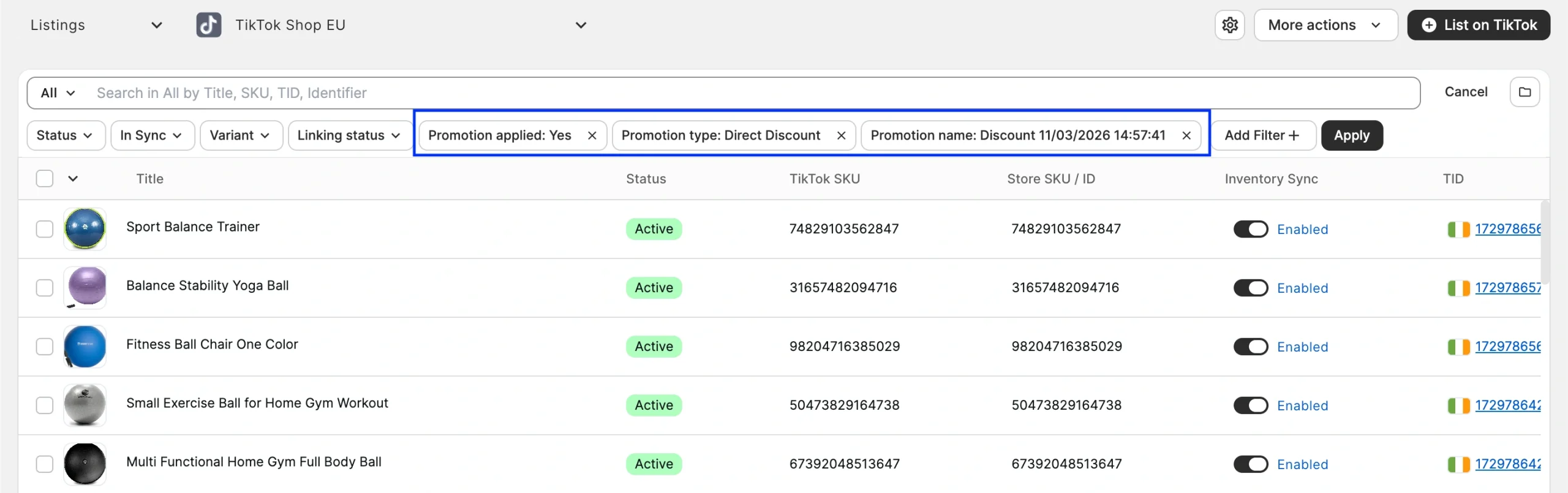
- Promotion applied – show only products with or without an active promotion.
- Promotion type – narrow results to Fixed Price, Direct Discount, or Flash Sale.
- Promotion name – find all products enrolled in a particular promotion.
To see promotion details for a specific product, click on it from the Listings page and open the Discounts tab:

Add TikTok Shop promotions to products #
Follow the steps below to enroll your products in TikTok Shop promotions in bulk through M2E Multichannel Connect.
ℹ️ Before you start, confirm that you have created the promotions you need in TikTok Shop Seller Center.
Step 1. Select products #
1) Go to the Listings page and choose your TikTok Shop account.
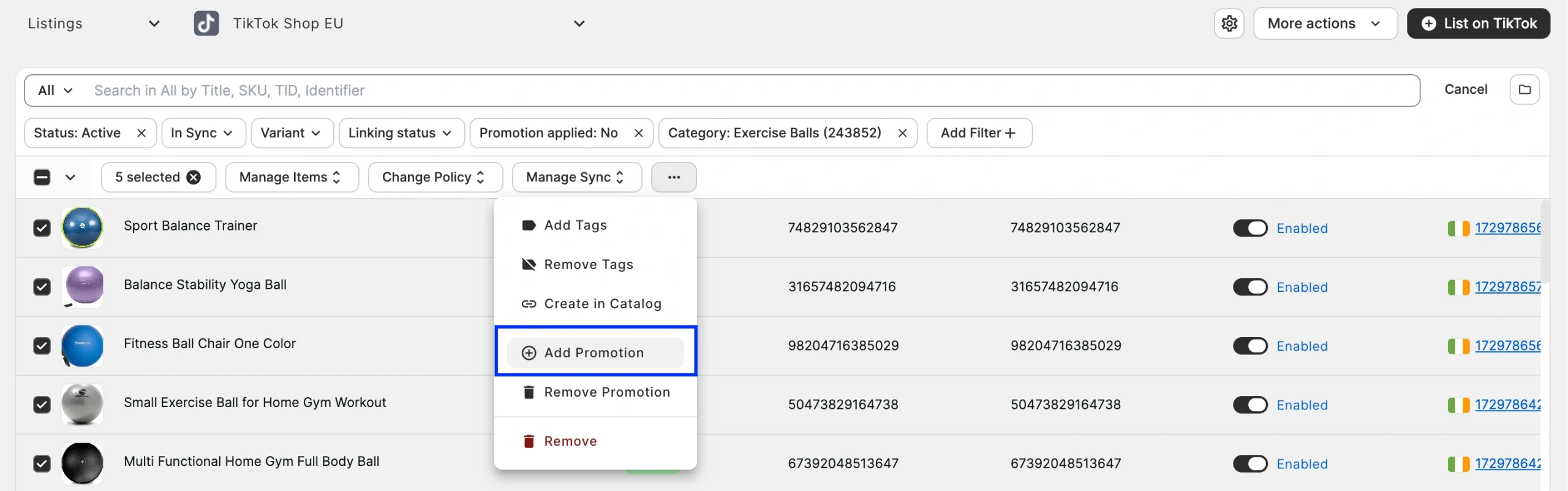
2) Find the products you need to enroll. Filters like Promotion applied: No can help you identify products not yet in any promotion. Make sure the selected products are active on TikTok Shop, linked, and have inventory sync turned on.
All selected products must also belong to the same TikTok Shop marketplace. Use the Organize by Group (folder icon) to sort your products by marketplace.

3) Check the boxes next to the relevant products, open the three-dot menu at the top, and choose Add Promotion.
Step 2. Choose a promotion #
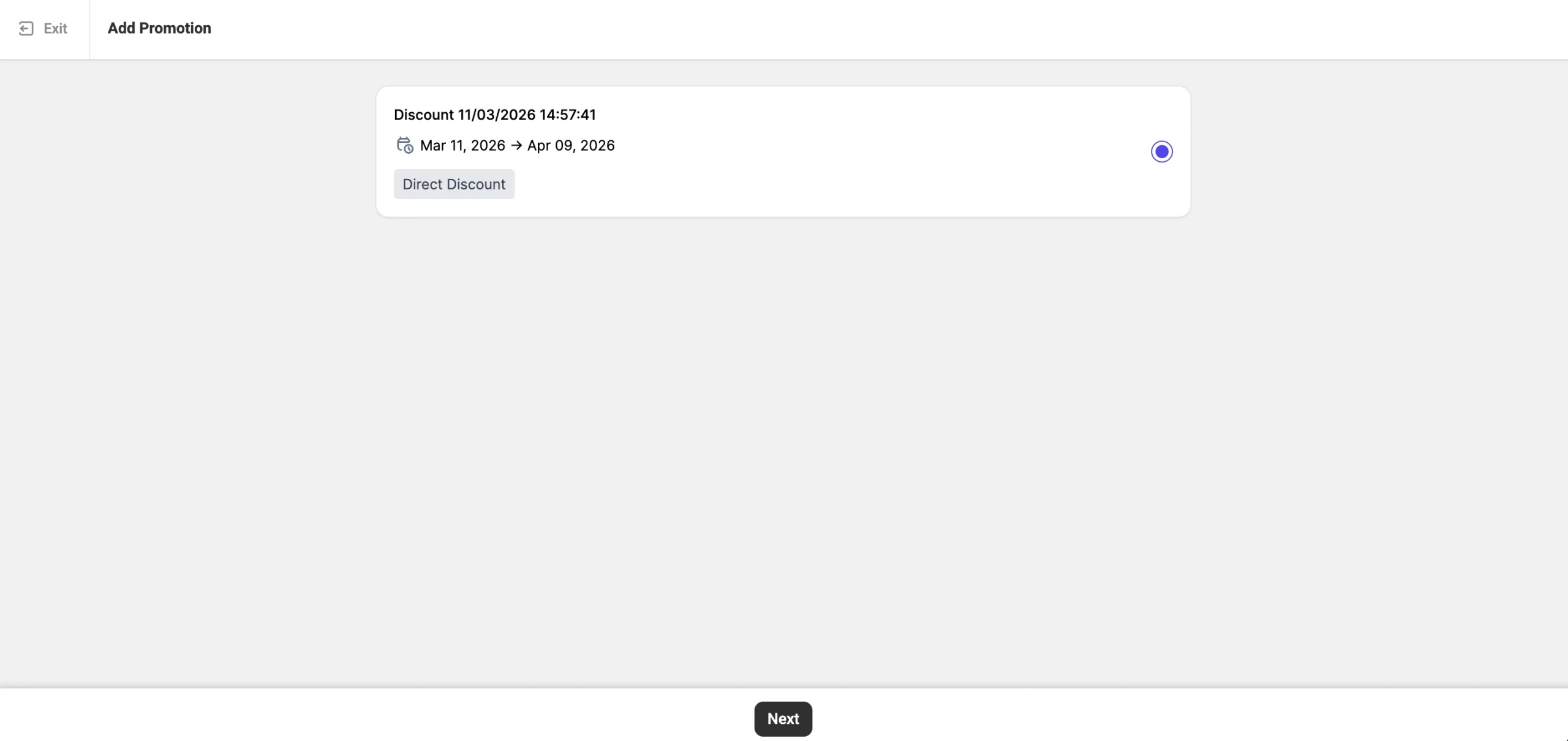
A list of your TikTok Shop promotions will appear, showing those with Not started or Ongoing status. Pick the one you want and click Next.
Step 3. Set up a Promotion Policy #
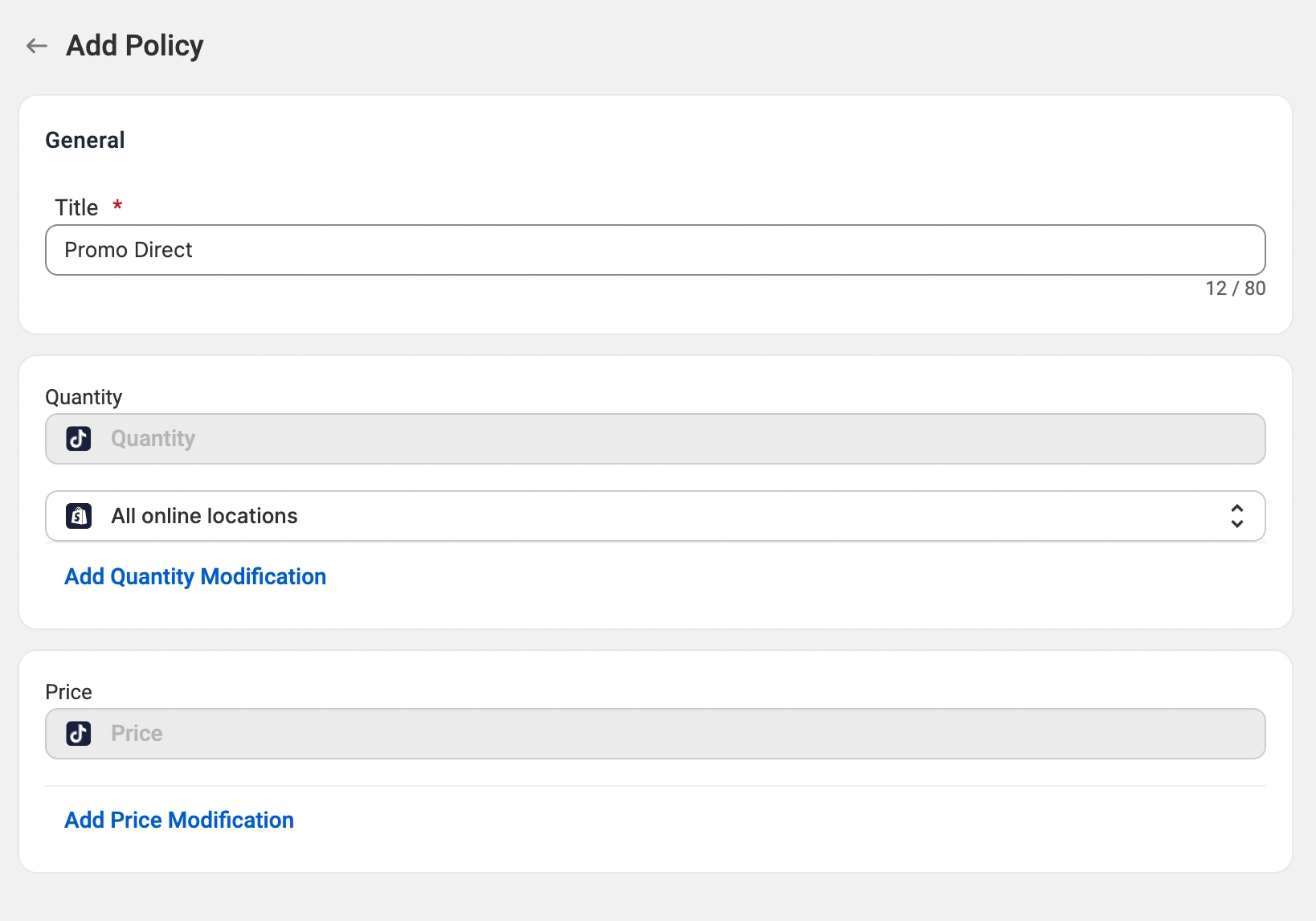
A Promotion Policy determines the pricing and quantity rules for products participating in a promotion. It applies to the promotion as a whole rather than to individual items. Click Create New Policy to begin.
Title
Give your Promotion Policy a descriptive name for easy reference.
Quantity
The promotion uses the quantity from your TikTok Shop listings by default.
If your store runs on Shopify, you can specify which inventory location(s) M2E should use as the quantity source:
- All online locations (default) – Aggregates stock from every Shopify Location enabled for online sales and shows the combined total on TikTok Shop.
- Custom location(s) – Pick one or more active Shopify online locations. When multiple are selected, their stock levels are added together.
If you want to limit the quantity available for the promotion, click Add Quantity Modification and set a percentage decrease. For instance, applying a 50% decrease to a quantity of 200 makes 100 units available for the promotion.
Price
The promotion uses the price from your TikTok Shop listings by default.
To modify the promotion price, click Add Price Modification and select one of four options:
- Absolute Value Increase/Decrease – Adjust by a fixed amount. For instance, subtracting $5 from a $100 base price gives you a $95 promotion price.
- Percentage Increase/Decrease – Adjust by a percentage. For instance, a 10% reduction on a $100 base price gives you a $90 promotion price.
Step 4. Submit a promotion #
When your Promotion Policy is ready, click Submit. Products that meet TikTok Shop's validation requirements will be enrolled in the promotion.

Keep in mind that a single product can participate in multiple promotions at once. In that case, TikTok Shop will apply the promotion offering the largest discount.
Need help? #
Have questions about managing TikTok Shop promotions in M2E Multichannel Connect? Reach out to our support team – we are happy to help.


