
Use this guide to integrate your e-commerce platform with the Hygi.de marketplace through M2E Multichannel Connect. By the end, you will have your products listed on Hygi.de and your orders syncing automatically between the two systems.
Before you begin #
To set up the integration, make sure you have:
- Active online store on one of the supported e-commerce platforms (Shopify, BigCommerce, PrestaShop, etc.)
- Active Hygi.de seller account on the Mirakl platform. If you don't have an account yet, you can submit a request to become a seller through their website.
Install M2E Multichannel Connect #
Install the M2E Multichannel Connect app from your platform's app store. You can find the download link for your specific platform on the M2E Official App Listings page.
Once the installation is complete, open the app from your store's admin panel to begin setup.
Connect the Mirakl account #
Since Hygi.de runs on the Mirakl marketplace platform, you need to link your Mirakl account to start managing listings and orders through M2E.
Steps:
1) In the M2E app, open the Dashboard and click Connect Marketplace Account.

2) Select Mirakl from the list of available marketplaces.
3) Log in to your Mirakl Seller Admin in a separate tab and copy your API key. For more detailed instructions on finding the key, check out the dedicated guide.
4) Return to M2E and paste the API key into the Connect Mirakl Account pop-up.
5) In the Marketplace field, click Add New Marketplace and enter the marketplace URL following the instructions. Click Save.

6) If you manage multiple shops within the marketplace, enter your Shop ID. Otherwise, leave this field blank.
7) Click Confirm. Once M2E validates the credentials, your Mirakl account is linked and ready to use.
Synchronize existing Hygi.de products #
If you already sell on Hygi.de, you need to link your existing marketplace listings to the matching products in your store. This way, M2E will update the right products when your store data changes.
1) Link products
M2E automatically links products between your store and Hygi.de using Product ID and SKU. For any items that don't link automatically, you can link them manually:
- Small catalogs: Link items from the Listings page by following the instructions.
- Large catalogs: Use bulk linking via CSV file export/import, which is faster when working with hundreds or thousands of items.
2) Enable inventory synchronization
After linking your items, enable inventory sync so M2E can keep prices, stock levels, and product details aligned between your store and the marketplace. You can turn on synchronization for individual items or multiple items in bulk.
Create and publish listings on Hygi.de #
To list new products, go to the Listings page and click List on Mirakl in the top-right corner of the grid.

Configure listing settings #
Set up the M2E Policies, which are reusable templates that control how your products are sold on Hygi.de and which product details are synced between the store and the marketplace:
- Selling Policy – Specify the price and quantity settings for your Hygi.de listings.
- Synchronization Policy – Define how the app keeps your store and Hygi.de listings in sync.
- Description Policy – Set the source for product titles and descriptions. You can pull content from your store or customize it for the Hygi.de audience.
Also, select the appropriate condition for your products.

Provide barcode source #
In the Barcode Source field, specify where M2E should pull the product identifier (EAN, UPC, etc.) from. This step matters because the marketplace uses the barcode to match your item to an existing offer. If the source doesn't contain a valid identifier, your listing won’t be published on the marketplace.

You can choose from:
- Product’s native barcode field from your store
- Custom metafield or attribute that stores the barcode value
- Manual input, if your store doesn’t keep barcodes
ℹ️ Make sure the chosen source contains valid, GS1-registered barcodes to avoid listing errors.
When your product settings are configured, click Next.
Select products #
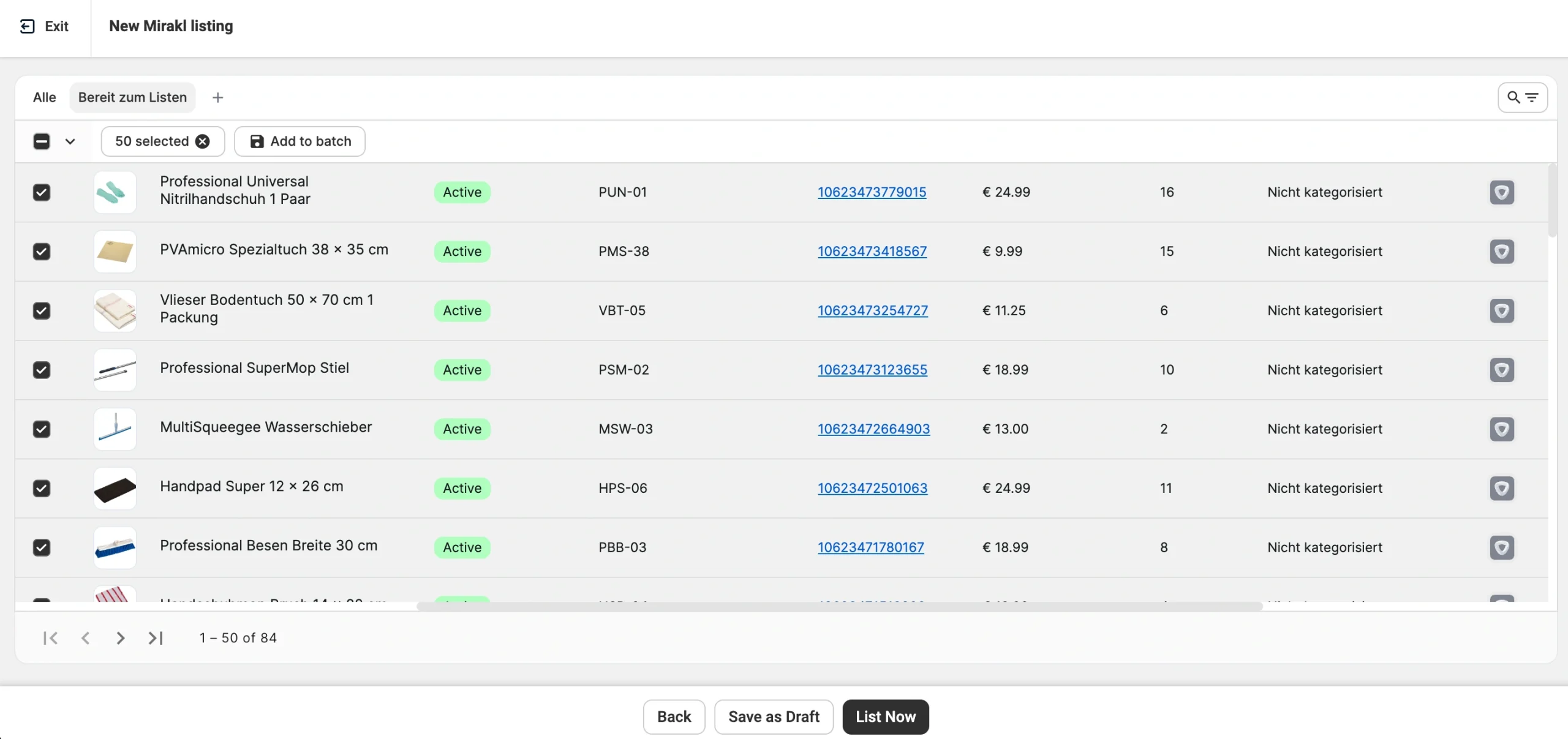
Choose the items from your store that you want to list on Hygi.de. Use filters to narrow the catalog by price range, quantity, category, or other parameters and quickly find matching products.
If you are listing a large number of items, use the Batch tool to collect products across multiple searches and pages in a single selection.
Publish listings #
Once your product selection is ready, click one of the options at the bottom of the page:
- List Now – Submit your products to Hygi.de immediately.
- Save as Draft – Save your listings in M2E without submitting them to Hygi.de. Draft listings stay hidden from the marketplace until you publish them manually.
Verify listing data #
M2E Listing Validator Assistant automatically reviews your listings once you have clicked List Now. It checks your product data, including barcodes, to confirm whether each item can be matched to an existing offer on Hygi.de. If a match is found and the rest of the data is valid, your products go live on the marketplace.
If any information is missing or the barcode doesn't comply with the required format, the Validator shows a list of issues along with guidance for fixing each one. Resolve every issue and click List Now to resubmit the products.

Alternatively, you can save unfinished listings as Incomplete and return to them later:
1) Go to the Mirakl Listings page.
2) Filter items by the Incomplete status.
3) Make your updates, then select the edited products.
4) From the mass actions menu, click Manage Items > List to resubmit them.

Create new products #
If your barcode is valid but no one is currently selling a product under it on Hygi.de, you will need to provide additional information so the marketplace can create a new product in its catalog. M2E Listing Validator Assistant guides you through this process.

1) Assign a category
Choose the appropriate category for your products from the list of available options. M2E saves your selection and its attributes as a Category Policy, so you can reuse it for future listings without reconfiguring the same attributes.
2) Define product attributes
The marketplace uses category attributes to organize and display your products to buyers. Depending on the category, you need to fill in two types of attributes.
Required attributes must be completed to publish your listing. Recommended attributes aren’t mandatory, but they improve how your products appear in search and filters.
For each attribute, choose where the value comes from:
- Store data – Pull the default value from your store. This is the recommended option if your products already contain the needed details.
- Product attribute or metafield – Pull the value from the custom attributes/metafields in your connected store or catalog.
- Custom value – Enter a value manually if it isn't available in your store data.
ℹ️ If your store doesn't have all the required product data, you can create custom attributes in M2E Catalog. They store marketplace-related data for your products and don't affect any information in your e-commerce platform. This is a more flexible option for large catalogs than entering custom values per listing.
✅ Save your attribute mappings. When you assign value sources for a new category, M2E detects the mapping between your store and Hygi.de attributes. Save the mapping when prompted, and future listings in that category will reuse the same configuration automatically.
Manage listings #
You can update your Hygi.de product settings at any time from the Listings page. For easier management of large catalogs, you can create filter presets or organize products by groups.
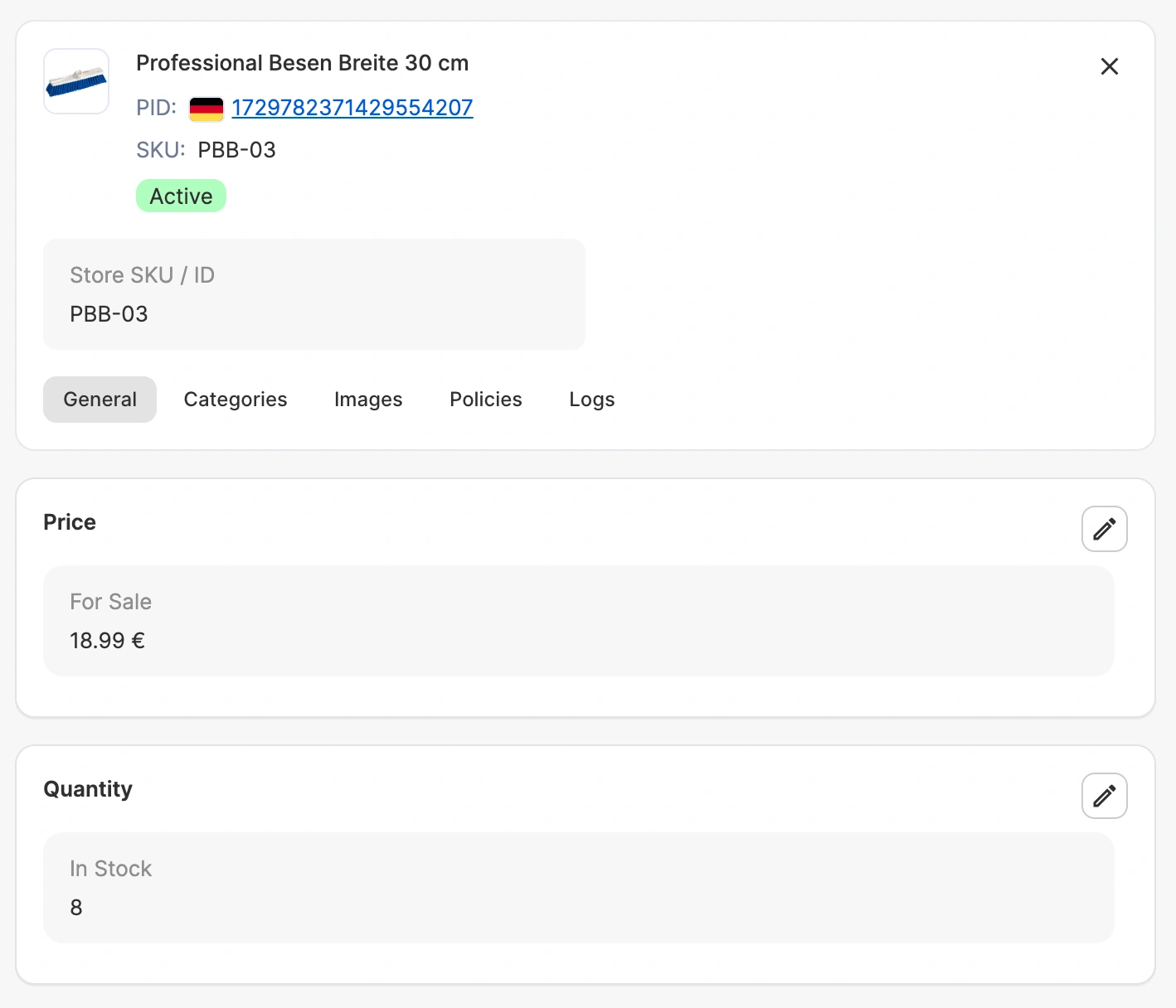
Steps to edit a single product:
1) Click the product card to open it.
2) Update pricing, quantities, category, or policies as needed.
3) Save your changes. M2E syncs the updates with Hygi.de automatically.
Steps to edit multiple products in bulk:
1) Select products by checking the boxes next to them.
2) In the mass actions menu, choose the action you want to apply, such as Change Policy or Change Category.
3) Save your changes. M2E applies the updates to all selected products and syncs them with the marketplace.

Configure order settings #
Before your first Hygi.de orders arrive, set up your order preferences under Settings > Orders.

Order management #
Control how Hygi.de orders are created in your store:
Create Mirakl orders in Store – Automatically creates a matching order in your store whenever a Hygi.de order comes in. Set a Start Date to choose when automatic creation begins.
Create Mirakl orders only for Linked items in Store – Limits order creation to items you have already linked between systems.
ℹ️ Enabling order creation is strongly recommended. Without it, your inventory won't adjust for Hygi.de sales, which can lead to overselling.
When you fulfill a Hygi.de order in your store, M2E automatically syncs the order status and tracking number with the marketplace.
Inventory reservation #
Reserve quantity in Store for pending Mirakl orders – Holds inventory for Hygi.de orders that are awaiting payment. This prevents the same stock from being sold twice while the buyer completes checkout.
Store order ID #
Decide how Hygi.de order IDs appear in your store:
Use Mirakl Order ID instead of Store Order ID – Replaces your store's default order ID with the Hygi.de order ID.
Use marketplace code as a prefix for Store Order ID – Adds a marketplace identifier to distinguish Hygi.de orders from those coming through other channels.
✅ You can also define a custom prefix or suffix. For example, setting hygi- as the prefix means all Hygi.de orders in your store will begin with that tag, which makes them easier to identify.
Customer management #
Most marketplaces prohibit sellers from contacting buyers outside the platform, and violations can result in account suspension. To stay compliant, enable one of the following options:
Create Mirakl orders using masked customer email format – Replaces the buyer's email with a masked version (for example, _name@email.com instead of name@email.com), so the original address doesn't appear in your store.
Create Mirakl orders using a single customer email – Associates every Hygi.de order with a single email address you specify, so original buyer emails don’t appear in your store.
Get help #
If you run into any issues or have questions, reach out through the contact form, and the M2E support team will get back to you.
For additional contact options, visit the M2E support page.


