
Synchronization is a key feature of M2E Multichannel Connect. It serves as the second step in setting up your account, following the linking of products between your e-commerce store and sales channels.
Enabling synchronization allows you to automatically adjust product details and quantities, eliminating the need for manual updates. Once changes are made in your store, they will automatically be applied to your linked Channels, ensuring consistency across all platforms based on your configured settings.
How synchronization works #
M2E Multichannel Connect treats your e-commerce store as the main data source for updates. For example, if you enable synchronization for prices, updates to prices in your store will automatically reflect on your sales channels.
⚠️ Changes made directly on a marketplace (e.g., editing prices) will not update the data in your store.
The only exception to this rule is quantity synchronization, which works both ways for orders.
For example, the system will automatically update the stock quantity in your store whenever an order is placed on a marketplace, as long as the option to create orders from Channels in your store is enabled in M2E Multichannel Connect.
💡 Learn more about order management in our guide.
Synchronization Policy overview #
Synchronization parameters are managed via the Synchronization Policy, which you can configure to suit your needs. This policy is mandatory for each Channel.
Create a new Policy #
1) Click the "+" icon next to the Synchronization Policy field while attempting to list new items.
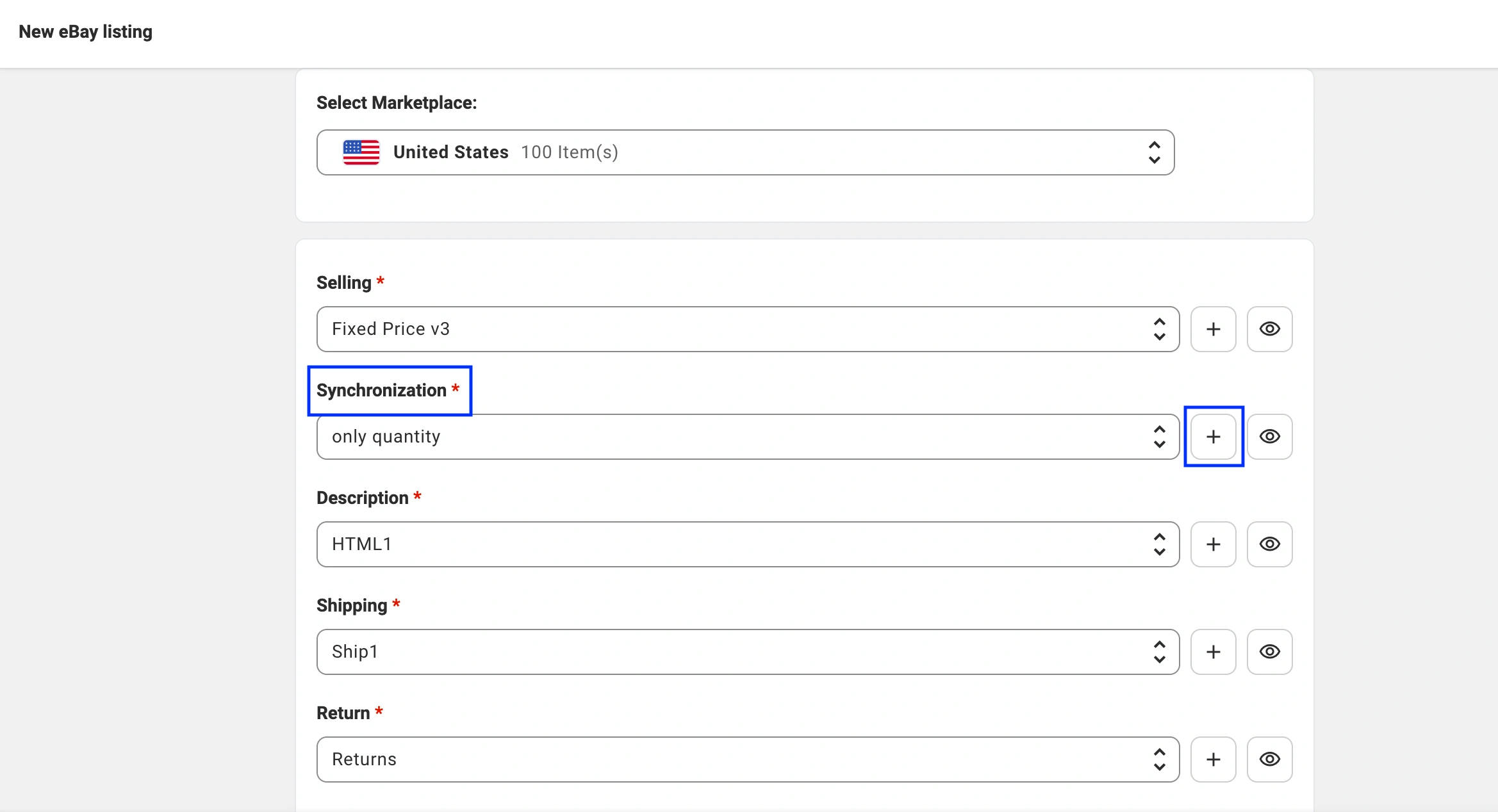
(The eBay visual is for illustrative purposes only. The actual interface may vary across different sales channels.)
2) Name your policy and select the specific parameters you want to sync between your store and a marketplace.
3) Save your changes.
Custom synchronization settings #
- Quantity Synchronization:
We recommend enabling quantity synchronization to maintain inventory control and prevent overselling across various Channels. You can also fine-tune specific quantity settings within your Selling Policy to meet your unique requirements. - Price Synchronization:
Price synchronization can be enabled or disabled depending on the specific Channel, customer preferences, or additional tools being used (e.g., Amazon Repricers).
Also, you can customize prices for each Channel in the Selling Policy when listing items. - Other Parameters:
Fields such as title, description, images, GPRS details, etc. can be enabled for synchronization based on individual preferences.
Now, let's look at the Synchronization Policy settings for each Channel in more detail.
eBay Synchronization Policy #
To create a new Synchronization Policy, follow these steps:
1) Name the policy.
2) Select the information you want to synchronize between your store and eBay.
3) Save the changes.

Which data should you synchronize?
- Recommended Fields
Syncing price and quantity is highly recommended for accurate inventory and pricing updates. You can fine-tune these settings in your Selling Policy to better control how they are managed.
- Optional Fields
The following fields can also be synced but are not required:
✔ Title
✔ Description
✔ Images
✔ Identifier
✔ Categories & specifics
✔ GPSR details
✔ Shipping Policy
✔ Return Policy
✔ Vehicle compatibility (fitment)
✔ Other settings (VAT, Strike-Through Price, Lot size, etc.)
If this information is already filled out in your store, synchronizing these fields can streamline the listing process and eliminate the need for manual input in future listings.
Due to eBay's flexible listing structure, where sellers can create unique listings for the same product, syncing additional details from your store can be particularly useful.
💡 Refer to our guide on how to list new items on eBay for additional information.
Amazon Synchronization Policy #
To create a new Synchronization Policy, follow these steps:
1) Name the policy.
2) Select the information you want to synchronize between your store and Amazon.
3) Save the changes.

Which data should you synchronize?
- Recommended Fields
Syncing price and quantity is highly recommended for accurate inventory and pricing updates. You can fine-tune these settings in your Selling Policy to better control how they are managed.
⚠️ If you’re using Amazon Repricer, the price sync must be disabled not to interfere with the Repricer flow.
- Optional Fields
The following fields can also be synced but are not required:
✔ Title
✔ Description
✔ Images
✔ GPSR details
✔ Attributes
If this information is already filled out in your store, synchronizing these fields can streamline the listing process and eliminate the need for manual input in future listings.
Due to Amazon's unified catalog structure, where all product information is linked to a shared page created by the ASIN creator, editing product details may require special approval from Amazon when listing under an existing ASIN.
ℹ️ Updates to product images undergo a technical review by Amazon to ensure they meet the required file standards. Images that do not comply with these standards will not be updated.
If you are creating a new ASIN, you can sync all optional fields necessary for building the new ASIN, providing full control over the product details.
💡 Refer to our guide on how to list Simple products on Amazon for additional information.
TikTok Shop Synchronization Policy #
To create a new Synchronization Policy, follow these steps:
1) Name the policy.
2) Select the information you want to synchronize between your store and TikTok Shop.
3) Save the changes.
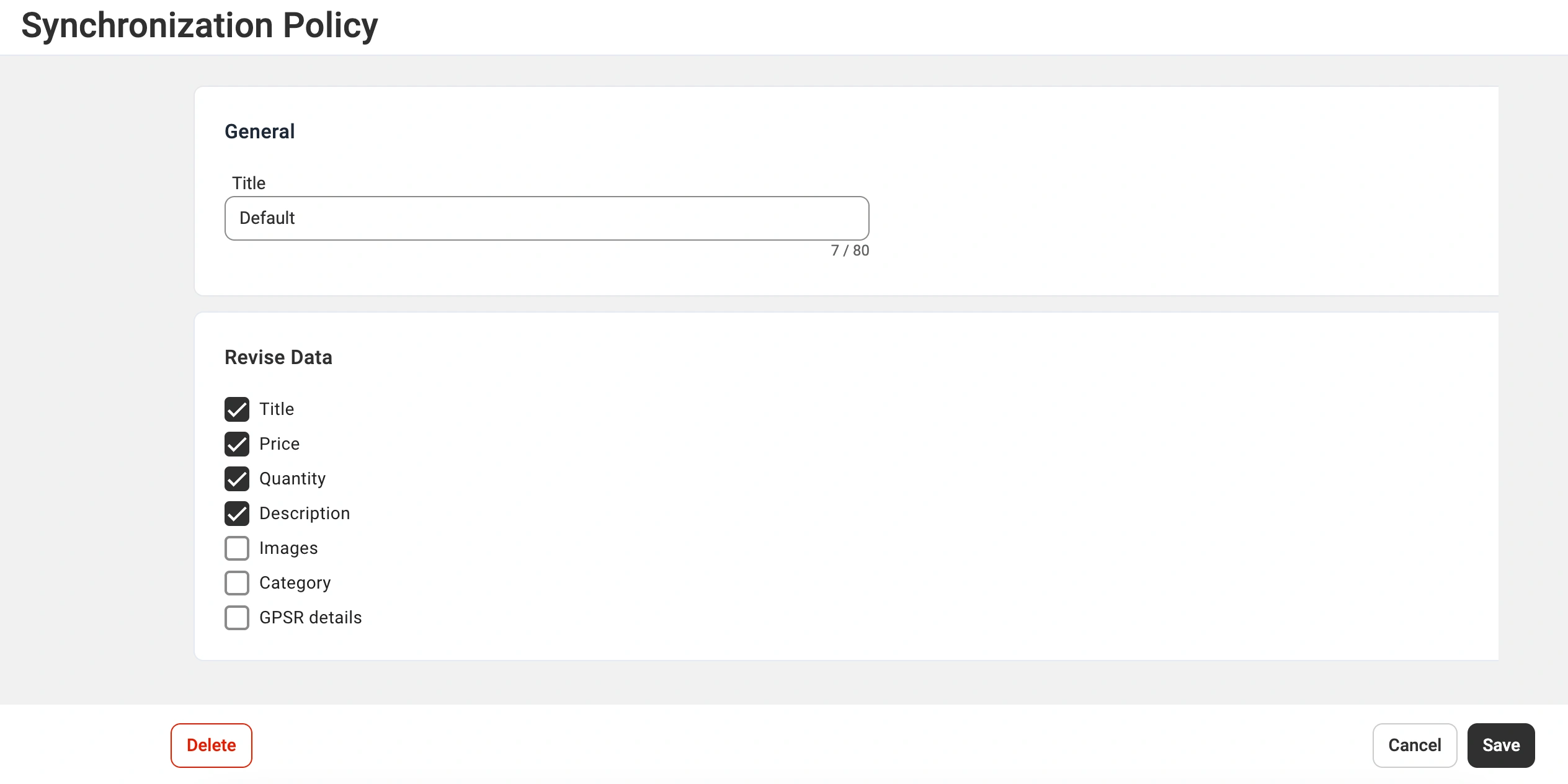
Which data should you synchronize?
- Recommended Fields
Syncing price and quantity is highly recommended for accurate inventory and pricing updates. You can fine-tune these settings in your Selling Policy to better control how they are managed.
- Optional Fields
The following fields can also be synced but are not required:
✔ Title
✔ Description
✔ Images
✔ Category
✔ GPSR details
If this information is already filled out in your store, synchronizing these fields can streamline the listing process and eliminate the need for manual input in future listings.
💡 Refer to our TikTok Shop user guide for additional information.
Walmart Synchronization Policy #
To create a new Synchronization Policy, follow these steps:
1) Name the policy.
2) Select the information you want to synchronize between your store and Walmart.
3) Save the changes.

Which data should you synchronize?
- Recommended Fields
Syncing price and quantity is highly recommended for accurate inventory and pricing updates. You can fine-tune these settings in your Selling Policy to better control how they are managed.
- Optional Fields
The following fields can also be synced but are not required:
✔ Title
✔ Description
✔ Images
If this information is already filled out in your store, synchronizing these fields can streamline the listing process and eliminate the need for manual input in future listings.
💡 Refer to our guide on how to list new items on Walmart for additional information.
Kaufland Synchronization Policy #
To create a new Synchronization Policy, follow these steps:
1) Name the policy.
2) Select the information you want to synchronize between your store and Kaufland.
3) Save the changes.

Which data should you synchronize?
- Recommended Fields
Syncing price and quantity is highly recommended for accurate inventory and pricing updates. You can fine-tune these settings in your Selling Policy to better control how they are managed.
- Optional Fields
The following fields can also be synced but are not required:
✔ Title
✔ Description
✔ Images
✔ GPSR details
✔ Categories, Attributes
If this information is already filled out in your store, synchronizing these fields can streamline the listing process and eliminate the need for manual input in future listings.
💡 Refer to our guide on how to list new Items on Kaufland for additional information.
Temu Synchronization Policy #
To create a new Synchronization Policy, follow these steps:
1) Name the policy.
2) Select the information you want to synchronize between your store and Temu.
3) Save the changes.
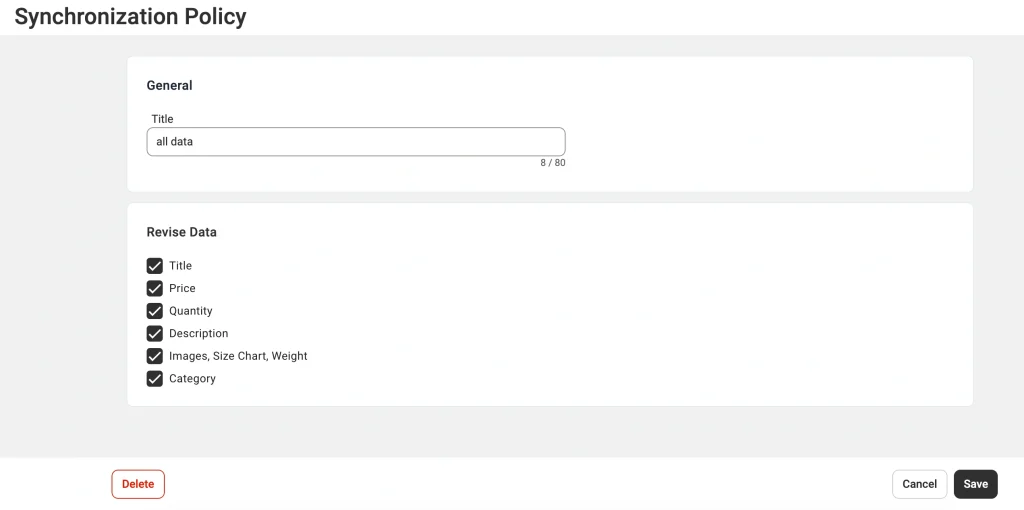
Which data should you synchronize?
- Recommended Fields
Syncing price and quantity is highly recommended for accurate inventory and pricing updates. You can fine-tune these settings in your Selling Policy to better control how they are managed.
- Optional Fields
The following fields can also be synced but are not required:
✔ Title
✔ Description
✔ Images, Size Chart, Weight
✔ Category
If this information is already filled out in your store, synchronizing these fields can streamline the listing process and eliminate the need for manual input in future listings.
💡 Refer to our guide on how to list new items on Temu for additional information.
OTTO Synchronization Policy #
To create a new Synchronization Policy, follow these steps:
1) Name the policy.
2) Select the information you want to synchronize between your store and OTTO Market.
3) Save the changes.

Which data should you synchronize?
- Recommended Fields
Syncing price and quantity is highly recommended for accurate inventory and pricing updates. You can fine-tune these settings in your Selling Policy to better control how they are managed.
💡 Refer to our guide on how to list new items on OTTO for additional information.
Mirakl Synchronization Policy #
To create a new Synchronization Policy, follow these steps:
1) Name the policy.
2) Select the information you want to synchronize between your store and the Mirakl marketplace.
3) Save the changes.
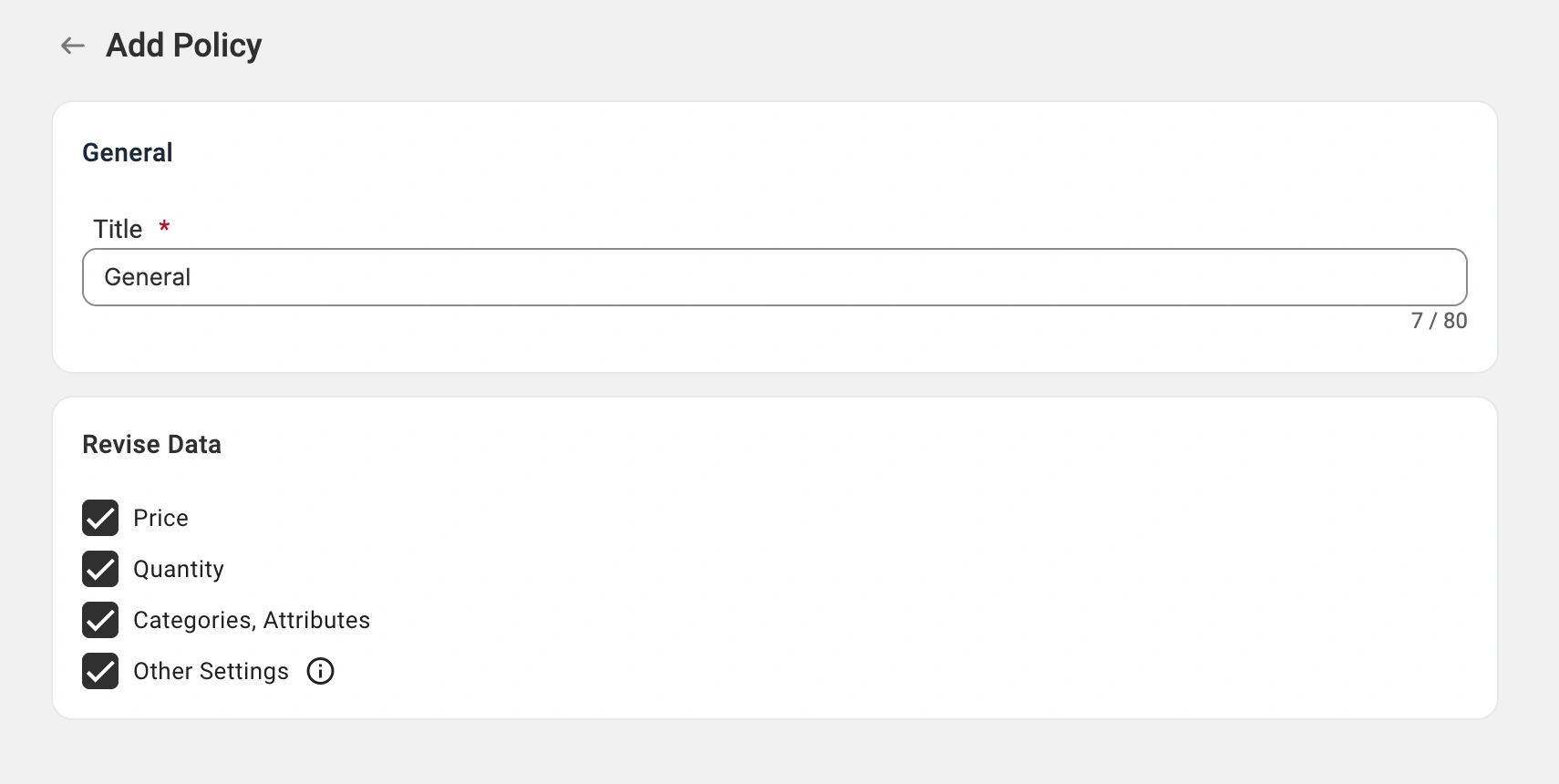
Which data should you synchronize?
- Recommended Fields
Syncing price and quantity is highly recommended for accurate inventory and pricing updates. You can fine-tune these settings in your Selling Policy to better control how they are managed.
- Optional Fields
The following fields can also be synced but are not required:
✔ Categories, Attributes
✔ Other Settings (Handling Time, Additional fields)
If this information is already filled out in your store, synchronizing these fields can streamline the listing process and eliminate the need for manual input in future listings.
Updating Synchronization Policy #
If you decide to make changes to your Synchronization Policy for a specific Channel, these updates will automatically apply to all items assigned to that policy. Before the changes are implemented, you will receive a notification to confirm the updates.

Changing the Synchronization Policy in Bulk #
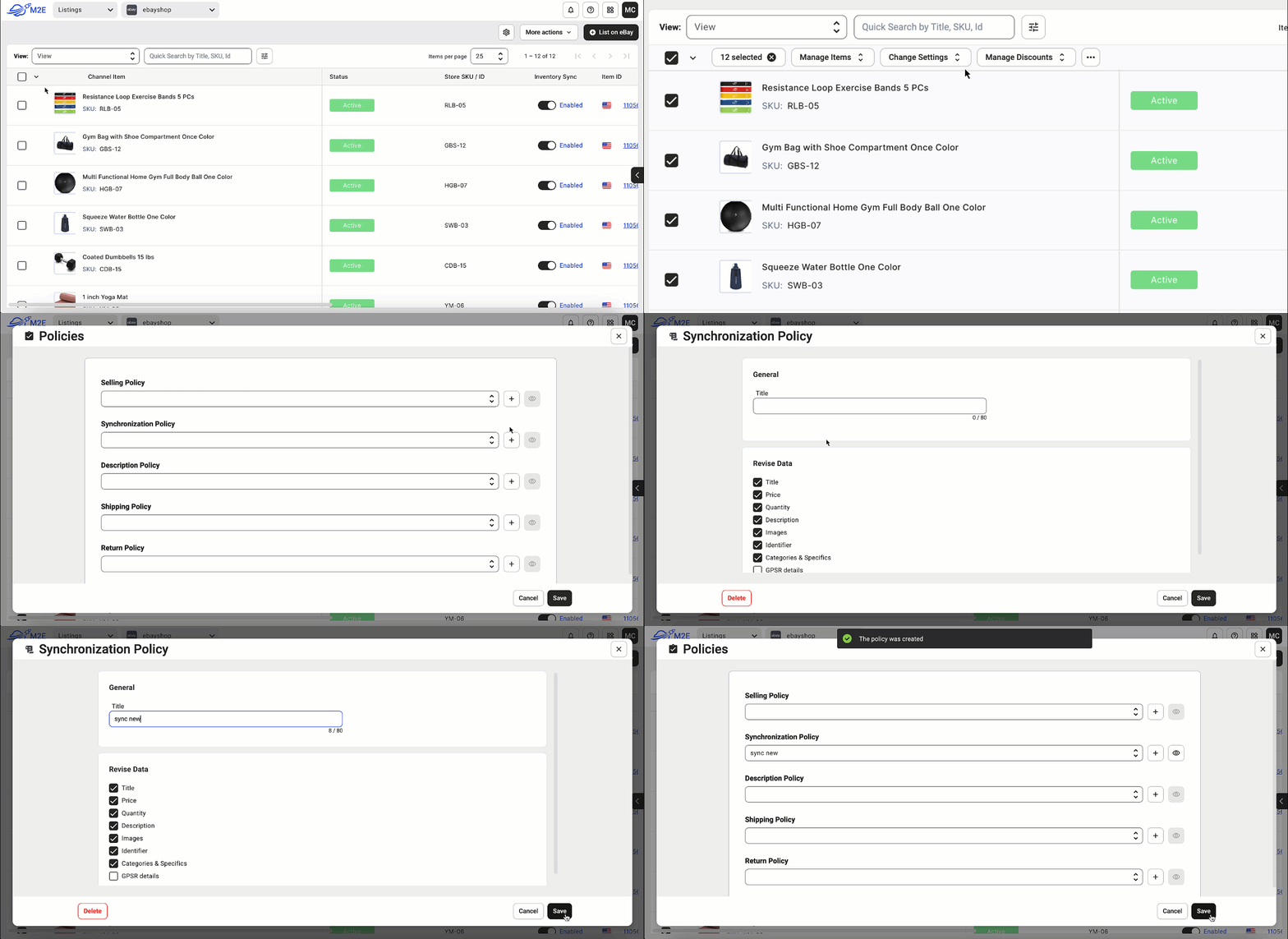
You can update the Synchronization Policy for multiple items in bulk, allowing for efficient management across your product listings. To change the policy in bulk, follow these steps:
1) Navigate to the Listings tab and select the items you want to update.
2) In the upper menu, click Change Settings and choose Change Policy from the dropdown.
3) Select the desired policy or create a new one here, then save your changes.
ℹ️ The updated policy will be applied to all the selected items.
FAQ #
- I want to change titles and images on my Channel listing. How can I do that?
To update titles and images on your Channel listings, we recommend enabling synchronization for these fields in your Synchronization Policy. Once enabled, titles and images will be automatically updated to stay consistent with your primary e-commerce platform.
For Amazon, this process works differently due to its unified catalog structure:
- Titles and images under an existing ASIN can only be modified by the ASIN creator or an approved brand representative.
- To update titles and images for an existing ASIN, you will need direct approval from Amazon.
If you are creating a new ASIN, you can add all the required information, including titles and images, during the ASIN creation process.
- I’m using Amazon Repricer. Should I enable price sync within my Synchronization Policy?
If you’re using Amazon Repricer for your current listings, it’s best to disable price synchronization in your Synchronization Policy. Enabling price sync may override the Repricer’s adjustments, causing prices to be updated based on your store rather than the dynamic pricing set by the Repricer.
M2E offers an Amazon Repricer for free for all Multichannel Connect users. You can learn more about it on our website.
If you choose to use the M2E Amazon Repricer, M2E Multichannel Connect will automatically detect that the price is being managed by the Repricer and will not update it again, ensuring seamless pricing adjustments.
- Why wasn’t the quantity for my listings on sales channels updated? I’ve set it to be synchronized in my Synchronization Policy.
First, please verify whether inventory synchronization is enabled for the specific item. If it is not enabled, please activate this feature, as M2E Multichannel Connect cannot sync your updates without it.
If inventory synchronization was already enabled and the issue persists, please contact our customer support team and provide additional details. Our team will investigate the issue and offer further guidance.


