
Connecting your BigCommerce store to eBay Motors opens the door to one of the most active marketplaces for vehicle parts and accessories.
With M2E Multichannel Connect, you can integrate both platforms and gain full control over listings, inventory levels, and order flow between BigCommerce and eBay Motors.
Follow the steps below to complete the integration.
Step 1. Install M2E Multichannel Connect #
Firstly, install the app that establishes the connection between your BigCommerce store and eBay Motors.
1) Open the BigCommerce App Marketplace.
2) Search for M2E Multichannel Connect.
3) Click Get This App and follow the authorization prompts.

Once installed, the app will open automatically and display your setup dashboard.
Step 2. Connect your eBay seller account #
Next, link your eBay account so the app can manage listings and sync data.
1) In the Dashboard tab, click Connect Marketplace Account.
2) Sign in with your eBay seller credentials.
3) Grant the necessary permissions to establish the connection.

Once connected, you’ll see a checklist showing the remaining steps for full integration.
Step 3. Match BigCommerce products to existing eBay listings #
If you've already listed products on eBay Motors, the app will attempt to match them with your BigCommerce catalog based on SKU or Product ID.
To review or adjust matches:
1) Go to the Link Products section within the Setup Guide.
2) Click View Not Linked Products.
3) Use the Listings tab to manually match any remaining items.
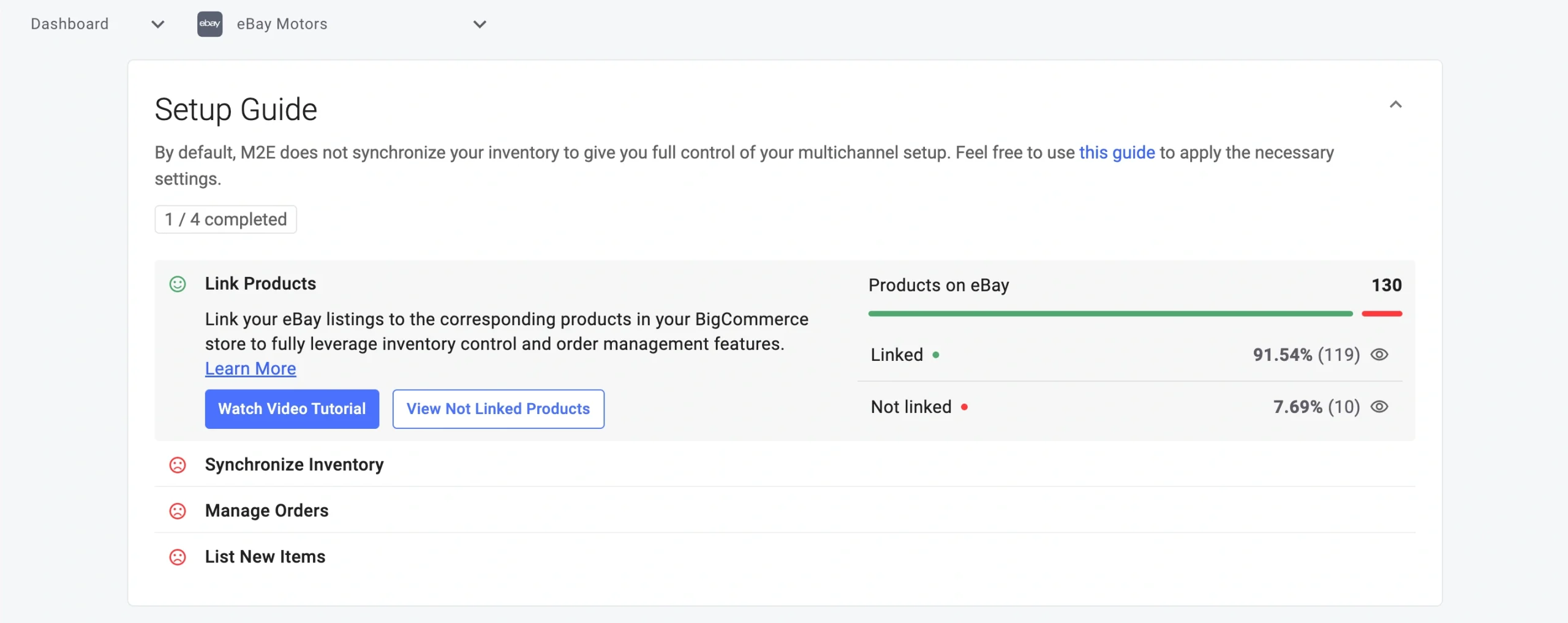
⚠️ Only matched products can be synchronized. Double-check this step before moving forward.
Step 4. Enable inventory sync #
Real-time inventory sync helps you avoid overselling and keeps stock levels accurate between BigCommerce and eBay Motors.
To activate inventory synchronization for your eBay listings:
1) Open the Synchronize Inventory section.
2) Click View Not Synced Products.
3) On the Listings tab, enable sync for selected eBay items or all at once.

From here on, inventory updates in BigCommerce will automatically reflect on eBay Motors.
Step 5. Configure order management #
Now let’s make sure orders from eBay Motors are smoothly imported and handled in BigCommerce.
1) Navigate to the Manage Orders section.
2) Click Order Settings.

3) Enable the option to Create eBay Orders in BigCommerce.

Orders placed on eBay Motors will appear in your BigCommerce store as native orders, so you can handle fulfillment from your store admin panel.
💡 If you need more control over orders and their import to your BigCommerce store, learn about additional order settings here.
Step 6. List new products on eBay Motors #
If you haven’t listed some of your BigCommerce items on eBay yet, you can publish them from M2E Multichannel Connect.
1) Open the List New Items section in the Setup Guide.
2) Click List on eBay and follow the prompts to get your products live. Our guide will walk you through the listing creation process.

💡 eBay Motors relies heavily on fitment data, so be sure to include vehicle compatibility to improve visibility and reduce returns.
Check our eBay Parts Compatibility guide for step-by-step instructions.
That's it! Your BigCommerce store is now integrated with eBay Motors through M2E Multichannel Connect.
If you have any questions regarding the installation or setup, please reach out to the M2E support team.


