
Managing ASINs is a key part of listing products on Amazon. Every item in the marketplace has a unique identifier, the Amazon Standard Identification Number (ASIN), which helps organize and link products within Amazon’s vast catalog.
This article explains how ASINs function and how they are handled in M2E Multichannel Connect. You’ll find out how the app associates your products with existing ASINs, what to do when an ASIN match isn’t found, and how to create new ASINs for products that don’t yet exist in Amazon’s catalog.
What is ASIN and how it works #
An ASIN is a unique alphanumeric code that Amazon assigns to every product in its catalog. It functions as the product’s ID within the marketplace, helping Amazon organize listings and ensure that identical products share the same detail page.
When a product is added to the Amazon catalog, an ASIN is automatically generated and linked to that item.
If the product already exists in Amazon’s catalog, third-party sellers must use the existing ASIN when listing their offers.
If your product is unique and not yet listed on Amazon, you’ll need to create a new ASIN for your listing.
About the ASIN Generator #
There’s a common misconception that sellers can use an ASIN generator to create new Amazon product IDs. In reality, such tools don’t exist.
Amazon itself assigns an ASIN to every product added to its catalog. If your item doesn’t match any existing listing, Amazon will create a new ASIN after reviewing and approving your product information.
So, if you’re wondering how to get an ASIN number for Amazon, keep in mind that the process happens entirely on Amazon’s side. All you need to do is provide complete and accurate product data when listing your item.
Assigning ASINs in M2E Multichannel Connect #
When listing products from your Store or Catalog on Amazon via M2E Multichannel Connect, you also need to associate each product with an ASIN. There are two ways to do this:
- Assign your product to an existing ASIN (if the product already exists in the Amazon catalog).
- Add a product under a new ASIN (if you didn’t find a matching product in the Amazon catalog).
To link or create an ASIN, Amazon usually requires a product identifier, such as a UPC, EAN, or ISBN. These barcodes help Amazon confirm your product’s identity and match it to the correct catalog entry.
If you sell unique products from your own brand that don’t have standard barcodes, you’ll need to list them using Amazon GTIN Exemption.
💡 For a detailed explanation of barcode types, their benefits, and how to create them, check out our blog post.
Assign your product to the existing ASIN #
To match your product with an existing ASIN, Amazon requires a valid product identifier (UPC, EAN, or ISBN). The identifier must be officially registered (for example, through GS1) and recognized by Amazon. Random or non-registered numbers won’t be accepted, and your product won’t be linked to any ASIN.
M2E automatically tries to match your product to an existing ASIN when you create a listing on Amazon. To find the identifier, M2E uses the Barcode Source you select in the product settings at step 4 of listing creation.
You can select the source that contains the correct identifier for your products:
- Barcode Value – product barcode field in your connected Store or Catalog (if it contains the product’s identifier).
- Store attribute – custom field from your Store that contains the barcode or product ID.
- Custom Value – manual input, if you prefer to enter the identifier directly in M2E.
- GTIN Exempt – for brand products listed under an Amazon GTIN Exemption.

If the identifier is missing, invalid, or not found in the Amazon catalog, the product won’t be listed and will appear as Incomplete. This means Amazon needs proper, verifiable identifier data to complete the listing.
The product also appears as Incomplete if the search returns several matching products. In this case, M2E doesn't choose an ASIN automatically and leaves the choice to you.
Manual ASIN assignment #
If automatic matching fails, or the app finds several possible matches for a product you know exists on Amazon, you can manually assign your product to an existing Amazon ASIN in M2E:
1) Go to the Listings tab and select your Amazon account.

2) Filter products by Incomplete.

3) Find your item and click Set ASIN.

4) In the pop-up, use Quick Search to find your product by title, SKU, ID, or ASIN.
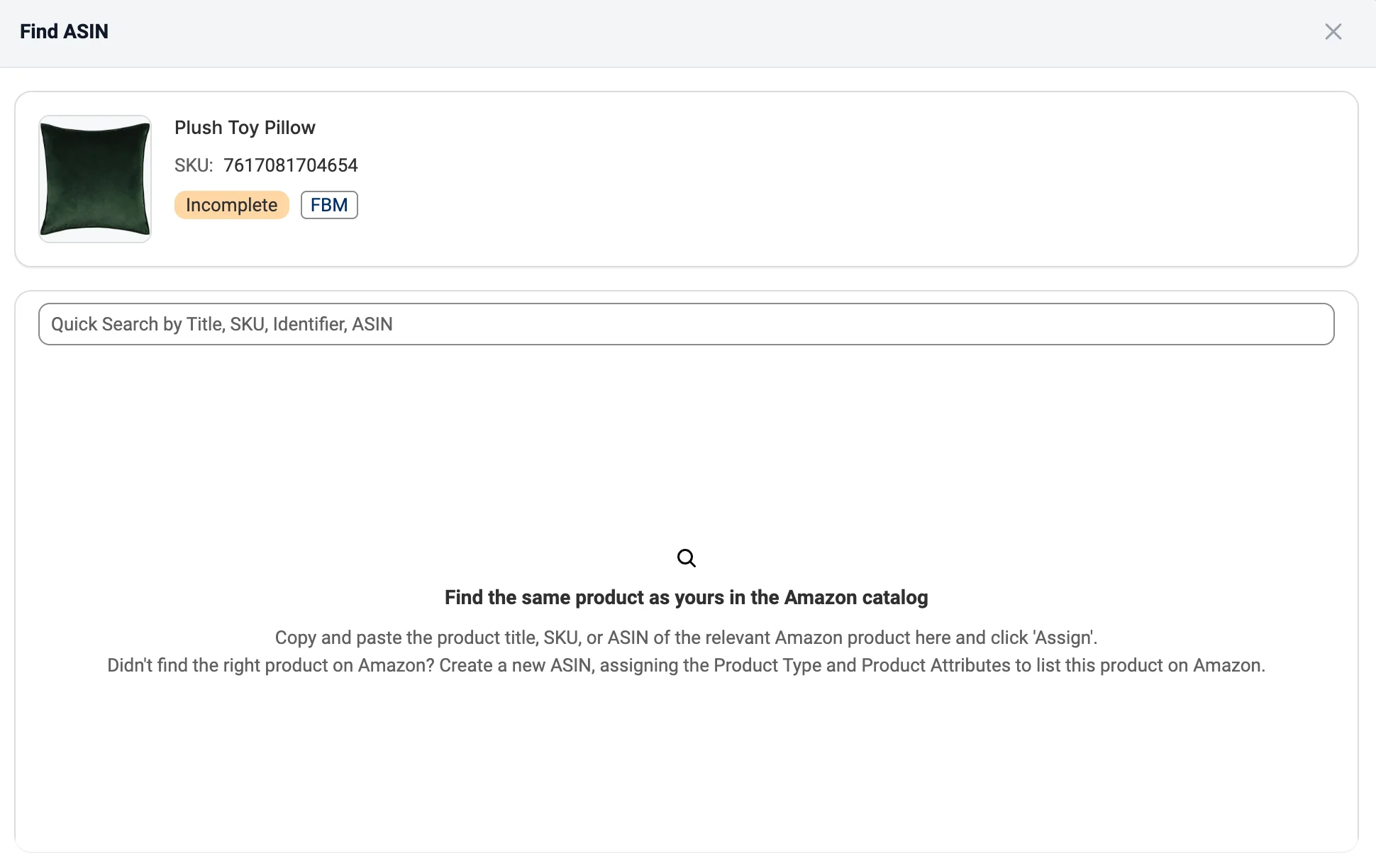
5) Once found, click the button to assign the ASIN to your item.

The app will submit your listing to Amazon, and it will be linked to the existing offer. In this case, only your offer information, such as price, quantity, and handling time, is sent to Amazon.
All other product details (like title, images, and description) are already defined in the Amazon catalog and can only be changed by the ASIN creator.
Managing ASINs for Draft products #
You can also manually assign or change an ASIN for products that are in the Draft status. This is useful if you prefer to review or adjust your ASINs before publishing your listings.
ℹ️ Drafts are created when you click Save as Draft at step 6 of the listing creation process. They let you save your product setup and return to it later without sending it to Amazon right away.
Working with drafts lets you correct ASINs before your listings go live. This is especially important when:
- The auto-match may have linked an incorrect ASIN.
- You’ve migrated your catalog from another system.
- You’ve imported listings that might contain outdated product identifiers.
To verify or modify an ASIN in a draft product using M2E:
1) In the Listings tab, filter products by Draft.

2) Hover over the ASIN value and click the pencil icon (Set ASIN).

3) In the pop-up, you can search for the correct ASIN by title, SKU, or other identifiers and assign your product to it.
✅ Once the ASIN is assigned, you can publish your product by ticking the box next to it and clicking Manage Items > List from the actions menu.
This way, you can check every ASIN before the offer reaches Amazon, without affecting your active offers.
Add a product under a new ASIN #
If your item isn’t found in the Amazon catalog, you can create a new ASIN in M2E Multichannel Connect:
1) Filter products by Incomplete or Draft in the Listings tab.

2) Find your product and click Set ASIN > Create new ASIN.

3) Choose a Product Type that best categorizes your product.
On Amazon, the Product Type works as a category: it defines which attributes Amazon requires to create the product detail page. You can select a previously used type or search manually by name or ID.

If you've already created an ASIN with the same Product Type, select its saved template to prefill the attributes. M2E saves a template the first time you set attributes for a Product Type.
Product Type templates are stored separately for each Amazon marketplace and can be edited under Settings > Categories/Product Types.
4) Fill in the required and optional attributes for the selected Product Type.
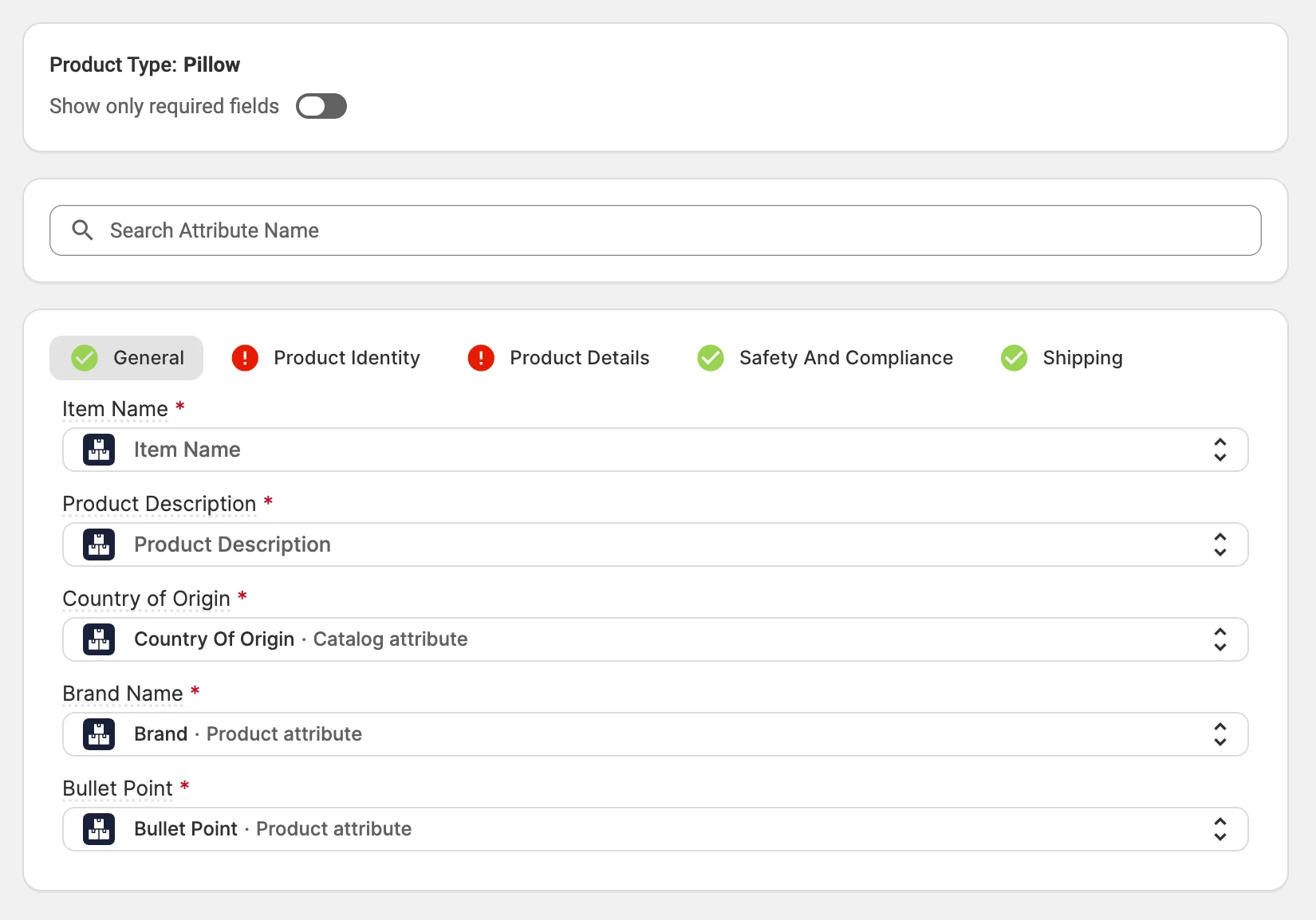
For each attribute, select where its value comes from:
- Store or Catalog data – a product field, custom field, or M2E Catalog attribute that already contains the value.
- Amazon value – a value from the predefined list that Amazon provides for the attribute.
- Custom value – a value you enter manually.
When you link an attribute to Store or Catalog data, M2E may suggest saving it as a global attribute mapping. Click Confirm to save it. M2E then uses the same source whenever this attribute appears in another Product Type, for example, Material for both a Shirt and a Dress.
✅ If your store doesn't contain all the data Amazon requires, create custom attributes in M2E Catalog. They store Amazon-specific values for your products without changing product data on your e-commerce platform.
Once the attributes are provided, click Save.
Amazon will review your product information. If approved, your item will be listed under a new ASIN, and a new product detail page will be created in the Amazon catalog.
Need help? #
If you have any questions about managing ASINs in M2E Multichannel Connect or need help resolving ASIN-related issues, contact our support team.


