
M2E Multichannel Connect simplifies the integration of your Salesforce B2C system with major marketplaces such as Amazon, eBay, Walmart, TikTok Shop, Kaufland, and Temu. Your Salesforce platform will be used as a primary source of product information (price, quantity, etc.) for products on marketplaces.
Follow the steps below to set up the M2E Multichannel Connect app.
Step 1. Link Salesforce B2C account #
Sign up for the M2E Multichannel Connect account by linking your Salesforce B2C profile.

ℹ️ You need to install the M2E Multichannel Connect cartridge into your SFCC environment following this guide.
⚠️ To authorize your Salesforce B2C Commerce account with M2E Multichannel Connect, you should provide API Client ID, Client Secret, Organization ID, and Short Code information.
Refer to this guide for step-by-step instructions.
Step 2. Connect Channel accounts #
Go to the Dashboard tab and follow the setup guide steps listed there.
Click Connect Marketplace Account to link your eBay, Amazon, Walmart, TikTok Shop, Kaufland, or Temu seller profiles.

You will be redirected to the selected Channel. Make sure that you have logged in to your seller account(s) and grant the app access to your account information.
Step 3. Link products #
M2E Multichannel Connect will automatically match and link items from your connected marketplaces to your Salesforce inventory using SKU or Product ID.
If no match is found, you can link the items manually. Simply click the View Not Linked Products button under the Link Products section.

You will be redirected to the Listings tab, where you can complete product linking. If your products aren’t linked, the app won’t be able to properly synchronize your inventory and orders.
ℹ️ Linking establishes a connection between your Salesforce inventory and marketplace products. This way, the app recognizes that you are selling the same product on Salesforce and, for example, eBay. It is essential for accurate product and order management.
💡 For detailed instructions on linking products, see here.
Step 4. Synchronize products #
You need to enable synchronization for previously linked products to ensure your inventory remains up-to-date on Channels. Item sync provides automatic product data updates from your Salesforce to Amazon, eBay, Walmart, TikTok Shop, Kaufland, and Temu.
To enable synchronization, click the View Not Synced Products button under the Synchronize Inventory section.

You will be redirected to the Listings tab, where you can turn on inventory synchronization for needed products either individually or in bulk.
💡 For detailed instructions on enabling inventory sync, see here.
Step 5. Define order preferences #
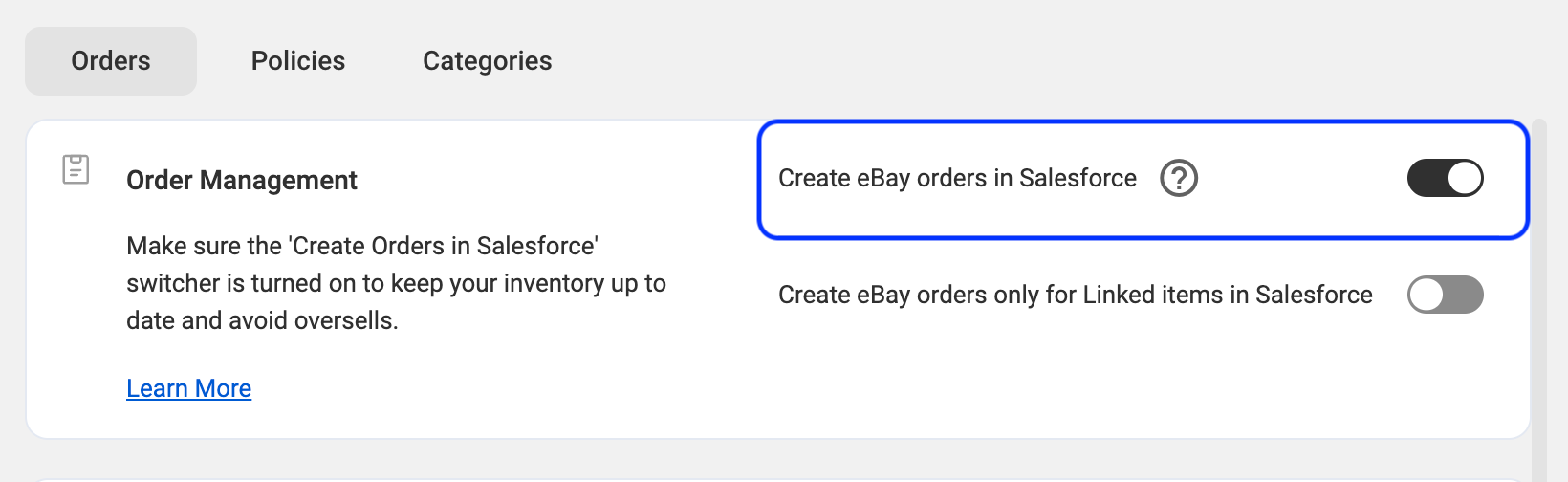
Under the Manage Orders section, click on the Order Settings button.

Enable the “Create Orders in Salesforce” option to allow the app to create orders in your Salesforce system whenever a customer places an order on a marketplace. If you keep it disabled, the app won't synchronize stock levels of the ordered items, which may lead to overselling issues.
⚠️ For seamless order management, you need to provide the app with Client ID and Client Secret of your B2C Salesforce account. Refer to this guide for step-by-step instructions.
💡 Learn more about configuring order settings in M2E Multichannel Connect.
Step 6. List products on Channels #
With M2E Multichannel Connect, you can list products from your Salesforce system on eBay, Amazon, or other marketplaces and expand your product range.
Click on the corresponding button under the List New Items section and follow the instructions to create new listings.

💡 Check out tutorials on how to create new Channel listings:
- eBay [user guide / video tutorial]
- Amazon [user guide / video tutorial]
- Walmart [user guide / video tutorial]
- TikTok Shop [user guide / video tutorial]
- Kaufland [user guide]
- Temu [user guide]
That’s it! You are ready to use the M2E Multichannel Connect app to manage your inventory, fulfill orders, and handle operations across multiple sales channels more efficiently.


