
To authorize your Salesforce B2C Commerce account with M2E Multichannel Connect, you should provide a few configuration values. This guide will show you where and how to find them.
API Client ID #
To access your API Client ID, you should create an API client first by following these steps:
1) Sign in to Account Manager.
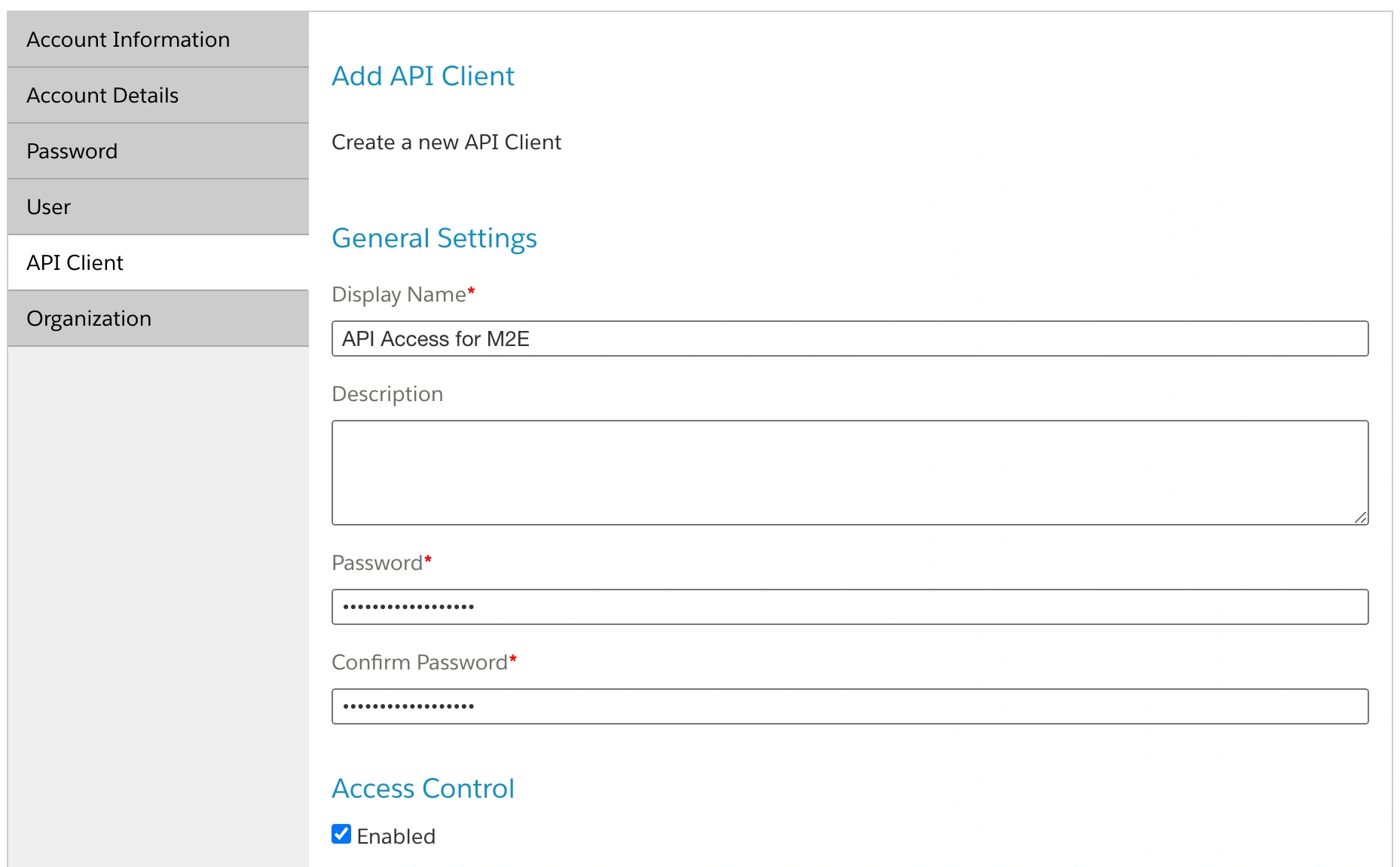
2) In the left menu, click API Client > Add API Client.
3) Provide a meaningful API Client name in the Display Name field, for example, "API Access for M2E".
4) Enter a strong password (also known as the client secret) in the Password field. Then, re-enter the same password in the Confirm Password field.
ℹ️ You will need this client secret later, so make sure to save it in a secure place.
5) Navigate to the Organizations section. Click Add, choose one or more organizations, and click Add again.

6) Navigate to the Roles section and click Add.

Under the Salesforce Commerce API category, select Salesforce Commerce API.

Once done, click Add.
7) Use the filter button to select an organization. For each instance you wish to access, select the instance and click Add.

8) Navigate to the OpenID Connect section. In Default Scopes, input the following on separate lines:
mail
roles
tenantFilter
profile
openId
In Allowed Scopes, input the following on separate lines:
sfcc.catalogs.rw
sfcc.inventory.availability.rw
sfcc.inventory.impex-inventory.rw
sfcc.inventory.reservations.rw
sfcc.orders.rw
sfcc.products.rw
sfcc.ts_ext_on_behalf_of
Choose client_secret_post for the Token Endpoint Auth Method. Then, select JWT for Access Token Format.
9) Add "http://localhost:8080" in the Redirect URIs field. Click Save.

10) Locate your new API client in the table that appears post-save.
Copy the API Client ID value from the table and paste it into the corresponding field on the “Connect Salesforce” page.

Password (Client Secret) #
It is the password that you’ve entered at step 4 of creating an API client. Copy the client secret from your secure place and paste it into the corresponding field on the “Connect Salesforce” page.
Organization ID #
It is a unique code that identifies your B2C Commerce instance. To find your Organization ID:
1) Visit your instance's Business Manager website.
2) Sign in with your Account Manager login information.
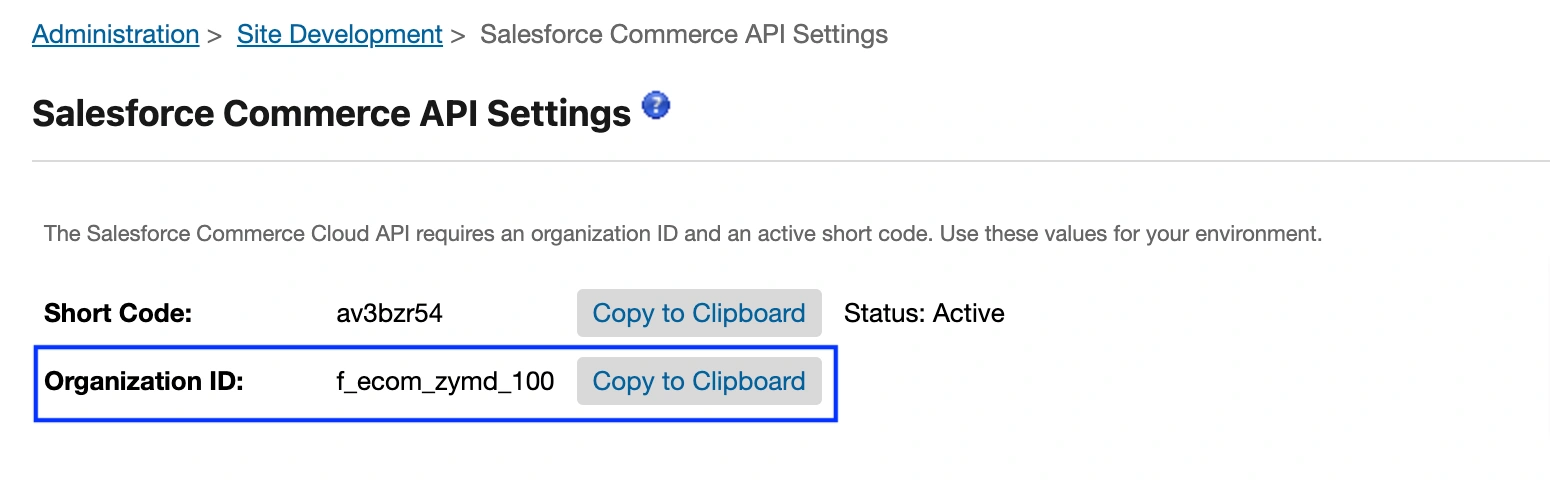
3) Navigate to Administration > Site Development > Salesforce Commerce API Settings. Your Organization ID will be visible on this page.
Click Copy to Clipboard and paste the ID into the corresponding field on the “Connect Salesforce” page.
Short Code #
It is an eight-digit identifier used for directing traffic within your B2C Commerce realm. You can find the short code in the same place as your Organization ID:
1) Visit your instance's Business Manager website.
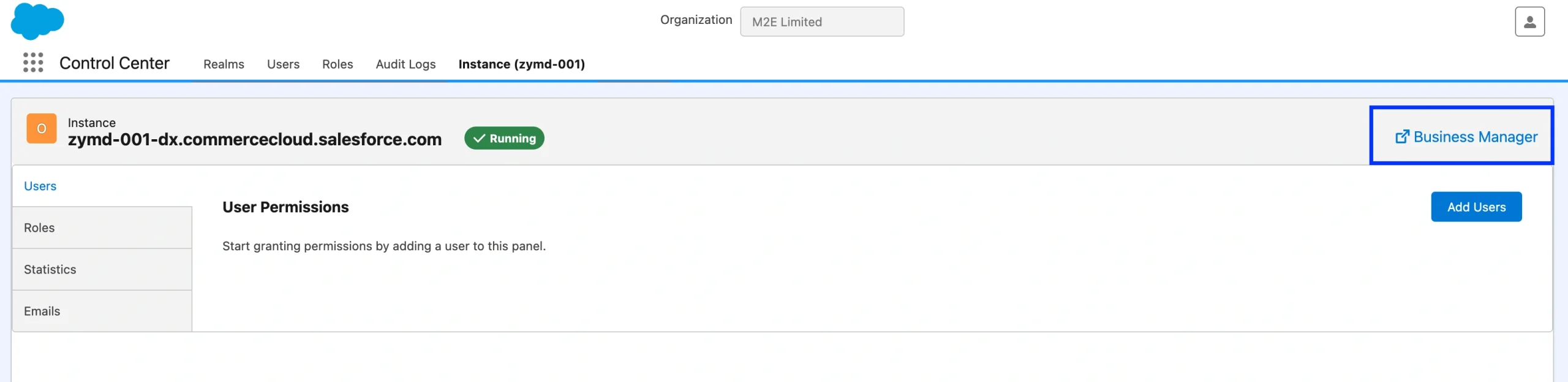
ℹ️ A Business Manager URL looks like this:
zzte-002.dx.commercecloud.salesforce.com
where zzte - Realm ID
002 - Instance ID
2) Sign in with your Account Manager login information.
3) Navigate to Administration > Site Development > Salesforce Commerce API Settings.

4) If this is your first time using the B2C Commerce API in your realm, you'll need to click Request Short Code to obtain one.
ℹ️ It may take up to 24 hours for the short code to be fully integrated into the CDN and all related routing systems in your setup.
Click Copy to Clipboard and paste the code into the corresponding field on the “Connect Salesforce” page.

Tenant Group ID #
To find your Tenant Group ID:
1) Log in to Salesforce Lightning Experience and navigate to Setup.
2) In the Quick Find search bar, type Omnichannel Inventory.
3) In the Omnichannel Inventory section, copy the Tenant Group ID.

ℹ️ Access to Setup > Omnichannel Inventory is restricted to Salesforce administrators.
Once you’ve entered all four configuration values, click the Connect button to authorize your Salesforce B2C Commerce account with M2E Multichannel Connect.


