
This guide walks you through configuring the M2E Amazon Multi-Channel Fulfillment (MCF) app for Woo. After setup, the app lets you use your Fulfillment by Amazon (FBA) inventory to handle orders from your Woo store and other connected sales channels, such as eBay, TikTok Shop, Temu, and more.
Step 1. Install the app #
1) Download the plugin's ZIP file from our GitHub repository to your device.
2) In WordPress Admin, go to Plugins > Add New > Upload Plugin > Choose File.
3) Click Install Now and then Activate Plugin.
Once the installation is complete, you will be directed to the M2E Amazon MCF configuration screen.
Step 2. Link your Amazon seller account #
Connect your Amazon Seller Central account to allow the app to pull your FBA inventory data.
1) Open the Dashboard tab in the M2E Amazon MCF app.
2) Click Connect Marketplace Account. You will be redirected to Amazon.
3) Sign in and authorize M2E to access your seller profile.
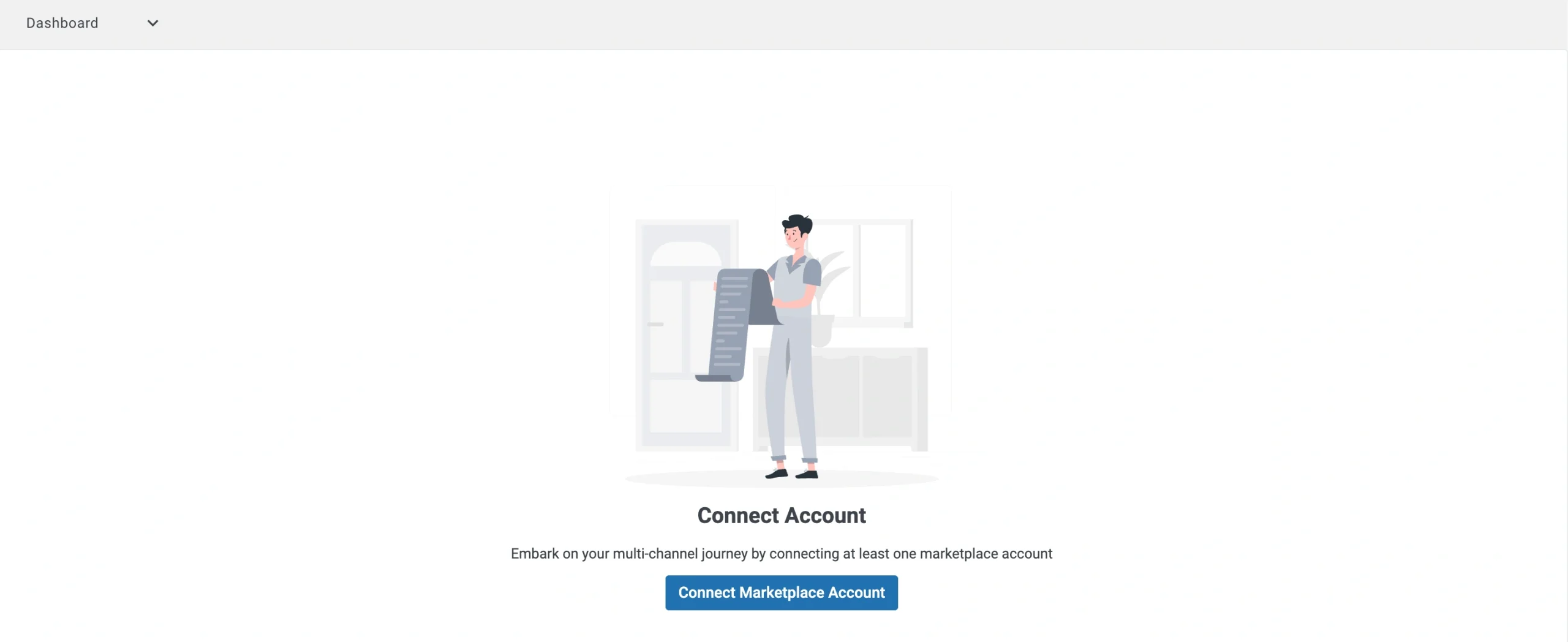
After authorization, your Amazon account will appear as connected and ready to sync with your Woo store.
Step 3. Link products between Woo and Amazon #
The app will try to automatically pair your Woo products with Amazon FBA inventory by matching SKU or Product ID.
Products that are matched will begin syncing right away.
For items that weren't matched, manual linking is required:
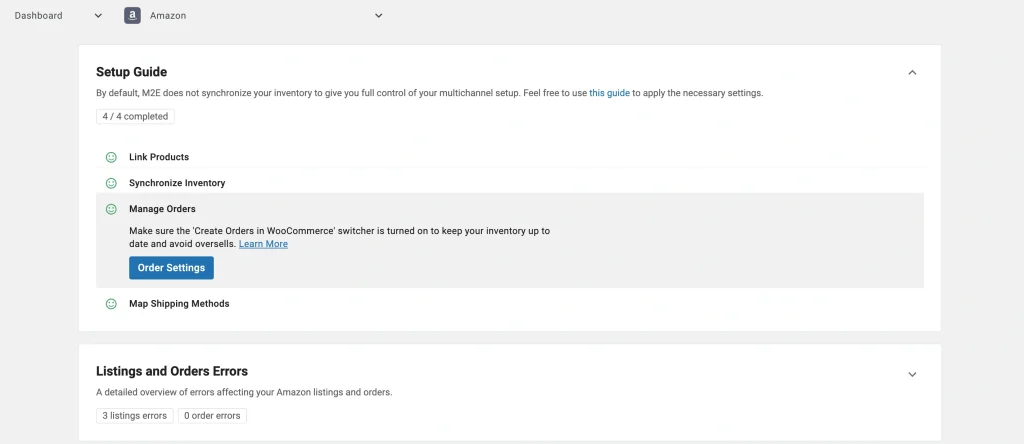
1) Open the Setup Guide in the Dashboard tab.
2) Click View Not Linked Products under the Link Products section.
3) You will land on the Listings tab, where you can finish the linking process.
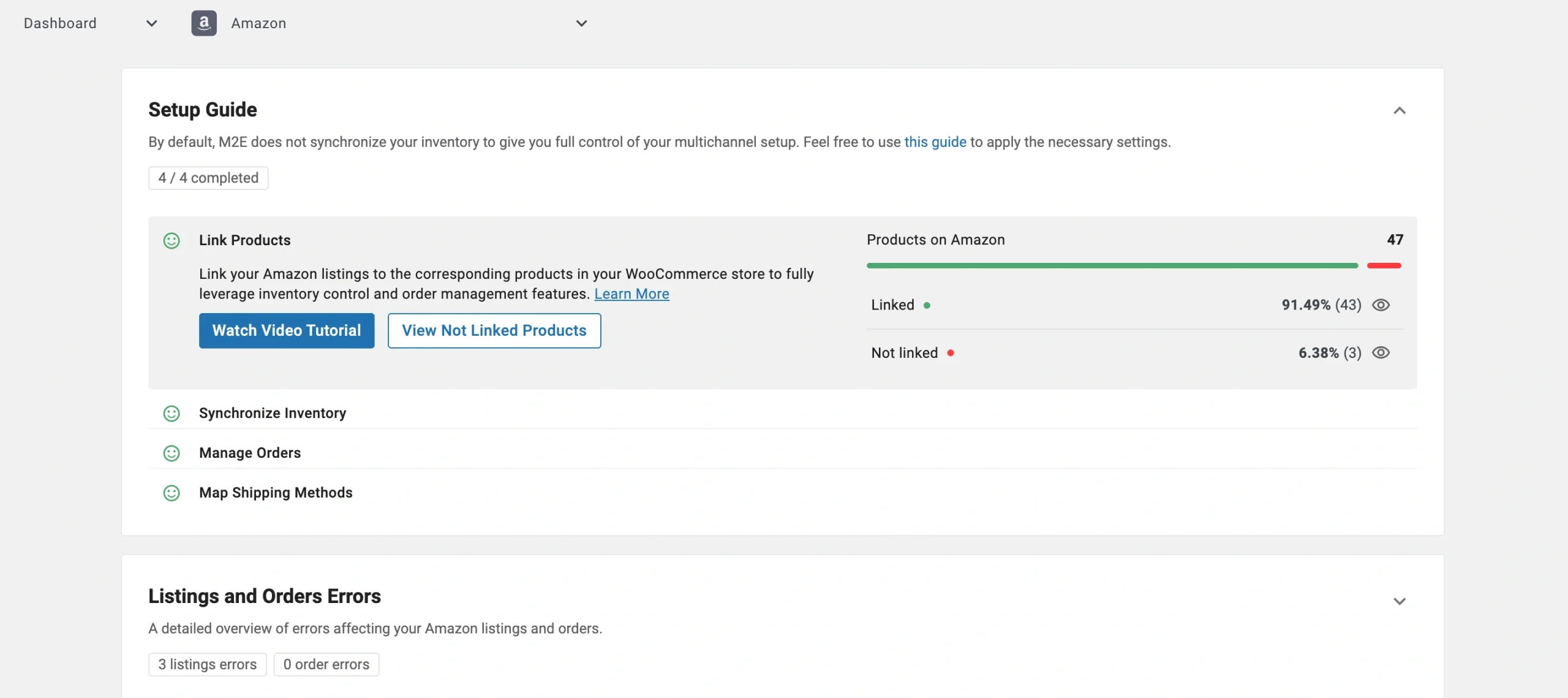
⚠️ Products that remain unlinked cannot be included in MCF orders, and the app won't process them for fulfillment.
Step 4. Set up inventory sync #
Make sure your Woo stock levels stay aligned with Amazon FBA by configuring inventory settings.
1) In the Setup Guide, click Inventory Settings under the Synchronize Inventory section.
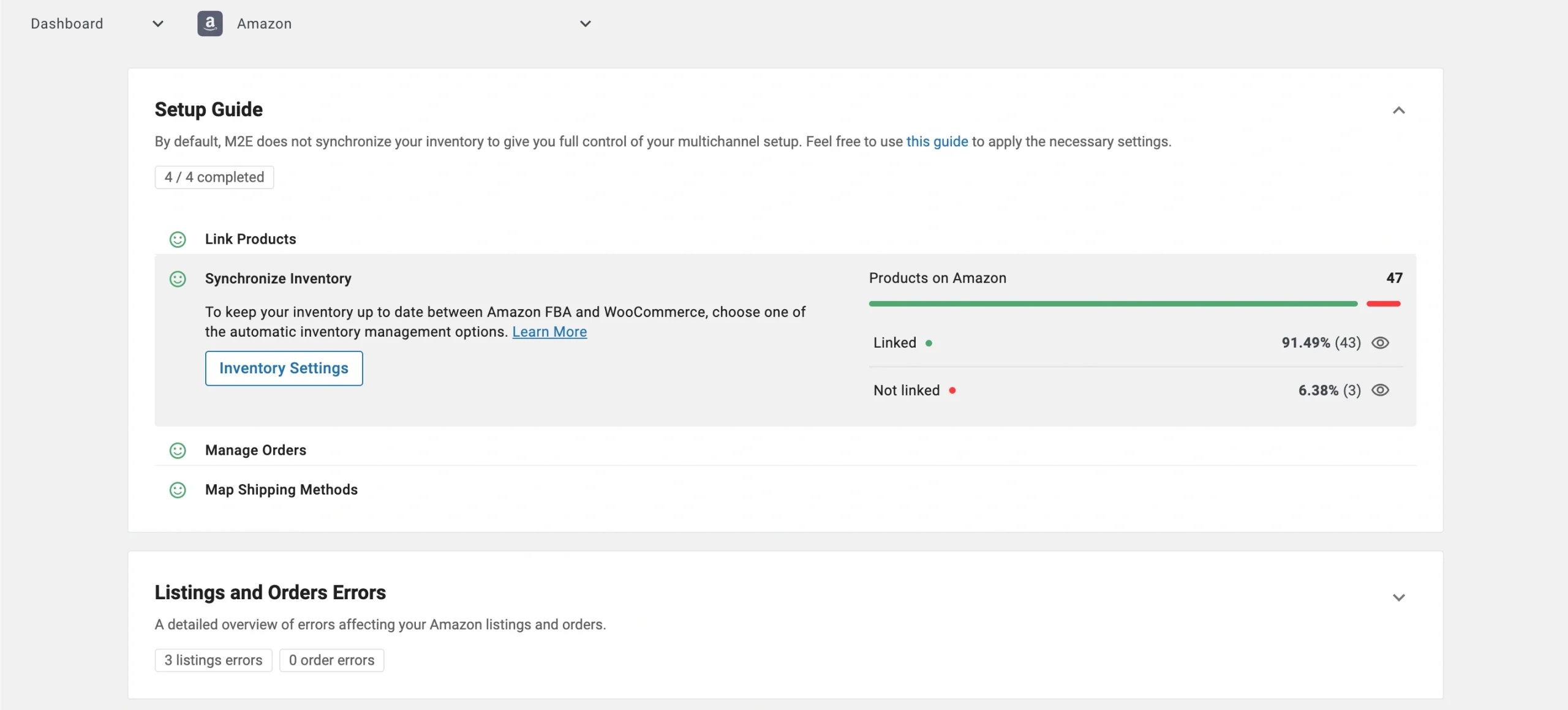
2) Find the Adjust WooCommerce Inventory for MCF section on the Settings page.
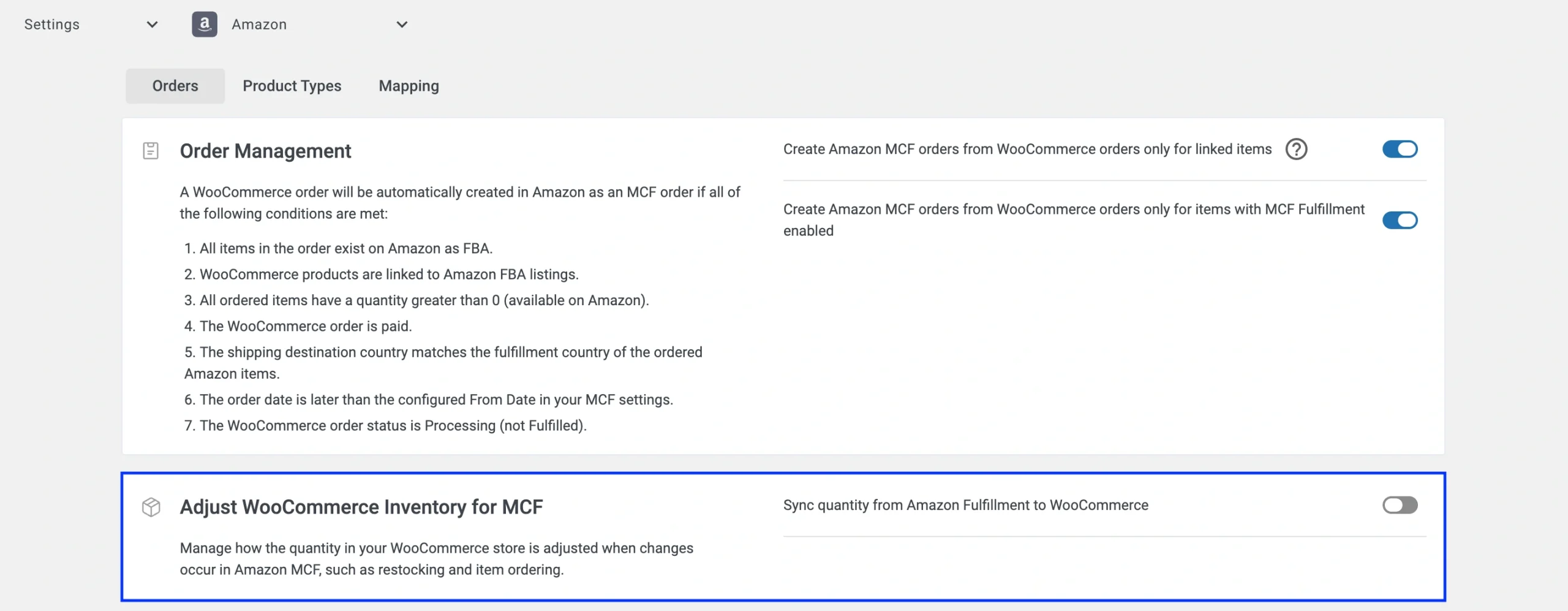
Here you can turn on quantity synchronization and choose how updates are applied: either replace your current Woo stock with FBA values, or add FBA quantities on top of what's already in your store.
💡 For step-by-step instructions, see our dedicated guide on Amazon MCF WooCommerce stock synchronization.
Step 5. Set up order processing #
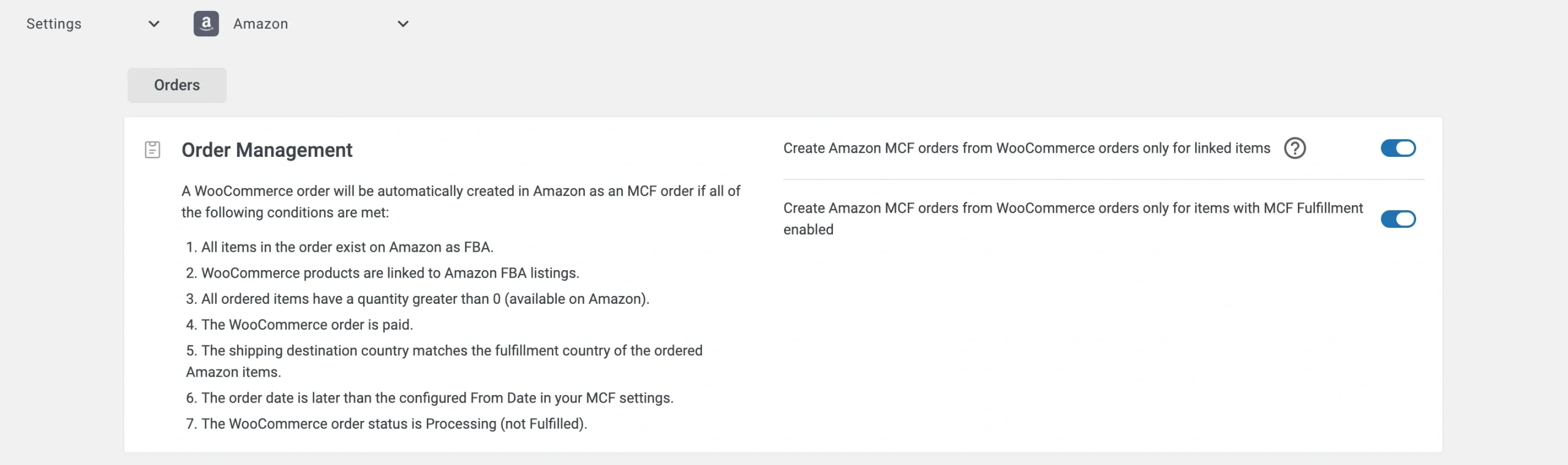
Set up how M2E routes Woo orders to Amazon MCF for fulfillment. Go to the Manage Orders section and click Order Settings.
Order management #
| Setting | Description |
|---|---|
| Create Amazon MCF orders from WooCommerce orders only for linked items | Sends fulfillment requests to Amazon automatically whenever a new Woo order comes in, as long as the items are linked to FBA inventory. |
| Create Amazon MCF orders from WooCommerce orders only for items with MCF Fulfillment enabled | Limits Amazon order creation to products you have specifically enabled for MCF. To enable products, go to the Listings tab, select the relevant items, and apply Enable MCF Fulfillment from the mass actions menu. |
⚠️ The app forwards an order to Amazon MCF only when every required condition is met – the item must exist in FBA, stock must be sufficient, and payment must be confirmed. See the Conditions for Automatic Order Processing section for the full checklist.
Delivery options #
Manage how your MCF orders are packaged and shipped.

| Setting | Description |
|---|---|
| Block Box Order Fulfillment | Ships orders in plain, unbranded packaging without Amazon logos to preserve your store's brand experience. |
| Block Amazon Logistics | Prevents Amazon Logistics from being assigned as the carrier, so you can use your preferred shipping providers instead. |
| Fulfillment Mode | Decide how Amazon handles MCF orders with multiple items: - All or Nothing – Amazon fulfills the order only if every item is in stock. Otherwise, the order is cancelled. - Wait Until Complete – Amazon holds off on shipping until all items become available. - Ship What’s Ready – In-stock items ship right away; the rest follow once replenished. |
Step 6. Map shipping methods #
Match your Woo shipping methods to Amazon's MCF shipping tiers. Accurate mapping guarantees Amazon selects the correct shipping service and sends proper tracking information to your buyers.
1) Click Shipping Settings in the Setup Guide.

2) For each Woo shipping method, pick the matching Amazon MCF tier (e.g., Standard, Expedited, Priority).
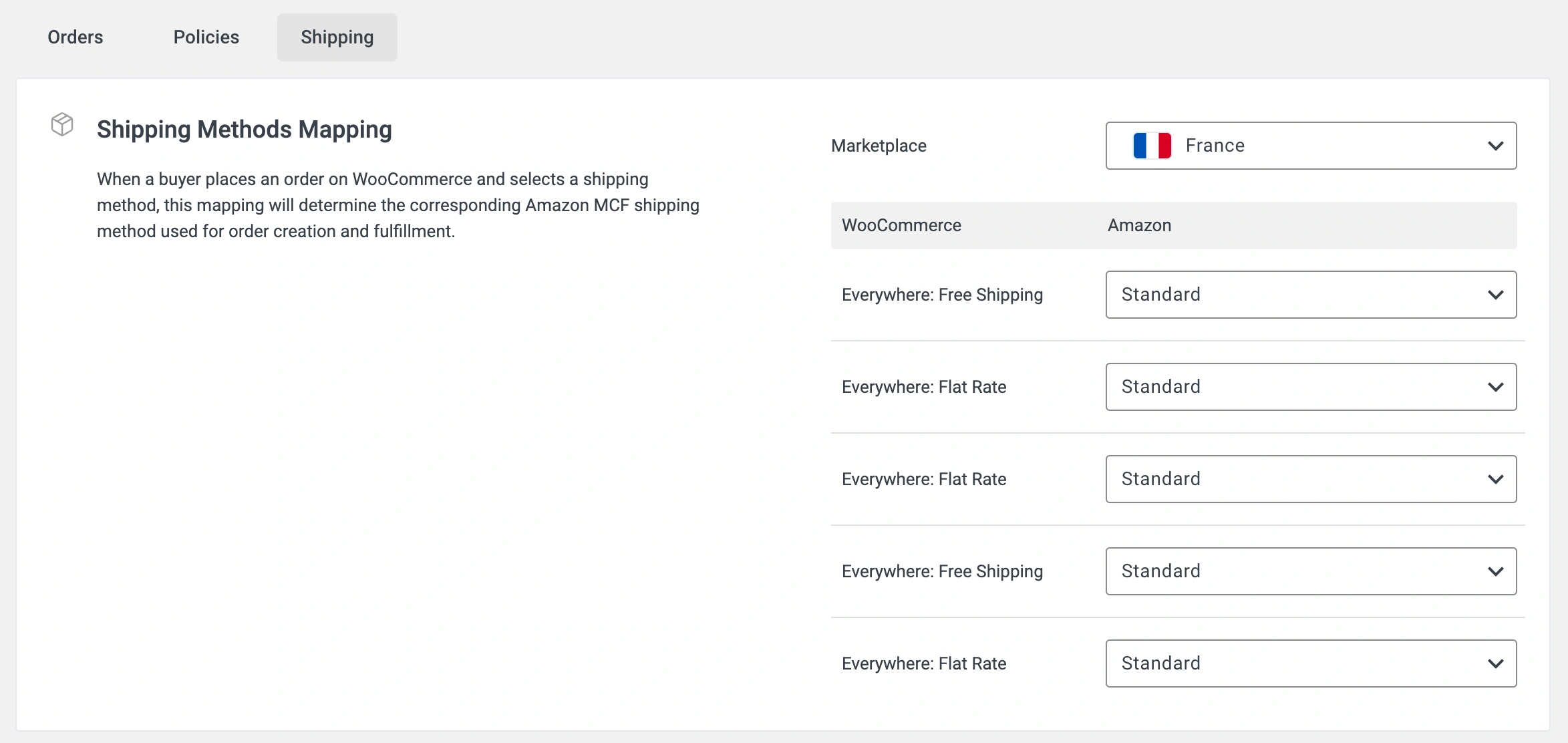
2) Save the settings to apply the mapping.
ℹ️ If no shipping methods show up, add them in your Woo store settings and click Retrieve Account Details in M2E Account settings to import them.
Best practices for MCF fulfillment #
After completing the setup, use these recommendations to get the best results from your MCF integration.
Conditions for automatic order processing #
The M2E Amazon MCF app generates an Amazon fulfillment order only when every one of these conditions is satisfied:
- All items in the order are listed on Amazon as FBA inventory.
- Woo products are paired with their matching Amazon FBA listings in the app.
- Every ordered item has sufficient stock available.
- The Woo order payment has been confirmed.
- The buyer's shipping address matches the fulfillment country of the Amazon items.
- The order was placed after MCF order creation was enabled in your M2E app settings.
- The Woo order carries a Processing status.
How order tracking works #
After Amazon begins processing an order, M2E keeps your Woo store updated automatically:
- Status sync. Your Woo order status reflects Amazon's fulfillment progress in real-time.
- Tracking details. As soon as Amazon ships the order, tracking information appears in your Woo order record.
- Split shipments. When Amazon dispatches an order in multiple packages, each tracking number is added to Woo individually as it becomes available.
These automatic updates keep buyers in the loop and minimize order-related support requests.
Cross-platform order fulfillment #
M2E Multi-Channel Fulfillment by Amazon goes beyond Woo. It also handles automated fulfillment for marketplaces like eBay, TikTok Shop, Walmart, Temu, and others.
The workflow is straightforward across all channels:
- A customer places an order on any connected platform (e.g., Woo, eBay, TikTok Shop).
- The app checks if the ordered items qualify for MCF fulfillment. If all conditions are satisfied, it automatically creates an MCF order.
- Amazon picks, packs, and ships the order, and then M2E syncs the tracking information back to Woo or the marketplace that originated the sale.
✅ For any questions about the M2E Amazon MCF setup for WooCommerce, get in touch with our support team.


