
If your products are already listed on eBay, there’s no reason to start from scratch in BigCommerce. With the M2E Multichannel Connect app, you can import your existing eBay listings into BigCommerce, keep your product data organized, and ensure your inventory stays in sync across platforms.
This guide will walk you through the whole process.
Step 1. Install M2E Multichannel Connect #
Head to the BigCommerce App Store and install the M2E Multichannel Connect app.
After installation, you’ll be guided to register through M2E Accounts, where you can manage your subscription and account settings.

ℹ️ A 30-day free trial is available. Once the trial ends, you can select a subscription plan that suits your business needs.
Step 2. Connect your eBay account #
1) Open the M2E Multichannel Connect app from your BigCommerce admin panel.
2) Click Connect Marketplace Account.

3) You’ll be redirected to eBay. Log in to your seller account and authorize access.
Once connected, you’ll be able to view and manage your eBay listings within the M2E app.
Step 3. Import your eBay products to BigCommerce #
There are two ways to bring your listings into BigCommerce: creating products from your eBay listings inside the M2E app, or importing them via CSV.
Option 1. Create eBay items in BigCommerce #
1) Go to the Listings tab and select your connected eBay account.

2) Use quick search, filters, and groups to locate the eBay items you want to import.

3) To create a single product:
- Click the arrow next to Link, then select Create new BigCommerce product and link.

4) To import multiple products:
- Select the desired listings by checking the boxes on the left.
- Click the three-dot menu above the grid and choose Create in Catalog.
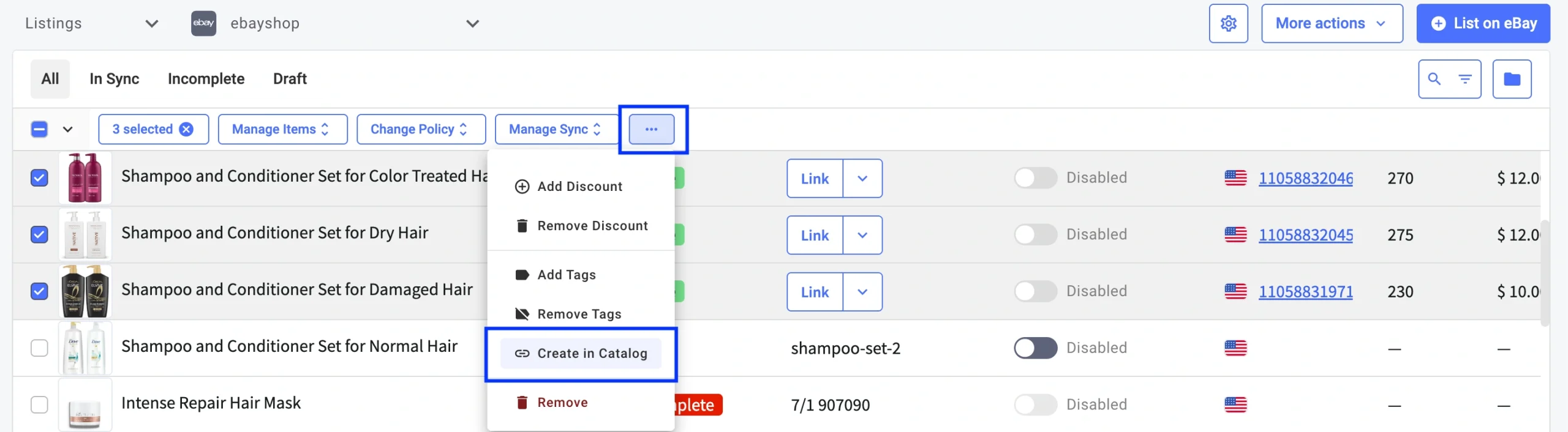
The selected eBay items will now appear in your BigCommerce product catalog.
Option 2. Import eBay listings via CSV #
1) Open the Listings tab and select your eBay account.
2) Use quick search, filters, and groups to find the needed eBay listings.
3) Click More actions in the top-right corner and choose Export.

4) In the export window, select the data fields you’d like to include and click Export.

5) Once the eBay product data is exported in a CSV file, go to your BigCommerce admin > Products > Import.
6) Upload the CSV file and verify field mappings under Link Import Fields.

After the import completes, you’ll see a summary of the imported products.
Step 4. Link your inventory #
Keeping your inventory in sync starts with linking your eBay and BigCommerce products.
If your products share the same SKU or barcode on both platforms, M2E will automatically link them for you. The same applies if you created eBay items in BigCommerce using the in-app option.
However, if the identifiers differ or were updated at any point, you’ll need to link the products manually.
To link items via a CSV file (best for larger catalogs):
1) Go to the Listings tab and select your connected eBay account.
2) Use filters to locate items that aren’t currently linked.

3) Click More actions > Export.
4) In the export pop-up, switch to the Link Items tab and click Export.

5) Once the CSV file is exported, open it and adjust the Store Catalog SKU or Store Catalog Item ID as needed.
6) Import the updated file back into the app by clicking More Actions > Import in the Listings tab.

To link a few items manually:
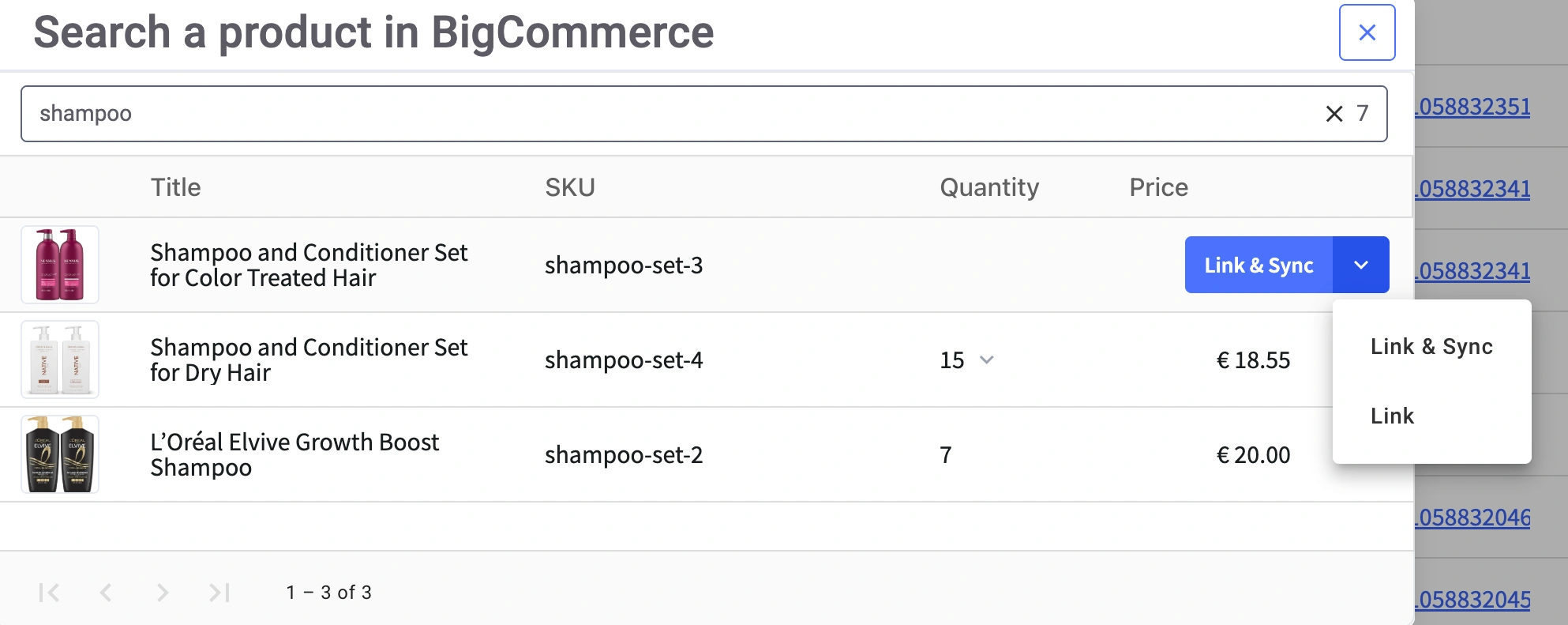
1) Click the Link button next to the unlinked eBay item.

2) In the search window, find the matching BigCommerce product using the title, SKU, or another available identifier.
3) Once located, click Link to connect the items. Or choose Link & Sync if you need to activate inventory sync immediately.
Step 5. Enable inventory synchronization #
Once your items are linked, you can turn on synchronization to keep inventory data aligned between eBay and BigCommerce.
To sync a single item:
- Click the toggle under the Inventory Sync column.

To sync items in bulk:
1) Select multiple items using the checkboxes.
2) From the top menu, click Manage Sync > Enable Sync.

When enabling synchronization (whether for one item or many), you’ll be asked to configure Policies. These settings control how your items are listed, priced, and updated on eBay, so be sure to review them carefully.

ℹ️ Review the following guides in order to set up each Policy correctly:
A confirmation message will appear once sync is active. From this point on, your inventory updates will be automatically reflected across both platforms.
What’s next #
With your products imported and synced, you're all set to automate business operations and grow your sales. You can now:
- Manage your eBay and BigCommerce listings from one interface
- Keep inventory levels accurate and avoid overselling
- List new BigCommerce products on eBay in the M2E app
✅ Have questions or need assistance? Check out our help docs or get in touch with our support team.


