
We’ve introduced a new feature in M2E Multichannel Connect – the Listing Validator Assistant for TikTok Shop. It helps you create complete, compliant, and ready-to-sell listings from the start.
By checking all key details in advance, the Listing Validator Assistant ensures that your products go live smoothly and reach TikTok buyers without unnecessary delays.
In this guide, we’ll walk you through how the Validator Assistant works and show you how to use it to prepare your catalog for successful TikTok Shop listings.
Key benefits of the TikTok Shop Listing Validator Assistant #
Check your product readiness
The Assistant shows how prepared your Store or Catalog products are for TikTok Shop. You’ll see immediately which items are compliant and which require improvement.
Get tailored recommendations
For every issue, the Assistant provides a detailed explanation and practical advice. You’ll know exactly what to adjust to meet TikTok’s requirements and publish products successfully.
Choose how to fix issues
You decide the best way to cover the requirements:
- Make the necessary updates in your Store or Catalog.
- Use M2E’s built-in tools, such as custom attributes, filters, or groupings, to fill in incomplete or invalid product fields.
- Provide specific compliance data, for example, GPSR information, when required.
Where to find the Listing Validator Assistant #
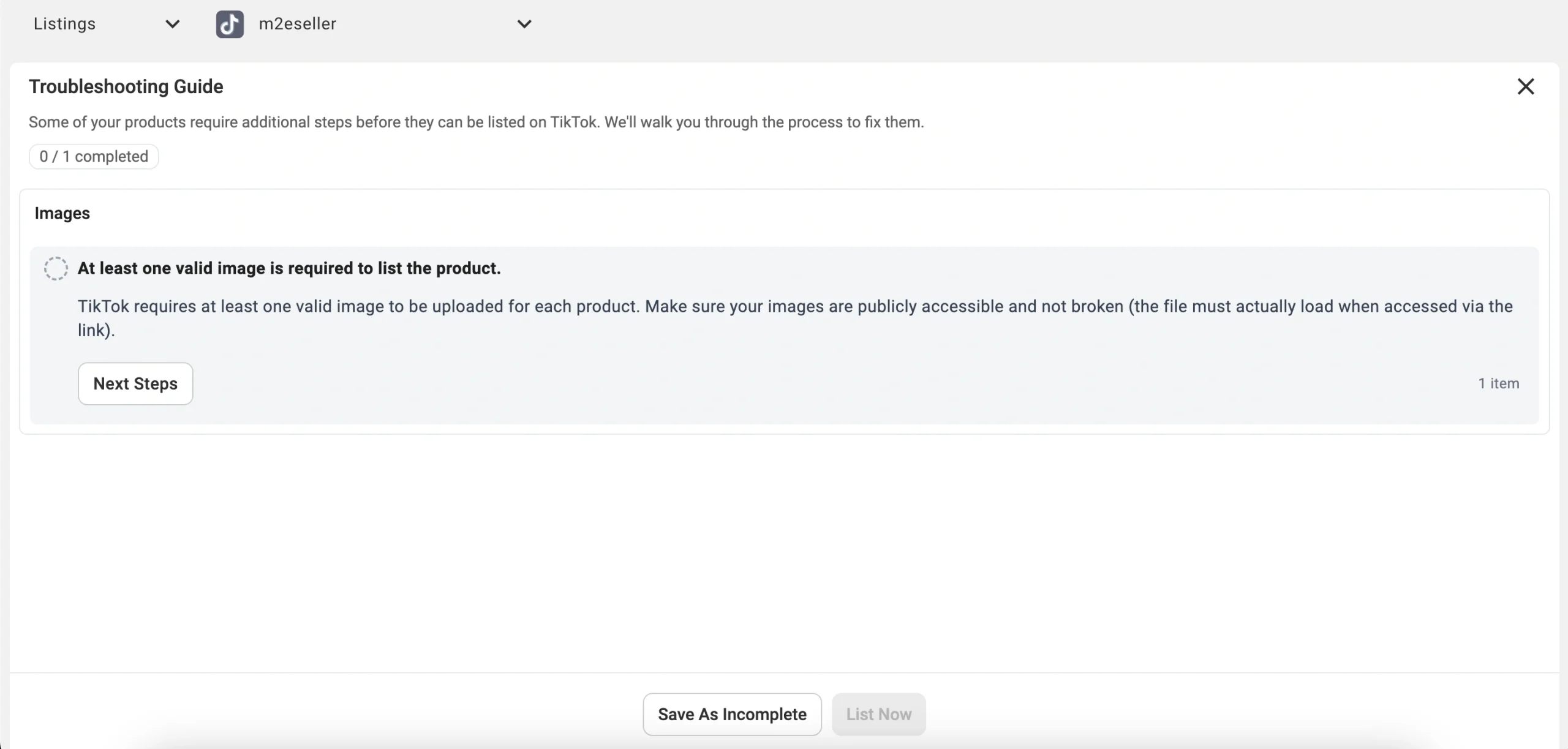
You’ll come across the Assistant during the listing process on TikTok Shop. It appears at the final step, after you click List Now. At this point, M2E automatically analyzes your products to check whether all required information is in place.
If some listing details are missing or incorrect, the Assistant will appear and give you a breakdown of the issues.
ℹ️ If all (or some) of your products are complete and valid, the Assistant won’t appear. Those products will continue to list automatically in the background, and you can track their progress on the Listings page.
How to prepare your products for TikTok Shop with the Validator Assistant #
Within the Assistant, you’ll see that all validation results are grouped by type of issue. For every issue, you can track how many products are affected and an explanation of why it matters under TikTok’s requirements.
For example, if you try to list products without specifying a Brand, you’ll see a grouped error: “Attribute ‘Brand’ is empty”. Alongside it, the Assistant explains that TikTok Shop requires a valid brand value for all products.
View and apply solution tips #
Next to every issue, there’s a Next Steps button. Click it to open a list of possible solutions with clear written instructions.

The Listing Validator Assistant will either guide you through the fix within M2E Multichannel Connect or inform you exactly what changes to make in your Store/Catalog.

For example, if your products are missing a Brand, the Assistant takes you to the M2E Category Policy with the Brand field highlighted.

From there, you need to choose how to fix the problem:
- If your Store/Catalog contains brand information (in an attribute or metafield), you can set this field as the source.
- If no brand information is available in your Store, you can select one from the list of brands provided by TikTok Shop.
After confirming your choice, M2E saves the changes.
Depending on the issue, the Assistant can offer more than one way to fix it in M2E Multichannel Connect. Other solutions you might see in Next Steps include:
- Adjust a Description or Selling Policy.
- Add the missing data directly to the product.
- Update product details in bulk at once via export/import.
- Map related attributes (e.g., Brand/Manufacturer, GPSR details).
- Edit Category Policy if the chosen category or its attributes are incorrect.
In some cases, the problem can’t be fixed in M2E Multichannel Connect. Instead, you’ll need to update the data in your Store or Catalog (for example, add a missing description or correct an attribute value). When this happens, the Assistant will point it out and give you instructions on what needs to be changed.

Recheck and list products #
There may be several errors, and you’ll need to resolve each one before your products can be listed on TikTok Shop. After fixing the issues, click List Now to trigger validation again. The Assistant will recheck your products and update the results.

Products that pass validation are submitted to TikTok Shop review immediately. If all items are valid, you’ll be redirected back to the Listings page. Invalid products stay in the Assistant until their issues are fixed.
Save unresolved items for later #
If you aren’t ready to resolve all errors right away, you can close the Listing Validator Assistant by clicking Save As Incomplete. Your progress won’t be lost, as products with unresolved issues will appear on your Listings page with the status Incomplete.

When you’re ready to continue, go to the Listings page, filter by Incomplete, and check the boxes next to the products you want to work on.

Then click Manage Items > List to reopen the Listing Validator Assistant and continue fixing the errors until the items are ready to be published on TikTok Shop.

The Listing Validator Assistant saves you from wasted effort and failed listings by catching problems before they reach TikTok Shop. You get clear explanations, guided fixes, and the flexibility to decide how to resolve each issue. Valid products move forward without delay, while the incomplete ones stay visible until you provide all the required information.
The result is fewer errors, faster publishing on TikTok Shop, and more time to focus on growing your business.
✅ If you have any questions about the use of the TikTok Shop Listing Validator Assistant, please contact our support team.


