
- Step 1. Define general information
- Step 2. Set Package Dimensions
- Step 3. Configure Domestic Shipping options
- Step 4. Configure International Shipping options
- Step 5. Set up Promotional Shipping Rules
- Step 6. Set up Shipping Rate Tables
- Step 7. Set up Combined Shipping Discount
- Step 8. Set up Excluded Locations
Find out how you can use the Shipping Policy in M2E Multichannel Connect to specify shipping options, domestic and international rates, set delivery expectations, and change shipping costs for your eBay listings.
💡 Check out step-by-step instructions on how to create and access M2E Shipping Policies.
Step 1. Define general information #
Start by naming your Shipping Policy. Assign descriptive titles to differentiate policies based on their purpose or product group.
✅ If all your products follow the same shipping rules, create a single policy and name it “Default.”
If specific product groups require unique rules, create separate policies with relevant titles for easy identification.
Next, set the Dispatch Time Source, which is the time it takes to prepare and send out an order. You can choose a standard eBay dispatch time or select a store attribute/metafield containing the dispatch details. eBay uses this information to estimate the delivery date for buyers.
Package Type #
Choose the package type that best matches the items you’re shipping. This helps buyers understand how their items will be packed and delivered.

Item Location #
Indicate the city, country, and postal code where your items will ship from. This information is required to complete the eBay Shipping Policy setup.

Step 2. Set Package Dimensions #
Define the package dimensions (height, width, length, and weight) for your eBay products.

You can set the dimensions in one of the following ways:
- Default attribute – use values already provided in your Store or Catalog.
- Custom attribute – select a Store Attribute or metafield that contains valid dimensions.
- Custom value – manually enter the dimensions.
ℹ️ Providing package dimensions is optional, except when you use Calculated Shipping, where this information is required.
Step 3. Configure Domestic Shipping options #
Domestic shipping covers deliveries within your country. You can choose from four types of shipping options:

- Flat: Charges a single shipping rate for all buyers, regardless of location.
- Calculated: Adjusts the rate based on the buyer's location, package weight, and dimensions. This option is available for eBay’s US, Canada (English and French), and Australia sites.
- Freight: Supports large items over 150 lbs (68 kg) and is available on eBay’s US, Canada (English and French), Australia, and UK sites.
- No Shipping, Local Pickup Only: Allows buyers to collect their purchased items directly from you in person. This option is suitable for large or difficult-to-ship items.
💡 Learn more about the benefits of eBay’s Local Pickup and how it works in this guide.
For Flat or Calculated shipping, add at least one shipping method by clicking “Add method” and selecting the appropriate option. You can include up to four methods for each policy.

You can also adjust the priority of the added shipping methods using a drag-and-drop feature:

If shipping isn’t free, switch to the Cost tab to specify the rate. For Flat, enter the base shipping cost and any additional charge per item, if applicable. You can manually enter the value or choose your store attribute/metafield that contains the shipping cost information.

Calculated shipping only requires you to choose the service, as costs will adjust based on location.
✅ Use the Additional Cost field if you offer quantity-based shipping discounts. For instance, if the shipping cost is $5, you can add a fixed amount, such as $2, for each additional item purchased by the same buyer.
Step 4. Configure International Shipping options #
International shipping is for buyers outside your country, often with higher costs and longer delivery times. You can choose from two types of shipping options:

- Flat: A single rate applies to all international buyers.
- Calculated: Costs are based on weight, dimensions, and the buyer’s location. Available on eBay’s US, Canada (English and French), and Australia sites.
As with domestic options, you need to select at least one shipping method if using Flat or Calculated types. If the shipping isn’t free, go to the Cost tab. For Flat, input the base cost and any additional charges. For Calculated, select the service type, and the rate will adjust automatically by region.
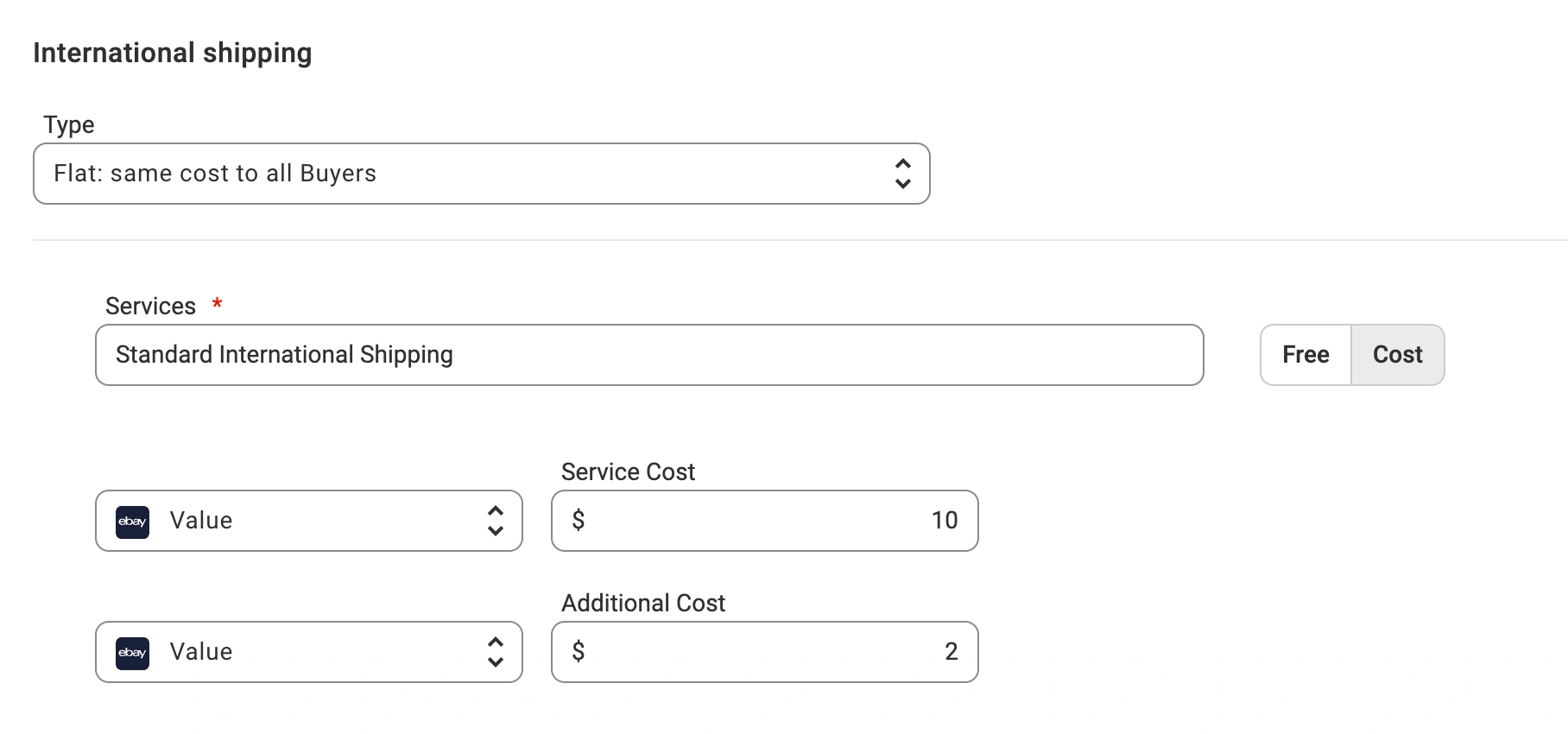
In the Locations section, check the regions where you want to offer international shipping.

Also, you have the option to enable eBay’s Global Shipping Program (GSP) for listings on the United Kingdom marketplace:

This program makes it easier for sellers to ship internationally by simplifying the process and reducing risks related to customs, taxes, and delivery issues. With GSP, eBay handles international shipping after your package reaches their domestic shipping center.
Step 5. Set up Promotional Shipping Rules #
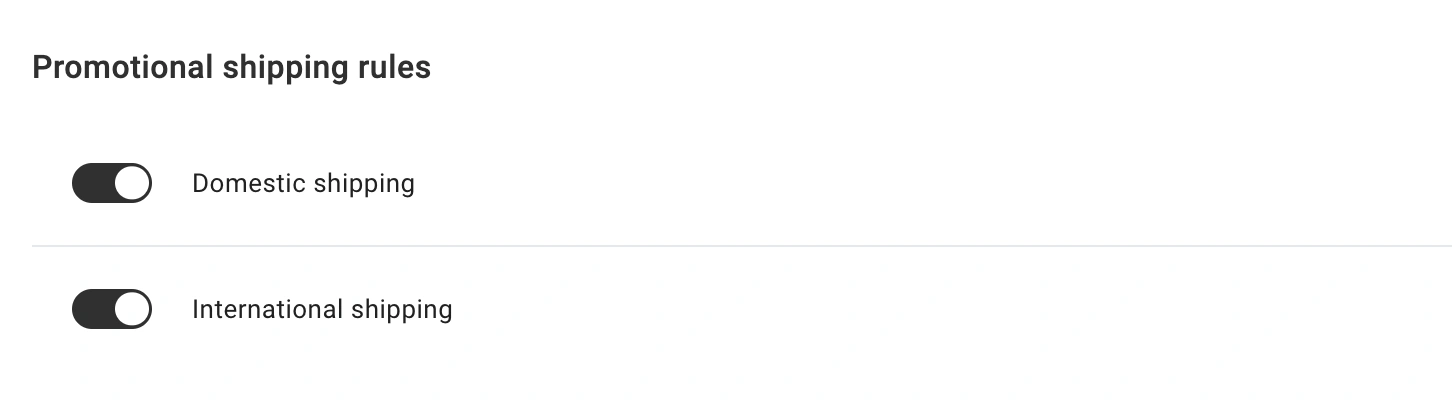
Promotional Shipping Rules allow you to discount shipping costs when buyers purchase multiple items or spend a certain amount. These rules are configured directly on eBay.
Using our app, you can enable discounts for domestic and international shipping and assign them to the necessary products.
Step 6. Set up Shipping Rate Tables #
eBay’s Shipping Rate Tables allow you to vary shipping costs based on the destination, service level, or package weight. This step is optional, but we recommend using it if you are an advanced seller and want to set different shipping conditions for various regions, establish special rules and exceptions, or automate the shipping settings to avoid manually entering them each time.
First, create your rate tables in your eBay Seller Hub. Then, in M2E Multichannel Connect, click Refresh to fetch your tables from eBay. Select your preferred table from the drop-down list.
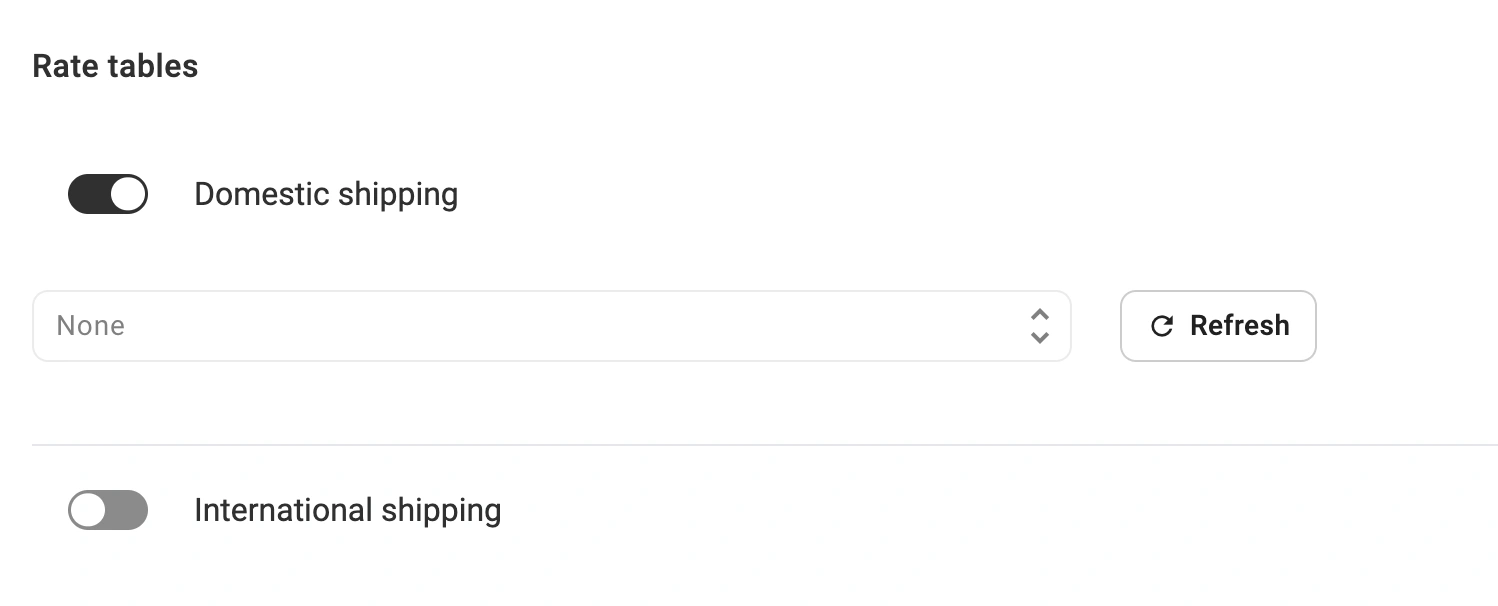
ℹ️ Shipping Rate Tables are available for the following eBay marketplaces:
- Domestic: US, AU, UK, DE, CA (English and French), IT, FR, ES, and Motors.
- International: US, UK, DE, CA (English and French), IT, FR, ES.
Step 7. Set up Combined Shipping Discount #
A Combined Shipping Profile allows you to offer shipping discounts to buyers who purchase multiple items from you.
These profiles are created and configured directly on eBay, and can be set up for both Domestic and International shipping.

If you’ve set up a Combined Shipping Profile on eBay, you can apply it to your products in M2E by selecting the profile from the drop-down list. Click Refresh Profiles to update and retrieve the latest shipping profiles from the Channel.
Step 8. Set up Excluded Locations #
In the Excluded Locations section, check the boxes next to any locations (both domestic and international) where you do not want to ship.


