
The M2E Description Policy controls how your product titles, descriptions, and other details appear in TikTok Shop. You decide which information to include and how it looks.
💡 Create and manage your policies in M2E Multichannel Connect the same way you manage other settings.
Below is a simple guide to setting up your TikTok Shop Description Policy.
Step 1. Name your policy #
Give your policy a clear name. It should tell you what the policy is for at a glance.
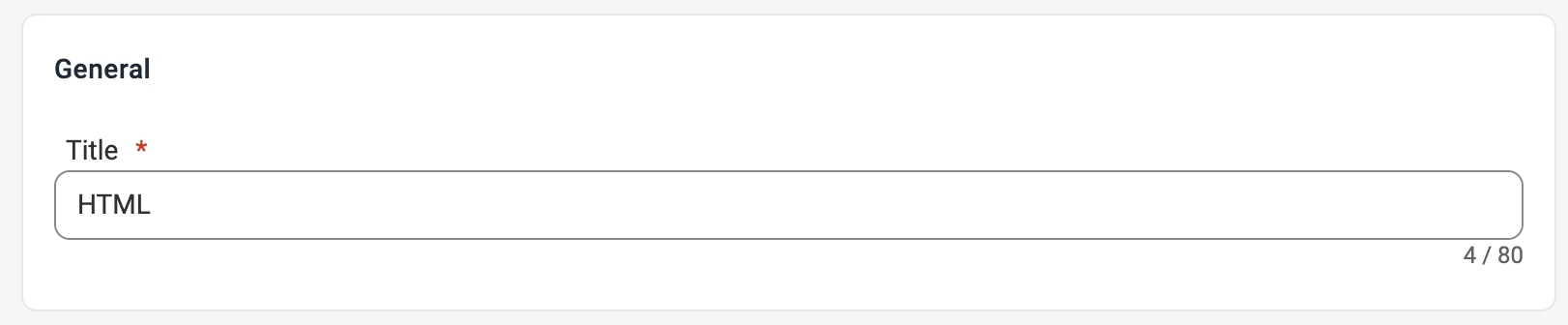
✅ If all your listings use the same rules, create one policy and name it Default.
Step 2. Set product title #
Decide where TikTok Shop gets your product titles.
You have three options:
- Title uses the original title from your store.
- Custom Field pulls the title from one chosen attribute.
- Advanced Title builds a title from several attributes.

💡 Use Advanced Title if you want to include details like size, color, or brand.
Step 3. Set product description #
Now decide where descriptions come from.
You can use:
- Product Description – your store’s main description.
- Custom Field – text from a specific field.
- Advanced Description – a custom template with attributes, tags, or HTML.

With Advanced Description, you get complete control. Paste your HTML template. Add variables from the list by clicking Insert variable. You can include details like Title, SKU, or images without manually editing each listing.
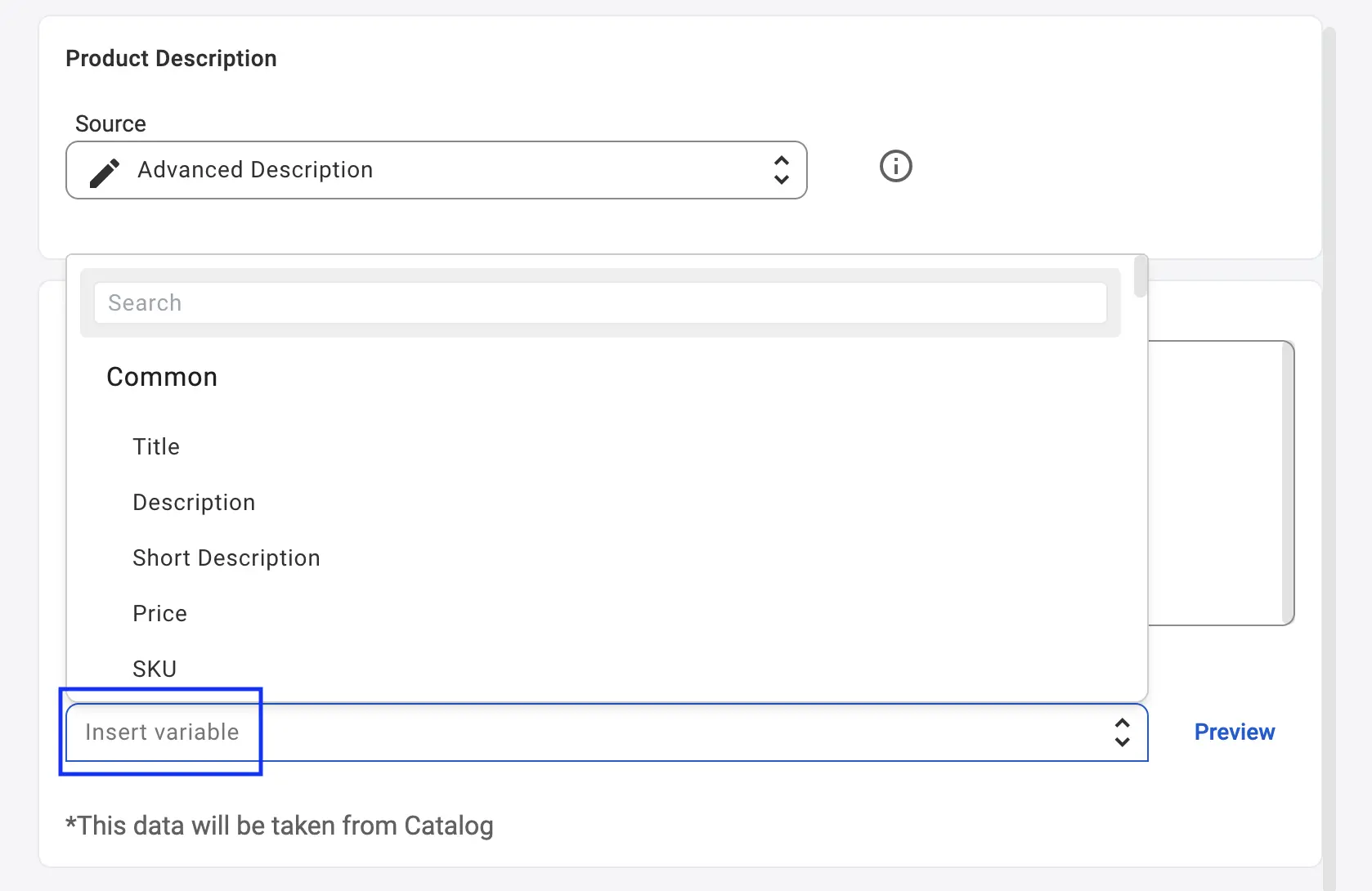
You can also add store or catalog data, such as Brand or Material, to improve clarity and search results.
Step 4. Preview your description #
Click Preview to check your layout.
Review spacing, fonts, and variable values.
Fix anything that doesn’t look right before saving.

Step 5. Set product images #
Choose where M2E takes the images for your TikTok Shop listings. You can set the main image and the additional images separately.
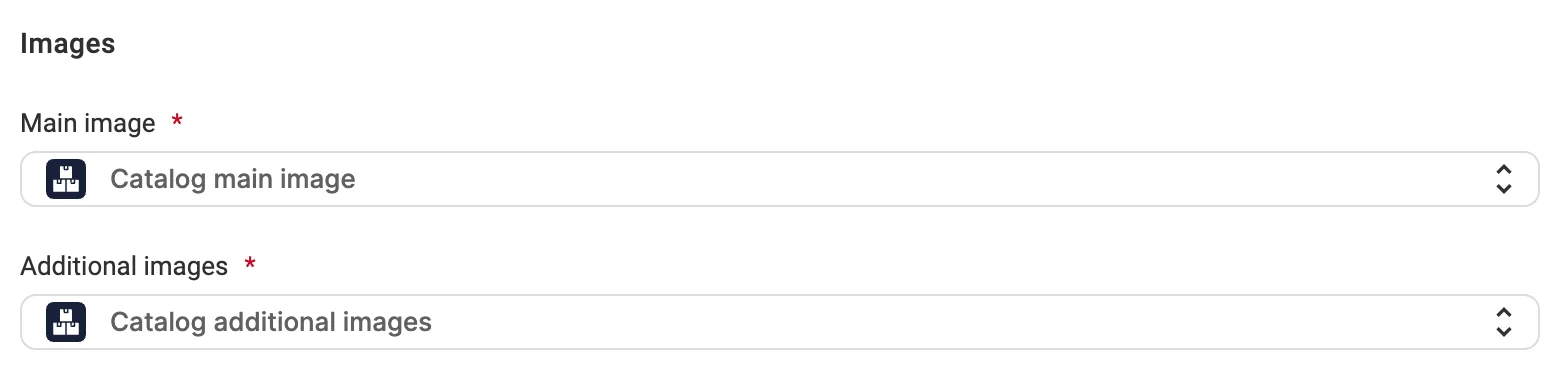
For Main image, select one of the following sources:
- Catalog main image – the main product image from your catalog. This is the default option.
- Attribute – an attribute or metafield from your store that contains the image URL.
- Custom – an image URL you enter manually.
For Additional images, select one of the following sources:
- Catalog additional images – the additional product images from your catalog. This is the default option.
- Attribute – an attribute or metafield from your store that contains the image URLs, such as a multi-line text field.
- Custom – image URLs you enter manually. You can add several URLs.
✅ Use Attribute or Custom if you have prepared a separate set of images for TikTok Shop or host some images outside your catalog.
ℹ️ If Images is enabled in your Synchronization Policy, M2E updates the images in your TikTok Shop listings when the selected image source changes.
Keep titles and descriptions in sync #
The M2E Description Policy gives you complete control over what TikTok Shop shows.If you don’t want titles or descriptions to update from your store, turn them off syncing in the Synchronization Policy. In this case, your TikTok Shop content will stay fixed. Other product details will still update automatically.


