
If you are already selling on Shein, you don’t have to rebuild your catalog in Shopify. With M2E Cloud, you can import your existing Shein inventory into Shopify, keep product data organized and consistent across both systems.
✅ Best practice:
The correct long-term setup is to create and configure products in Shopify first, then publish them to Shein from M2E. If your catalog currently lives on Shein, the steps below provide a workaround to pull it into Shopify and link inventory for synchronization.
This guide provides clear instructions for Shein import to Shopify, from setup to sync.
Step 1. Install Shein Integration by M2E #
Open the Shopify App Store, find Shein Integration by M2E, and install it.
After installation, complete registration in M2E Accounts, where you’ll manage your subscription and account details.

ℹ️ A 30-day free trial is included. After the trial, select the plan that best meets your needs.
Step 2. Connect your Shein account #
1) Launch M2E Cloud - Shein Importer from your Shopify admin.
2) Click Connect Marketplace Account.

3) Choose Shein. You’ll be redirected to the Shein seller portal. Sign in to your seller account and approve the connection with M2E.
✅ Don’t have a Shein seller account yet?
Register on Shein and get 30 days free with M2E Shein Integration and 0% commission on Shein for the same period.
When authorized, your Shein catalog appears in M2E for viewing and management.
Step 3. Import your Shein products to Shopify #
Using M2E, you can bring your listings into Shopify in two ways: create products based on Shein items or use the CSV file import option.
ℹ️ While the recommended approach is creating products in Shopify and publishing them to Shein, the options below serve as a workaround for existing Shein catalogs.
Option 1. Create Shein items in Shopify #
1) Open the Listings page and select your connected Shein account.

2) Use quick search, filters, and groups to find the Shein items to import.

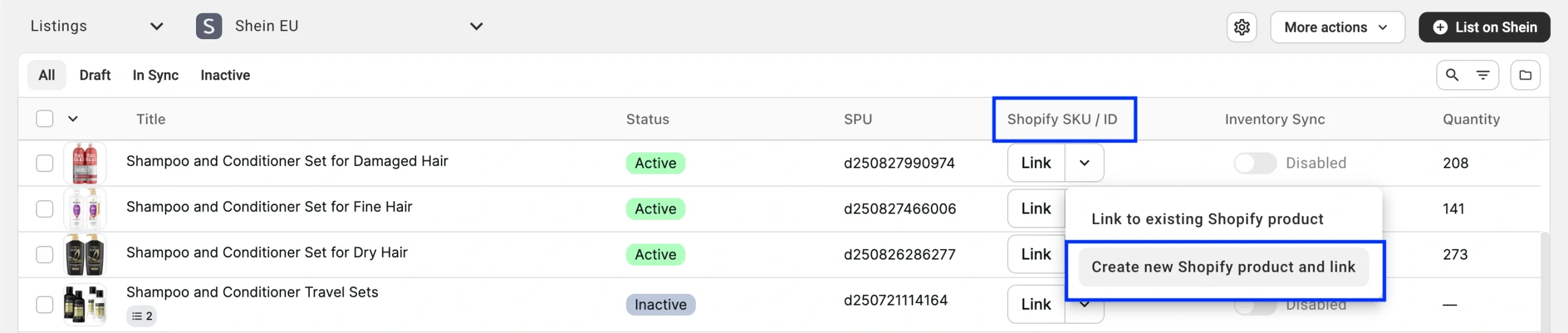
3) To import an individual product:
Click the arrow next to the Link button. Select Create new Shopify product and link from the drop-down menu.
4) To import several items at once:
- Select the Shein listings by ticking the checkboxes on the left.
- In the three-dot actions menu, click Create in Catalog.
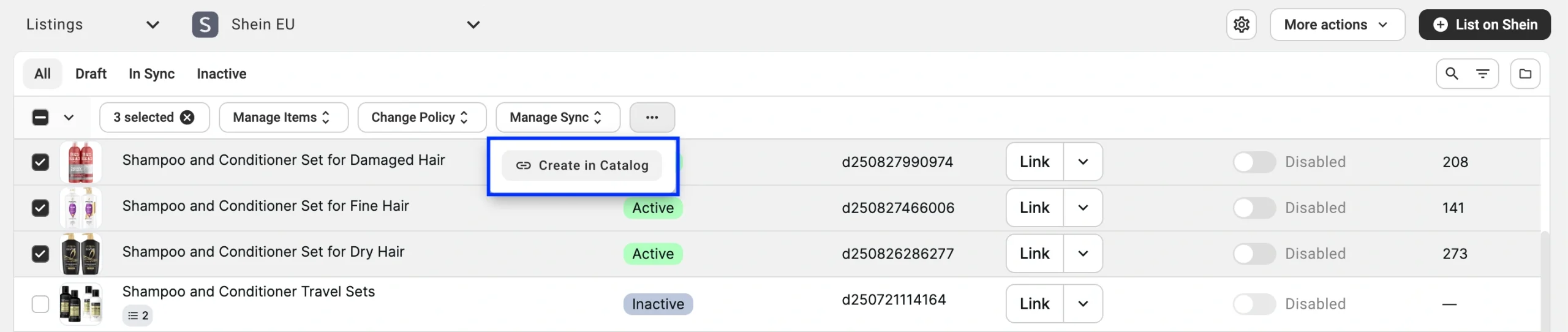
The selected Shein items will appear in your Shopify > Products catalog.
Option 2. Import Shein listings via CSV (coming soon) #
1) Open the Listings page and select your Shein account.
2) Find the needed Shein listings using quick search, filters, or groups.
3) Click More actions in the top-right corner and choose Export from the drop-down menu.

4) In the pop-up, select the product information you want to import and click Export.
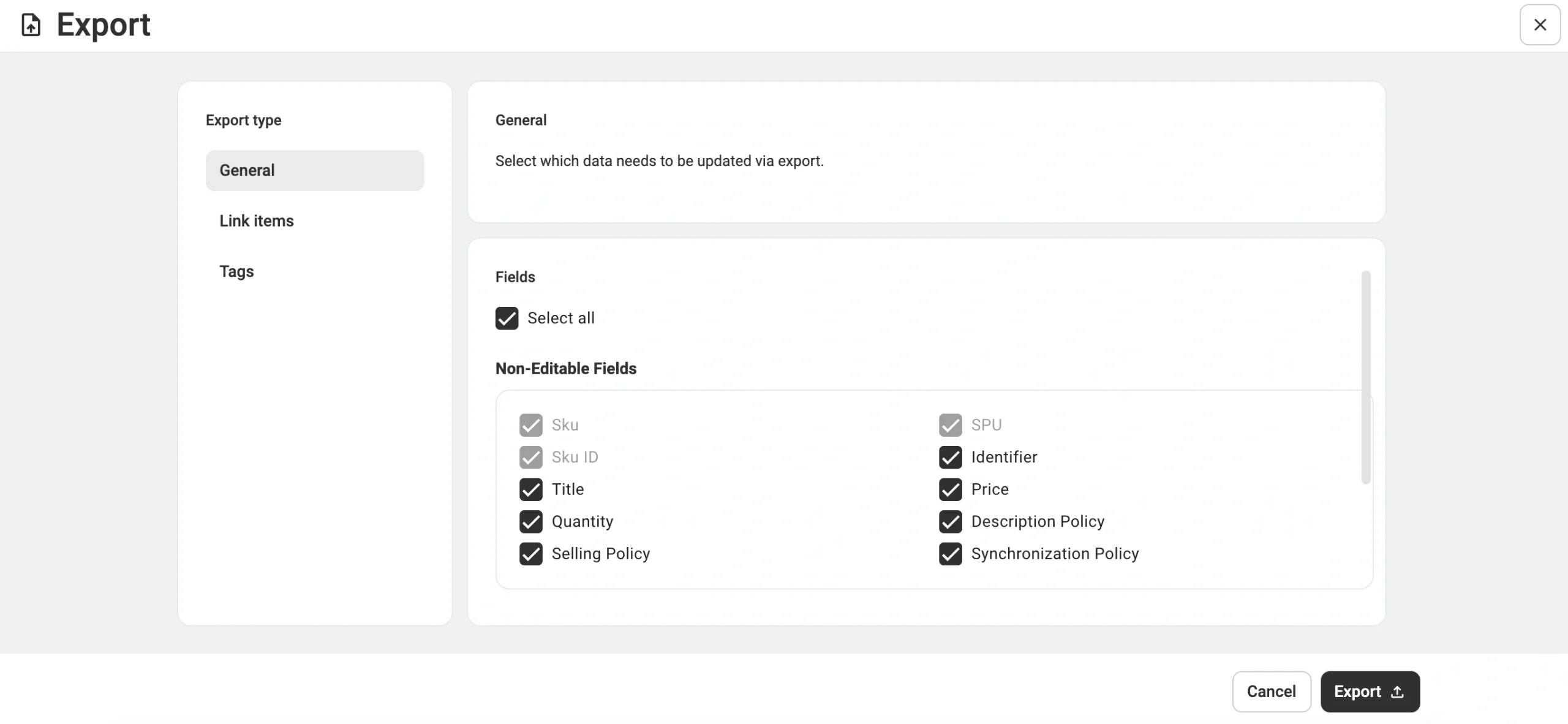
M2E will begin processing your export, and you’ll be notified of the result via the email associated with your M2E account.
5) Once you receive the CSV file with the exported Shein product data:
- From your Shopify admin, go to Products > Import.

- Click Add file, and attach the CSV file for import.

- Click Upload and review.

- Validate the information and complete by clicking Import products.

Step 4. Link your inventory #
Accurate inventory sync starts with linking Shein items to their Shopify counterparts.
If SKUs or barcodes match on both sides, M2E links the Shein and Shopify products automatically. If you’ve created items in Shopify using the in-app option, they’ll link as well.
ℹ️ Where identifiers differ, you’ll need to complete the linking manually or use the CSV file import.
Step 5. Enable inventory synchronization #
Once your items are linked, you can turn on synchronization to keep prices, stock, and other product data aligned between Shein and Shopify.
To sync an individual item:
On the Listings page, activate the Inventory Sync toggle next to the Shein product.

To sync several items in bulk:
1) Check the boxes next to the linked items on the Listings page.
2) From the top actions menu, click Manage Sync > Enable Sync.

During sync activation (individual or bulk), verify your M2E Policies. They define your listing and synchronization settings on Shein, so double-check them before proceeding.
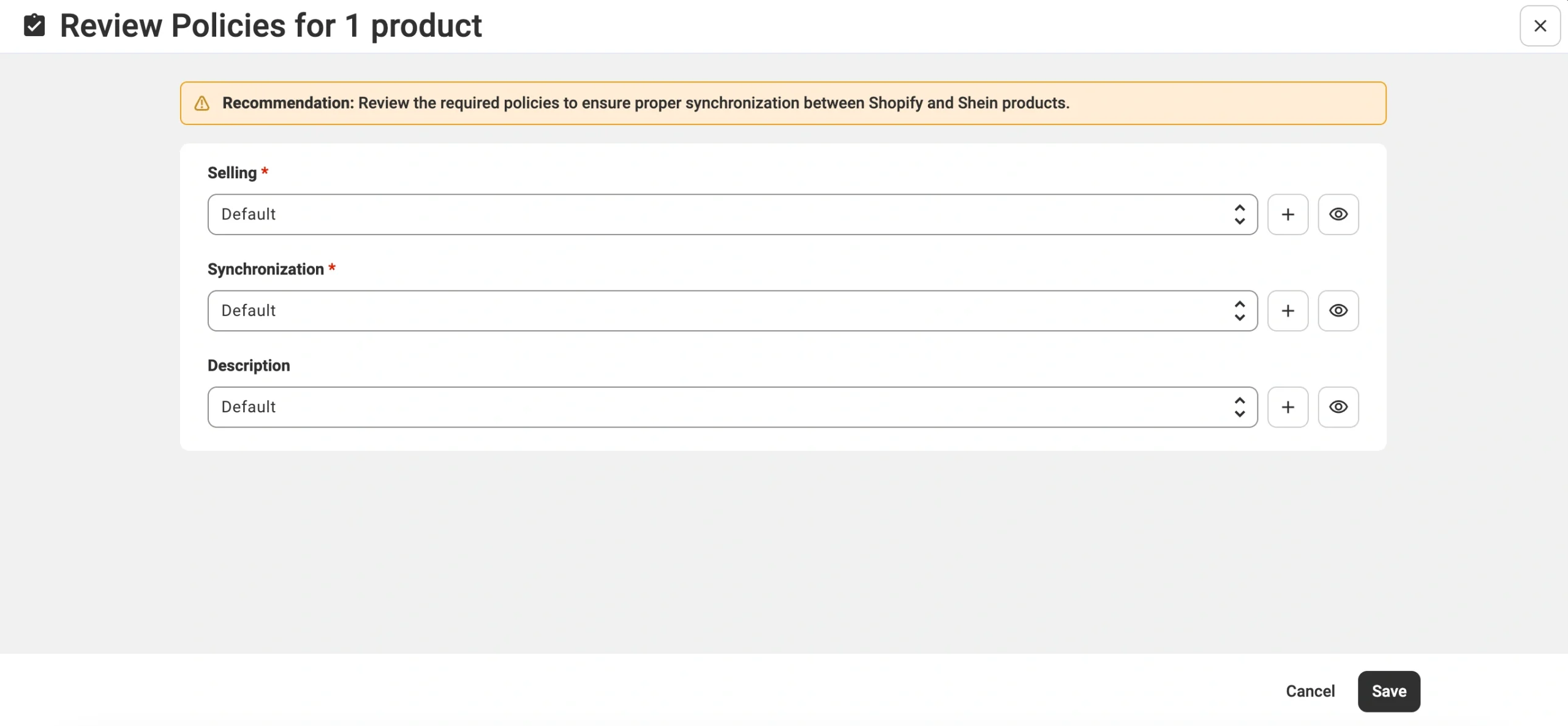
💡 Refer to the guides below to configure each M2E Policy for your Shein items:
A success message will confirm that sync is active. From that moment, M2E will reflect inventory updates on both Shopify and Shein according to your sync preferences.
What’s next #
Now that you’ve completed the process of Shein import to Shopify, routine work gets simpler, and scaling your business is easier. You can now:
- Manage your Shein and Shopify listings from one interface
- Ensure inventory accuracy and reduce oversell risk
- List new Shopify products to other channels in the M2E app when you expand

✅ Have questions or need assistance? Browse our help center or contact the M2E support team.


