
The Copy to Temu feature in M2E Multichannel Connect allows you to transfer your eBay listings to Temu using product data from your Store or Catalog.
This guide provides a step-by-step explanation of how to copy eBay listings to Temu.
Step 1. Go to eBay listings #
Open the Listings page in M2E Multichannel Connect and select the eBay account that contains the products you want to copy to Temu.
Step 2. Select listings to copy #
Tick the checkboxes next to the eBay products you want to transfer. You can use search or filters to find the needed listings.
Before proceeding, make sure that:
- The selected listings belong to the same eBay marketplace.
- The marketplace region matches your Temu account region (e.g., eBay UK → Temu UK).
- Each item is linked to a Store/Catalog product, is currently active on eBay, and is not yet listed on Temu under your account.
Step 3. Copy to Temu #
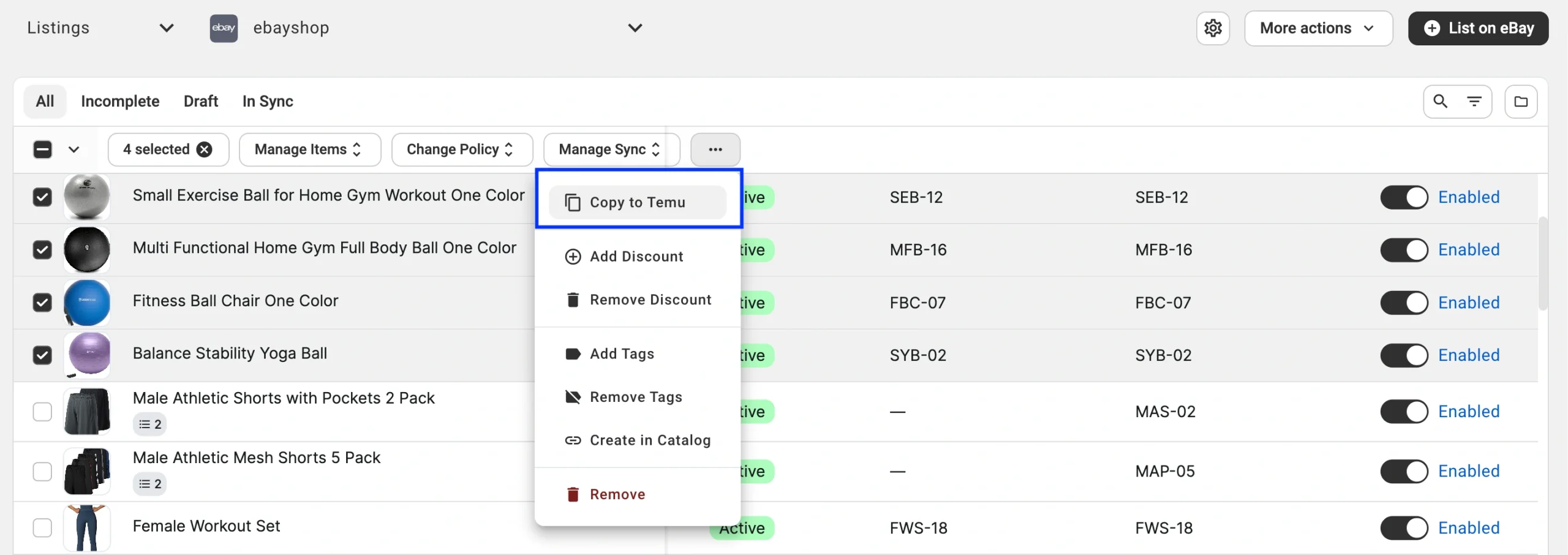
After selecting the products, click the three dots in the top action menu and choose Copy to Temu.
A confirmation pop-up will appear showing the target Temu account and the number of products ready to be copied.
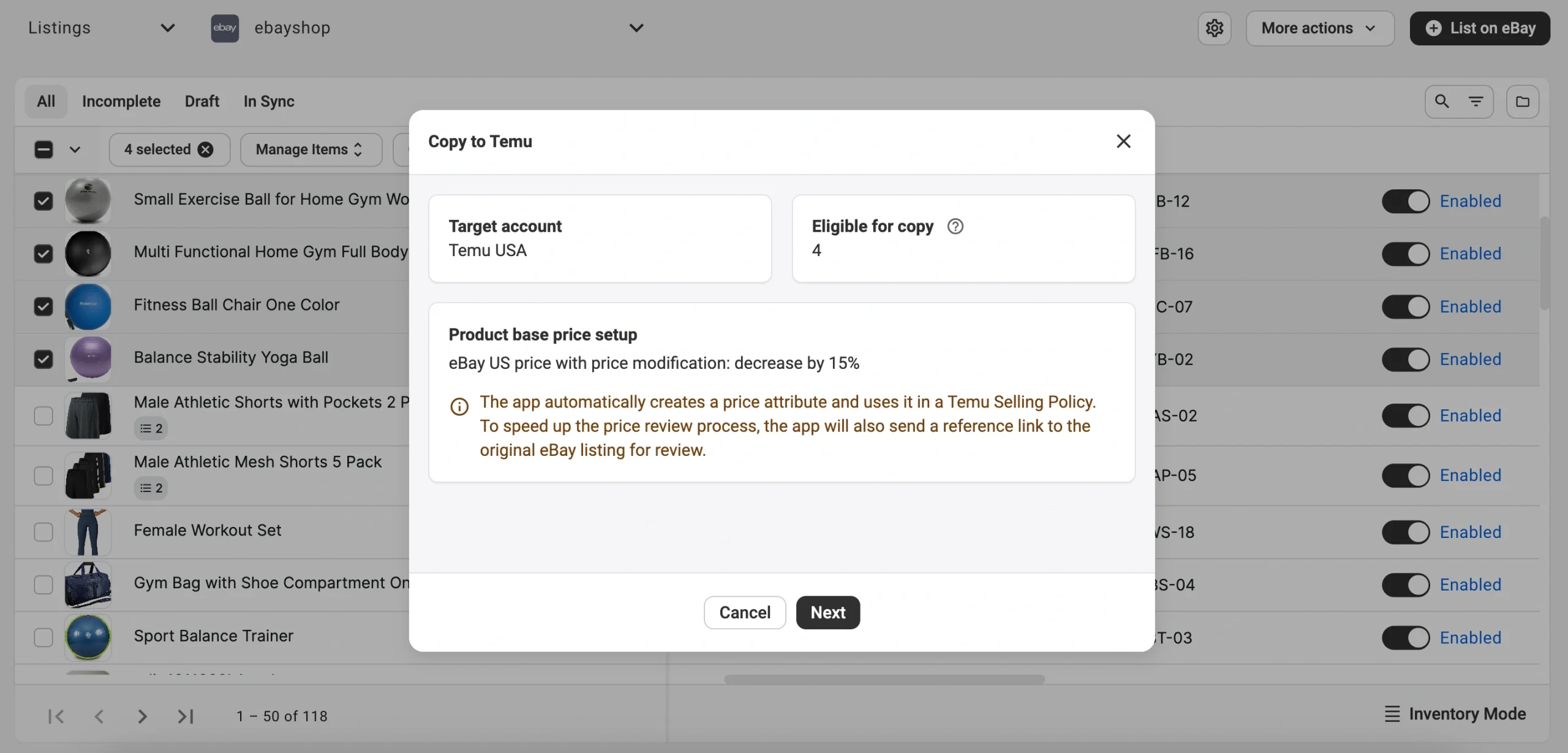
M2E automatically prepares your data for Temu and performs the following actions:
1) Creates a custom Price attribute in your M2E Catalog and names it based on the source channel (for example, eBay US Price).
This attribute stores the current eBay product price. It is assigned to each Store/Catalog product used for listing on Temu.
Also, the attribute becomes the Price source for your Temu Selling Policy.
2) Applies a pricing rule to fit Temu’s marketplace requirements.
M2E uses the eBay price as a base and applies a price modification, such as a 15% decrease, to ensure the listing meets Temu’s pricing standards.
You can adjust or remove this modification later in your Temu Selling Policy.
3) Adds a reference link to the original eBay listing to help Temu verify the product information faster.
4) Reuses or creates new M2E Temu Policies:
- Selling Policy (with price and quantity data from your Store/Catalog, as well as applied price modification)
- Description Policy (using your Store/Catalog product titles and descriptions),
- Synchronization Policy (with all Revise options enabled).
After confirming your selections, click Next to continue.
Step 4. Assign Temu categories and attributes #
Select the most suitable Temu category for your products and fill in the category attributes.
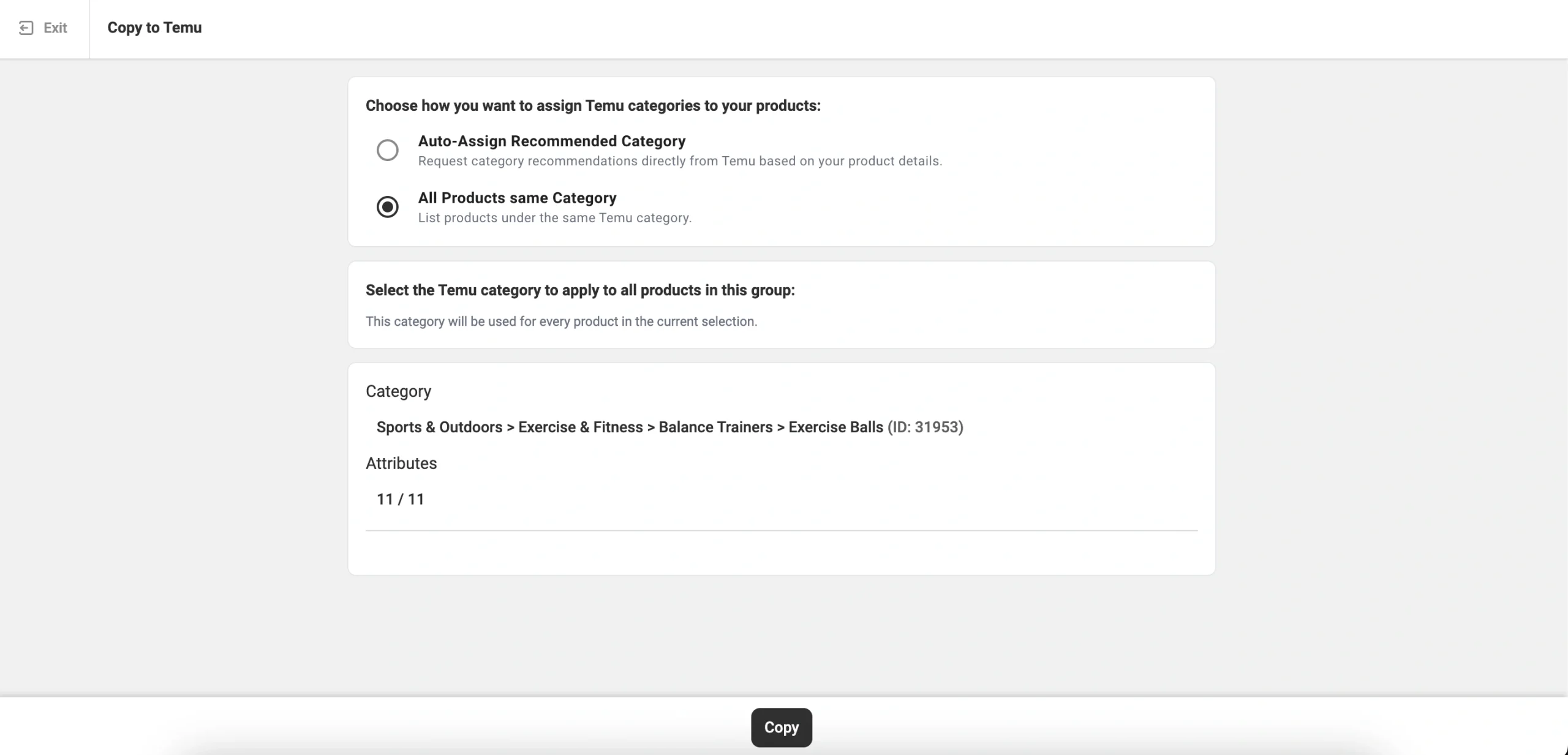
Once complete, review your category settings and click Copy to proceed.
Step 5. Validate listings #
M2E’s Listing Validator Assistant will review your data to check that it meets Temu’s listing requirements.
If all product details are valid, M2E will submit your listings to Temu for review.
If any product data is missing or incorrect, the Assistant will display a list of issues and suggest how to fix them.
After making corrections, click List Now to submit your eBay listings to Temu.
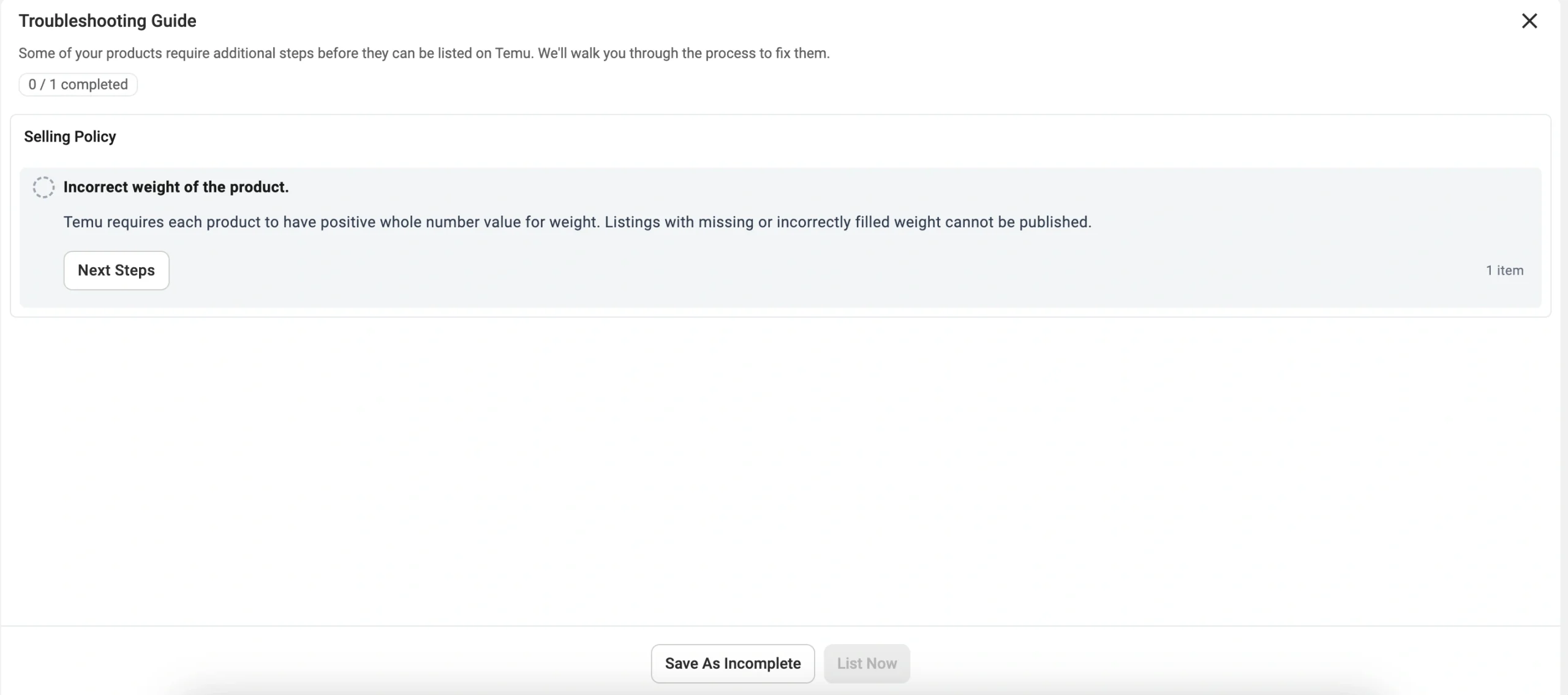
You can track the listing progress and item status on the Listings page. Once Temu approves your products, they will be published on the marketplace.
✅ If you experience any issues while trying to copy eBay listings to Temu using M2E, please contact our support team for assistance.


