
Effective December 13th, 2024, all sellers shipping to Europe or Northern Ireland must comply with the General Product Safety Regulation (GPSR) by providing accurate manufacturer and safety information for their products. Compliance is essential to ensure your listings meet legal requirements and avoid penalties.
With M2E Multichannel Connect, you can simplify compliance by managing GPSR-related details in one centralized location. This guide explains how to add and manage GPSR information for your Amazon listings and automate updates across European marketplaces.
Step 1. Enable Synchronization of GPSR Details #
In order to allow the app to automatically manage and submit GPSR-related information for your Amazon listings, you should update your Synchronization Policy settings.
In the Listings tab, select the Amazon items that require manufacturer information. Click Change Settings > Change Policy from the mass actions menu.

Click View next to the existing Synchronization Policy, or create a new one.

Tick the checkbox next to the GPSR details option. Then, save the changes.

Step 2. Create Manufacturers #
Start by adding the manufacturers responsible for producing the items you sell. Navigate to the Settings tab, choose your Store Account, and switch to the GPSR Details tab.
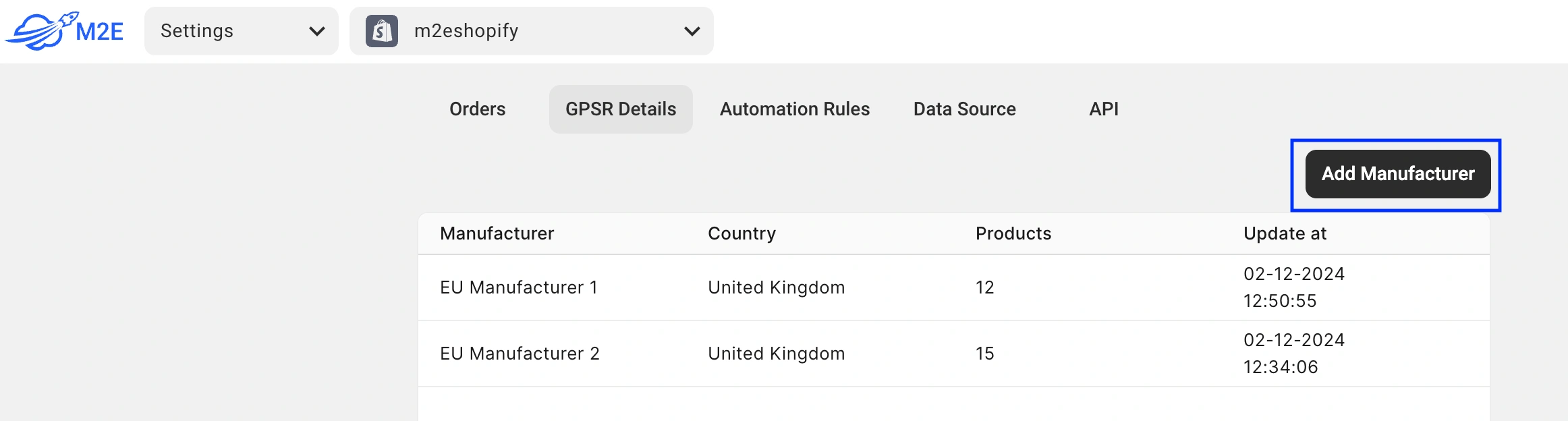
Click the Add Manufacturer button. Enter the manufacturer details, such as name, address, contact information, etc.
Then, click Add Responsible Person to provide details about the person accountable for product safety compliance. Responsible Persons are required only if the manufacturer’s country is outside of Europe.

You can add up to 5 Responsible Persons for each manufacturer by clicking the + button.
ℹ️ If you source products from multiple manufacturers, repeat the process for each one to ensure all necessary information is stored.
Once done, click Save and Create New.
Overall, within the GPSR Details tab, you can:
- Edit manufacturer information. Update or correct manufacturer and responsible person details as needed.
- Track assigned products. See the number of products assigned to each manufacturer for easy management.
Step 3. Update Manufacturer Information for Existing Listings #
Existing Amazon items (listed under a new ASIN) fall into two categories:
- Products listed through M2E: These already have Brand information in Amazon Product Type Attributes.
ℹ️ If a match is found between the Amazon Brand and a Manufacturer created in the GPSR Details tab (step 2), the app will automatically map the Brand to the Manufacturer.
Once GPSR details are enabled in Synchronization Policy (step 1), the app will automatically submit them to Amazon. No additional actions are required on your side.
- Products not listed through M2E: These will appear without filled Product Type Attributes in the app (though they may exist on Amazon).
ℹ️ In this case, the app will attempt to fetch the Brand from Amazon and link it to the Manufacturer created in GPSR Details tab (step 2).
If unable to fetch the brand, the app will pull Brand/Vendor/Manufacturer details from the linked Store/Catalog product and map them to your GPSR Details.
To check which Amazon products have GPSR details available, navigate to the Listings tab and use the Has GPSR details filter:

Step 4. Submit Manufacturer Information to Amazon for New Listings #
When listing products on Amazon under a new ASIN, here's how you can ensure that the app that the app automatically submits the GPSR information to Amazon:
1) Verify that all the necessary Manufacturers and Responsible Persons have been created and their details are accurate (step 2).
2) Enable the revise of GPSR information in your Synchronization Policy:

To do so, tick the checkbox next to the GPSR details option.
3) Match the appropriate Manufacturer in Attributes per Amazon Product Type.
In the GPSR Manufacturer Reference Source field, select the Amazon Attribute option.
In the Attribute field, enter the name of the manufacturer you’ve created in the GPSR Details tab.
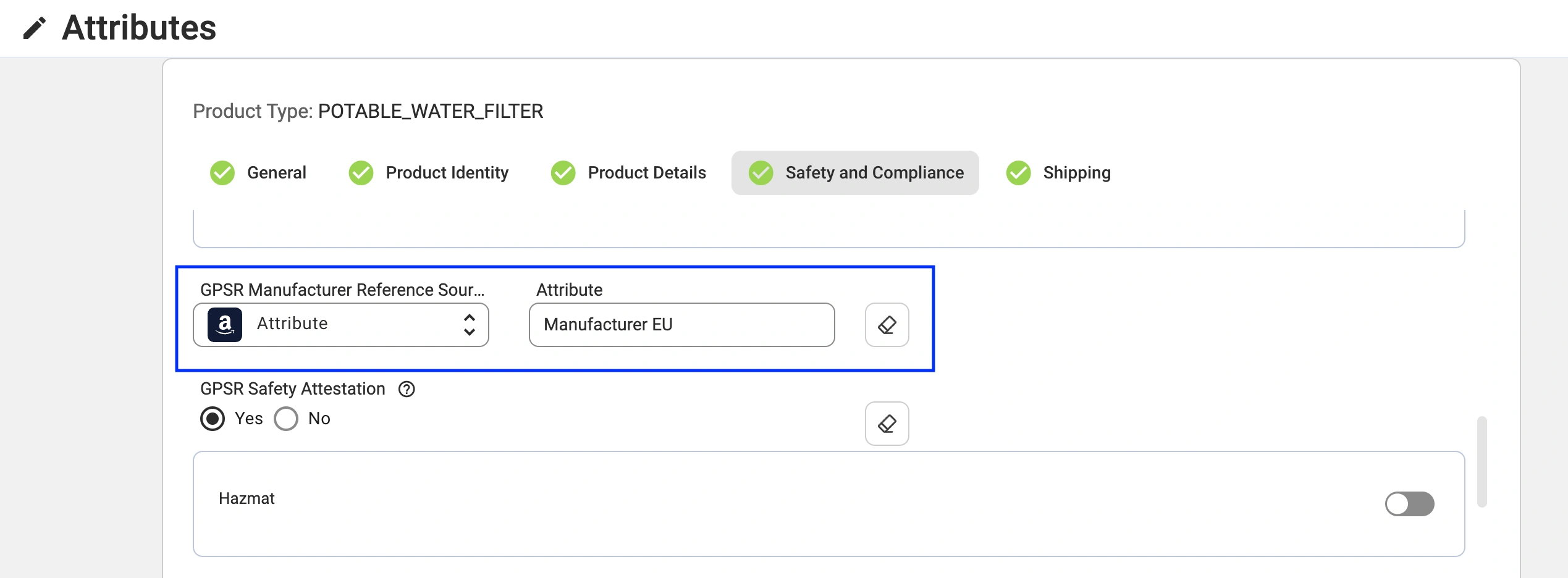
ℹ️ M2E Multichannel Connect will automatically submit the GPSR information to Amazon during the listing process based on the Synchronization Policy settings and the linked Manufacturer details.
By following these steps, you can simplify compliance with GPSR requirements on Amazon, save time, and reduce the risk of penalties. For further assistance or technical support, contact our team.


