
M2E Multichannel Connect supports Twig tags in eBay Advanced Descriptions, giving you more control over how your product information appears. This feature is designed for experienced users familiar with HTML and template logic.
Twig lets you build dynamic, conditional, and flexible templates in your Description Policy.
With Twig, you can:
- Display different content depending on listing type (e.g., Simple vs. Variational).
- Format text automatically (for example, convert to uppercase).
- Skip empty fields to prevent missing data from breaking your layout
- Insert related products or highlight variation details dynamically.
💡 For basic setup instructions, see the eBay Advanced Item Description guide.
For a complete list of supported syntax and tags, visit the official Twig documentation. Below are the essentials for working with Twig in M2E Multichannel Connect.
Dynamic variables and collections #
M2E supports a range of predefined variables and collections you can use in your Twig templates. These variables help you dynamically render product, catalog, and eBay-specific data.
| Variable | Description | Render Conditions |
isVariant | Returns true if the product has variations. | Used for conditional display of variation-related content. |
isMultiVariant | Indicates that the product belongs to a parent variation group. | Renders for variation groups only. |
{{sku}}, {{title}}, {{price}}, {{description}}, etc. | Common product attributes from your Store or Catalog. | Always available unless empty. |
{#attributeName#} | Additional attributes created in your Store or M2E Catalog. | Renders only if the attribute exists and has a value. |
ebay.site | The eBay marketplace domain (e.g., ebay.com, ebay.co.uk). | Always available for active listings. |
ebay.itemId | The item’s eBay ID. | Available once the item is listed. |
ebay.category, ebay.categoryPath | The category name and full category path. | Available for active listings. |
suggestedProducts | Displays neighboring or related products in your description. | Renders automatically when similar items are listed in bulk (4 per variable). |
ℹ️ Empty or missing variables are skipped automatically if wrapped in
{% if ... is not empty %}conditions.
Common Twig tags #
Twig provides logical operators and formatting tools for building dynamic content. Here are the most useful ones for eBay templates:
{% if ... %} ... {% endif %}– display content if a condition is true.{% if not ... %} ... {% endif %}– display content if a condition is false.{% if … is not empty %}– check if a value exists before showing it.{% set … = … %}– assign an attribute value to a Twig variable.
💡 View the full list of available tags in the Twig documentation.
Practical use cases #
Below are common examples of how you can use Twig to make your eBay descriptions more dynamic and responsive to product data. Each example includes a short explanation of when to use it, followed by the Twig snippet and what it does in practice.
Use case 1: Add product attributes #
You can insert attributes or metafields from your Store or M2E Catalog into the eBay item description. These attributes let you automatically display product details such as Titles, SKUs, etc., or custom fields like Brand, Material, and so on.
There are two types of attributes you can use:
- Common Attributes – standard Store fields such as title, description, SKU, or price.
Format:{{title}},{{shortDescription}},{{sku}}, etc. - Store/Catalog Attributes – custom attributes created in your Store or M2E Catalog, for example, Brand or Material.
Format:{#brand#},{#vendor#},{#material#}, etc.
Here’s how you can display and format them in your template:
{% if sku is not empty %}
  <p>SKU: {{sku}}</p>
  <p>SKU (UPPER): {{ sku|upper }}</p>
{% endif %}
{% if '{#brand#}' is not empty %}
  <p>Brand: {{ '{#brand#}' }}</p>
{% endif %}
How it works:
- The
{{sku}}variable pulls data from your Store’s SKU field. - The
{#brand#}variable pulls data from your M2E Catalog or Store attribute. - The condition ensures that empty attributes are skipped automatically.
You can insert attributes using the Insert variable dropdown in your eBay advanced item description editor.

Use case 2: Show content for Variational listings #
When you sell products with multiple variations (like Color or Size), you may want to display a short notice encouraging buyers to explore all available options.
Code example:
{% if isVariant %}
<p style="color: green">✅ Product has variations: try it in 12 colors and 7 sizes!</p>
{% endif %}
How it works:
The block will only appear for listings that have variations (isVariant = true). If a listing doesn’t include variations, this message will be skipped automatically.
Use case 3: Show content for Simple listings #
If your product has no variations, you can display a custom message or layout intended for single-item listings.
Code example:
{% if not isVariant %}
<p style="color: red">❌ Product has NO variations! 1 size, 1 color.</p>
{% endif %}
How it works:
The not isVariant condition ensures the message appears only on Simple listings (isVariant = false). This helps differentiate variation-based and single-product templates within one description.
Use case 4: Skip empty fields #
Sometimes products are missing optional attributes (like weight, brand, or material). If you insert these attributes directly, your description might show blank lines or broken formatting.
You can prevent that by checking whether the value exists before displaying it.
Code example:
{% set weight = '{#weight_test#}' %}
{% if weight is not empty %}
  <p>Weight: {{ weight }}</p>
{% endif %}
How it works:
{% set %}assigns the attribute value to a local variable.{% if weight is not empty %}ensures that the line only renders if the weight exists. If a product doesn’t have a weight value, the entire paragraph is skipped, keeping your layout clean.
Use case 5: Format text with Twig filters #
Twig filters let you adjust how your data appears, for example, converting text to uppercase, trimming spaces, or capitalizing words.
Code example:
<p>Vendor: {{ '{#vendor#}' }}</p>
<p>Vendor (UPPER): {{ '{#vendor#}'|upper }}</p>
How it works:
- The
|upperfilter transforms the text to uppercase. - You can use other filters like
|capitalize,|lower, or even|replacefor string manipulation.
Use case 6: Display eBay variables #
In addition to Store and Catalog data, you can also display live eBay information in your description. This is useful for including dynamic elements like item IDs, categories, or links to your live listing.
Code example:
<p>eBay site: <strong>{{ ebay.site }}</strong></p>
<p>Item ID: <strong>{{ ebay.itemId }}</strong></p>
<p>
  <a href="https://{{ ebay.site }}/{{ ebay.itemId }}" target="_blank">
    View this product on eBay
  </a>
</p>
<p>Category path: <strong>{{ ebay.category }} – {{ ebay.categoryPath }}</strong></p>
How it works:
- The
ebayobject provides live listing details once the item is published. - You can use these variables to automatically link to your eBay listing or show its category path.
Preview the Advanced Description #
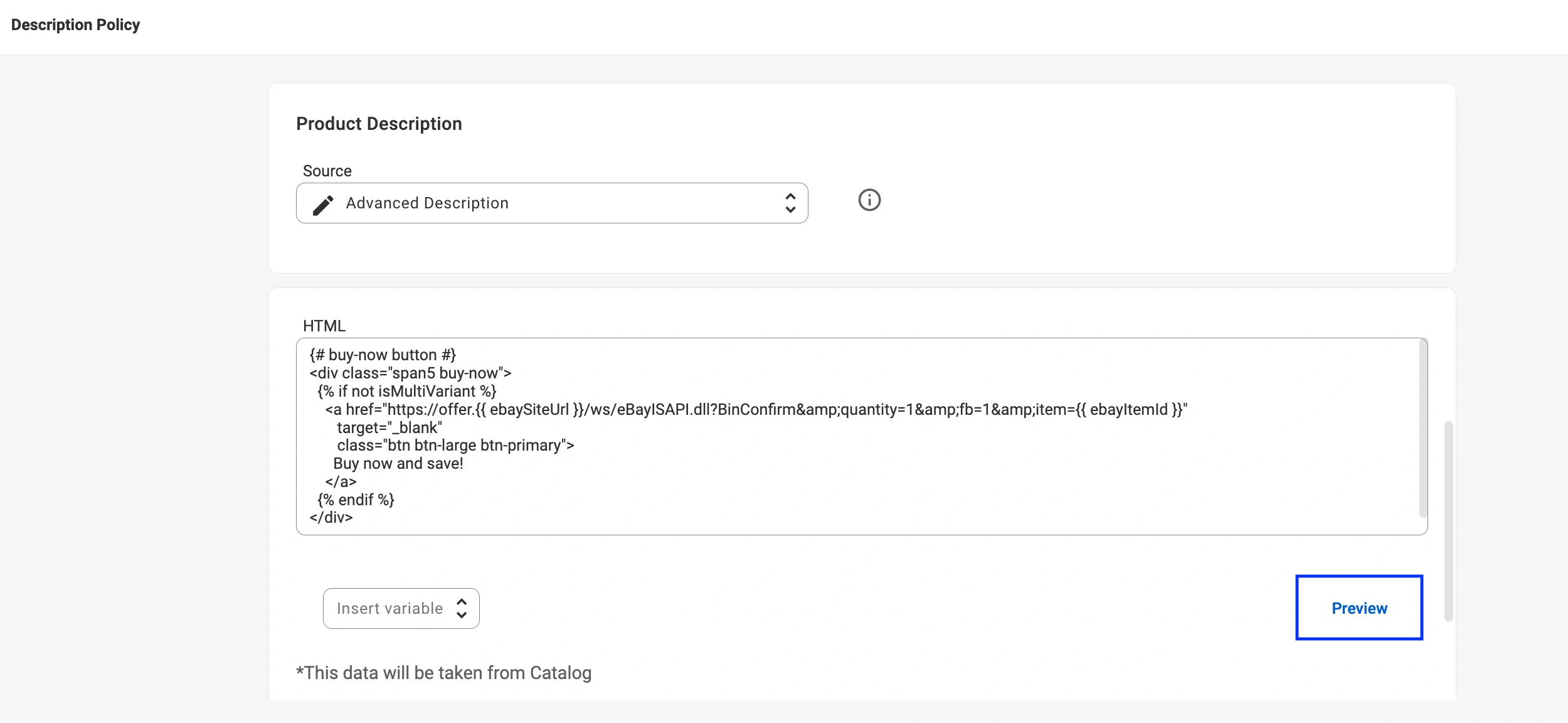
You can click Preview in the eBay Description Policy editor to see how your final layout will look on eBay before publishing.
✅ If you have any questions or need help setting up your eBay Advanced Description, please contact our support team.


