
If you see the error "At least one valid image is required to list the product" when listing products with M2E Multichannel Connect, it means none of the images provided for the product meet the marketplace requirements.
Common reasons #
Even if images exist in your product catalog, the listing will fail if the marketplace rejects all of them. Common reasons include:
- Images are not publicly accessible (behind a firewall or login)
- Image file size exceeds the marketplace limit
- Unsupported image format (e.g., WebP, TIFF, or BMP)
- Image dimensions don't meet minimum or maximum requirements
- Images are blocked by CDN or server restrictions
How to fix the error #
You need to verify that your images meet marketplace requirements, fix or replace the invalid images, and resubmit your products.
Step 1. Check marketplace image requirements #
Each marketplace has specific image requirements. Review the official guidelines for your marketplace to understand what's required:
At minimum, ensure that your product images:
- Are publicly accessible (test by opening the URL in an incognito browser window).
- Meet the marketplace's file size limit (typically 2-10 MB).
- Use an accepted format (usually JPEG or PNG).
- Match required dimensions (width, height, and aspect ratio).
Step 2. Fix or replace invalid images #
Based on what you found in step 1, update the images:
- If too large: Compress the image or reduce resolution
- If wrong format: Convert PNG to JPEG (or use the required format)
- If not accessible: Check firewall, CDN, or permission settings
- If dimensions are wrong: Resize or crop to meet requirements
Once you've made the necessary changes, replace the old images in your store or catalog with the updated versions.
Step 3. Resubmit the products #
After you’ve updated the images, try listing the products again:
1) Go to the Listings page in M2E Multichannel Connect and select your marketplace account.
2) Use the product groups to display items with this specific error.
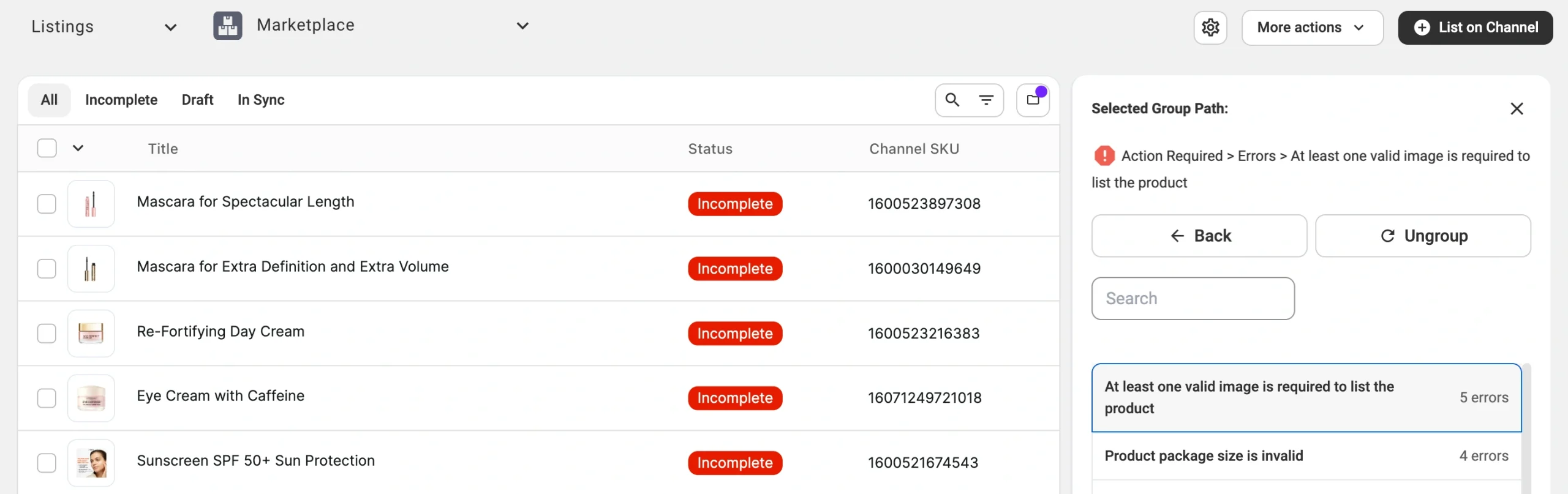
3) Select the affected items.
4) Click Manage Items > List from the actions menu.
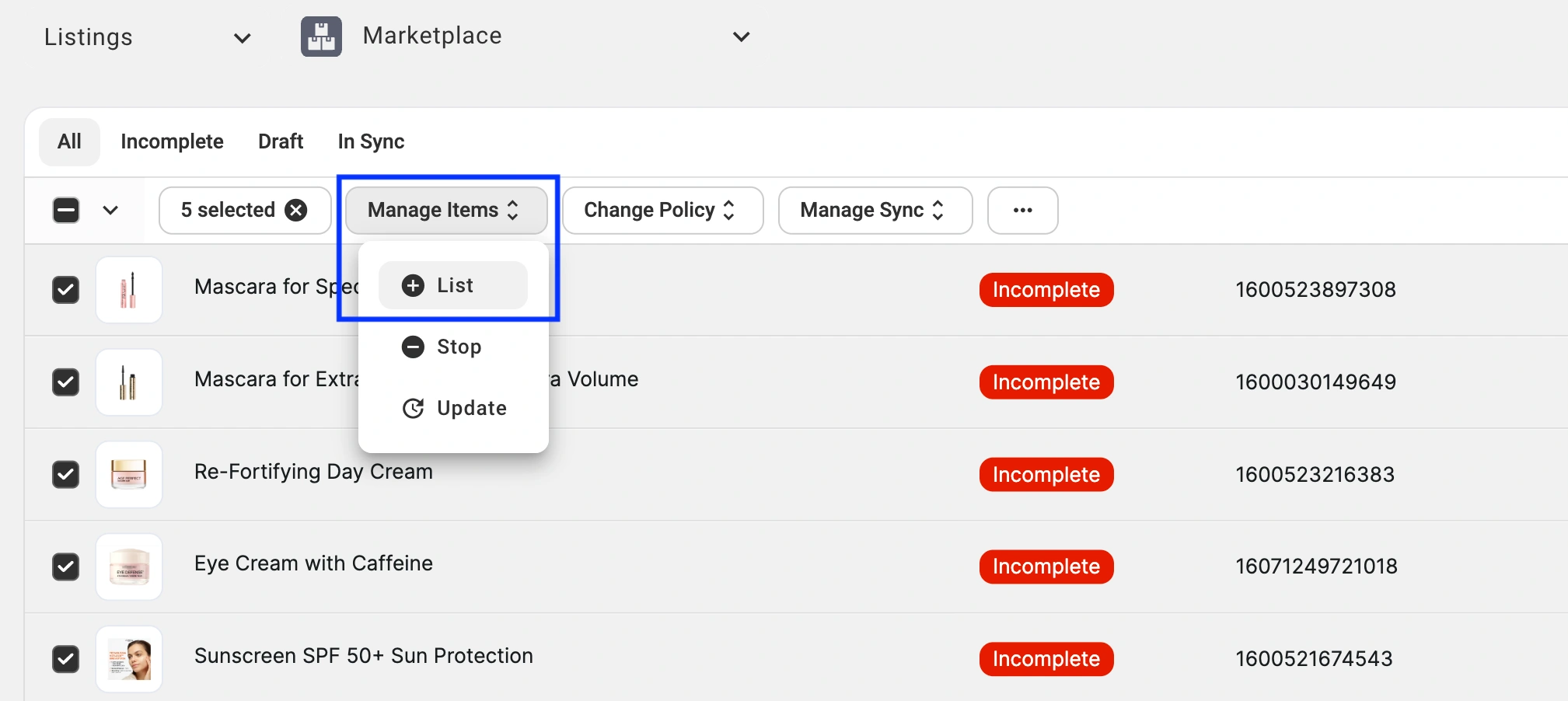
If the product images are valid and publicly accessible, your listings will be created on the marketplace.
✅ If the issue persists after completing these steps, please contact our support team for assistance.


