
- What happens outside M2E Cloud
- What happens inside M2E Cloud
- Requirements before you start
- Connecting MediaMarkt to M2E Cloud
- Once connected: What happens next?
- 1. List new products on MediaMarkt
- 2. Link existing marketplace listings with store products
- 3. Map categories and required attributes
- 4. Configure pricing and currency rules
- 5. Configure order settings and status mapping
- 6. Set up shipping rules and delivery settings
- 7. Monitor listings and resolve issues
- What happens in the marketplace back-end?
- FAQ
This guide shows how to connect, set up, and manage MediaMarkt Marketplace in M2E Cloud.
It explains the key steps in M2E Cloud and outlines how MediaMarkt works as a Mirakl marketplace.
ℹ️ Most of the rules in this guide also apply to other Mirakl marketplaces supported by M2E Cloud.
What happens outside M2E Cloud #
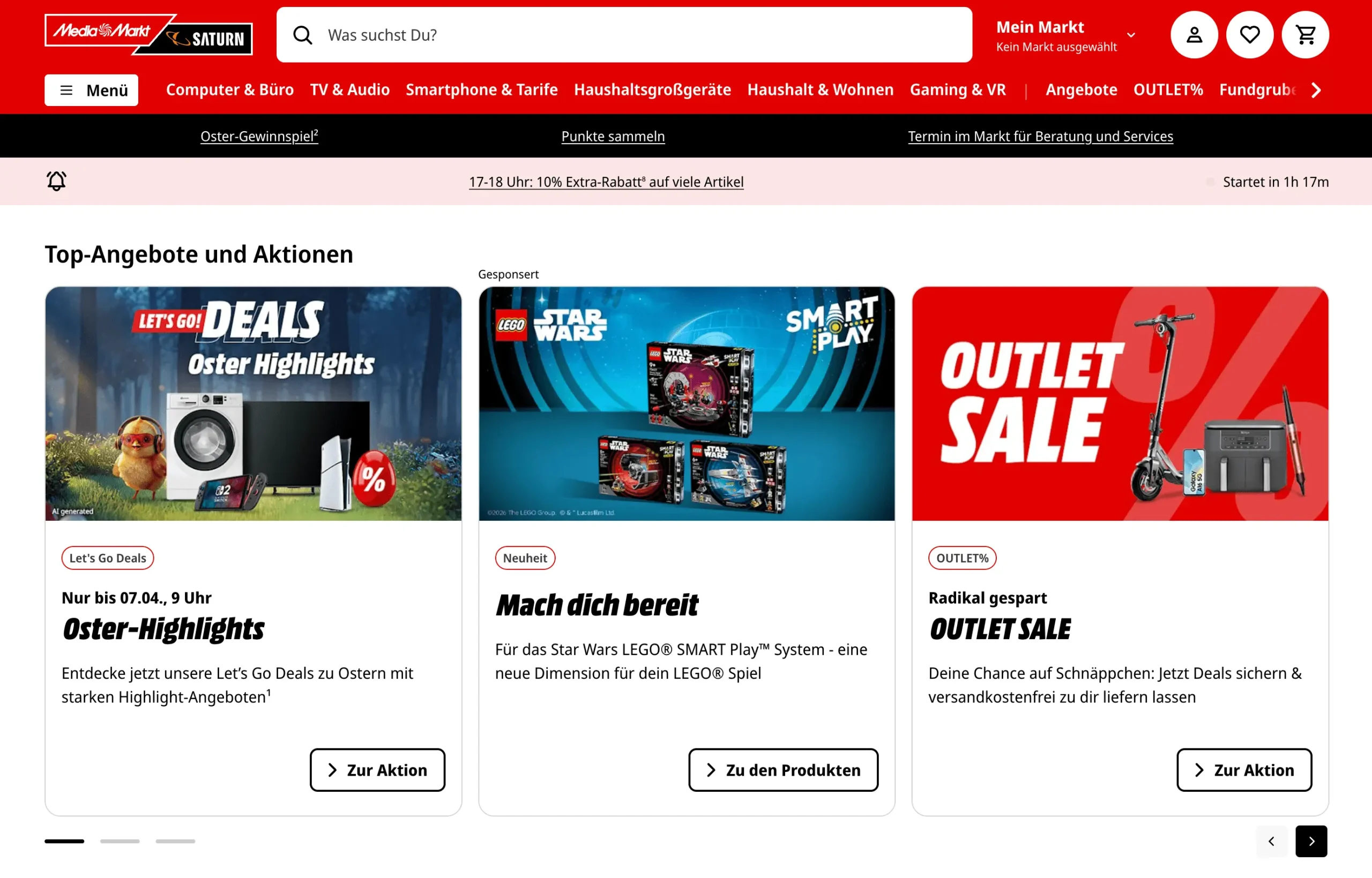
MediaMarkt is a major European retail marketplace focused on consumer electronics, home appliances, and related product categories.
MediaMarkt is part of the MediaMarktSaturn marketplace ecosystem. In M2E Cloud, it is referred to as MediaMarkt for simplicity.
For sellers, it offers access to established demand across several European markets. MediaMarkt operates in country-specific marketplaces, which means sellers usually work with a separate Mirakl shop for each country where they sell.
MediaMarktSaturn marketplaces operate in:
- Austria
- Belgium
- Germany
- Italy
- Netherlands
- Poland
- Spain
- Switzerland
The marketplace is built on the Mirakl platform. This means MediaMarkt follows Mirakl standards for product content, offers, pricing, orders, and shipment updates.
Who MediaMarkt is a good fit for #
MediaMarkt is a good fit for merchants selling:
- Consumer electronics
- Home appliances
- Computer and mobile accessories
- Gaming products
- Media products
- Tech-related home and lifestyle goods
- Selected refurbished products
It is best suited for sellers that already have structured product data, marketplace experience, and the operational capacity to support cross-border sales in Europe.
For mid-sized and enterprise businesses, MediaMarkt can be a strong fit when you want to expand into multiple European markets without building separate local storefronts.
Requesting a MediaMarkt seller account #
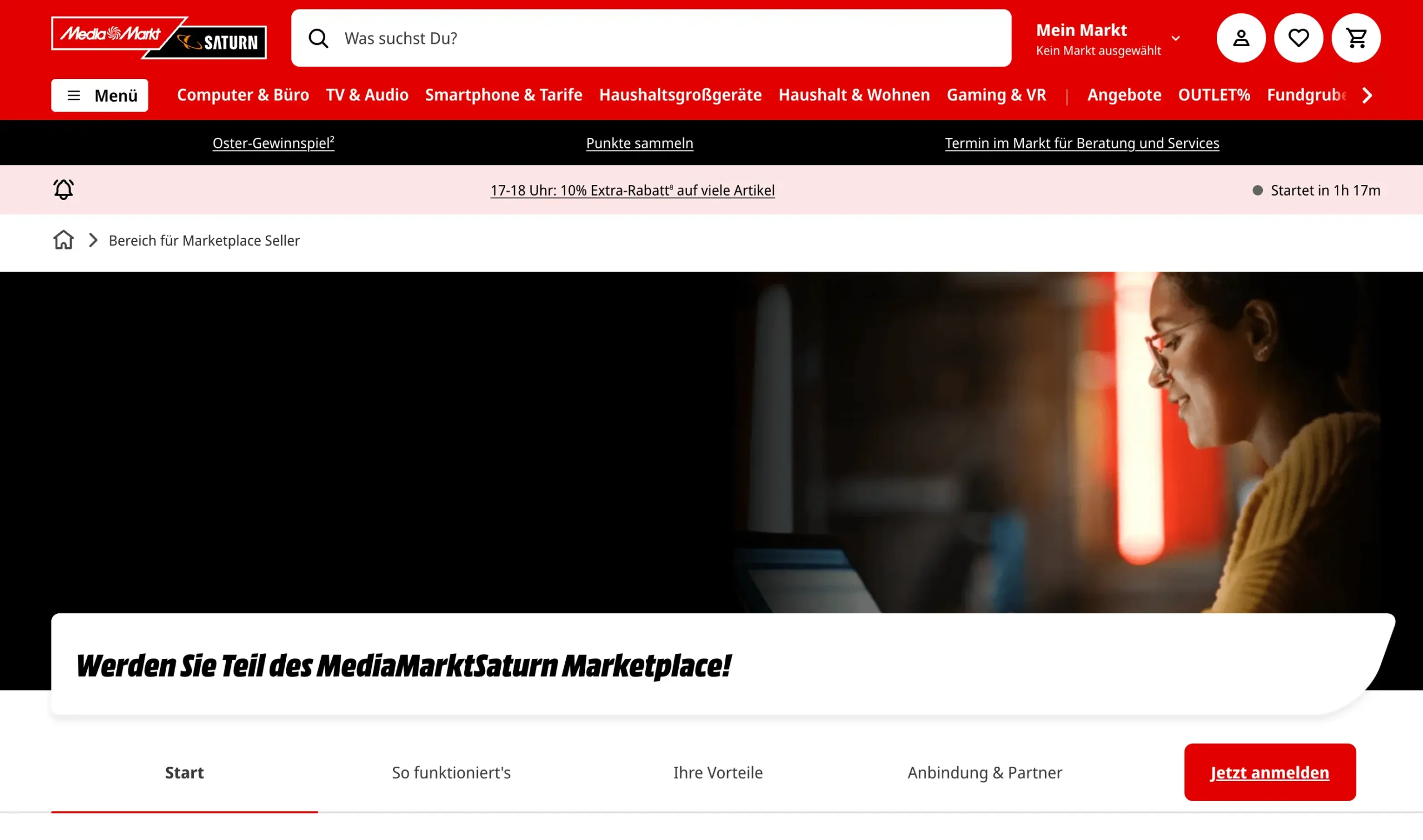
To sell on MediaMarkt, you must apply directly through the MediaMarkt seller onboarding process before you configure the marketplace in M2E Cloud.
Where to apply: Submit your application through MediaMarkt’s seller page.
MediaMarkt is a curated marketplace. This means the marketplace reviews potential sellers before approval and accepts partners that match its category and service requirements.
During the application process, MediaMarkt may request:
- Company and contact details
- EU VAT number
- Product categories you want to sell
- Warehouse and return address in the EU
- Customer service details
- Marketplace performance or ratings on other sales channels
MediaMarkt handles account approval. Timelines may vary depending on category, country, and seller profile.
Once approved, you receive access to the Mirakl back-end. This access is required to connect MediaMarkt to M2E Cloud and manage marketplace synchronization.
ℹ️ MediaMarkt usually provides a separate Mirakl shop account for each country marketplace. If you sell in multiple countries, you may need to manage multiple shop connections.
Fees and commissions to consider #
MediaMarkt uses a marketplace fee model similar to other established Mirakl channels.
- Setup fee: none
- Monthly fee: EUR 39.00
- Commission: 7% to 15%, depending on the category
- Payment schedule: every 1st, 11th, and 21st of the month
The monthly fee and commission cover marketplace access and order processing.
MediaMarkt doesn’t focus on marketplace-managed fulfillment. The merchant remains responsible for pricing, fulfillment, customer service, and operational performance.
What happens inside M2E Cloud #
When you connect MediaMarkt to M2E Cloud, you manage products, pricing, orders, and shipments from one place.
With the Mirakl integration in M2E Cloud, you can:
- Connect MediaMarkt marketplaces using API credentials
- Select and export products from your store
- Map categories, attributes, and offer data
- Set pricing, discounts, and currency rules
- Sync orders, shipments, and stock levels
This section explains how to connect MediaMarkt, prepare your catalog, and control how data flows between systems.
Requirements before you start #
Before setting up MediaMarkt in M2E Cloud, make sure you meet these requirements. Missing any of them can block product exports or order sync.
ℹ️ Make sure your store runs on a supported platform such as Shopify, BigCommerce, PrestaShop, etc. All M2E apps are available in the official app listings. For example, a Shopify Hygi.de integration by M2E requires installing the Shopify app first.
- You must have an approved MediaMarkt seller account
- You must have access to the Mirakl seller portal
- You must have valid API credentials
- Your products must include valid EAN / GTIN codes
- You must meet VAT requirements for the target country
- Prices must be available in the marketplace currency (usually EUR)
💡 If your store uses another currency, enable currency conversion in M2E Cloud.
Connecting MediaMarkt to M2E Cloud #
MediaMarkt is a Mirakl-based marketplace. To connect it to M2E Cloud, you need access to your Mirakl Seller Admin and a valid API key.
Connection steps:
- In M2E Cloud, open Connect Mirakl Account.
- In the Select marketplace section, choose MediaMarkt (select the correct country, and use the Search marketplaces field to find it quickly).
- Log in to your Mirakl Seller Admin and generate or copy your API key.
- Back in M2E Cloud, paste the key into the API key field.
- Enter your Shop ID if you manage multiple shops.
- Click Connect.
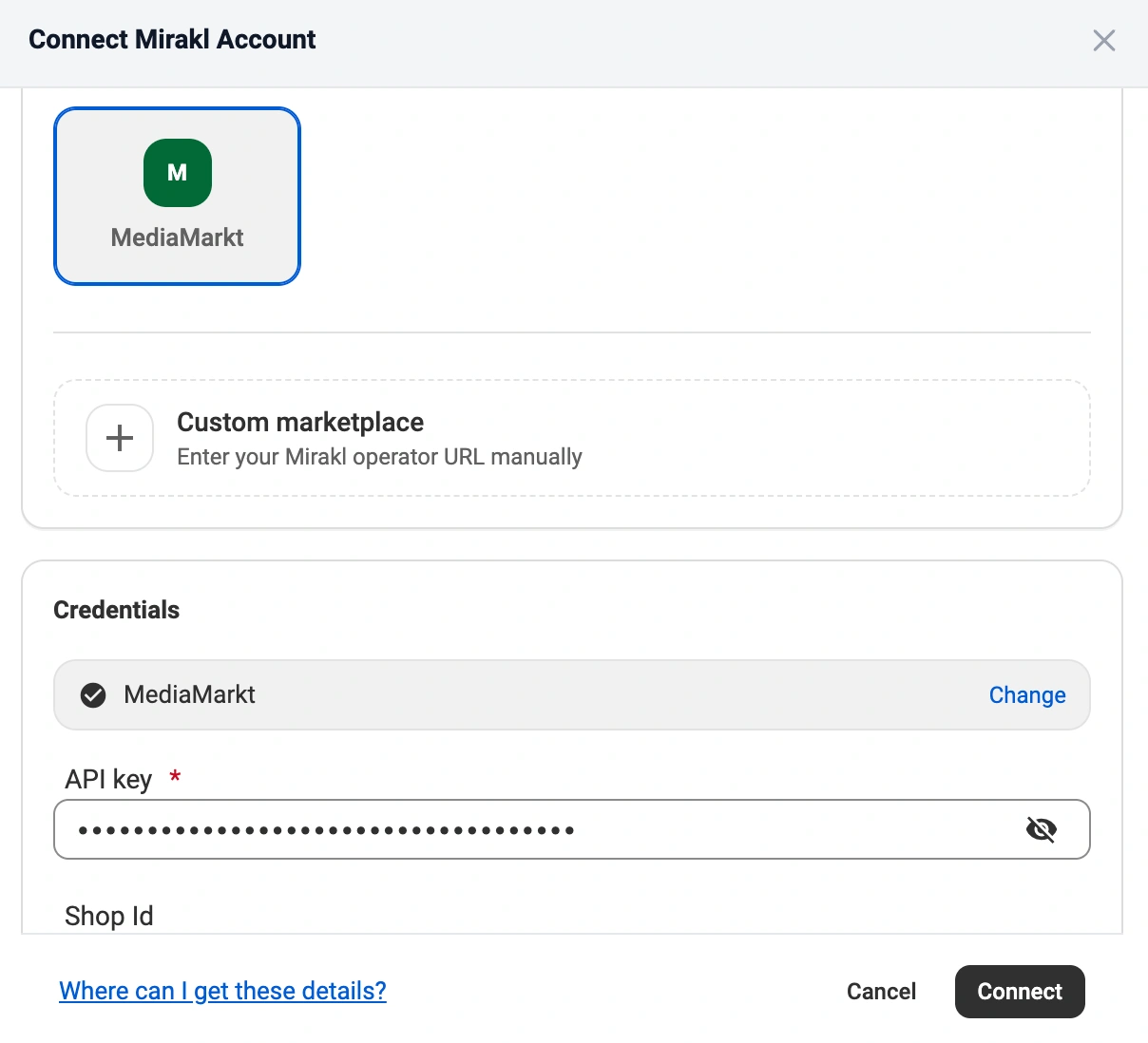
Once connected, M2E Cloud validates your credentials and enables automatic synchronization of products, offers, orders, and shipments.
✅ See the full step-by-step instructions in the M2E Cloud guide on connecting Mirakl marketplaces.
Common connection issues #
If the connection fails, check the following:
- Invalid or regenerated API key
- Missing API permissions in Mirakl
- Account not fully approved
ℹ️ If you update your API key in Mirakl, you must update it in M2E Cloud. Otherwise, synchronization will stop.
Once connected: What happens next? #
After the connection is set, you define how your catalog and orders behave in M2E Cloud.
1. List new products on MediaMarkt #
Select products from your store and publish them to MediaMarkt.
After export:
- Products become active marketplace listings
- Your store controls the price and quantity of the products
2. Link existing marketplace listings with store products #
If your products already exist on MediaMarkt:
- M2E Cloud can match them automatically by SKU
- You can also link them manually using a CSV file
Linking ensures that the correct store product controls each marketplace listing.
This step defines:
- Which MediaMarkt listings are synchronized
- Which stock and price values are updated
3. Map categories and required attributes #
Assign each product to a MediaMarkt category and map all required attributes.
This includes:
- Category selection
- Required attribute mapping
- Category-specific fields
Mapping must be completed before you can export products.
To learn how product data is synced between your store and the marketplace, refer to the Synchronization Policy guide.
4. Configure pricing and currency rules #
Pricing is managed through M2E Selling Policies.
At this stage, you define how your offers behave on MediaMarkt.
This includes:
- Base price source
- Available quantity
- Discount rules
- Currency conversion
You can create multiple policies to support different product groups or markets.
5. Configure order settings and status mapping #
Set how MediaMarkt orders are processed in M2E Cloud and your store.
This controls:
- Whether and when Marketplace orders are imported
- How marketplace statuses map to store statuses
- Shipment confirmation and tracking updates
A clear order setup helps avoid sync errors and status conflicts.
6. Set up shipping rules and delivery settings #
Shipping is managed through shipping policies.
In this step, you define how orders are fulfilled and reported to MediaMarkt.
This includes:
- Available shipping methods
- Delivery handling rules
- Tracking data synchronization
Shipping setup must match marketplace expectations.
7. Monitor listings and resolve issues #
After setup, monitor your listings in M2E Cloud.
Use the Listings page to:
- Track export and validation status
- Identify mapping or pricing errors
- Fix issues without stopping synchronization
💡 Find out more about M2E Multichannel Connect features.
What happens in the marketplace back-end? #
MediaMarkt marketplace features #
MediaMarkt is a Mirakl-based marketplace with a defined set of supported features.
Supported
- Product offers through EAN matching
- Product content
- Orders
- Shipments
- Cancellations
- Merchant-managed returns and refunds
- Product variations
- Carrier mapping
- HTML formatting in product descriptions
- Refurbished products
- Bundles
- Invoice uploads
- Settlements
Not supported
- Marketplace-managed fulfillment services
- Automatic relationships
- Multiple stock locations
Product and offer requirements #
To list products successfully, all required mappings must meet MediaMarkt and Mirakl validation rules.
Product content (mandatory)
- Brand. Use the brand or manufacturer name. The value must match MediaMarkt’s accepted brand list. If your brand is missing, you need to request it from the marketplace.
- EAN / GTIN. A valid 13-digit EAN or GTIN is required.
- Main product image. The main image must meet technical standards, such as a plain white background, a front-facing product image, and others.
- Merchant SKU. Use your internal product identifier.
Product content (optional)
Depending on the category, you may also need or want to provide:
- Additional product images
- Lifestyle images
- Detailed view images
- Product description
- Product title in the target country language
- Manufacturer part number (MPN)
- Energy label and energy datasheet
- EPREL ID
- Nutrition table
Category-specific attributes
MediaMarkt also requires category-based attributes. These vary by product type, but common examples include color, device type, weight, etc.
All values must use valid formats and accepted units.
💡 If you manage multiple Mirakl channels, use M2E Cloud policies and mapping rules to keep product data consistent across marketplaces.
Offer and pricing rules #
Prices sent to MediaMarkt must follow Mirakl pricing logic and be configured correctly in M2E Cloud.
Discounts and promotions
MediaMarkt supports discount pricing, but the rules depend on whether your environment uses Pricing v1 or Pricing v2.
- Pricing v1: Discount price + date fields
- Pricing v2: Strike price (regular) + Price (discounted)
Incorrect pricing can block export or prevent the discount from appearing on the marketplace.
MediaMarkt may also use country-specific price attributes per sales channel. For example, pricing can differ by target market and country.
Shipping, tax, and Mirakl-specific attributes #
Some attributes affect how products are shipped, taxed, and displayed on MediaMarkt.
Common Mirakl attributes
- Lead time to shipment defines how many days pass before the order is shipped.
- Offer state defines the condition of the product.
- Product tax code defines the applicable tax category.
- Minimum quantity alert lets the marketplace notify you when stock drops below a set threshold.
FAQ #
What image requirements does MediaMarkt enforce? #
MediaMarkt applies strict technical rules to product images. If the main image does not meet them, the product may be rejected.
Main image requirements
- Minimum resolution: 1,500 px
- Format: JPG or PNG
- Color mode: RGB
- Plain white background
- Front-facing product view
- No shadows or lighting effects
- No logos, watermarks, or promotional elements
- No incorrect clipping paths or bad cropping
Are there specific rules for product titles in the MediaMarkt marketplace? #
Yes. MediaMarkt expects clean, product-only titles.
Key title rule
- Include only the product name
- Do not add the brand if the brand is already mapped separately
- Do not overload the title with features or marketing phrases
If your source catalog includes brand names in titles, you may need to remove them before export.
Why is my product not listed? #
Most listing issues come from validation problems on the marketplace side.
Common reasons include:
- Missing or invalid EAN / GTIN
- Brand not recognized by MediaMarkt
- Required category attributes aren’t mapped
- Product title does not follow marketplace rules
- Main image does not meet technical standards
- Discount setup is incomplete or invalid
- Wrong export strategy for the listing scenario
- Pricing does not match marketplace rules or currency setup
Start by checking the Listings page in M2E Cloud for export and validation feedback.
✅ Feel free to contact our support team if you have any questions.


