
This guide walks you through setting up the Macy’s Marketplace in M2E Cloud.
It explains the key steps inside M2E Cloud and outlines how Macy’s works on the Mirakl platform.
With M2E Cloud, you can manage complex marketplace operations from one system. This includes large catalogs, automated processes, and synchronized product and order data.
ℹ️ Many of the rules in this guide also apply to other Mirakl marketplaces connected through M2E Cloud.
What happens outside M2E Cloud #
Macy’s is part of a major US retail ecosystem.
It offers a broad range of products, including fashion, home goods, electronics, and everyday consumer items. The marketplace is designed for brands and retailers that can meet high retail standards.
Macy’s is built on Mirakl. This defines how product data, offers, and orders are managed.
Product content must meet strict requirements. Listings are validated carefully, and incomplete or low-quality data may be rejected.

Who is Macy’s a good fit for? #
Macy’s is best suited for sellers with retail-ready product catalogs.
Good fit categories include:
- Apparel and accessories
- Home and furniture
- Electronics and appliances
- Beauty and personal care
- Toys and entertainment products
To succeed at Macy’s, sellers must provide:
- Verified UPCs for all products
- High-quality images
- Clear and structured product content
- Reliable shipping and returns
The marketplace is not ideal for:
- Sellers without US-based operations
- Products without verified identifiers
- Incomplete or inconsistent product data
Requesting a Macy’s seller account #
To start selling on Macy’s, you need to fill in the form on the official website. If you are selected, you will go through a controlled onboarding process.
To qualify, you must have:
- GS1-verified UPC codes
- A US business tax ID
- A completed and signed W-9 form
- A US business address
- US-based warehouse operations
- A UPS account for returns
Macy’s may also review your:
- Product assortment
- Pricing approach
- Fulfillment model
- Operational readiness
After approval, you will receive access to your Mirakl account.
Fees and commercial model #
Macy’s uses a simple commission-based model.
- Setup fee: none
- Monthly fee: none
- Commission: varies by product category
- Payment schedule: twice per month
There are no fixed platform costs. However, Macy’s has strict requirements for product quality, fulfillment, and compliance.
All prices must be provided in USD.
What happens inside M2E Cloud #
M2E Cloud gives you full control over your Macy’s marketplace operations.
You can:
- Send product data and offers to Macy’s
- Manage pricing and stock levels
- Synchronize orders and shipments
- Apply policies to control listing behavior
The platform supports large-scale operations and flexible configuration for different product groups.
Requirements before you start #
ℹ️ Make sure your store runs on a supported platform such as Shopify, BigCommerce, PrestaShop, etc. All M2E apps are available in the official app listings. For example, a Shopify Hygi.de integration by M2E requires installing the Shopify app first.
To connect Macy’s, prepare the following:
- Active Macy’s seller account
- Mirakl API access
- US tax registration
- Prices in USD
- Verified UPCs for each product
- US-based fulfillment and return setup
- UPS account for handling returns
Macy’s requires structured and high-quality product data. Make sure your content meets marketplace standards.
💡 Use currency conversion in M2E Cloud if your base prices aren’t in USD.
Connecting Macy’s to M2E Cloud #
Macy’s runs on Mirakl, so you can connect it to M2E Cloud using your Mirakl account credentials.
Before you start, make sure you have access to Mirakl Seller Admin and a working API key.
To connect Macy’s:
- In M2E Cloud, go to Connect Mirakl Account.
- In the Select marketplace section, choose Custom marketplace.
- Enter the Operator URL for Macy's. To find it, open your Mirakl Seller Admin and copy the base domain from your browser's address bar – only up to the first slash after the domain (for example, https://seller.mirakl.net, not the full path).
- From your Mirakl Seller Admin, copy your API key or create a new one.
- Back in M2E Cloud, paste the key into the API key field.
- Add your Shop ID if you manage multiple shops.
- Click Connect.
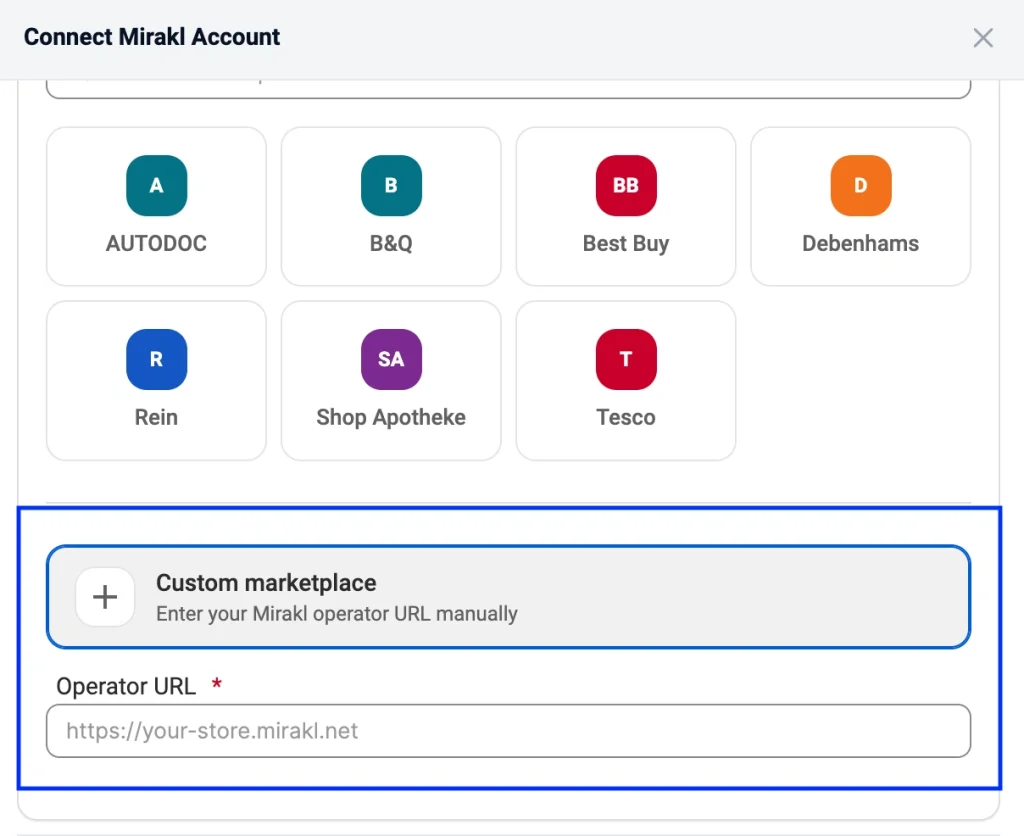
M2E Cloud checks the credentials and creates the connection. Once the account is linked, you can start syncing product content, offers, orders, and shipment data.
✅ For full step-by-step instructions, see the M2E Cloud guide on connecting Mirakl marketplaces.
Common connection issues #
If Macy’s does not connect, review these points:
- The Operator URL is incorrect (use the base domain only, not the full path)
- The API key is invalid or was regenerated (update it in M2E if regenerated)
- Mirakl permissions are incomplete
- The Macy’s seller account is still under review
- The wrong shop was selected
ℹ️ Any time you change the API key in Mirakl, you must also update it in M2E Cloud.
Once connected: What happens next? #
After you connect to Macy’s, you need to set up how your products, pricing, and orders will work in M2E Cloud.
1. List new products on Macy’s #
Select the products you want to sell and export them to the marketplace.
If the product does not exist on Macy’s, you need to send both product content and offer data. After export, the product becomes active on the marketplace, and M2E Cloud can control its price and quantity based on your store.
2. Link existing marketplace listings with store products #
If your products already exist on Macy’s and use the same SKU, M2E Cloud can automatically link them.
You can also link listings manually if needed.
This step is required for synchronization. It defines which store product updates each marketplace listing.
This affects:
- Which listings are synchronized
- Which stock and price values are sent to Macy’s
3. Map categories and required attributes #
Assign each product to the correct Macy’s category and map all required attributes.
You must complete this step before exporting product data.
This includes:
- Category assignment
- Required and category-specific attributes
For more details, check the M2E Sync Policy guide.
4. Configure pricing and promotions #
Pricing is managed through M2E Cloud selling policies.
At this stage, you define how your listings behave.
This includes:
- Base price source
- Quantity available on Macy’s
- Discount rules
- Currency conversion, if needed
M2E Cloud allows you to create flexible policies for different product groups and large catalogs.
5. Configure order settings and status mapping #
Define how Macy’s orders are imported and processed.
This step controls:
- When orders are imported
- How marketplace statuses map to store statuses
- How shipment confirmation and tracking are sent back
Accurate status mapping helps maintain consistent order data across systems.
6. Set up shipping, delivery, and invoice rules #
Shipping is controlled through M2E Cloud shipping policies.
You define how orders are fulfilled and how shipment data is sent to Macy’s.
This includes:
- Shipment handling
- Tracking updates
- Carrier mapping
- Invoice settings
Macy’s may support both auto-generated and merchant-provided invoices, depending on your setup.
7. Monitor listings and resolve issues #
After setup, monitor your listings in M2E Cloud.
On the Listings page, you can:
- Track export and validation results
- Identify content, mapping, or pricing errors
- Fix issues without stopping the integration
💡 Use M2E Cloud policies and tools to manage large catalogs more efficiently.
What happens in the marketplace back-end? #
Macy’s marketplace features #
Macy’s supports standard Mirakl marketplace functionality while also meeting additional retail requirements.
Supported:
- Product content and offer management
- Order processing and cancellations
- Shipment and tracking updates
- Returns handling
- Carrier mapping
- Invoice configuration
- Settlement reporting
Not supported:
- Marketplace-managed fulfillment
- Repricing tools
- HTML content
- Multi-location stock
- Product bundles
Product and offer requirements #
Macy’s expects structured and high-quality product data.
Required product data:
- Product name (50–70 characters, brand included)
- Description (plain text, up to 1,000 characters)
- Main image (minimum 1000 × 1000 px, white background)
- UPC (GS1 verified)
- Brand and country of origin
- Key features (bullet points)
- Product dimensions and weight
- NRF codes for color, size, and tax
Images must be clear and accurate. Incorrect or missing data will prevent listing.
Offer, pricing, and promotion rules #
Pricing is controlled through Mirakl rules.
Base price:
- Must be in USD
Discount rules:
- Discount must be lower than the base price
- Dates must be valid
- Bulk pricing requires quantity thresholds
Some promotion types, such as strikethrough pricing, may need to be configured directly in Mirakl.
Shipping, tax, and Mirakl-specific attributes #
Shipping and tax behavior depend on mapped attributes.
Key fields:
- Lead time to shipment
- Product tax code (NRF)
- Logistic class
- Minimum stock alert
Additional notes:
- Packing slips are required for all shipments
- Returns are processed through UPS
- Tracking data must be valid and complete
FAQ #
Why was my product rejected at Macy’s? #
Rejections usually happen because of invalid or incomplete data.
Typical issues include:
- Missing UPC codes
- Incorrect or missing attributes
- Image quality problems
- Invalid product titles or descriptions
- Missing NRF codes
Check your product data and ensure all required fields are complete before re-exporting.
Where can I check Macy’s validation errors? #
You can find validation errors in:
M2E Cloud:
- Listings page
- Export and validation results
Mirakl back-end:
- Go to Catalog → Product imports
- Open the latest import
- Download the error report
Marketplace-side reports often provide more detailed feedback.
✅ Need help with Macy’s setup? Our support team is here to assist you.


