
This guide will walk you through the process of creating new listings on Walmart US marketplace via M2E Multichannel Connect.
💡 Watch a video tutorial on how to create new listings on Walmart.
Step 1. Start a new listing #
Navigate to the Listings tab. Select your Walmart account, then click List on Walmart in the top-right corner of the page.

Step 2. Define listing settings #
Configure the M2E Policies for your listings, including the settings for pricing, quantity, and synchronization with Walmart. Policies are saved as reusable templates, so a Policy you create here can be assigned to future Walmart listings.
You can select existing Policies or create new ones.

With Selling Policy, you can set the price and quantity settings for your Walmart listings.
Synchronization Policy defines which product changes in your store M2E sends to Walmart after the items are listed.
Shipping settings #
Specify Shipping Template and Warehouse for your listings. This information isn't required to create a listing, but Walmart recommends providing it, so buyers see accurate delivery details.
Select from the shipping templates and warehouses created in your Walmart Seller Center. Click Refresh list to update and load the latest data from Walmart.
To create a new shipping template, click + Create New and set it up in Walmart.
ℹ️ Walmart treats the Shipping Template and Warehouse as linked settings. Make sure to set both so Walmart can correctly calculate delivery options and shipping rates.
Product ID settings #
In the Barcode Source section, specify how the product identifier (GTIN, UPC, etc.) should be provided. By default, M2E uses the barcode from your store's product data, but you can switch to another attribute or enter the value manually.
Select GTIN Exempt as the Barcode Source in these cases:
- Approved GTIN/UPC exemption. Walmart has approved a GTIN/UPC exemption for the Product Type of your items. Request the exemption in your Walmart Seller Center, then turn on the GTIN exemption toggle for the Product Type in M2E once approved. See step 5 of this guide for details.
- Categories without barcode match. In some Walmart categories, barcode match doesn't work. They include Trading Cards, Trading Card Games, Autographed Collectibles, Collectibles Ephemera, Coins, Comics, and others. For these products, you need to assign the Product Type and fill in the attributes in M2E Listing Validator Assistant (see step 5).
⚠️ Walmart uses product identifiers to match items with its catalog. Without a valid GTIN/UPC, a product can be listed only as GTIN Exempt.
Step 3. Select products to list #
Select Simple or Variational items from your store to list on Walmart. The product grid opens in the Ready to List view. It includes items that aren't listed on Walmart yet and have available stock and a valid price.
Use search and filter options to find products by price, quantity, category, or other parameters. You can save frequently used filter combinations as custom views to reopen them later.
To combine products from different filter results and pages into one selection, use the Batch tool.

List variations as separate items. By default, M2E lists a product with variations as one variational item on Walmart. To list its variations as individual Simple items instead, switch to Inventory View Mode at the bottom of the page and select the variations you need. Use this mode when:
- Variant options of your product don't match any of Walmart’s variant attributes for the Product Type.
- Walmart category doesn't support variational items.
Once all the items are selected, click List Now. M2E starts validating the products for listing on Walmart.
If you prefer not to list items immediately, click Save As Draft. Your items will be stored as drafts on your Walmart Listings page.
✅ To publish draft listings later:
1) Go to the Walmart Listings page.
2) Filter products by the Draft status.
3) Select the items to publish.
4) In the mass actions menu, click Manage Items > List.
⚠️ If you try to sell a product listed as Draft in your store, it won't appear on Walmart and will be marked as Incomplete. Updating the product's status in your store to Draft or Hidden will deactivate the marketplace listing without deleting it.
To make the product available on the marketplace again, change its status back to Active in your store.
Step 4. Validate the listing data and match Walmart items #
When you click List Now, the M2E Listing Validator Assistant checks every selected product. It reviews the product data against Walmart requirements and uses the barcode from the Barcode Source to search the Walmart catalog for a matching item.
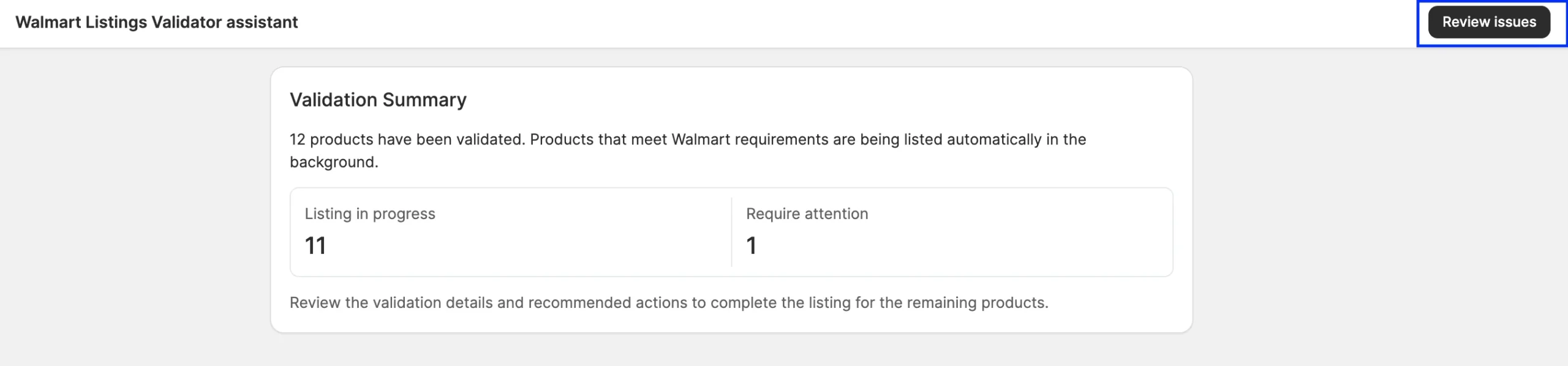
The Validation Summary shows the result for the selected products:
- Listing in progress – Products that passed the check and are being listed on Walmart.
- Require attention – Products that need your input before they can be listed on Walmart, such as missing data or a Product Type for a new item.
To review the products that require attention and resolve the issues:
1) Click Review issues to open the Resolution Guide. Issues are grouped by the setting they relate to.
2) For each issue, click Recommended action to apply the suggested fix. To choose a different solution, click the arrow next to the button.

3) When all issues are resolved, click List Now. Walmart will review listings before they go live.
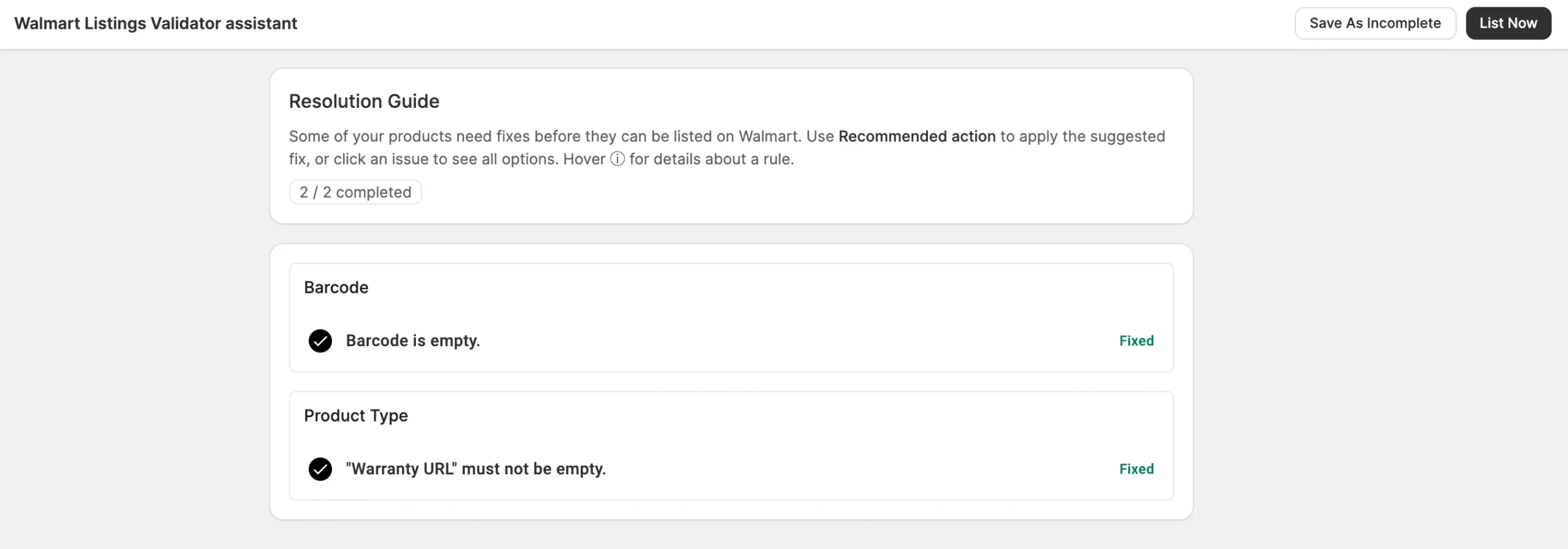
If you aren't ready to fix all issues now, click Save As Incomplete. The products get the Incomplete status and stay in M2E without being sent to Walmart.
To return to them later, filter the Walmart Listings page by Incomplete status and select the products. Then, click Manage Items > List from the mass actions menu.

How M2E matches your products to Walmart items #
M2E Listing Validator Assistant checks each product’s barcode and searches the Walmart catalog for a matching item. Depending on the result, the product is listed right away or goes to Require attention:
- Matching item found. M2E adds your offer to the existing Walmart item and sends your price, quantity, and shipping settings. The item content comes from the Walmart catalog, so no Product Type or attributes are needed.
- No matching item found. The product goes to Require attention. To create it as a new item on Walmart, M2E will prompt you to assign a Product Type and attributes (see step 5).
- GTIN Exempt selected. If you selected GTIN Exempt as the Barcode Source in step 2, M2E skips the barcode match. The product goes to Require attention, and you set it up as a new item (see step 5).
- Invalid or empty barcode. The issue appears in the Barcode group of the Resolution Guide. Click Specify Barcode to choose another source for the barcode. If Walmart has approved a GTIN/UPC exemption for the category, select Apply GTIN exemption instead, then set the product up as a new item (see step 5).

Step 5. Set up new items on Walmart #
Products that have no match in the Walmart catalog, or are listed as GTIN Exempt, are created as new items. You can set them up in M2E Listing Validator Assistant: assign a Walmart Product Type, then fill in its attributes.
Select Walmart Product Type #
Choose a Walmart Product Type that suits your products best.
The Product Type defines which attributes Walmart requires to set up a new item. You can select a previously used type or search manually by name or ID. Once selected, save the changes.
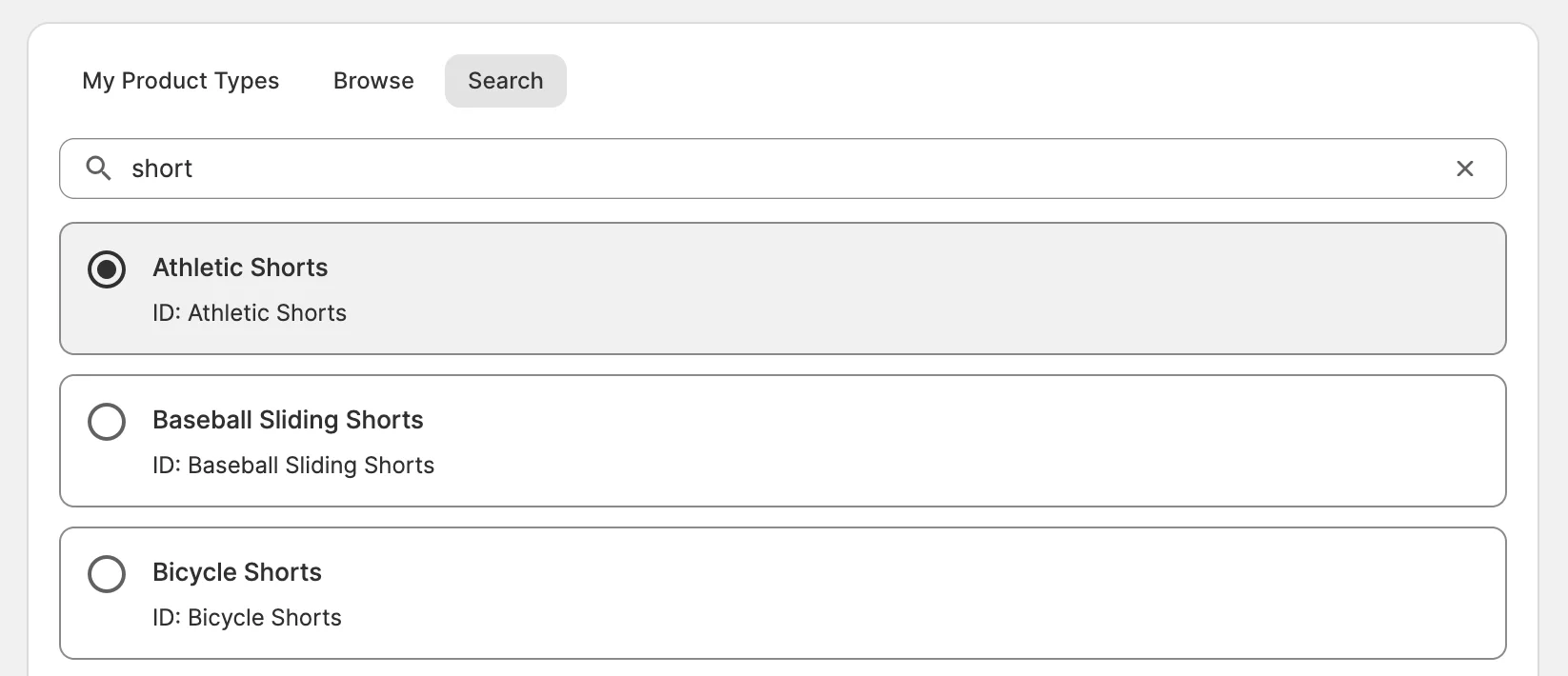
ℹ️ When creating a listing, you add it to the root category, and Walmart assigns the subcategories automatically.
✅ M2E saves a template the first time you set attributes for a Product Type. If you've already set up items with the same Walmart Product Type, select its saved template to prefill the attributes.
To edit saved templates, go to Settings > Categories/Product Types.
Define attributes #
Once you have selected the Product Type, set the required and recommended attributes.
Required attributes must have values filled in before Walmart accepts the listing. Recommended attributes are optional, but Walmart uses them in search filters and on the item page.
For each attribute, select where its value comes from:
- Store or Catalog data – a product field, custom field, or M2E Catalog attribute that already contains the value.
- Walmart value – a value from the predefined list that Walmart provides for the attribute.
- Custom value – a value you enter manually.

Reuse your attribute setup. If an attribute takes its value from store data, M2E will offer to save this link as a global attribute mapping. If you save the mapping, it will be applied whenever the same attribute appears in another Walmart Product Type.
✅ When defining attributes, you can also set up Walmart multi-container attributes, which allow you to provide more detailed product information. For example, if you sell clothing, you can use these attributes to define the fabric types and their percentages in your product.
Multi-container attributes give Walmart more data to match your items with filtered searches, since customers often search using precise criteria.
If Walmart has approved a GTIN/UPC exemption for the Product Type, turn on the I have a GTIN exemption for this Product Type toggle when setting the Product Type attributes. This confirms that you are allowed to list products in this Product Type without a UPC, EAN, ISBN, or GTIN.

Once the Product Type and attributes are set, you will be redirected to the Resolution Guide. Click List Now to submit the new items to Walmart (see step 4).
Walmart reviews the product information. If approved, Walmart creates a new item with its own WPID and item page in the Walmart catalog.
Need help? #
If you have questions about listing products on Walmart, contact the M2E support team.


