
This guide describes how to create eBay listings from your store products in M2E Multichannel Connect.
💡 Watch a video tutorial on how to list new items on eBay.
Step 1. Start a new listing #
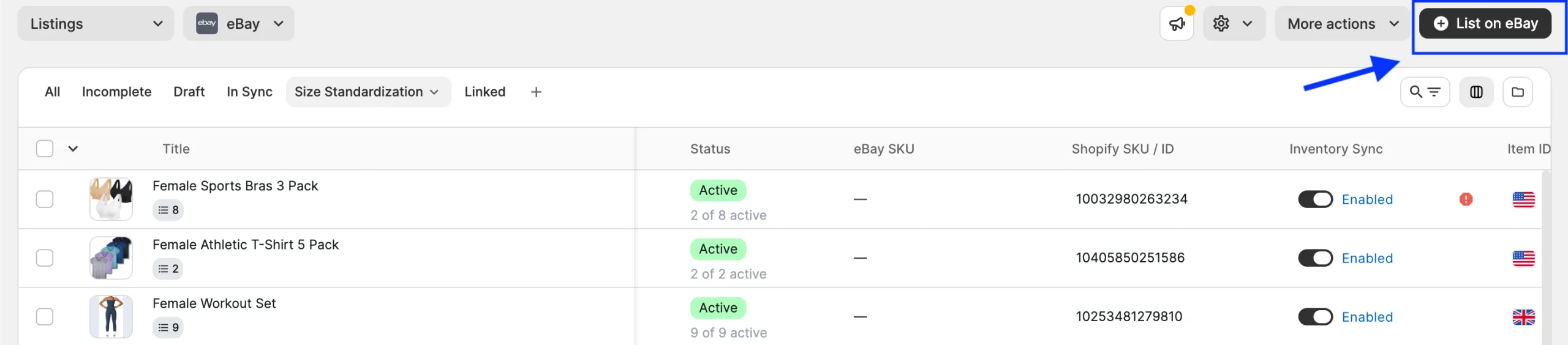
Navigate to the eBay Listings page. Click List on eBay in the top right corner of the page.
Step 2. Choose an eBay marketplace #
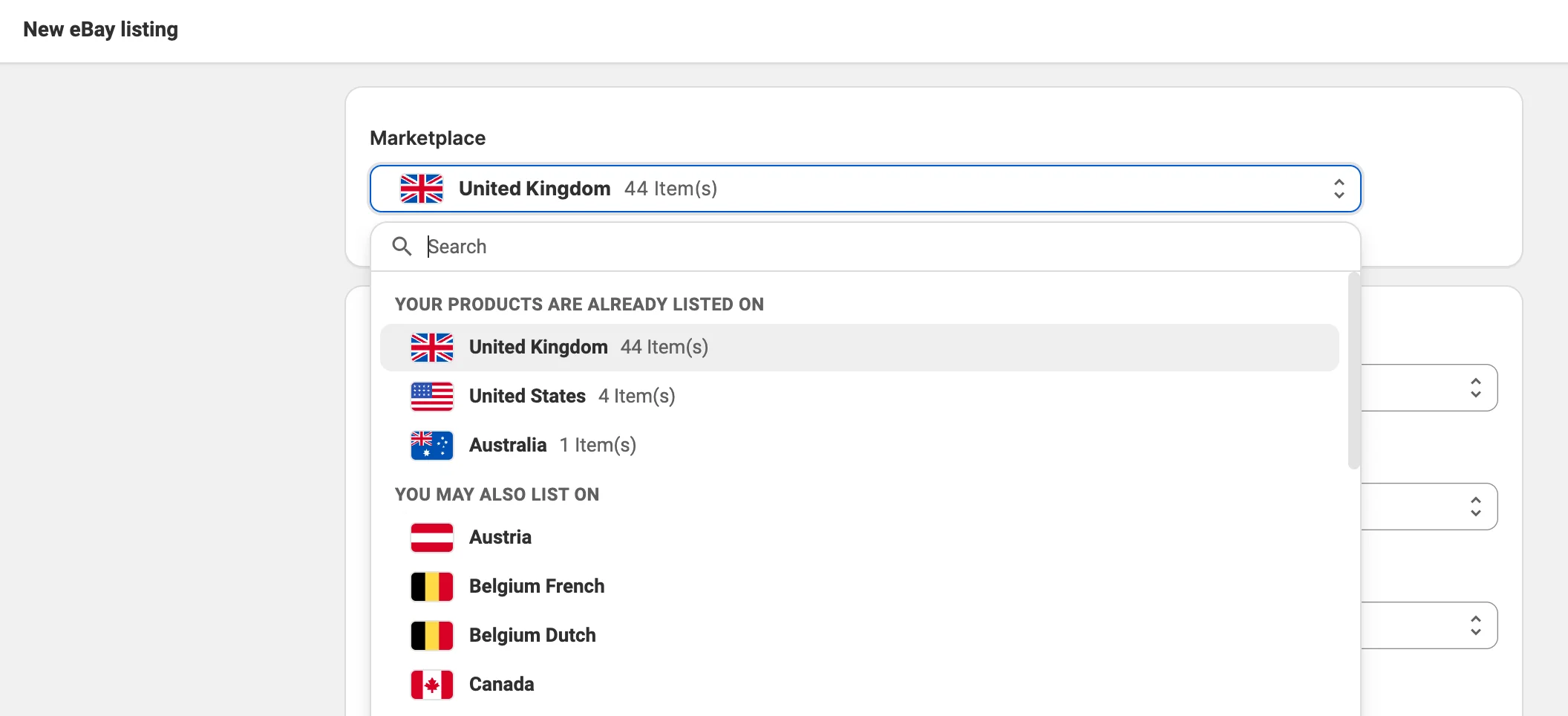
Each eBay site, such as eBay.com, eBay.co.uk, or eBay.de, is a separate marketplace with its own categories, item specifics, and fees. Select the marketplace where the products will be listed.
Step 3. Assign listing policies #
Set the Policies for your products. A Policy is a reusable template with the settings required to list and sell items on eBay. Once saved, it can be assigned to any number of listings.

- Define your preferred listing type, whether it's an auction or a fixed price.
- Configure pricing, specify the VAT, and select the source for quantity information.
- Define which product changes in your store M2E sends to eBay after the items are listed.
- Choose the eBay Condition Type for your products.
- Set the source for product titles and descriptions.
- Optionally, select a custom color theme for your listings.
⚠️ eBay Condition Type can only be established during the initial listing creation and cannot be modified once the listing is live.
- Define the delivery options for your items and the conditions under which buyers can return them.
Once Policies are set, click Next.
Step 4. Select products to list #
The products you can list right away appear in the Ready to List view. These are products from your store that aren’t listed on eBay and have available stock and a valid price.
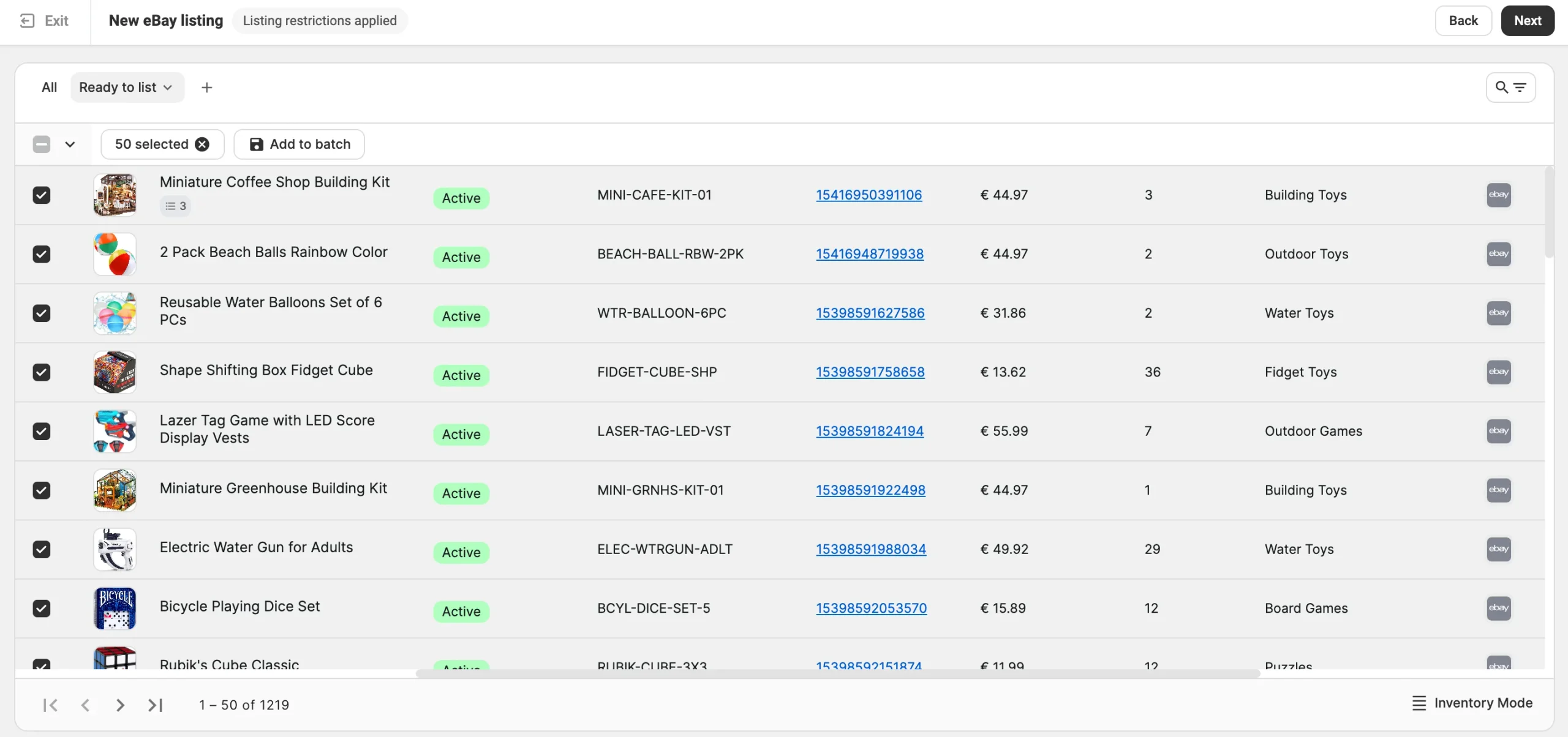
Use search and filters to find products by title or SKU, and additional parameters, such as price, quantity, category, and more. A filter combination can be saved as a custom view and reopened later.
If the products you want to list don’t appear in a single search or on one page, add them to the Batch tool. It keeps all added products in one list for publishing on eBay.
✅ Start with a batch of a few products to test your policies, categories, and item specifics. When these listings go live without errors, list the rest of the catalog on eBay with the same settings.
List variations as separate items. M2E lists a product with variations as one multi-variation listing. To list selected variations as standalone items instead, switch to Inventory View Mode at the bottom of the page and select those variants. M2E will list each of them as a Simple product.
Once you select the products, click Next.
Step 5. Set eBay categories #
Every eBay listing needs a primary category. You can assign it in one of three ways:

- Auto-Assign Recommended Category – Click Get recommended categories to have eBay suggest a category based on your product details. The suggestion appears in the purple category box, where you can accept it or change it.
- Map Store categories to eBay categories – Use your store categories to assign eBay categories automatically. Set the mappings up once and they carry across listings. Check out the category mapping guide for more information.
- All Products same Category – Choose a single eBay category manually for the whole batch. Ideal when all selected products fall under the same store category.
Step 6. Fill in item specifics #
Item specifics are the category attributes eBay uses for search filters and product details. They fall into three groups:
- Required – Must be filled in before the item can be listed.
- Recommended – Optional. eBay uses them in search filters, so items without them may not appear in filtered searches.
- Product Safety – Optional product safety and compliance details that eBay requests for certain categories or marketplaces.
- Custom – Optional specifics you add for details that eBay doesn’t cover.
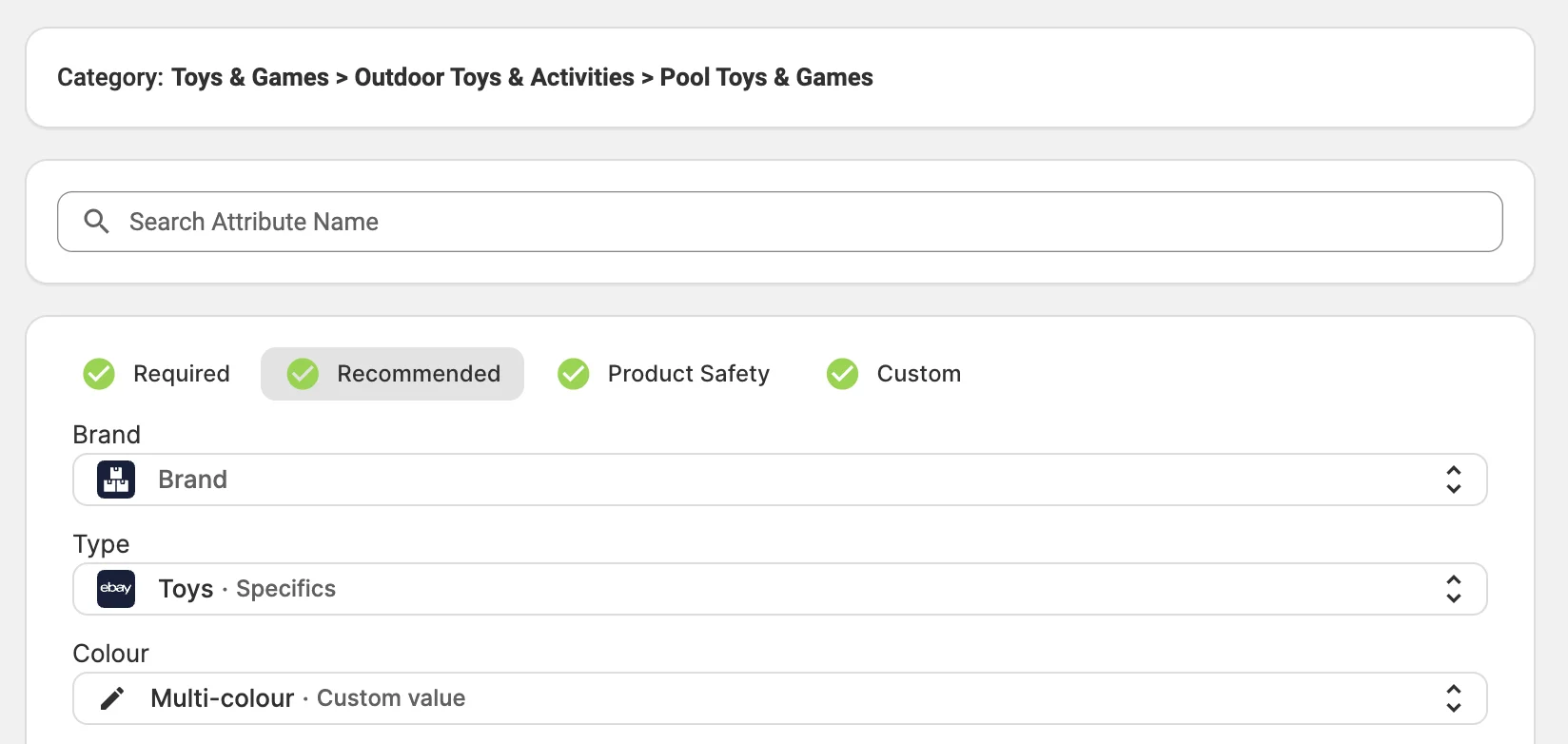
For each item specific, select where its value comes from:
- Store or Catalog data – Use this source when your products already contain the value. Select a store attribute, a metafield, or an M2E Catalog field.
- eBay recommended values – Use this source when eBay offers a predefined set of values for the specific. Pick one of the suggested values.
- Custom value – Use this source when the value isn’t in your product data or the eBay list. Enter the value manually.
ℹ️ The selected source must return a value for every product in the batch. An empty required specific blocks the listing.
Saved item specifics for future listings. The first time you list in an eBay category, M2E stores its item specifics as a Category Policy, so the next batch in that category can start from the saved values.
When you link an item specific to store or catalog data, M2E may also offer to save the link as a global attribute mapping. After you confirm it, M2E selects the same source wherever this item specific appears in other categories.
✅ If an item specific needs data that your store products don’t have, create a custom attribute in M2E Catalog. You fill in a custom attribute once for each product, and M2E uses that value whenever the product is listed on eBay.
Step 7. Publish your listings on eBay #
Before you publish listings, you can optionally place the items in more categories. Under each category group, click Add Additional Category and select:
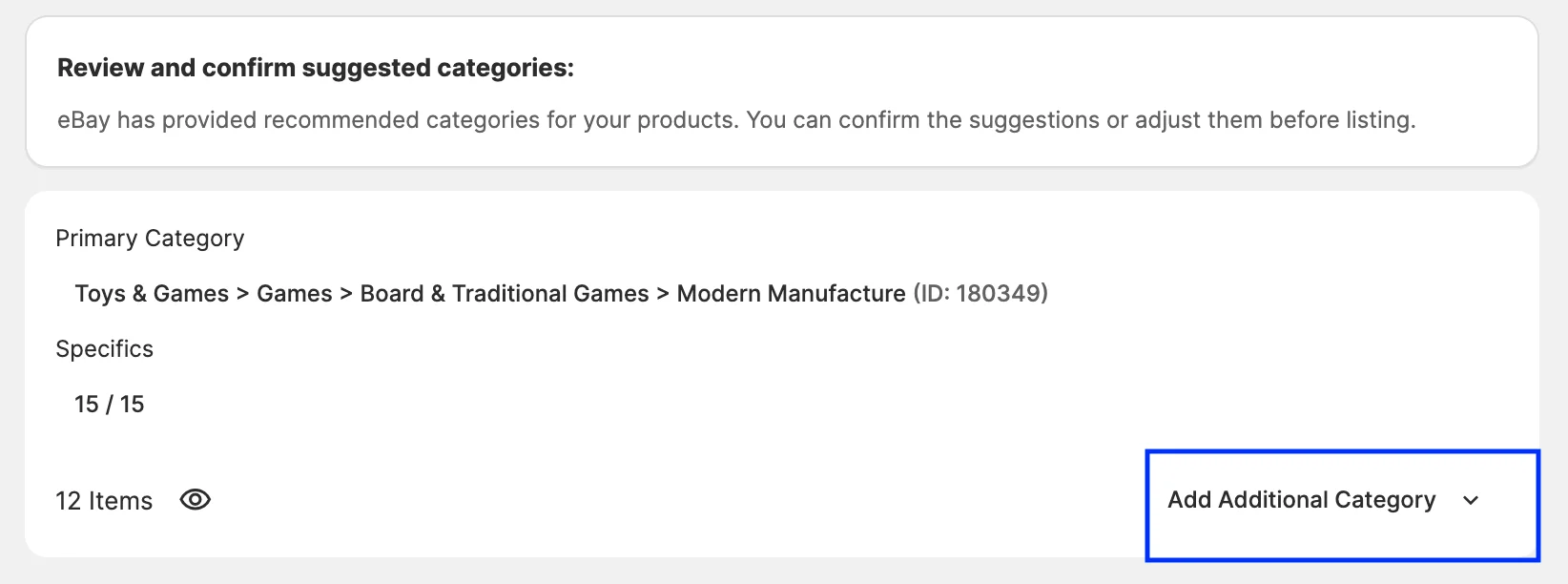
- eBay Secondary Category – Places the item in a second eBay category in addition to the primary one, so buyers browsing either category can find it. eBay charges additional fees for this.
- eBay Store Categories – Places the item in primary and secondary categories of your eBay Store. Available only with an eBay Store subscription.
When the categories and specifics are set, click List Now. M2E will validate the products and publish the ones that pass validation on eBay.
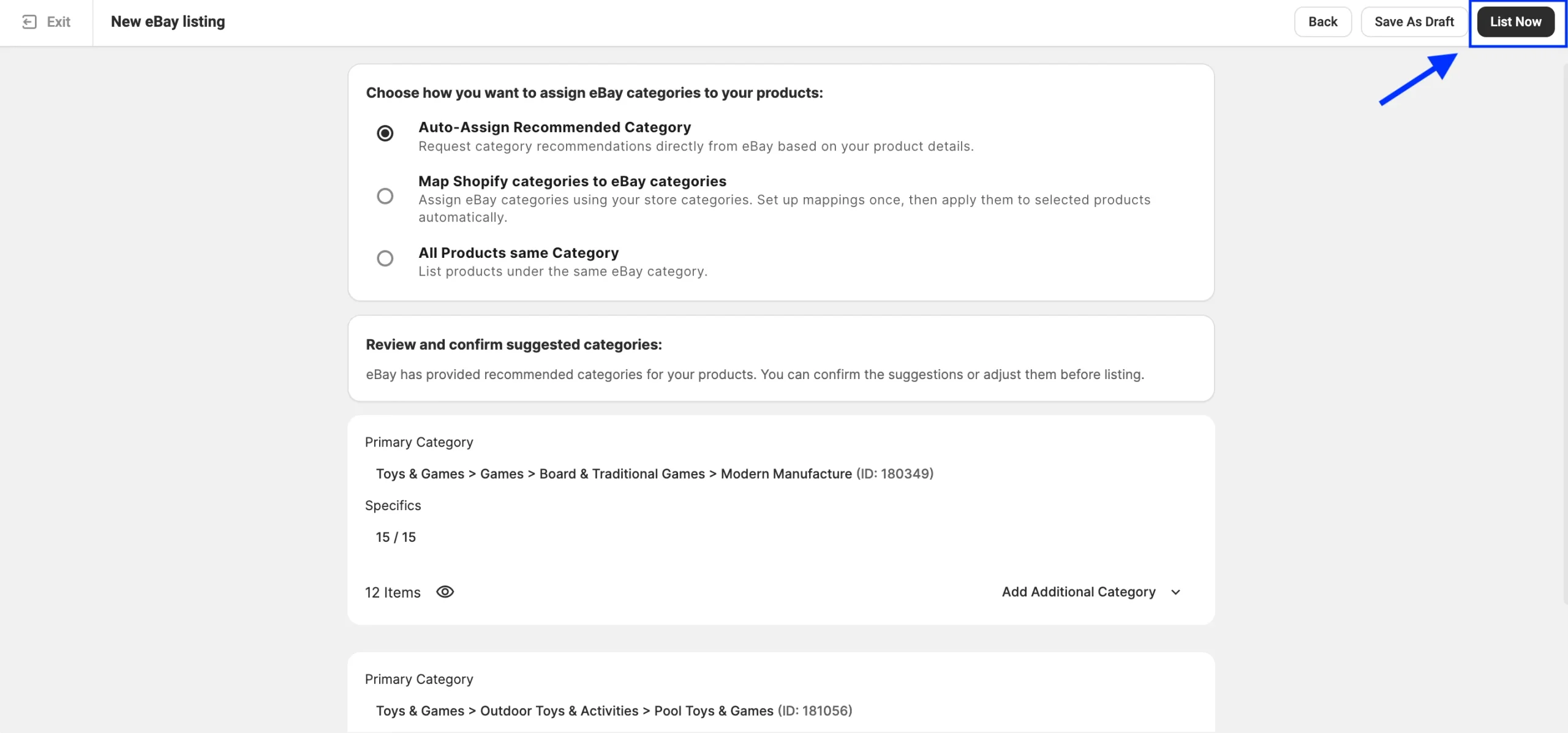
Click Save as Draft to keep the listings in M2E without publishing them.
✅ To publish draft listings later:
1) Go to the eBay Listings page.
2) Filter products by the Draft status.
3) Select the items to publish.
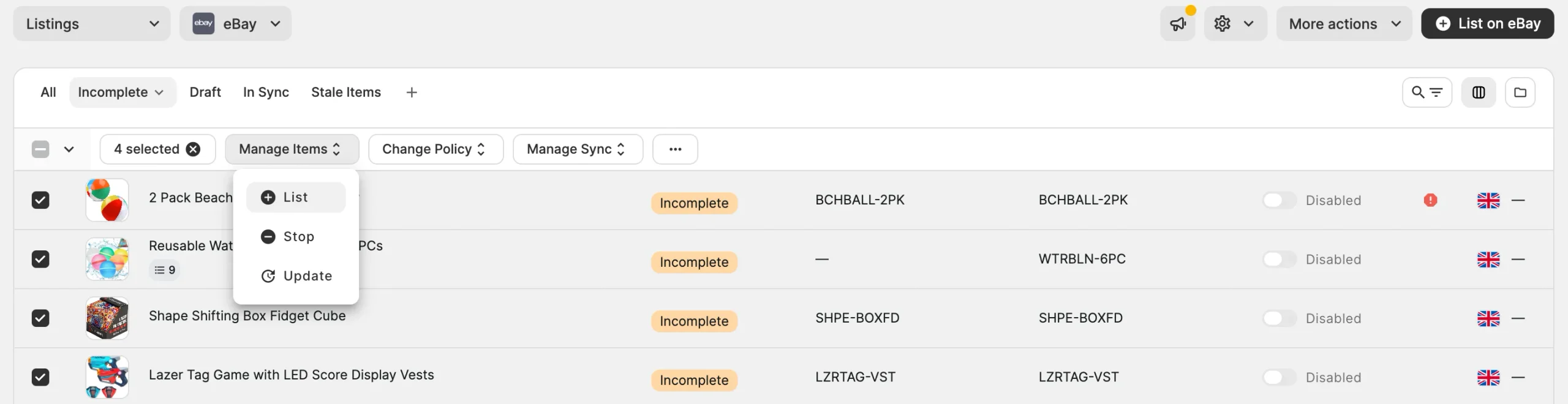
4) In the mass actions menu, click Manage Items > List.
⚠️ If you try to sell a product listed as Draft in your store, it will not appear on eBay and will be marked as Incomplete. Updating the product's status in your store to Draft or Hidden will deactivate the eBay listing without deleting it.
To make the product available on eBay again, change its status back to Active in your store.
Step 8. Resolve validation errors #
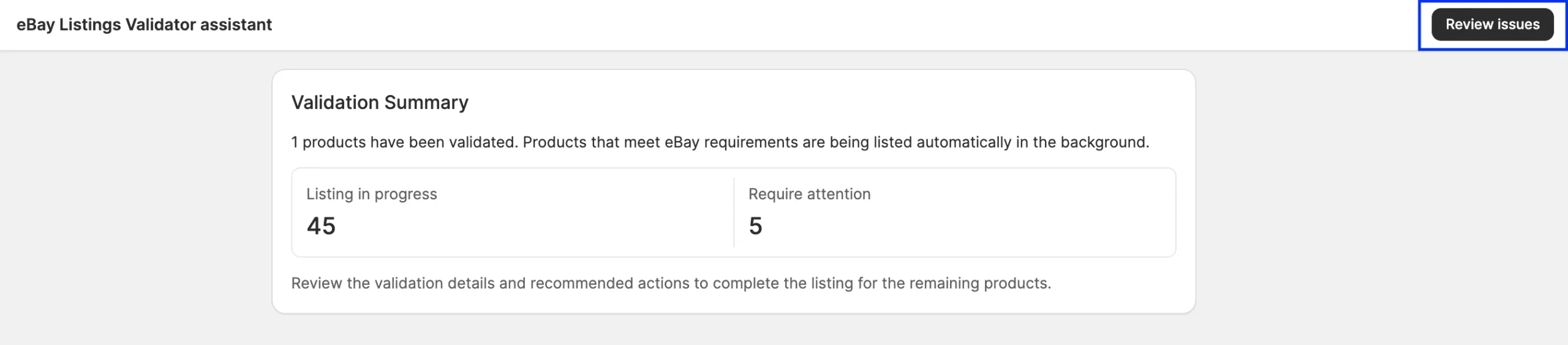
When you click List Now, the M2E Listing Validator Assistant checks each selected product against eBay requirements.
The Validation Summary shows the result for the whole batch:
- Listing in progress – Products that passed the check and are being listed on eBay.
- Require attention – Products that weren’t listed because some of their data is missing or invalid.
To list the products that require attention:
1) Click Review issues.
2) The Resolution Guide shows the details of the issue and what needs to be fixed.
3) For each issue, click Recommended action to apply the suggested fix. To choose a different fix, click the arrow next to the button.
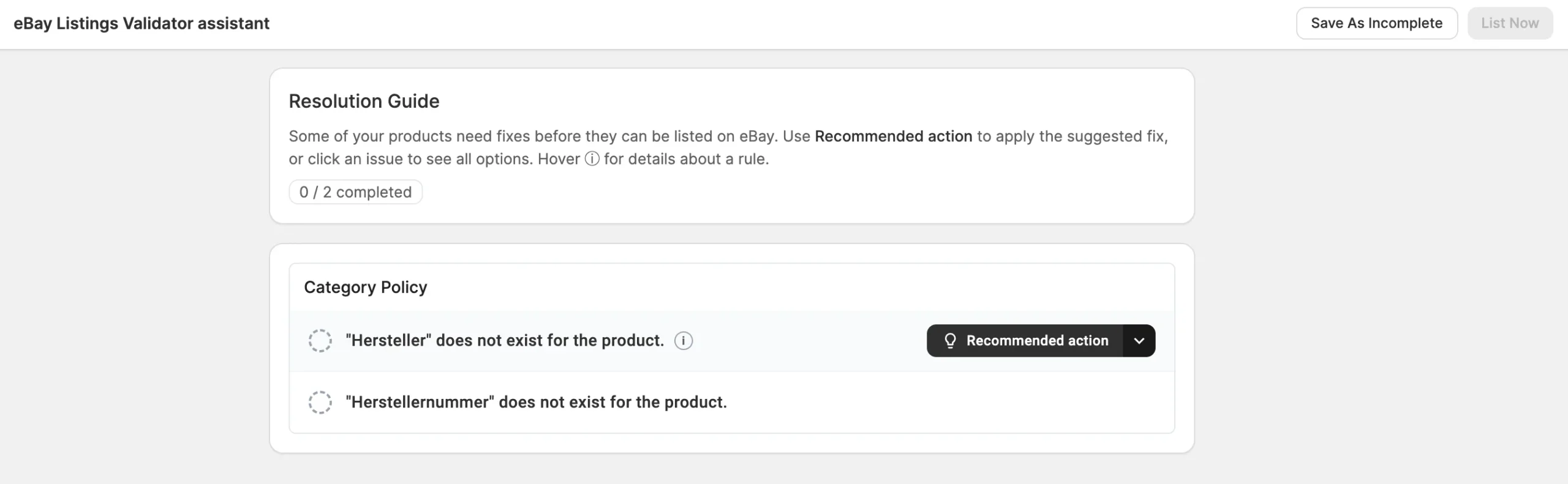
4) After you resolve each issue from the list, click List Now.

If you cannot fix all issues now, click Save As Incomplete. M2E saves the products with the Incomplete status and doesn’t send them to eBay.
To return to these products later, go to the eBay Listings page and filter it by the Incomplete status. Select the products and click Manage Items > List in the mass actions menu. The Listing Validator Assistant opens again and shows the remaining issues.
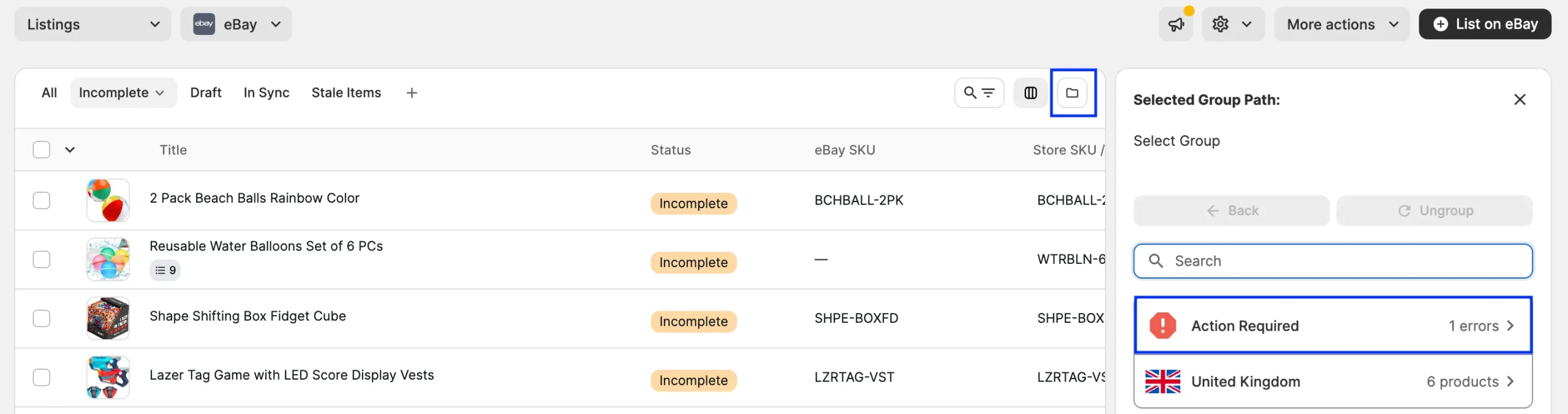
Validation covers the most common eBay requirements, but eBay runs its own checks when it receives a listing. Listings that fail these checks appear in the Action Required group on the eBay Listings page, along with the error details and suggested ways to fix them.
Need help? #
If you have questions about listing products on eBay, contact the M2E support team.
Helpful Resources
- How to open a successful store on eBay with M2E Cloud?
- How to sell internationally on eBay | 5 tips from M2E Cloud


