
M2E Multichannel Connect allows you to list products from your store as multi-quantity or variational listings on eBay. Follow these steps to set up such listings.
Step 1. Access eBay items #
Navigate to the Listings tab in M2E Multichannel Connect. Select your eBay account and click List on eBay to start creating listings.

Step 2. Select a marketplace #
Choose the appropriate eBay marketplace so your listings will appear in the correct region.

Step 3. Configure policies & quantity settings #
Set up M2E Policies, which define how the products from your store are listed and managed on the marketplace.

Pay extra attention to the Selling Policy. Make sure that you select Fixed Price instead of Auction (as multi-quantity listings are not allowed in auctions).

In the Quantity section of your Selling Policy, click Add Quantity Modification to choose how much stock to display:

- Reserve stock: List only part of your store’s inventory on eBay.
- Keep on Channel: Display a lower quantity on eBay to create urgency.
- Zero Stock Selling: Keep eBay listings active even when stock reaches zero (backorders).
- Sell in Lots: Bundle multiple units together for bulk buyers.
💡 For detailed step-by-step instructions, visit the full guide in M2E Cloud blog.
Step 4. Select products to list #
For multi-quantity listings, select the relevant products from your store and Catalog. Use the Quick Search or the Groups section for more precise search.

For variational listings, choose products with variations (e.g., size, color) and verify that all necessary options are included.

ℹ️ Ensure your variations meet eBay’s requirements (max 5 types, 50 values per type, and 250 total variations per listing).
Once selected, click Next.
Step 5. Assign eBay categories & item specifics #
Choose the Primary eBay Category and ensure it supports variations if applicable. If the app suggests a relevant eBay category, you can confirm or change it immediately.
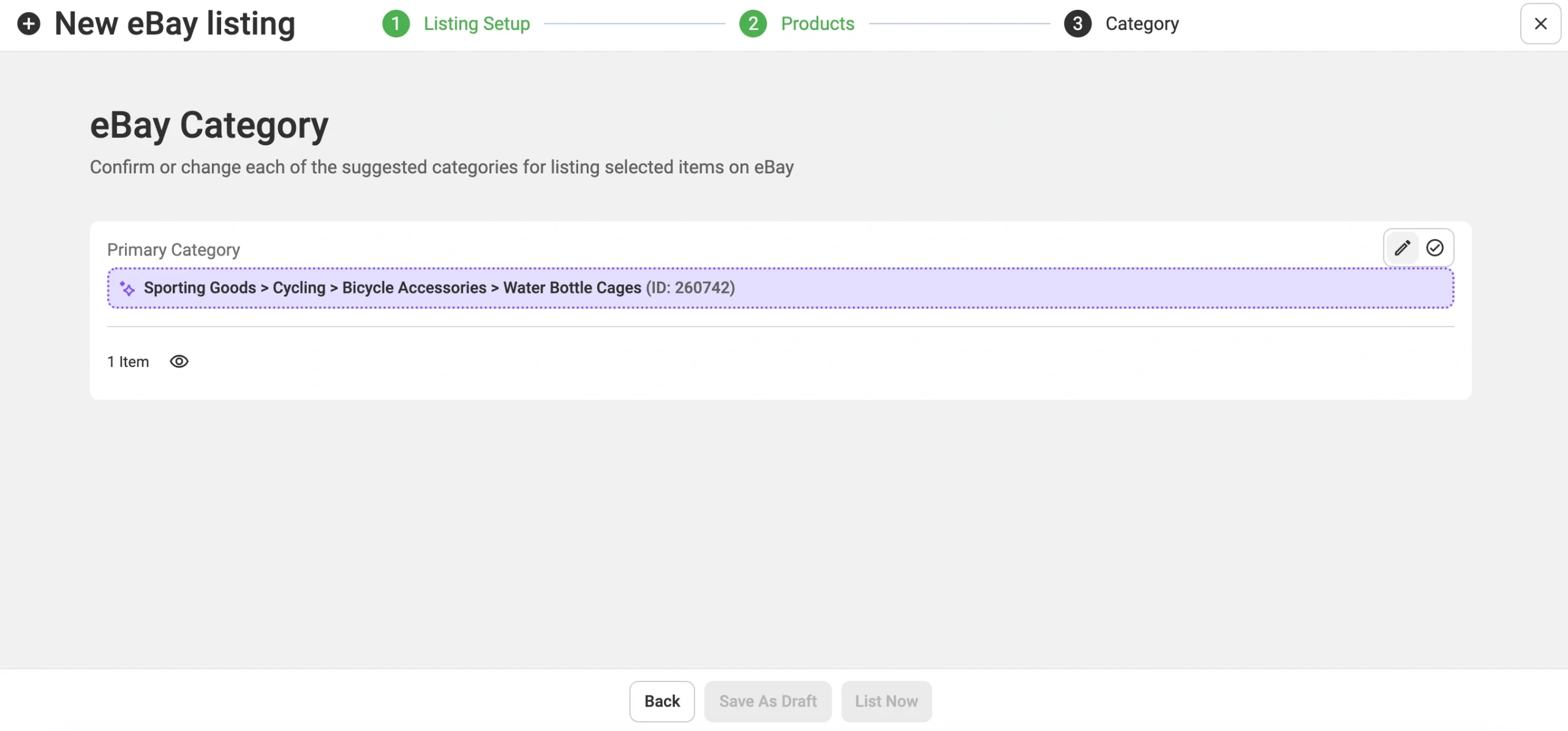
When changing the category, you can select a previously used category or manually find one using the Browse and Search tabs.

Optionally, add Secondary Categories or organize items under eBay Store Categories (if applicable).

Then, fill in Item Specifics to improve search ranking, including required, recommended, and custom specifics.

Once done, confirm the changes.
Step 6. Publish your listings #
Click List Now to make your items live on eBay or Save as Draft for later publishing.


