
M2E Cloud allows you to import products from the marketplace into your online store. If you already have a catalog on Amazon, eBay, Walmart, or other marketplaces, you can bring those products into your e-commerce platform.
This guide covers two methods: creating products in your store based on marketplace listings and importing products via a CSV file.
✅ The recommended approach is to build your product catalog in your online store, then use M2E to publish those products to marketplaces. If you've already been selling on marketplaces and have products there, you can import them into your store to get started with M2E.
Supported platforms #
You can import products from these marketplaces: Amazon, eBay, Walmart, Temu, Shein, TikTok Shop, Kaufland, OTTO, and more
Into these e-commerce platforms: Shopify, WooCommerce, BigCommerce, Ecwid, PrestaShop, Shopware, Salesforce, Lightspeed POS, Square POS, Adobe Commerce, and more
Step 1. Install the M2E application #
1) Open your e-commerce platform's app store or marketplace.
2) Find the appropriate M2E integration app for your marketplace.
3) Install the application into your platform.
4) Set up your M2E Accounts profile during registration to manage billing and account settings.
Step 2. Connect your marketplace account #
1) Open the M2E application from your store's admin dashboard.
2) Click Connect Marketplace Account.
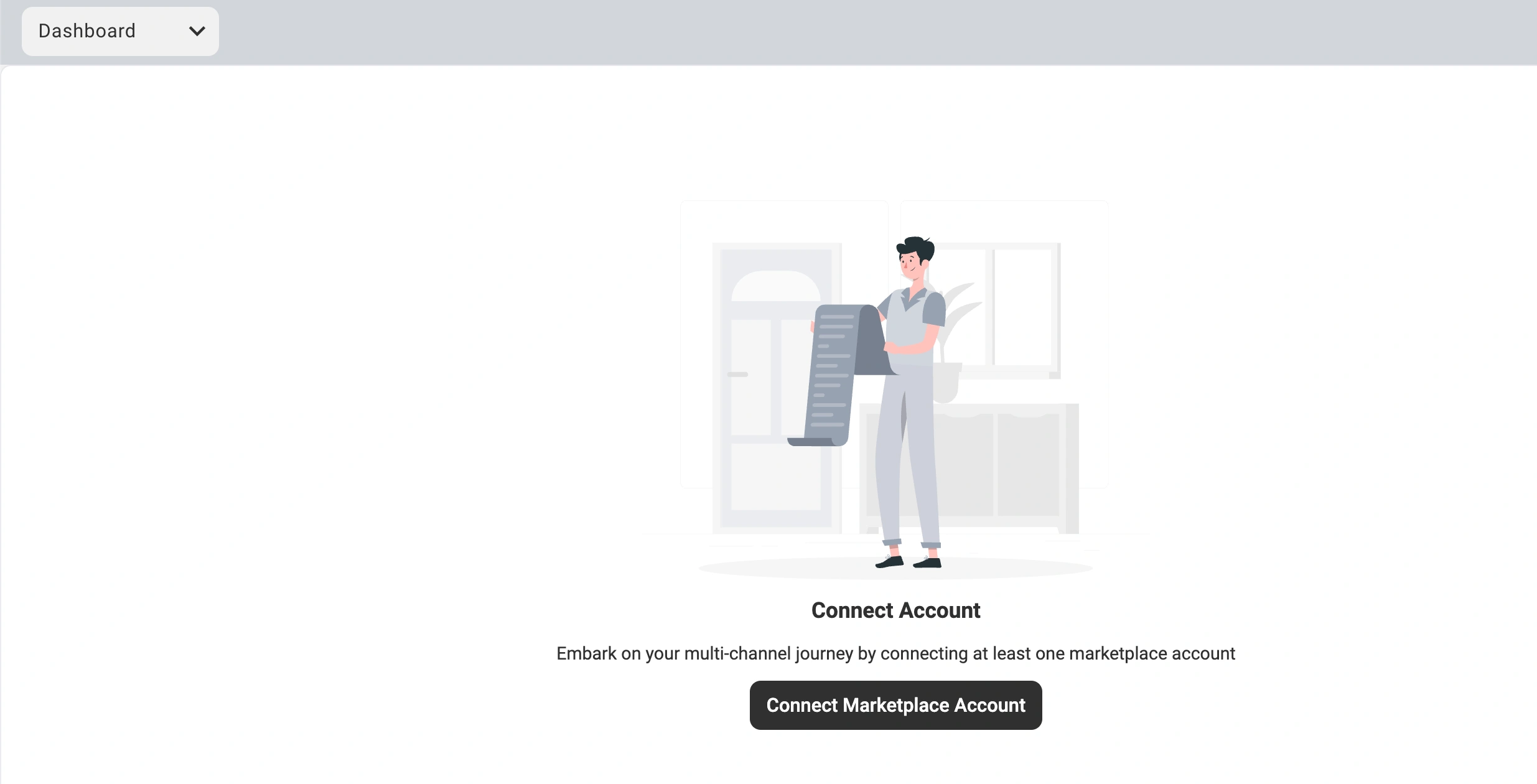
3) Choose the marketplace you're integrating (e.g., Amazon, eBay, Walmart, etc.). The system will redirect you to that marketplace's seller portal.
4) Log into your seller account and authorize the M2E connection.
Step 3. Import your marketplace products #
Using M2E, you can bring your listings into your online store in two ways: create products based on marketplace items or use the CSV file import option.
Option 1. Create marketplace items in your online store #
When to use: You have a smaller catalog and want to import products without manual edits.
1) Navigate to the Listings page and select your connected marketplace account.
2) Locate the products you want to import using the search bar, filters, or product groups.

Single product import:
Click the dropdown arrow beside the Link button and choose Create new [Store] product and link.

Bulk import:
Select the marketplace listings by ticking the checkboxes on the left. In the three-dot actions menu, click Create in Catalog.

The selected marketplace items will appear in your online store's product catalog.
Option 2. Import marketplace listings via CSV #
When to use: You have a large catalog, need to import in batches, or want to review/edit product data before importing.
1) Go to the Listings page and select your marketplace account.
2) Locate the products you want to export using search, filters, or groups.
3) Select More actions from the top-right menu and click Export.

4) Choose which product details to include in the exported file and click Export.

M2E will generate your export file and send it to your registered email address.
5) Once you receive the CSV file with the marketplace product data, you need to import it into your online store.
The import process varies by platform. Usually, you'll need to navigate to Products > Import in your store admin, upload the CSV file, and follow your platform's import workflow.
Step 4. Link your inventory #
For inventory to sync correctly, marketplace products must be linked to their matching products in your online store.
M2E links products automatically when SKUs or barcodes are the same in both systems. If you’ve imported products using option 1 (direct import), they will be linked automatically.
ℹ️ If identifiers don't match between systems, you can link products manually or use the CSV file import.
Step 5. Enable inventory synchronization #
With linked products, you need to activate sync to keep prices, inventory levels, and product information consistent across both platforms.
Single item sync:
Toggle Inventory Sync on for your marketplace product on the Listings page.

Bulk sync:
Select linked products from the Listings page, then navigate to Manage Sync > Enable Sync in the actions menu.

Important: M2E will prompt you to set up Policies during sync activation. Take a moment to configure Selling and Synchronization Policies. They determine how prices, inventory, and other product data appear and sync between your marketplace and store.

You will see a confirmation once sync is activated. Inventory changes will now sync automatically between your marketplace and store based on your Policy configurations.
Import guides by platform #
Find detailed import instructions for your specific marketplace and online store:
Import from marketplaces to Shopify
- Import products from Amazon to Shopify
- Import products from Temu to Shopify
- Import products from Shein to Shopify
Import from marketplaces to BigCommerce
- Import products from Amazon to BigCommerce
- Import products from eBay to BigCommerce
- Import products from Walmart to BigCommerce
- Import products from TikTok Shop to BigCommerce
Import from marketplaces to WooCommerce
Need help? #
If you have questions or run into issues when importing products via M2E:
- Browse our Help Center for step-by-step documentation
- Contact the M2E support team for personalized assistance


