
If you want to sell items from your store or catalog through competitive bidding on eBay, rather than at a fixed price, you need to set up an Auction Policy in M2E Multichannel Connect when listing your products.
ℹ️ To set up a Selling Policy for fixed-price listings on eBay, follow the instructions in this guide.
When creating an Auction Selling Policy, make sure to choose a corresponding option in the drop-down:

💡 Check out step-by-step instructions on how to create and access M2E Selling Policies.
Below, you can explore the key steps to configure an eBay Auction Selling Policy in M2E Multichannel Connect.
Step 1. Define general information #
The General section allows you to name your Auction Policy. Assign descriptive titles that help differentiate policies based on their purpose or product group.
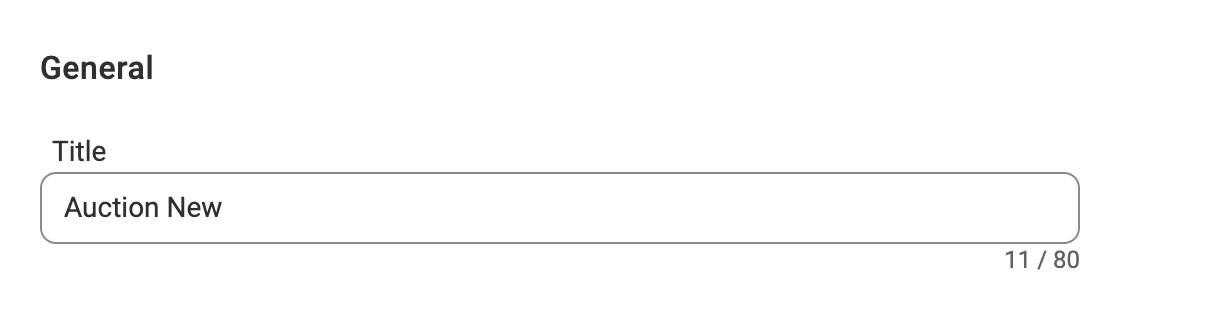
✅ If your products share the same pricing and quantity rules, create a single policy and name it “Default.”
If certain product groups require unique rules, create separate policies and assign relevant titles for easy identification.
Step 2. Configure Quantity options #
Enable the "Auto-relist" option to allow the app to automatically relist auction listings once sold or when the auction duration expires.

ℹ️ The app will continue relisting your auction until the linked Store/Catalog product is out of stock.
You can also enable the option to sell items in multipacks. A multipack is a group of two or more identical or similar items that are sold together. Selling in multipacks is useful if your auction items are better suited for bulk sales.
To set it up, enable the Multipack option and specify the lot size (number of items per pack).
Step 3. Specify Listing duration #
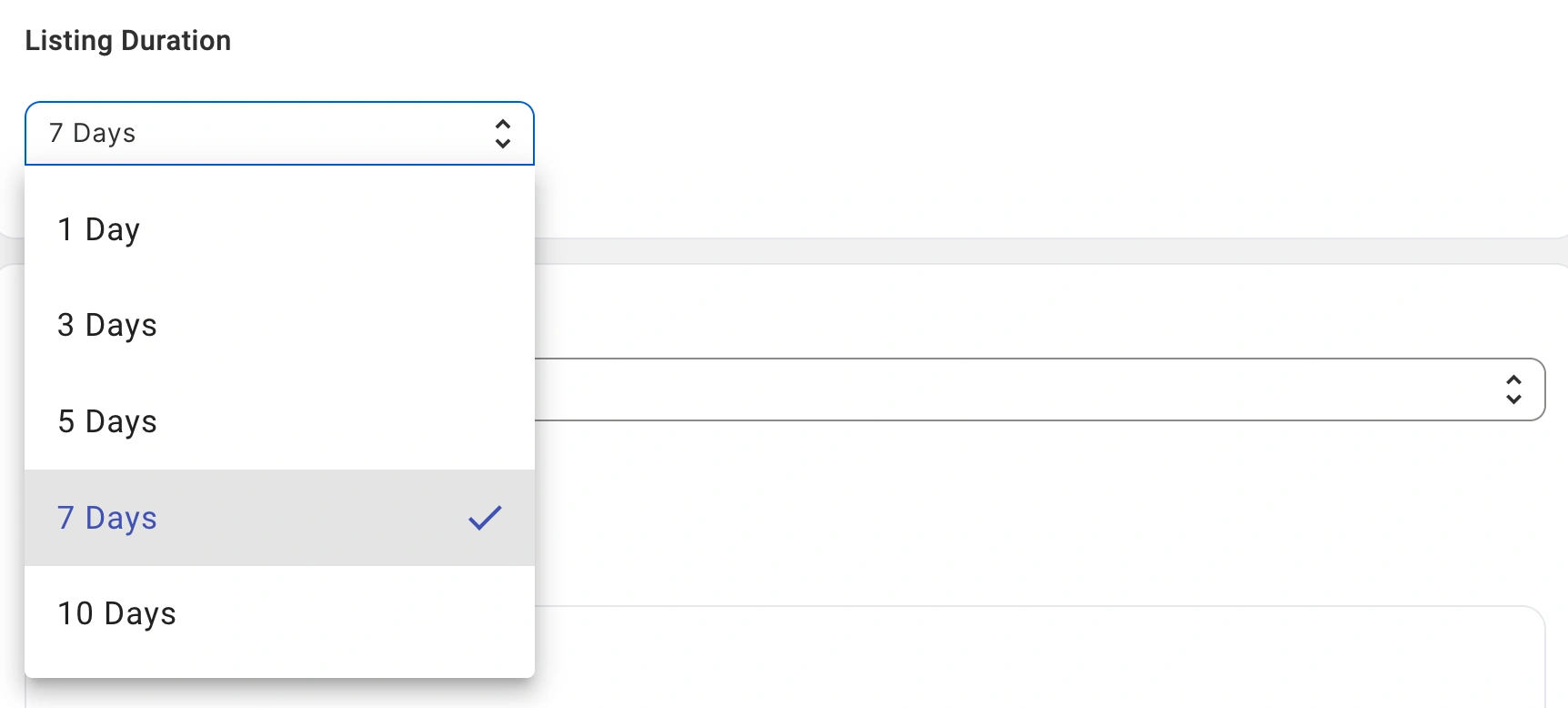
Specify the auction duration (in days) to determine when the listing should end. eBay allows various duration options, such as 1, 3, 5, 7, or 10 days.
Step 4. Configure Price options #
Rounding #
Use the Rounding option to round your auction prices on eBay to appealing numbers like $9.99 or $10.00. You can select an amount at which you want to round the Price:
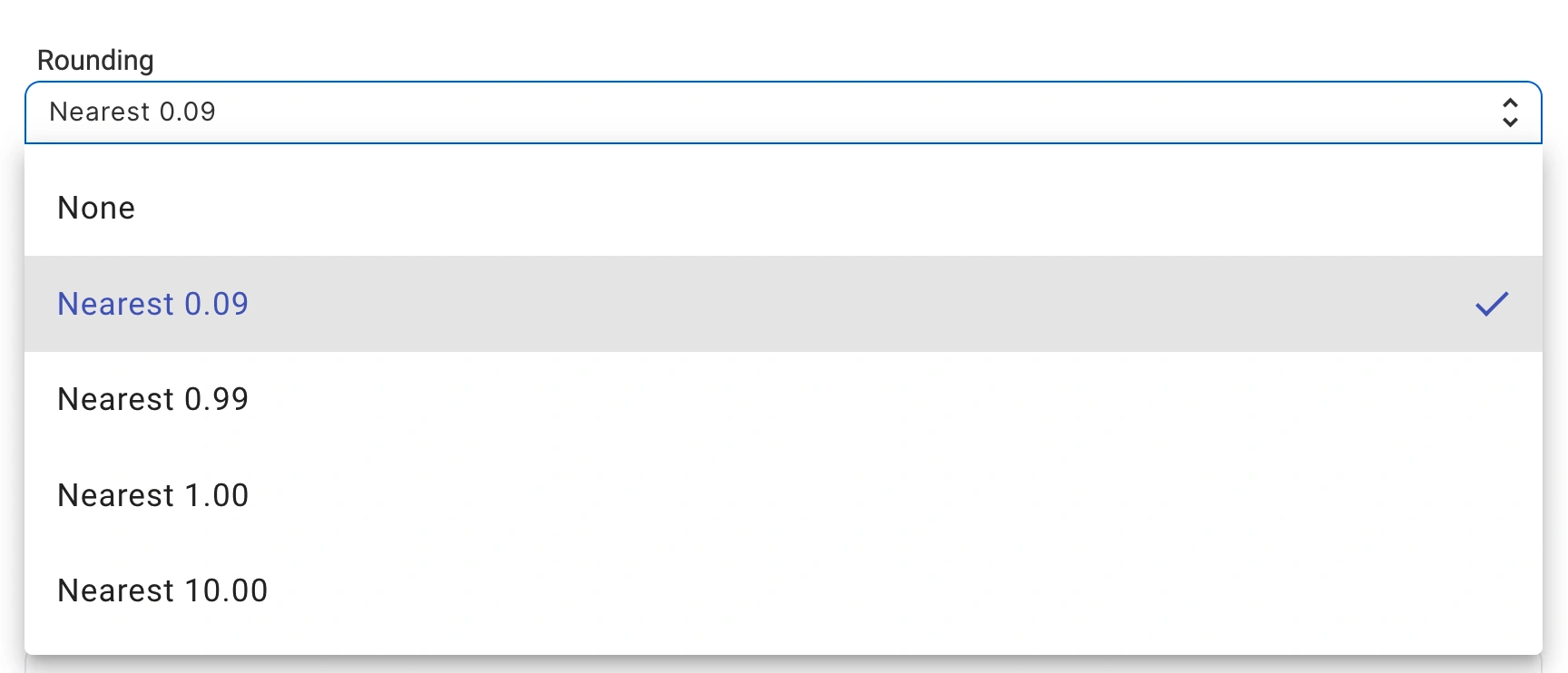
- Nearest 0.09 – e.g., $5.10 rounds to $5.09; $5.95 rounds to $5.99.
- Nearest 0.99 – e.g., $5.10 rounds to $4.99; $5.95 rounds to $5.99.
- Nearest 1.00 – e.g., $5.10 rounds to $5.00; $5.95 rounds to $6.00.
- Nearest 10.00 – e.g., $5.10 rounds to $10.00; $14.99 rounds to $10.00.
VAT, % #
If you are selling on eBay.co.uk or other European eBay marketplaces, you have the option to define the VAT rate included in your auction item prices.

Enter the applicable percentage in the VAT, % field. eBay uses this value for two purposes:
- It splits the total price into the net amount and the VAT portion for display to customers. For example, if you set VAT to 20% and list an item at €120, eBay shows a net price of €100 and €20 as VAT.
- It acts as the tax rate for your orders when eBay returns no VAT rate. The VAT value that you provide will be applied instead of the country-specific default.
ℹ️ Certain goods qualify for a reduced or zero VAT rate. For those items, set the VAT, % field to the rate that applies. Entering 0 submits 0% VAT.
If you leave the VAT, % field blank, your eBay orders revert to the default VAT rate for the buyer's country.
Start Price #
Set the Start Price, which is the minimum amount at which bidding begins. Buyers will place bids starting from this value. You can select one of the Start Price source options:
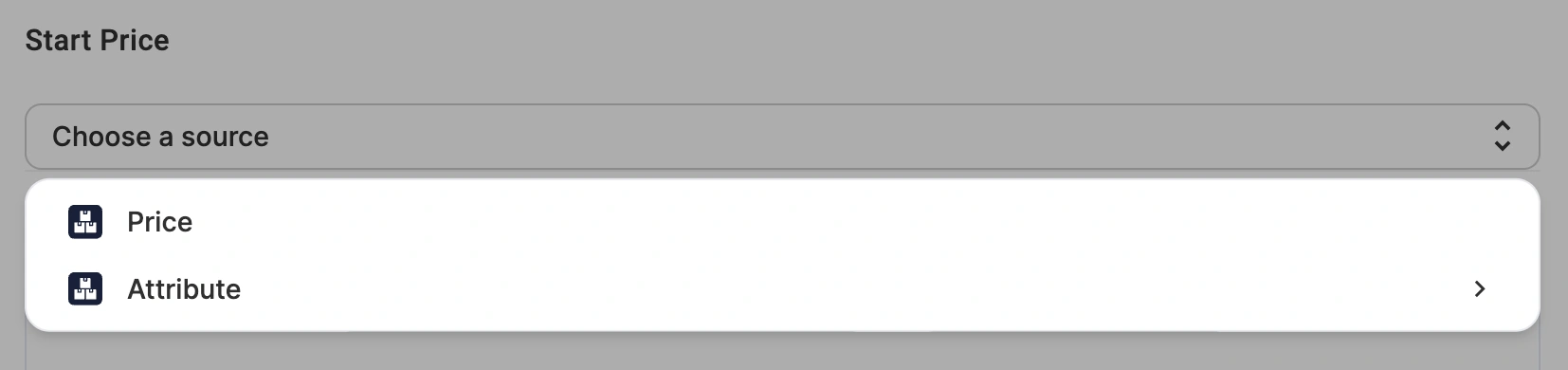
- Default Store Price Field – the auction price will match the product price in your store or catalog.
- Store Attribute/Metafield – select a store's metafield or an attribute to define an auction price for eBay, which may differ from your store price. This is particularly useful if you maintain separate pricing for specific sales channels.
ℹ️ The selected attribute must contain an appropriate price value in the numeric format.
✅ Set the Start Price strategically – low enough to attract bidders but high enough to ensure profitability. eBay does not allow a Start Price lower than $0.01 in most categories.
Reserve Price (optional) #
You can set a Reserve Price, which is the minimum amount you are willing to accept for an auction-style listing. If bidding does not reach this price by the time the auction ends, the item will not be sold.
The Reserve Price ensures the item does not sell below the minimum acceptable price.
⚠️ eBay charges an additional fee for using a Reserve Price.
You can select one of the Reserve Price source options:
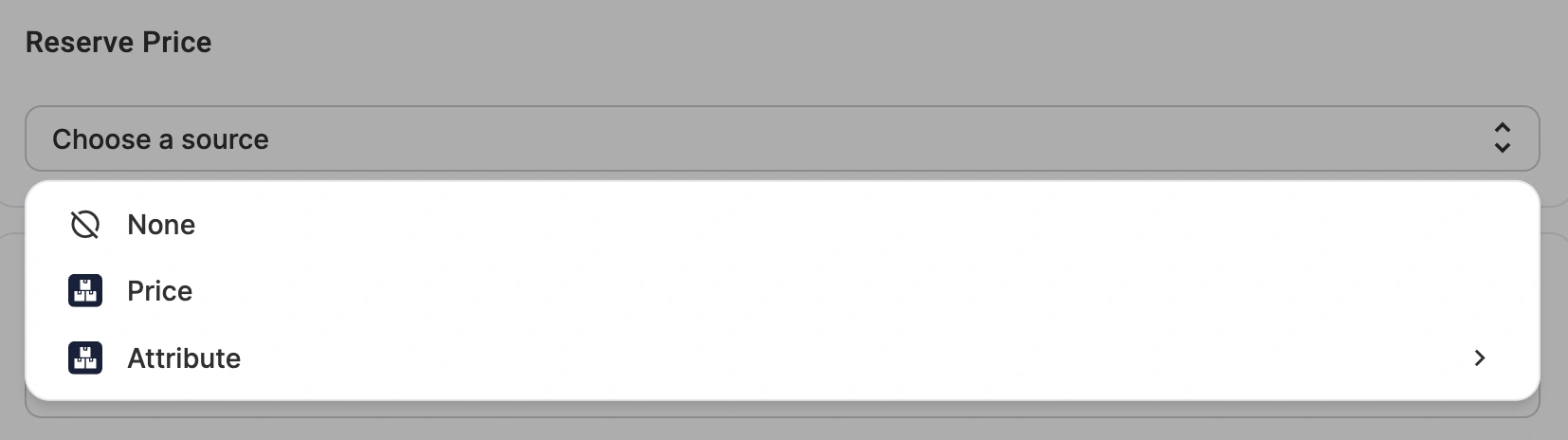
- Default Store Price Field – the reserve price will match the product price in your store or catalog.
- Store Attribute/Metafield – select a store's metafield or an attribute to define a reserve price for eBay, which may differ from your store price. This is particularly useful if you maintain separate pricing for specific sales channels.
ℹ️ The Reserve Price is hidden from bidders.
Bidders will see a message if the Reserve Price has not been met. If the highest bid meets or exceeds the Reserve Price, the highest bidder wins the auction.
Buy It Now Price (optional) #
Set the Buy It Now Price, which allows buyers to purchase an item immediately at a fixed price instead of bidding. This provides a quick purchase option for buyers who do not want to wait for the auction to end.
You can select one of the Buy It Now Price source options:
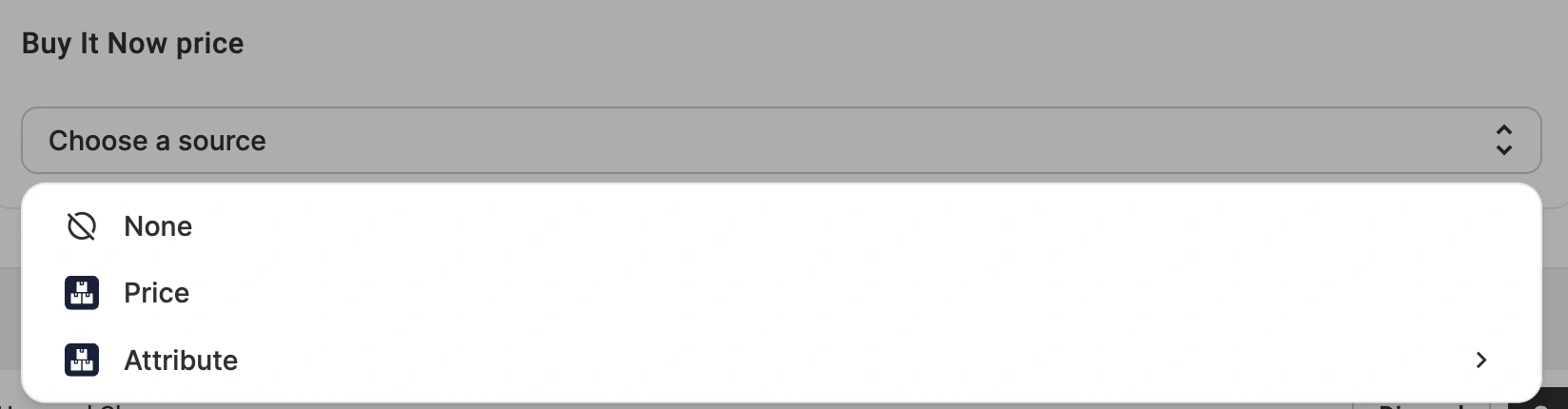
- Default Store Price Field – the Buy It Now price will match the product price in your store or catalog.
- Store Attribute/Metafield – select a store's metafield or an attribute to define a Buy It Now price for eBay, which may differ from your store price. This is particularly useful if you maintain separate pricing for specific sales channels.
ℹ️ The Buy It Now option disappears once a bid is placed, unless a Reserve Price is set.
Add Price Modifications #
Once you set a Start/Reserve/Buy It Now Price, you can adjust it further by increasing or decreasing the value. This allows you to sell the item at a different price on eBay compared to your store or catalog.
To modify pricing, click Add Price Modification and choose the needed option:

- Absolute Value Increase/Decrease – add or subtract a specific value to the price.
- Percentage Increase/Decrease – adjust the price by a percentage of the price.
For example, if the price is $100 in your store, you can set a 10% increase for the marketplace. The displayed price on eBay will be $110.
Step 5. Set up payments #
Set Require Immediate Payment to Yes to charge buyers immediately after the order is placed. The item stays available for others to buy until payment is complete.
Immediate payment applies only to Buy It Now transactions, so the requirement is dropped once a bid is placed.



