
This guide walks you through connecting Hygi.de to M2E Cloud and setting up your marketplace workflow.
You will learn how to configure products, offers, and orders, and how Hygi.de functions as a Mirakl-based marketplace.
ℹ️ The same setup principles apply to other Mirakl marketplaces available in M2E Cloud.
What happens outside M2E Cloud #
Hygi.de is a Germany-based marketplace focused on hygiene, cleaning, and professional care products. It connects brands, manufacturers, and retailers with a large audience of business customers looking for reliable supplies for daily operations.
The marketplace operates primarily in Germany and across Europe and is designed for B2B sales. It is built on the Mirakl platform, which means Hygi.de follows Mirakl standards for product data, offers, pricing, and order management.

Who Hygi.de is a good fit for #
Hygi.de is a good fit for merchants selling:
- Cleaning and hygiene products
- Disinfectants and medical-related supplies
- Workplace and safety equipment
- Facility management and janitorial products
- Catering and professional kitchen supplies
The marketplace is especially suitable for sellers targeting business customers and bulk buyers.
Requesting a Hygi.de seller account #
To sell on Hygi.de, you must apply directly through the marketplace before configuring it in M2E Cloud.
Where to apply: Submit your request via the Hygi.de seller onboarding page or contact their partner management team via email – partnermanagement@hygi.de.
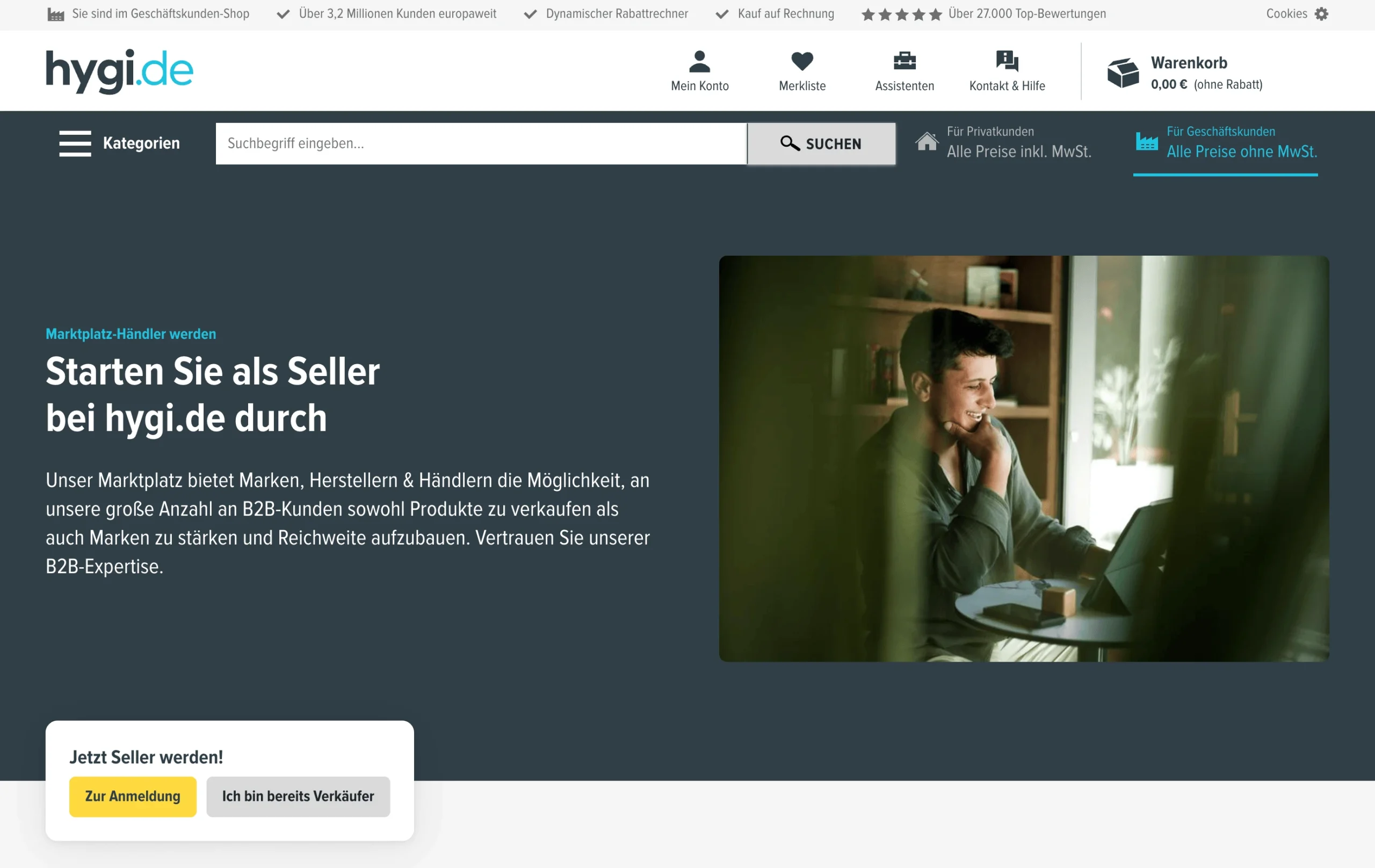
During the application, Hygi.de may request:
- Company and contact details
- Business registration and VAT information
- Product categories you plan to sell
- Information about your logistics and fulfillment setup
Hygi.de handles account approval, and timelines may vary depending on your application and product categories.
Once approved, you receive access to the Mirakl back-end. This is required to connect Hygi.de to M2E Cloud.
ℹ️ Hygi.de defines product categories and selling permissions. Some categories may require additional documentation or approval.
Fees and pricing model #
Hygi.de uses a performance-based pricing model.
All fees and commercial terms are agreed with the Hygi.de team during the onboarding process. This may include commission rates, possible platform fees, and any additional services.
For exact pricing details, contact Hygi.de directly or review the terms provided during your seller account approval.
What happens inside M2E Cloud #
Once Hygi.de is connected to M2E Cloud, you can manage your marketplace activity from one place. This includes product export, offer updates, order import, stock synchronization, and shipment updates.
With the M2E Cloud Mirakl integration, you can:
- Connect Hygi.de through Mirakl API credentials
- Choose which store products to send to Hygi.de
- Map marketplace categories and product attributes
- Set pricing, discounts, and currency conversion rules
- Keep orders, shipments, prices, and stock levels synchronized
This part of the guide covers the setup steps you complete in M2E Cloud after you receive access to Hygi.de through Mirakl.
ℹ️ We’ve also prepared the full Hygi.de start guide to help you get your products listed on Hygi.de and have your orders sync automatically between the two systems.
Requirements before you start #
Before you connect Hygi.de to M2E Cloud, check that your account and catalog are ready. Missing data may prevent products from being exported or from being processed correctly.
ℹ️ Make sure your store runs on a supported platform such as Shopify, BigCommerce, PrestaShop, etc. All M2E apps are available in the official app listings. For example, a Shopify Hygi.de integration by M2E requires installing the Shopify app first.
You need:
- An approved Hygi.de marketplace seller account
- Access to the Hygi.de Mirakl Seller Admin
- Mirakl API credentials for Hygi.de
- Valid EAN / GTIN codes for the products you want to sell
- Prices prepared in EUR
💡 If your store prices are set in another currency, use currency conversion in M2E Cloud.
Connecting Hygi.de to M2E Cloud #
Hygi.de works as a Mirakl-based marketplace. To connect it to M2E Cloud, you need Mirakl Seller Admin access and API key.
Connection steps:
- In M2E Cloud, open Connect Mirakl Account.
- In the Select marketplace section, choose Hygi (use the Search marketplaces field to find it quickly).
- Log in to your Mirakl Seller Admin and generate a new API key or copy the existing one.
- Back in M2E Cloud, paste the key into the API key field.
- Add the Shop ID if your Mirakl account contains more than one shop.
- Click Connect.

M2E Cloud will validate the credentials. If they are correct, the connection will be created. After that, M2E Cloud can start synchronizing products, offers, orders, and shipments with Hygi.de.
✅ For detailed instructions, check the M2E Cloud guide on connecting Mirakl marketplaces.
Once connected: What happens next? #
After the connection is ready, you can define how Hygi.de listings and orders should behave in M2E Cloud.
1. List new products on Hygi.de #
Select the products you want to sell on Hygi.de and export them from your store to the marketplace.
Once the export is complete, the products become Hygi.de marketplace listings. M2E Cloud can then update stock and prices according to your store data and policy settings.
2. Link existing marketplace listings with store products #
If you already sell products on Hygi.de, M2E Cloud can connect your marketplace listings to products in your store.
When the SKUs match, M2E Cloud can automatically create the link. If needed, you can also link existing Hygi.de listings manually using the CSV file method.
This link is important because it defines which store product controls each marketplace listing.
This step controls:
- Which Hygi.de listings are connected to your store
- Which stock values are sent to Hygi.de
- Which price values are updated on the marketplace
3. Map categories and required attributes #
Assign the right Hygi.de category to each item. You also need to map the required attributes for that category.
This includes:
- Product category mapping for Hygi.de
- Required attribute mapping
- Category-specific attributes
- Offer data needed by the marketplace
Without correct mapping, the marketplace may reject the product or block the export.
For more details on product synchronization, see the Synchronization Policy guide.
4. Configure pricing and currency rules #
Prices, quantities, and offer settings are managed through M2E Cloud selling policies.
They help you control how your products are listed on Hygi.de. They also let you use different rules for different product groups.
M2E Multichannel Connect lets you create multiple Selling Policies. This gives you more flexibility when your catalog includes products with different pricing, stock, or promotion rules.
This includes:
- Base price sources
- Quantity of items available for sale on Hygi.de
- Discount and promotion settings
- Currency conversion if your store prices aren’t in EUR
5. Configure order settings and status mapping #
Order settings define how Hygi.de orders move between the marketplace, M2E Cloud, and your store.
This step controls:
- Whether Hygi.de orders are imported into M2E Cloud
- When the order import happens
- How Hygi.de order statuses match your store statuses
- How shipment confirmation is sent to the marketplace
- How tracking numbers are synchronized after dispatch
A clear order policy helps keep the marketplace and store order data aligned. It also reduces the risk of duplicated work or status mismatches.
6. Set up shipping rules and delivery settings #
Shipping Policies control how fulfillment data is handled in M2E Cloud and how it is shared with Hygi.de.
In this step, you define how orders should be shipped and what shipment details should be sent back to the marketplace.
This includes:
- Shipping methods available for Hygi.de orders
- Shipment confirmation rules
- Tracking data sent to Hygi.de
Correct shipping settings help ensure that marketplace orders are updated on time after fulfillment.
7. Monitor listings and resolve issues #
After the setup is complete, use the Listings page in M2E Cloud to monitor your Hygi.de items.
You can:
- Check export results
- Review validation messages
- Find missing mapping or attribute errors
- Detect pricing and policy issues
- Fix listing problems without turning off the marketplace connection
💡 Find out more about M2E Multichannel Connect features.
What happens in the marketplace back-end? #
Hygi.de marketplace features #
Hygi.de operates on the Mirakl platform and supports a standard set of marketplace features for product and order management.
Supported
- Product catalog browsing and category navigation
- Shopping cart and checkout
- Multiple payment and shipping options
- Reviews and product feedback
- Watchlists (saved products)
- Discount campaigns and promotions
- Dynamic discount calculator for large orders
Product and offer requirements #
To publish products on Hygi.de, all data must meet Mirakl validation rules and marketplace requirements.
Product content (mandatory)
- EAN / GTIN – unique product identifier
- Product title
- Recommended format: [brand] [product type] [key feature] [quantity/size]
- 30-130 characters
- No repeated words, unnecessary capitalization, or unsupported symbols
- Main image
- Minimum 500 × 500 px
- JPEG (white background) or PNG (transparent)
- Square format, RGB color space
- Maximum size: 10 MB
- Merchant SKU – your internal product identifier
- Category-specific attributes
Depending on the category, additional attributes may be required, such as:
- Pack quantity
- Product dimensions
- Weight
- Material or composition
- Compliance-related data (for hygiene or medical products)
All values must conform to the accepted formats and units defined by the marketplace.
💡 You can control listing behavior across marketplaces using M2E Cloud policies.
Offer and pricing rules #
Prices sent to Hygi.de must follow Mirakl pricing logic.
Base pricing
- All prices must be provided in EUR
- Currency conversion must be enabled if your store uses another currency
Discounts (Mirakl pricing)
- Discount price must be lower than the base price
- Start and end dates must be valid
- Quantity-based discounts require a minimum quantity above 1
Pricing behavior depends on the pricing version:
- Pricing v1: Discount price + date fields
- Pricing v2: Strike price (regular) + Price (discounted)
Incorrect pricing may block product export or hide discounts.
Shipping, tax, and Mirakl-specific attributes #
Some attributes affect delivery, tax calculation, and product visibility.
Common Mirakl attributes
- Lead time to shipment – handling time before dispatch
- Offer state – product condition
- Product tax code – tax classification
- Minimum quantity alert – low stock notification
FAQ #
Why is my product not listed? #
Most issues come from validation errors.
Common reasons:
- Missing or invalid EAN / GTIN
- Required attributes not mapped
- Prices not provided in EUR
- Incorrect category assignment
- Invalid discount setup
Use the Listings page in M2E Cloud to check errors.
Where can I check marketplace errors? #
If no errors appear in M2E Cloud:
- Log in to Mirakl Seller Admin
- Go to Catalog → Product Imports
- Open the latest report
- Download the Non-integrated products file
This file shows detailed validation errors.
✅ For any questions, please reach out to our support team.


