
If you see the error "Invalid image URL" when listing products with M2E Multichannel Connect, it means that a value sent to the marketplace isn’t a valid image link.
This error usually doesn't come from your product image gallery. Most often, it's caused by a category attribute like size chart or certification, where the marketplace needs a working image URL to display the information to customers.
Common reasons #
This error appears when an attribute expects a direct image URL, but receives something else, such as:
- Link to a web page instead of a direct image link
- Relative path (e.g., /images/chart.jpg) instead of a full URL
- Text, HTML code, or another non-URL value
How to fix the error #
You need to locate the category attribute causing the problem and update it with a valid image URL. Here are the detailed steps.
Step 1. Find the attribute causing the issue #
1) Go to the Settings page in M2E Multichannel Connect and select your marketplace account.
2) Navigate to Category Policies.
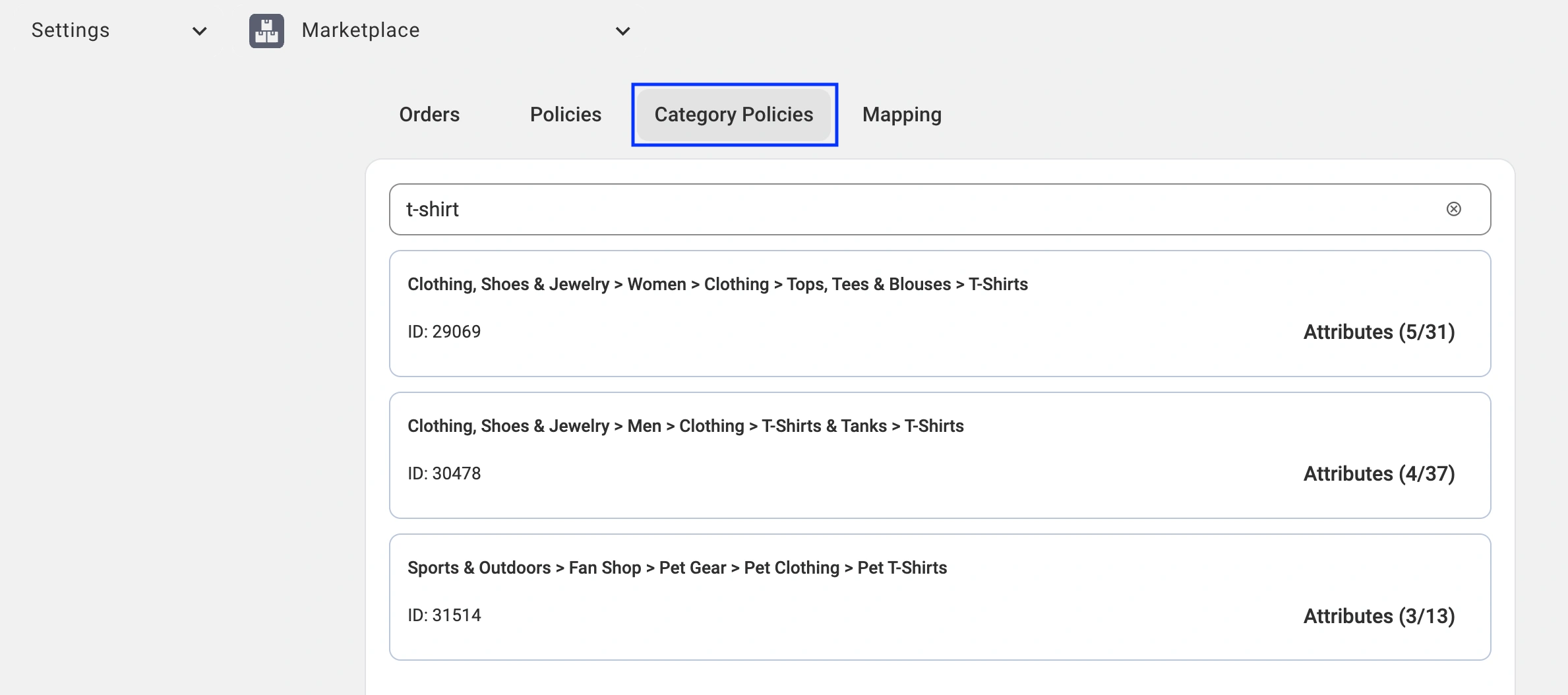
3) Find the category assigned to the affected products. Open the Attributes section.

4) Look for attributes that require an image URL.
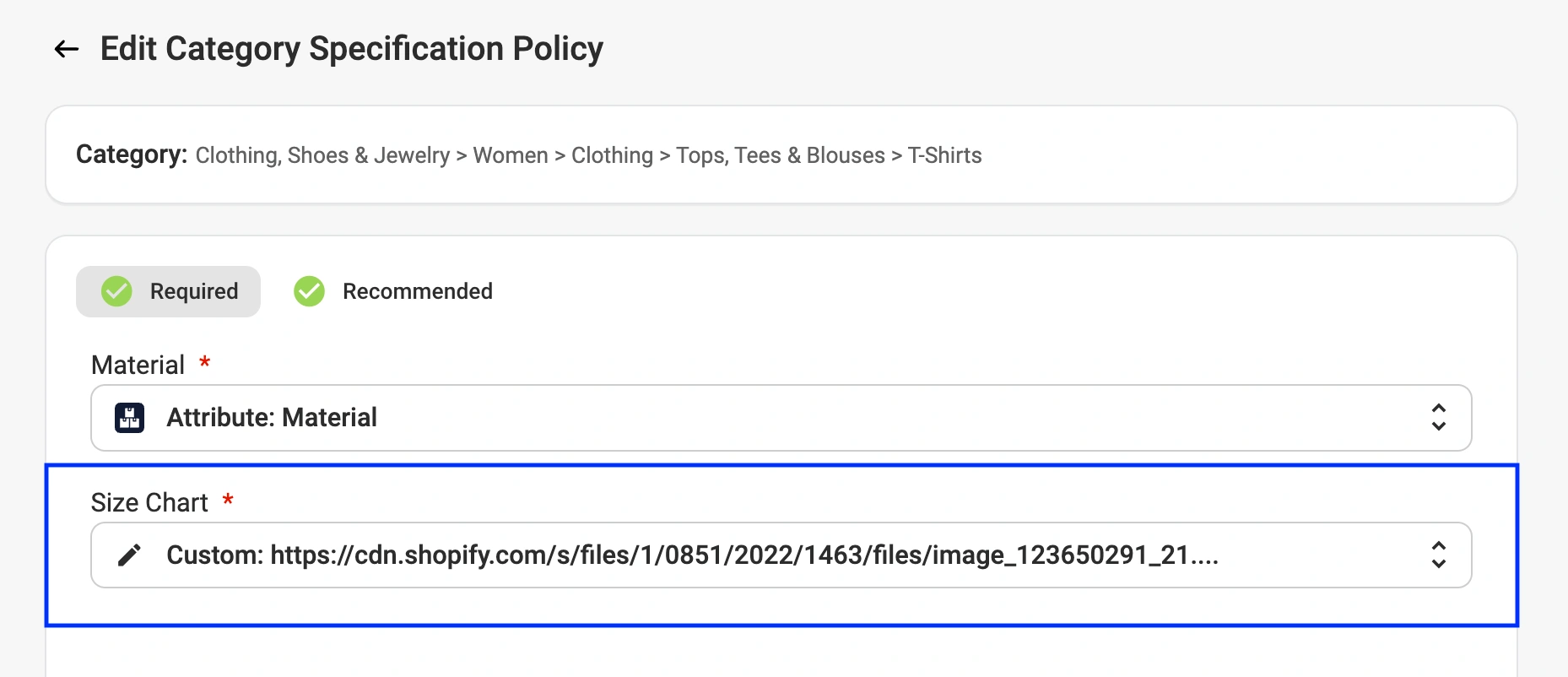
Common attributes that require image URLs:
- Size chart
- Product certification
- Care instructions
- Energy label, and others
Step 2. Enter a valid image URL #
For the attribute you identified, you need to provide a correct image URL.
Here’s what makes a valid image URL:
- Points directly to an image file (e.g., https://example.com/image.jpg)
- Full URL, not a relative path (e.g., /images/chart.jpg won't work)
- Publicly accessible (not behind a login or firewall)
- Opens the image directly in a browser
How to test your URL: Paste the URL into the browser address bar. If it displays the image directly (not a webpage that contains the image), it's valid.
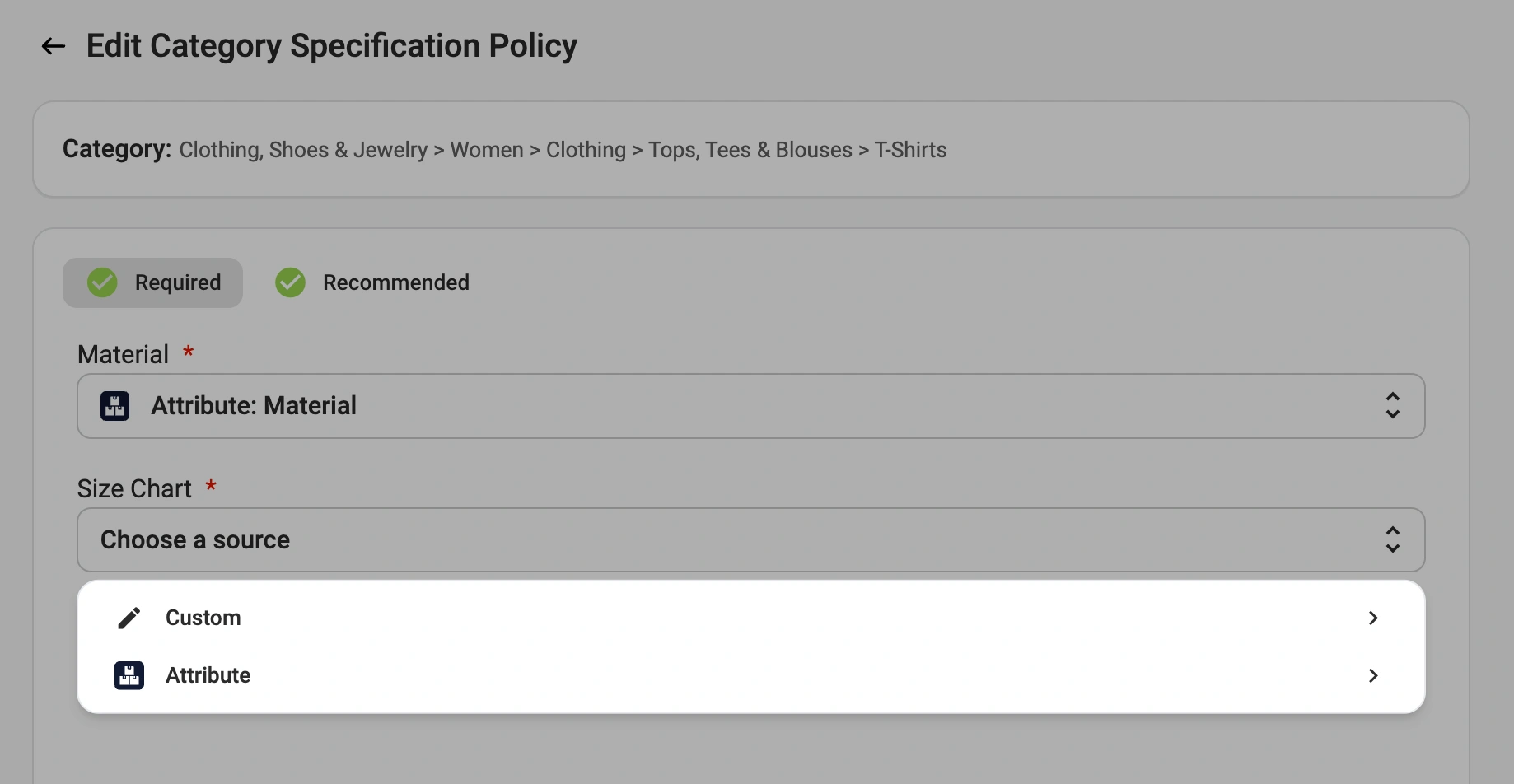
To update the category attribute, you can either:
- Enter a direct image URL manually, or
- Select a store attribute or Shopify metafield that contains a valid image URL
Step 3. Resubmit the products #
After you’ve updated the attribute, try listing the products again:
1) Go to the Listings page in M2E Multichannel Connect and select your marketplace account.
2) Use the product groups to display items with this specific error.
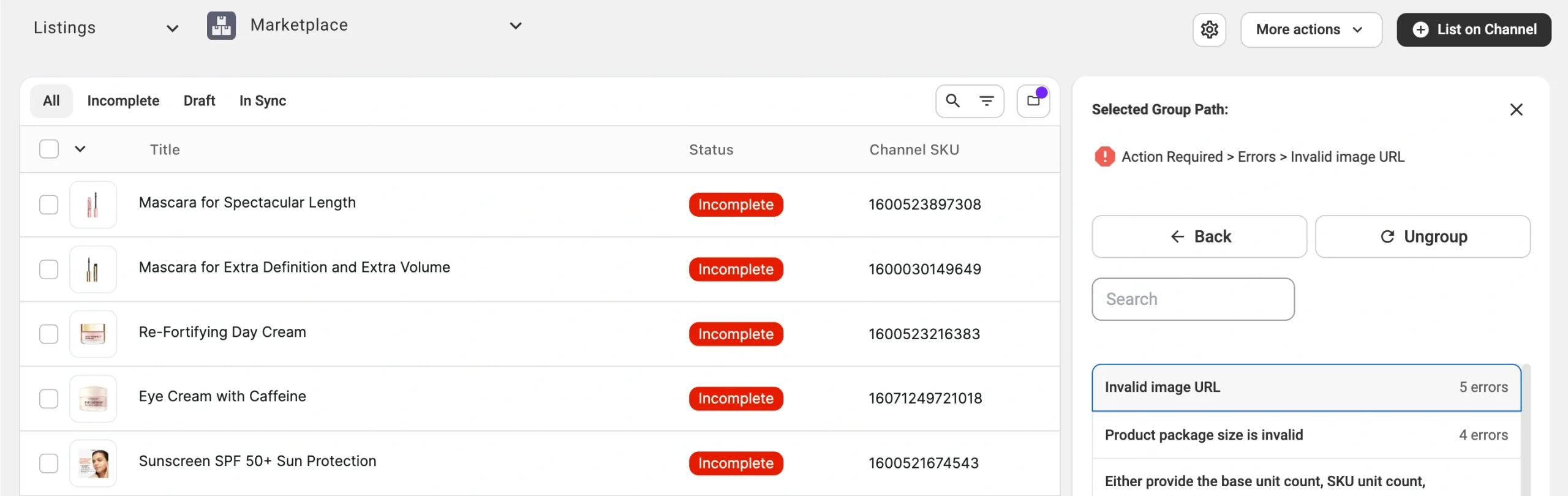
3) Select the affected items.
4) Click Manage Items > List from the actions menu.
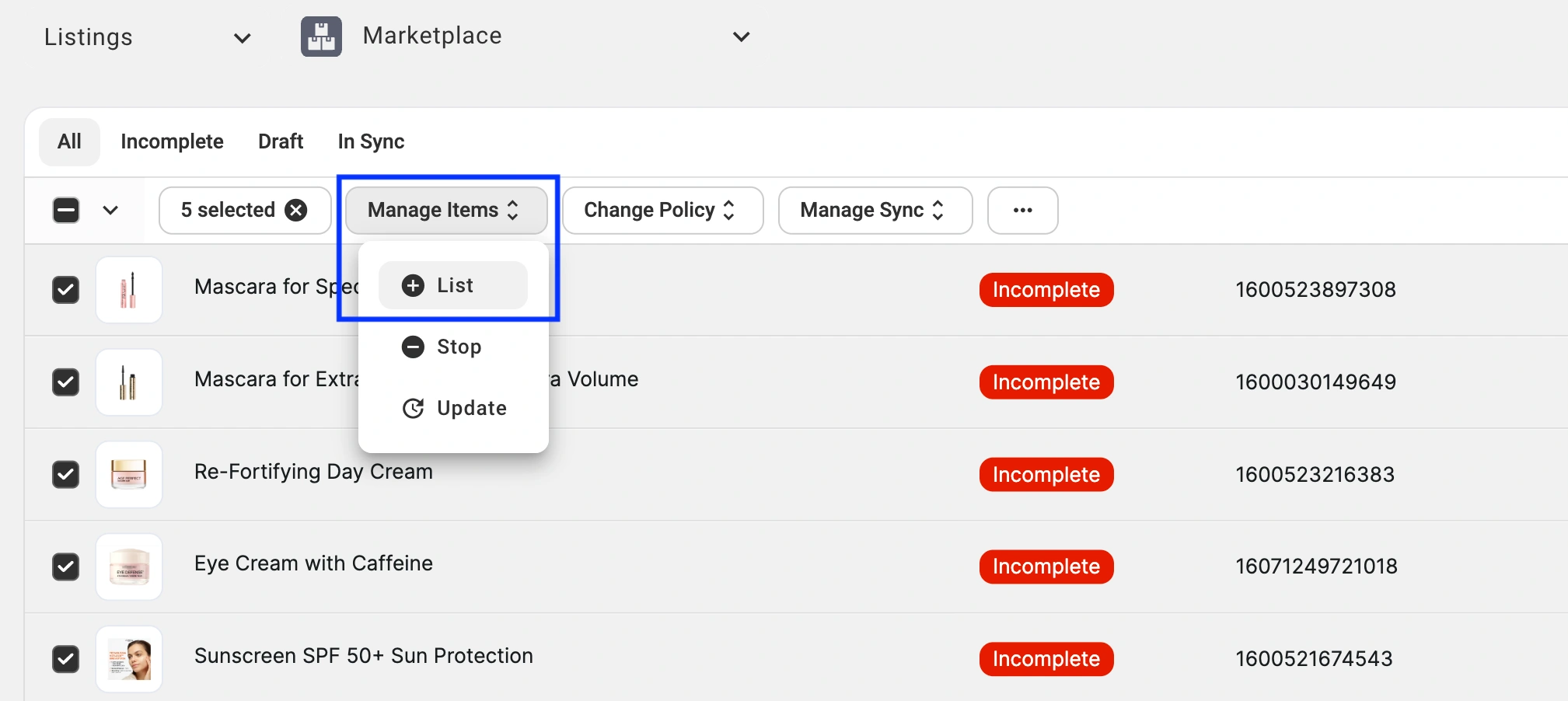
If the image URL is correct and publicly accessible, your listings will be created on the marketplace.
✅ If the issue persists after completing these steps, please contact our support team for assistance.


