
This guide explains how to connect, configure, and manage the B&Q Marketplace in M2E Cloud.
It focuses on what you need to set up inside M2E Cloud and how B&Q behaves as a Mirakl-based marketplace.
ℹ️ Most rules described below also apply to other Mirakl marketplaces supported by M2E Cloud.
What happens outside M2E Cloud #
B&Q is a UK-based marketplace focused on DIY, home improvement, and garden products. It connects merchants with customers looking for tools, furniture, household equipment, and professional supplies.
The marketplace operates in the United Kingdom and is built on the Mirakl platform. This means B&Q follows Mirakl standards for product data, offers, pricing, and order management.
Who B&Q is a good fit for #
B&Q is a good fit for merchants selling:
- DIY and home improvement products
- Furniture and interior items
- Garden and outdoor goods
- Bulky or made-to-order products
Requesting a B&Q seller account #
To sell on B&Q, you must apply directly through B&Q before configuring the marketplace in M2E Cloud.
Where to apply: Submit your application via the B&Q Partner / Merchant Hub. This is B&Q’s official onboarding portal for new sellers.
During the application, B&Q may request:
- Company and contact details
- VAT information
- Product categories you plan to sell
- Operational and fulfillment details
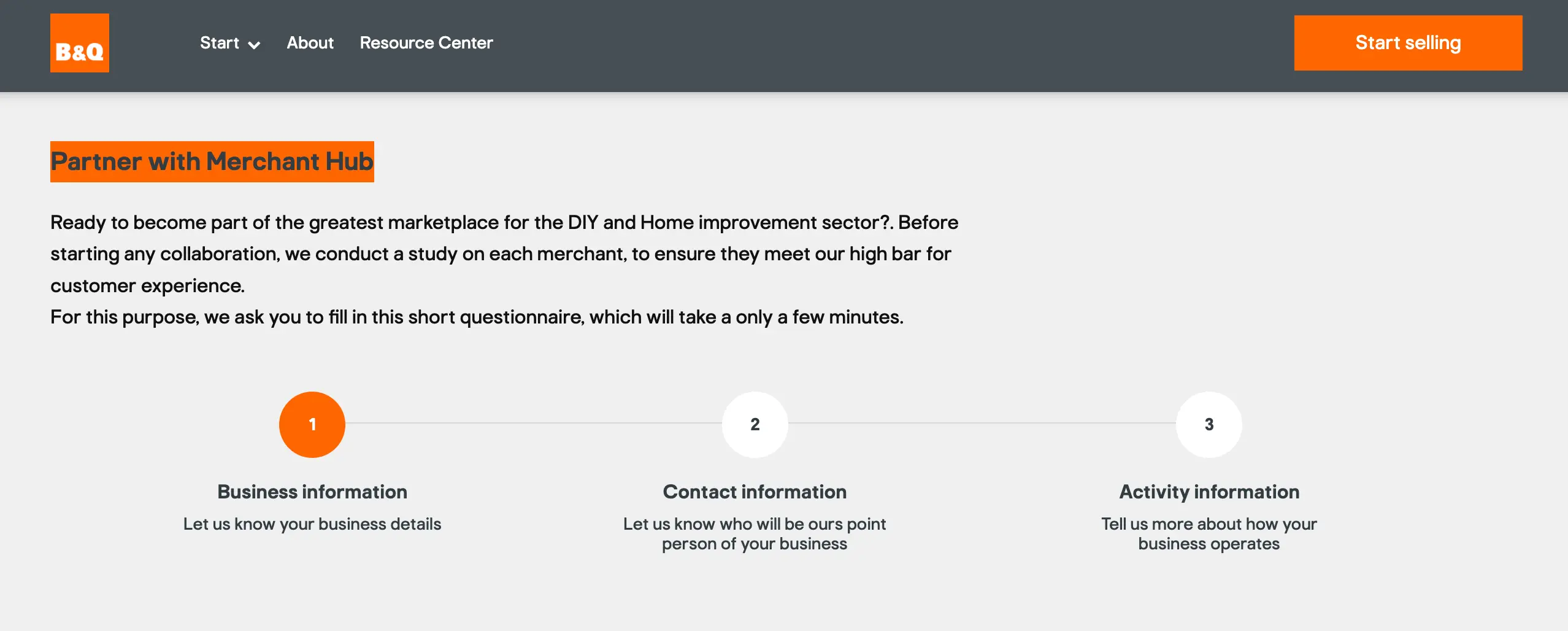
Account approval is handled by B&Q. Timelines may vary.
Once approved, you will receive access to the Mirakl back-end, which is required to connect B&Q to M2E Cloud.
ℹ️ Category availability and selling permissions are defined by B&Q. Some product types may have additional requirements or restrictions.
B&Q uses a simple, predictable fee structure.
- Setup fee: none
- Monthly fee: GBP 39.00
- Commission: between 7% and 15%, depending on the product category
- Payment schedule: twice per month
The monthly fee and commission cover access to the B&Q marketplace and order processing.
B&Q doesn’t offer:
- Advertising or sponsored product options
- Marketplace-managed fulfillment services
The merchant manages all fulfillment, pricing strategies, and promotions.
What happens inside M2E Cloud #
By connecting B&Q to M2E Cloud, you can manage products, prices, orders, and shipments from one central system.
With the M2E Cloud Mirakl integration, you can:
- Connect Mirakl-based marketplaces using API credentials
- Select and export products from your store to the marketplace
- Map categories, attributes, and offer data
- Configure pricing, discounts, and currency conversion
- Synchronize orders, shipments, and stock levels
This section covers the actions you perform in M2E Cloud to connect the marketplace, prepare your catalog, and control data synchronization.
Requirements before you start #
Before setting up B&Q in M2E Cloud, make sure you meet the following requirements. Missing any of these may block product exports or order processing.
ℹ️ Make sure your store runs on a supported platform such as Shopify, BigCommerce, PrestaShop, etc. All M2E apps are available in the official app listings. For example, a Shopify Hygi.de integration by M2E requires installing the Shopify app first.
- You must be VAT-registered
- You need an approved B&Q seller account
- You must have Mirakl access credentials for B&Q
- Your products must have valid EAN / GTIN codes
- Prices must be available in GBP
💡 If your base prices are in a different currency, enable currency conversion in M2E Cloud.
Connecting B&Q to M2E Cloud #
B&Q is a Mirakl-based marketplace that connects to M2E Cloud via API.
To link B&Q, you need access to your Mirakl Seller Admin and a valid API key.
Connection steps:
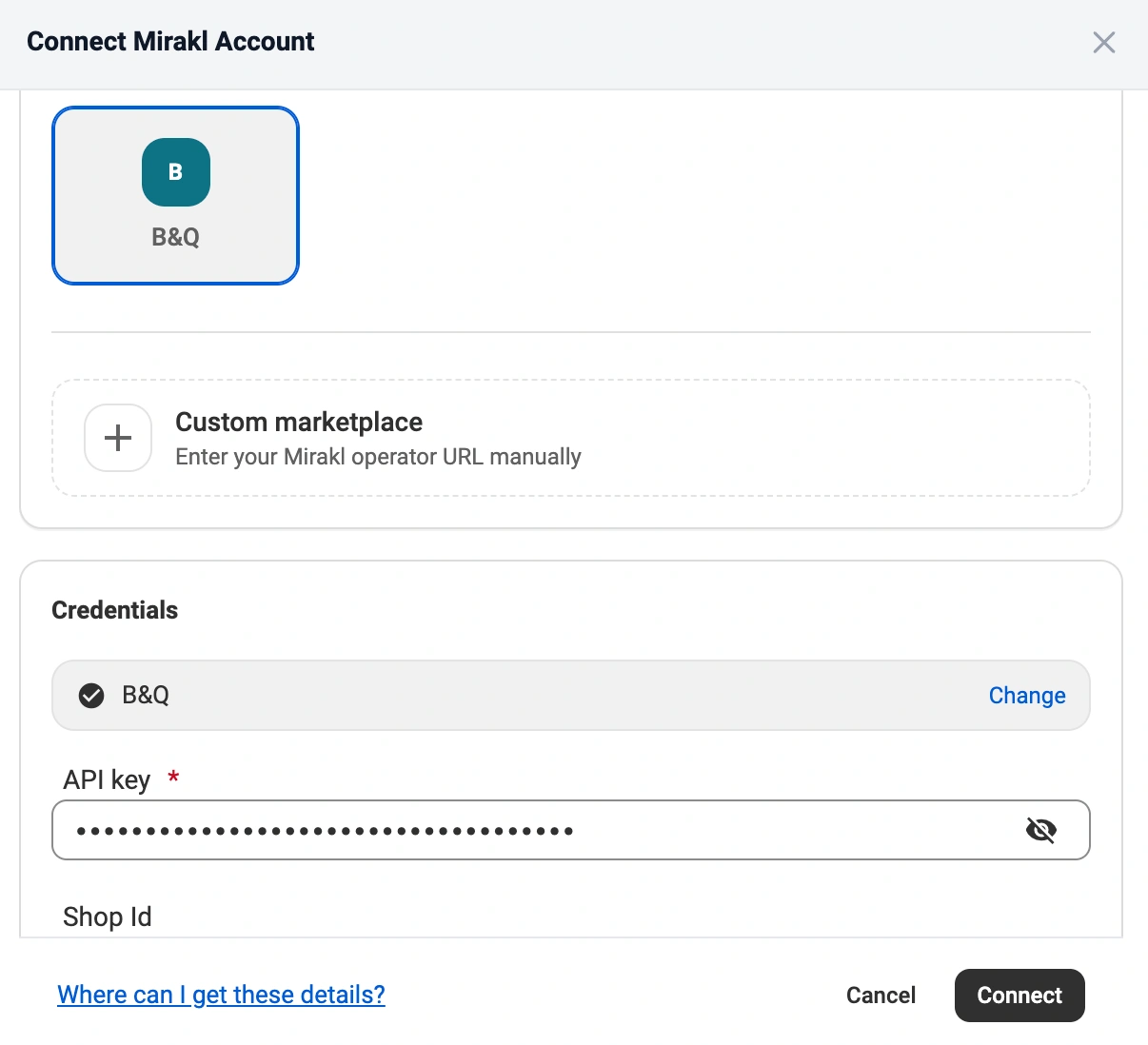
- In M2E Cloud, go to Connect Mirakl Account.
- In the Select marketplace section, choose B&Q (use the Search marketplaces field to find it quickly).
- Log in to your Mirakl Seller Admin and generate or copy your API key.
- Back in M2E Cloud, paste the key into the API key field.
- Enter your Shop ID if you have multiple shops within the same Mirakl marketplace.
- Click Connect.
Once everything is ready, M2E Cloud validates the credentials and establishes the connection. After that, product data, offers, orders, and shipments can be synchronized automatically.
✅ You can find more detailed, step-by-step instructions in the M2E Cloud guide on connecting Mirakl marketplaces.
Common connection issues
If the connection fails, check the following:
- Invalid or regenerated API key
- Missing API permissions in Mirakl
- Attempting to connect before the B&Q account is fully approved
ℹ️ If you regenerate your API key in Mirakl later, you must update it in M2E Cloud. Otherwise, sync will stop.
Once connected: What happens next? #
After the marketplace connection is established, you configure how products and orders behave in M2E Cloud.
1. List new products on B&Q #
Choose the products you want to publish on B&Q and send them to the marketplace as new listings.
After the export, these products will appear on B&Q as marketplace items, and M2E Cloud will be able to manage their quantity and price based on your store data.
2. Link existing marketplace listings with store products #
If the products are already listed on B&Q and share the same SKU numbers as the store items, M2E will automatically establish the link. However, you can also manually link each existing B&Q marketplace item to its matching product in storeusing the CSV file method.
Linking is required for synchronization because it tells M2E Cloud which store product should control the quantity and price of that specific marketplace listing.
This step controls:
- which existing B&Q listings are synchronized
- which inventory and price values are updated on B&Q
3. Map categories and required attributes #
Assign each product to a B&Q category and map all required attributes. Category mapping is mandatory before any product data can be exported.
This includes:
- The B&Q category each product belongs to
- Required and category-specific attribute mapping
You can find more information on how product data is synced between your store and the marketplace by checking the Synchronization Policy guide.
4. Configure pricing and currency rules #
Pricing behavior is controlled through M2E Cloud selling policies.
At this stage, you manage pricing, quantity, and other essential settings for your listings. Selling Policies ensure your listings comply with marketplace requirements while allowing you to customize rules for specific product groups.
M2E Multichannel Connect lets you create as many Selling Policies as needed, ensuring flexibility for different product groups.
This includes:
- Base price sources
- Quantity of items to-be-sold in B&Q
- Discount and promotion rules
- Currency conversion (if your store uses another currency)
5. Configure order settings and status mapping #
Define how B&Q orders are imported, processed, and synchronized inside M2E Cloud and your store.
This step controls:
- Whether and when B&Q orders are imported
- How marketplace statuses map to store order statuses
- Shipment confirmation and tracking synchronization back to B&Q
A correctly configured order policy ensures consistent order handling across systems and prevents status conflicts.
6. Set up shipping rules and delivery settings #
Shipping behavior in M2E Cloud is controlled through shipping policies, which define how orders are fulfilled and communicated to B&Q.
In this step, you configure how your products are delivered to customers and how shipping data is synchronized.
This includes:
- Available shipping methods for B&Q orders
- Shipment confirmation and tracking data sent back to the marketplace
7. Monitor listings and resolve issues #
Once you set everything up, you can monitor the listing behavior directly inside M2E Cloud.
Using the Listings page, you can:
- Track export and validation results
- Identify policy, mapping, or pricing errors
- Fix issues without deactivating the marketplace
💡 Find out more about M2E Multichannel Connect features.
What happens in the marketplace back-end? #
B&Q marketplace features #
B&Q is a Mirakl-based marketplace with a defined set of supported features.
Supported
- Product content and offers
- Orders (auto-accepted)
- Shipments and tracking
- Optional carrier mapping
- Merchant-managed returns and cancellations
Not supported
- Product variations (size, color, etc.)
- Multiple stock locations
- HTML content formatting
- Marketplace-managed fulfillment or returns
- Automated repricing tools
- Refurbished products
ℹ️ Orders on B&Q are automatically accepted.
Product and offer requirements #
To list products successfully, all required mappings must meet B&Q and Mirakl validation rules.
Product content (mandatory)
- EAN / GTIN – unique product identifier
- Product title
- Recommended format: [brand] [color] [product type] [size] [quantity]
- 30-130 characters
- No repeated terms, special characters, banned words, or unnecessary capitalization
- Main image
- Min. 500×500 px, RGB
- JPEG (white background) or PNG (transparent)
- Square format, max 10 MB
- Merchant SKU – internal identifier
Category-specific attributes
Depending on the category, additional fields may be required, such as:
- Pack quantity
- Product dimensions (length, diameter)
- Weight
All values must match B&Q’s accepted units and minimum thresholds.
💡 Listing behavior across marketplaces can be controlled using M2E Cloud policies.
Offer and pricing rules #
Prices sent to B&Q must follow Mirakl pricing logic and be configured correctly in M2E Cloud.
Base pricing
- All prices must be provided in GBP
- Currency conversion must be configured if your store uses another currency
Discounts (Mirakl pricing)
- Discount price must always be lower than the base price
- Start and end dates must be valid
- Bulk discounts require a quantity threshold greater than 1
Pricing behavior depends on whether Pricing v1 or Pricing v2 is enabled:
- Pricing v1: Discount price + date fields
- Pricing v2: Strike price (regular) + Price (discounted)
Incorrect pricing blocks export or hides discounts on B&Q.
Shipping, tax, and Mirakl-specific attributes #
Some attributes affect how products are shipped, taxed, and displayed.
Common Mirakl attributes
- Lead time to shipment – handling time before dispatch
- Offer state – product condition
- Product tax code – tax category
- Minimum quantity alert – low-stock notification
Logistic class (required)
Defines delivery handling and available shipping methods. Mapping must use marketplace codes, not labels:
- S – Standard shipping
- B – Bulky items
- MTO – Made to order
Shipping behavior on B&Q:
- One delivery promise: delivered in 7 days
- Shipping cost is included in the product price
- No selectable shipping options at checkout
Carrier mapping is optional but recommended for valid tracking. If a carrier is missing, it must be requested directly from B&Q.
FAQ #
What image requirements does B&Q enforce? #
B&Q applies strict technical rules to all product images. If any rule is broken, the product is rejected.
Main image requirements
- Minimum size: 500 × 500 px
- Resolution: 300 dpi
- Format: JPEG or PNG
- Max file size: 10 MB
- Images must be square
- Color space: RGB
Background rules
- JPEG images must have a pure white background with a clean clipping path
- PNG images must have a transparent background
Images that don’t meet these rules will block product approval, even if all other data is correct.
Are there specific rules for product titles in the B&Q marketplace? #
Yes. Product titles are validated before products are accepted.
Key title rules
- Length: 30–130 characters
- Recommended structure: [brand] [color] [product type] [size] [quantity]
- Include brand and product type
- Do not repeat words
- Do not use special characters (?, /, |, , _)
- Do not use ALL CAPS (except terms like LED)
- Do not use trademarks unless legally allowed
- Do not use words from B&Q’s banned terms list
Invalid titles cause silent rejections in Mirakl.
Why is my product not listed? #
Most listing issues are caused by validation errors on the marketplace side. Common reasons include:
- Missing or invalid EAN / GTIN
- Required category attributes not mapped
- Prices not available in GBP
- Incorrect category assignment
- Invalid discount configuration
Use the Listings page in M2E Cloud to review export status and error messages.
Where can I see marketplace-side validation errors? #
If no issues are shown in M2E Cloud, check the Mirakl back-end:
- Log in to the Mirakl seller portal
- Go to Catalog → Product imports
- Open the latest import report
- Download the Non-integrated products CSV
This report contains detailed marketplace validation feedback.
Does B&Q support promotions? #
Promotions and discounts are supported through Mirakl pricing rules.
✅ Feel free to contact our support team if you have any questions.


